
Introduction
The LEMEGA IR6 is a versatile internet radio designed to provide a wide range of audio entertainment options. It features access to over 50,000 internet radio stations and podcasts, FM radio, Bluetooth streaming, and an AUX-in port. The unit includes a rechargeable battery for portability, dual speakers for stereo sound, and an alarm clock function. Its premium wooden cabinet and aluminum handle offer both durability and aesthetic appeal.
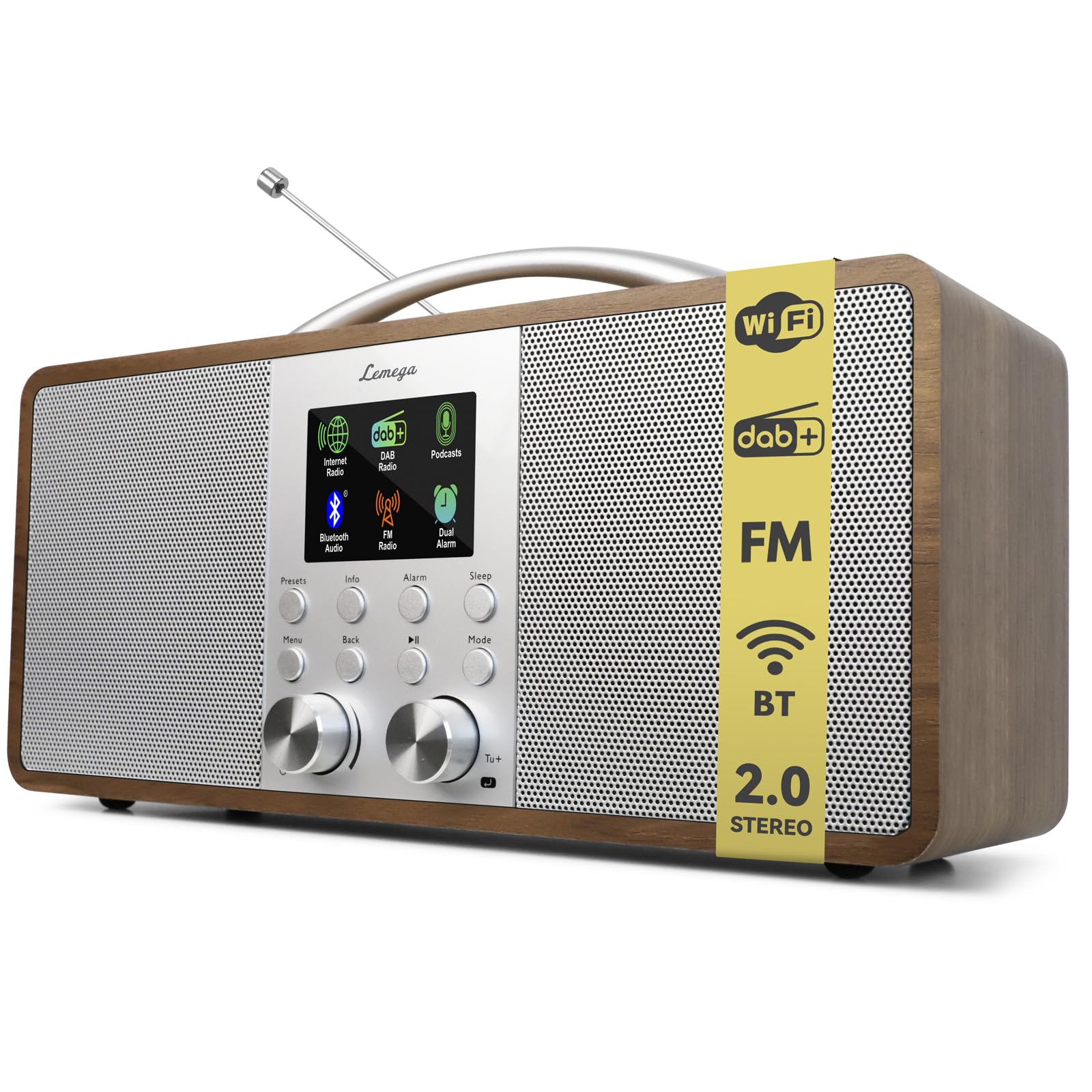
Image: Front view of the LEMEGA IR6 Internet Radio in Walnut, showcasing its display, controls, and dual speakers.
Package Contents
- LEMEGA IR6 Internet Radio
- Owner's Manual
- Power Adapter
Setup
1. Power Connection
Connect the provided power adapter to the DC IN port on the back of the radio and plug it into a wall outlet. The internal rechargeable battery will begin charging automatically. The radio can operate on battery power or directly from the mains.
2. Antenna Adjustment
For optimal FM reception, extend and adjust the telescopic antenna located on the back of the unit. For internet radio, the antenna is not used.

Image: Rear view of the LEMEGA IR6, highlighting the AUX-in, headphone jack, USB-C charging port, and telescopic antenna.
3. Initial Power On and Wi-Fi Setup
- Press the Power button to turn on the radio.
- The display will guide you through the initial setup process.
- Select your preferred language.
- When prompted, select your Wi-Fi network from the list and enter the password using the control knob and buttons. A stable Wi-Fi connection is essential for Internet Radio and Podcast functions.
Operating Instructions
Basic Controls
The LEMEGA IR6 features intuitive controls for easy navigation. The main control knob is used for scrolling through menus and adjusting volume. Other buttons provide quick access to functions like Mode, Presets, Info, Back, Alarm, Snooze, and Sleep.

Image: Detailed view of the LEMEGA IR6 control panel, showing the display, rotary knobs, and function buttons.
Mode Selection
Press the Mode button to cycle through available audio sources: Internet Radio, Podcasts, FM Radio, Bluetooth Audio, and AUX-in.
Internet Radio & Podcasts
- Select Internet Radio or Podcasts mode.
- Use the control knob to browse stations or podcasts by country, genre, or popularity.
- Press the knob to select a station or podcast.
- To save a favorite, press the Presets button and follow the on-screen instructions. The radio supports up to 150 presets.
Video: Official demonstration of the LEMEGA IR6 Internet Radio features and navigation.
FM Radio
- Select FM Radio mode.
- Use the tuning knob to manually scan for stations or press and hold to auto-scan.
- Adjust the antenna for best reception.
Bluetooth Streaming
- Select Bluetooth Audio mode. The radio will enter pairing mode.
- On your smartphone or tablet, enable Bluetooth and select "LEMEGA IR6" from the list of available devices.
- Once paired, you can stream audio wirelessly from your device to the radio.

Image: The LEMEGA IR6 radio on a table with a smartphone, illustrating Bluetooth connectivity.
AUX-In
Connect an external audio device (e.g., MP3 player, laptop) to the AUX-in port on the back of the radio using a 3.5mm audio cable. Select AUX-in mode to play audio from the connected device.
Alarm Clock, Snooze, and Sleep Timer
- Alarm: Press the Alarm button to set up to two independent alarms. You can choose to wake to Internet Radio, FM, or a buzzer.
- Snooze: When an alarm sounds, press the Snooze button to temporarily silence it.
- Sleep Timer: Press the Sleep button to set a timer for the radio to automatically turn off after a specified duration.
Battery Operation and Portability
The LEMEGA IR6 features an inbuilt lithium battery providing over 10 hours of playtime on a full charge. This allows for flexible listening around your home or outdoors without needing a constant power connection. The aluminum carry handle enhances portability.
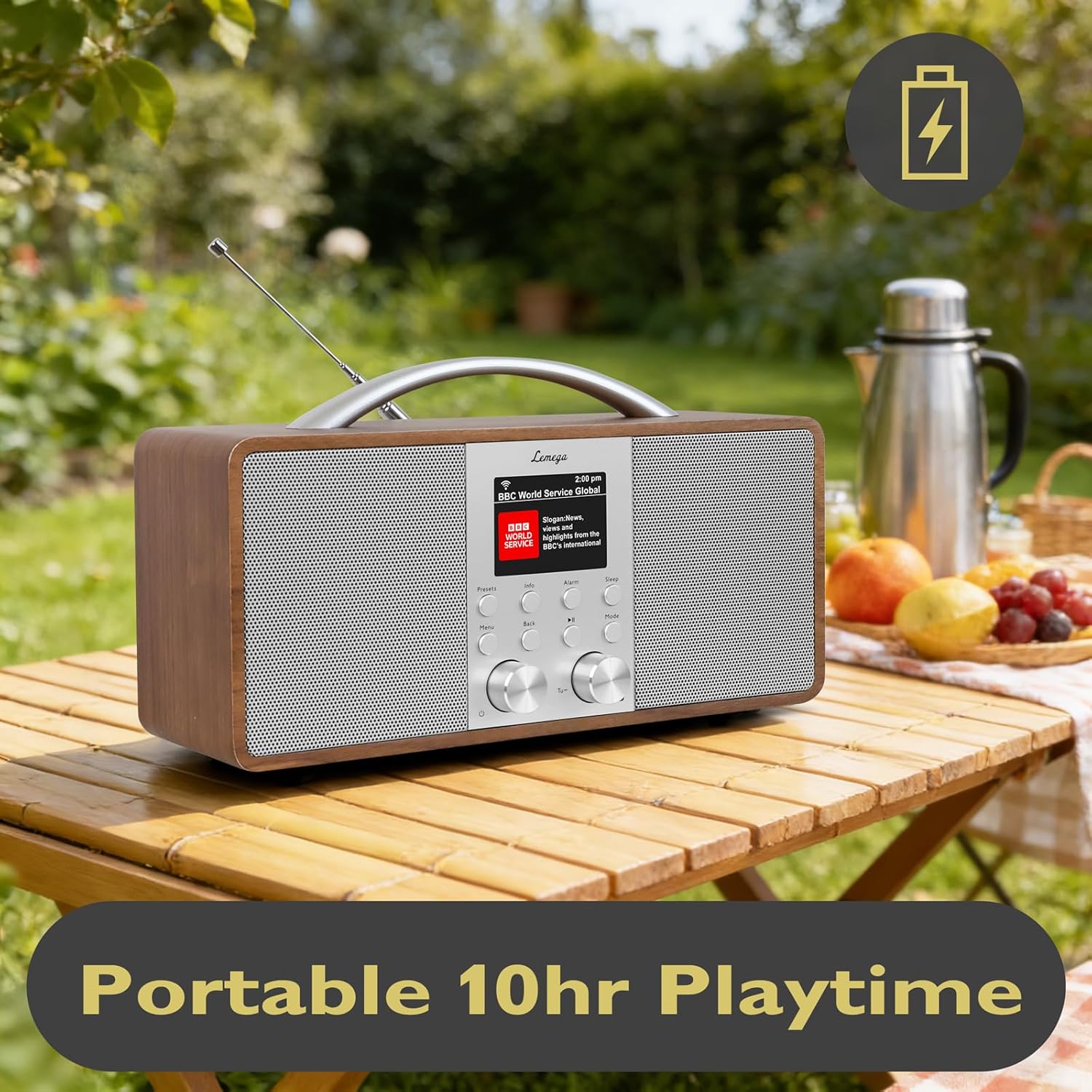
Image: The LEMEGA IR6 radio placed on an outdoor picnic table, demonstrating its portability and battery life.
Maintenance
Cleaning
Wipe the radio with a soft, dry cloth. Do not use abrasive cleaners or solvents, as they may damage the finish. Ensure no liquids enter the unit.
Battery Care
To prolong battery life, avoid fully discharging the battery frequently. Charge the unit regularly, especially if it will be stored for an extended period.
Troubleshooting
- No Power: Ensure the power adapter is securely connected and the wall outlet is functional. If operating on battery, ensure the battery is charged.
- No Wi-Fi Connection: Verify your Wi-Fi password. Ensure the radio is within range of your router. Restart your router and the radio.
- Poor FM Reception: Fully extend and adjust the telescopic antenna. Try repositioning the radio.
- Bluetooth Pairing Issues: Ensure the radio is in Bluetooth mode and no other device is currently connected. Turn off and on Bluetooth on your streaming device.
- Sound Distortion: Reduce the volume. Ensure the audio source is not distorted.
- Difficulty with Tuning/Navigation: The tuning knob requires precise movements. For best results, use deliberate turns and presses.
Specifications
| Feature | Detail |
|---|---|
| Brand | LEMEGA |
| Model Number | IR6 |
| Color | Walnut |
| Connectivity Technology | Auxiliary, Bluetooth, Wi-Fi |
| Product Dimensions (L x W x H) | 10.2" x 4" x 5.5" |
| Tuner Technology | Internet Radio, FM |
| Power Source | Battery Powered and Mains |
| Radio Bands Supported | 3-Band (Internet, FM) |
| Special Feature | Rechargeable Battery |
| Audio Output Mode | Stereo |
| Display Type | Color Display |
| Number of Presets | 150 |
Warranty
The LEMEGA IR6 Internet Radio comes with a Limited Warranty. Please refer to the warranty card included in your package or visit the official LEMEGA website for detailed terms and conditions.
Support
For further assistance, technical support, or inquiries regarding your LEMEGA IR6 Internet Radio, please visit the LEMEGA official website or contact their customer service department. Contact information can typically be found in the included Owner's Manual or on the product's official support page.

