
1. Introduction
This manual provides detailed instructions for the installation, operation, and maintenance of your Letmackry Android 13 Stereo Navigation System, designed specifically for Ford Explorer models from 2011 to 2019. This advanced system integrates a 12.1-inch IPS touchscreen with Android 13, offering features such as Wireless Carplay, Android Auto, GPS navigation, Bluetooth 5.0, and 4K video playback. Please read this manual thoroughly before installation and use to ensure proper functionality and safety.
2. Safety Information
- Always prioritize safe driving. Do not operate the system in a way that distracts you from the road.
- Ensure all wiring is correctly connected and secured to prevent short circuits or electrical hazards.
- Avoid exposing the unit to extreme temperatures, direct sunlight for prolonged periods, or excessive moisture.
- Do not attempt to disassemble or modify the unit. This may void the warranty and cause damage.
- For complex installations, it is recommended to seek professional assistance.
3. Package Contents
Verify that all items listed below are included in your package:
- Letmackry Android 13 Stereo Navigation Unit
- Power Cable
- Installation Harness Wire
- GPS Antenna
- USB Cable
- AUX Cable
- External Microphone
- RCA Cable
4. Setup and Installation
The Letmackry Android 13 Stereo Navigation System is designed for a plug-and-play installation, retaining original vehicle functions. However, careful attention to wiring is crucial. It is highly recommended to consult a professional for installation if you are unfamiliar with car audio systems.
4.1 Key Installation Steps
- Disconnect Battery: Before starting, disconnect the vehicle's battery to prevent electrical shorts.
- Remove Original Radio: Carefully remove the existing factory radio and trim panels.
- Connect Main Power & CAN: Connect the provided main power and CAN bus harness to the vehicle's wiring.
- Connect USB & AUX: Attach the USB and AUX cables. Ensure connections to original USB and SYNC 2/3 cables if applicable.
- Connect GPS & Microphone: Install the GPS antenna in a location with clear sky view and connect the external microphone for optimal call quality.
- Connect Cameras & Safety: If installing a rear camera or connecting to the factory backup camera, ensure the video input and trigger wires are correctly connected.
- Test Functionality: Before fully reassembling, reconnect the battery and test all functions of the new unit.
- Secure Unit: Mount the new head unit securely and reassemble all trim panels.

Figure 4.1: Detailed wiring and connection guide for the Ford Explorer stereo navigation system. This diagram illustrates the connections for main power, CAN, USB, AUX, GPS, microphone, and camera inputs, highlighting key installation steps and features like SYNC compatibility and steering wheel control retention.

Figure 4.2: Image illustrating the 'Plug and Play' nature of the installation, showing a simplified connection process.
5. Operating Instructions
5.1 General Operation
The system features a responsive 12.1-inch IPS touchscreen. Navigate through applications and settings by tapping, swiping, and pinching gestures similar to a smartphone or tablet. The main interface provides quick access to essential functions like Navigation, Radio, Bluetooth, Music, and Apps.

Figure 5.1: View of the Letmackry Android 13 Stereo Navigation System installed in a Ford Explorer dashboard, showcasing the large touchscreen display and its user interface with various app icons.
5.2 Wireless Carplay & Android Auto
Connect your smartphone wirelessly to access Carplay (for iOS devices) or Android Auto (for Android devices). This allows for seamless integration of phone functions, including navigation, music, calls, and messages, directly on the stereo display.
- To Connect: Ensure Bluetooth and Wi-Fi are enabled on your phone. On the stereo, select the Carplay or Android Auto app and follow the on-screen prompts to pair your device.
- Features: Enjoy hands-free calls, send messages via voice commands, access your favorite music apps, and use familiar navigation apps like Google Maps or Apple Maps.

Figure 5.2: The stereo display showing the Wireless Carplay interface, with a smartphone nearby illustrating the wireless connection. This highlights the seamless integration of phone features.
5.3 GPS Navigation
The system includes built-in Google Online Navigation and supports various online and offline navigation applications (e.g., iGo, Waze). The GPS dual-zone function allows you to listen to music or radio while navigating.
- Online Navigation: Requires an internet connection (via Wi-Fi or hotspot) for real-time traffic updates and map data.
- Offline Navigation: Download maps for your region to use navigation without an internet connection.

Figure 5.3: The stereo display showing a GPS navigation map with a route planned, indicating travel time and distance. A Ford Explorer is shown below, emphasizing the in-car navigation experience.
5.4 Bluetooth Connectivity
With Bluetooth 5.0, you can connect your phone for hands-free calling and audio streaming.
- Pairing: Go to the Bluetooth settings on the stereo and your phone. Search for available devices and select the stereo's name to pair.
- Hands-Free Calling: Make and receive calls directly from the stereo interface.
- Audio Streaming: Play music from your phone through the car's speakers.
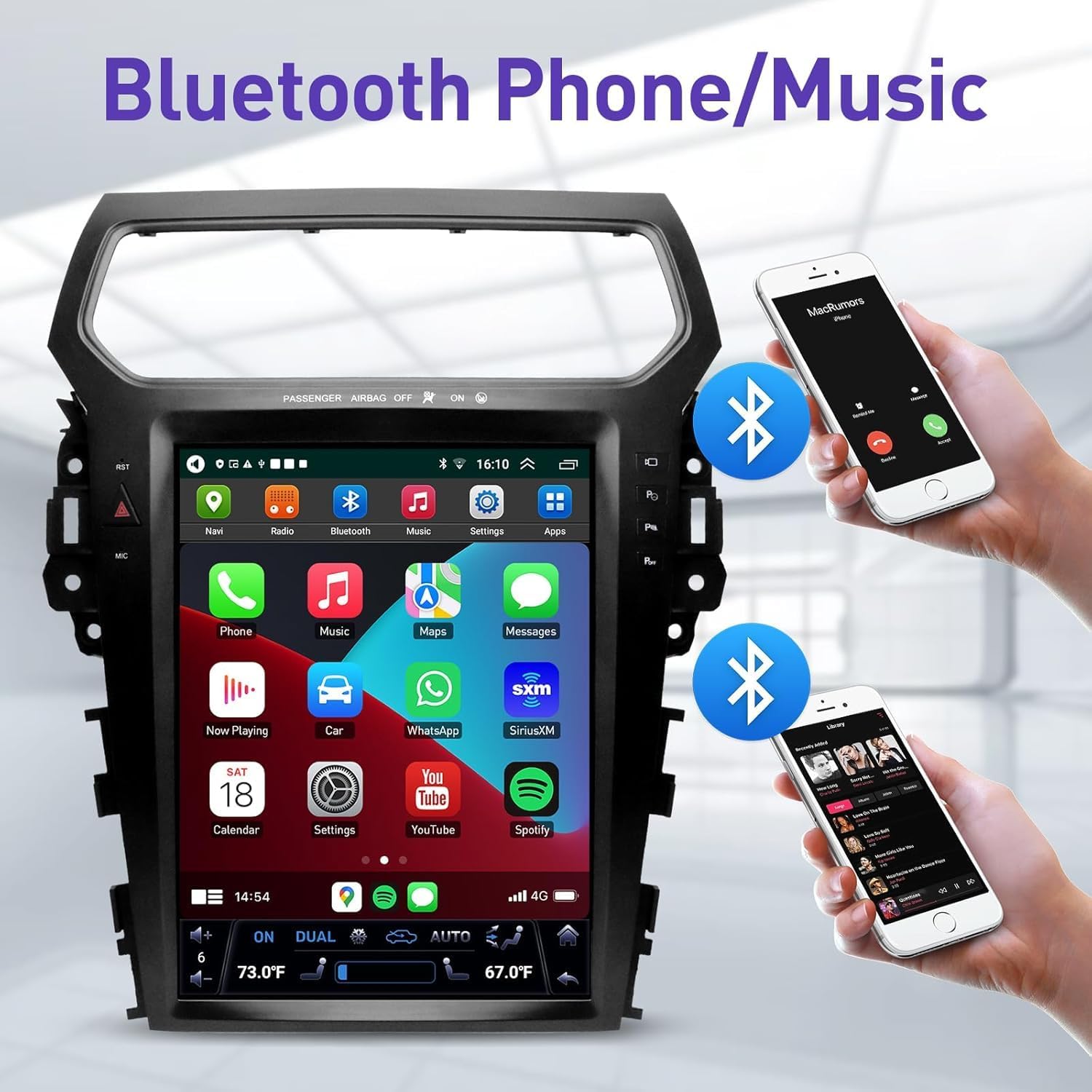
Figure 5.4: The stereo display showing the Bluetooth interface, with two smartphones wirelessly connected, illustrating hands-free calling and music streaming capabilities.
5.5 Multimedia Playback
The system supports 4K video playback and various audio formats. You can play media from USB drives or streaming apps.
- Video: Access video files from connected USB devices or streaming services.
- Audio: Play music from USB, Bluetooth, or pre-installed music apps. The built-in DSP with 32 EQ adjustments allows for personalized audio settings.

Figure 5.5: The stereo display showing a high-resolution video playing, with smaller thumbnails of other videos below, demonstrating the 4K video playback capability.
5.6 Steering Wheel Control (SWC)
The system retains all original steering wheel control functions, allowing you to safely manage audio, calls, and other features without taking your hands off the wheel.
- Functions: Easily switch songs, change radio channels, adjust volume, and answer/end calls.
- Configuration: In some cases, SWC buttons may need to be configured in the system settings after installation. Refer to the system's settings menu for customization options.
5.7 Rear Camera Support
The unit supports the factory OEM backup camera, providing a clear view of the area behind your vehicle when reversing. This enhances safety and simplifies parking maneuvers.
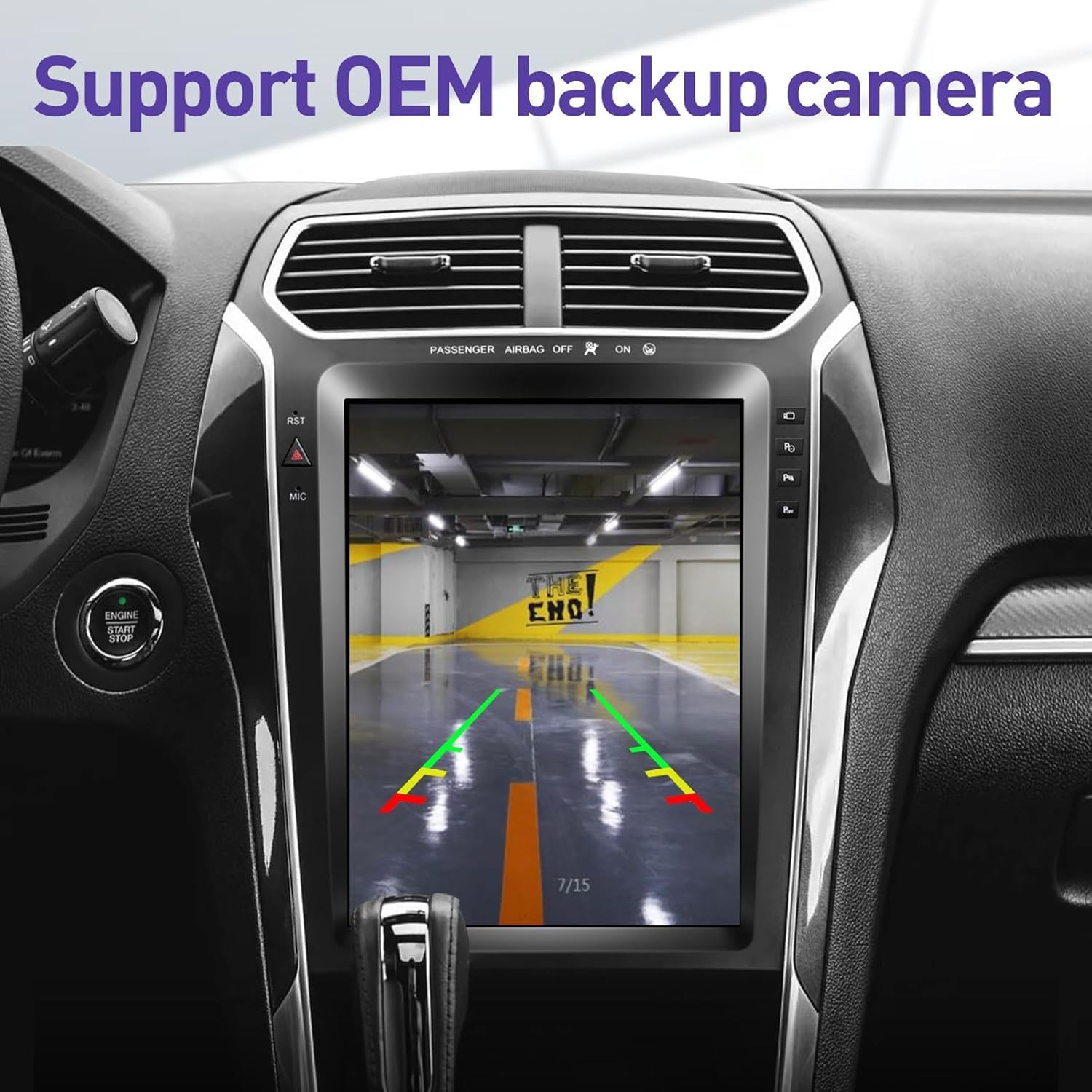
Figure 5.6: The stereo display showing a clear view from a backup camera, complete with parking guidelines, demonstrating support for OEM backup cameras.
6. Maintenance
- Cleaning: Use a soft, dry cloth to clean the screen and unit. Avoid abrasive cleaners or solvents.
- Software Updates: Periodically check for system software updates to ensure optimal performance and access to new features. Updates can usually be found in the system settings or on the manufacturer's website.
- Data Backup: Regularly back up important data or settings if applicable.
7. Troubleshooting
If you encounter issues with your system, refer to the following common troubleshooting steps:
| Problem | Possible Cause | Solution |
|---|---|---|
| Unit does not power on | Loose power connection, blown fuse | Check all power cable connections. Inspect vehicle's fuse box and replace any blown fuses. |
| No sound | Volume too low, incorrect audio source, loose speaker wires | Increase volume. Verify correct audio source is selected. Check speaker wire connections. |
| GPS signal lost or inaccurate | GPS antenna obstructed or improperly installed | Ensure GPS antenna has a clear view of the sky. Check antenna connection. |
| Wireless Carplay/Android Auto not connecting | Bluetooth/Wi-Fi off, phone not paired, software glitch | Ensure phone's Bluetooth and Wi-Fi are on. Re-pair the device. Restart both phone and stereo. |
| Steering Wheel Controls not working | Incorrect wiring, not configured | Verify SWC wiring. Check system settings for SWC configuration and calibration. |
If the problem persists after attempting these solutions, please contact customer support.
8. Specifications
| Feature | Description |
|---|---|
| Applicable Models | Ford Explorer 2011-2019 |
| Operating System | Android 13 |
| CPU | Quad Core |
| RAM | 2GB |
| ROM (Internal Storage) | 32GB |
| Screen Size | 12.1 Inches |
| Display Type | IPS Touch Screen |
| Resolution | 1024 x 768 (Supports 4K video) |
| Connectivity | Wireless Carplay, Android Auto, Bluetooth 5.0, 5G WiFi |
| Navigation | Built-in Google Online Navigation, supports offline maps (e.g., iGo, Waze), GPS dual zone |
| Audio Features | Built-in DSP, 32 EQ Adjust |
| Additional Features | Supports Steering Wheel Control, Supports Factory Rear Camera |
| Included Components | Power cable, installation harness wire |
| Item Weight | 5.6 Pounds |
9. Warranty and Support
9.1 Warranty Information
Your Letmackry Android 13 Stereo Navigation System comes with a:
- 30-Day Return Policy: For any reason, you may return the product within 30 days of purchase.
- 1-Year Warranty: Covers manufacturing defects and product quality issues for one year from the date of purchase. Exchanges are available for product quality issues within this period.
9.2 Customer Support
Letmackry provides comprehensive pre-sales and after-sales service. If you have any questions regarding installation, operation, or troubleshooting, please do not hesitate to contact our professional after-sales team.
How to Contact Support:
- Log in to your Amazon account.
- Navigate to "My Orders".
- Find the order ID for your Letmackry stereo.
- Click on "Request Help" or contact us through the provided seller contact options (email, WhatsApp, etc.).
We are committed to providing clear instructions and installation video assistance to help you with your product.