
Introduction
This manual provides detailed instructions for the installation, operation, and maintenance of your Promoterk Wireless CarPlay & Android Auto 11.26-inch Touchscreen. This device integrates a portable car display with a 4K front dash camera and a 1080p rear backup camera, offering enhanced connectivity and safety features for your vehicle.

Image: Promoterk 11.26-inch Wireless CarPlay and Android Auto Touchscreen with 4K Dash Cam and 1080p Backup Camera, showing the main unit and its display.
Key Features:
- Wireless CarPlay & Android Auto: Seamless smartphone integration for navigation, music, and calls.
- 11.26-inch HD Touchscreen: Large, responsive IPS display for clear visuals and easy interaction.
- 4K Front Dash Camera: High-resolution recording of the road ahead.
- 1080p Rear Backup Camera: Waterproof camera with wide-angle view and dynamic guidelines for safe reversing.
- Split-Screen Functionality: View multiple applications simultaneously.
- Voice Control: Hands-free operation for various functions.
- Loop Recording & G-Sensor: Automatic recording and collision detection for incident protection.
- 64GB Memory Card Included: Ready for immediate use.
- Multiple Audio Output Modes: Bluetooth, FM Transmitter, Built-in Speaker, AUX.
Package Contents
Verify that all items are present in the package before proceeding with installation.
- Promoterk 11.26-inch Touchscreen Display
- 4K Front Dash Camera (integrated)
- 1080p Rear Backup Camera
- 64GB Memory Card
- Power Cable (for cigarette lighter)
- 3M Adhesive Mounting Bracket
- AUX Cable
- User Manual (this document)

Image: All components included in the Promoterk package, showing the main display, rear camera, power cable, AUX cable, and mounting accessories.
Setup and Installation
1. Mounting the Display
- Choose a suitable flat surface on your dashboard that does not obstruct your view or interfere with airbags.
- Clean the chosen surface thoroughly to ensure proper adhesion.
- Attach the 3M adhesive mounting bracket to the display unit.
- Securely press the bracket onto the cleaned dashboard surface. Allow sufficient time for the adhesive to bond.

Image: The Promoterk display unit installed on a car dashboard, illustrating a typical mounting position.
2. Power Connection
- Connect the power cable to the display unit's Type-C port.
- Plug the other end of the power cable into your vehicle's cigarette lighter socket.
- The device will power on automatically when the vehicle's ignition is turned on.

Image: Detailed view of the device's connection ports, highlighting the Type-C power input.
3. Rear Camera Installation (Optional)
For optimal functionality, professional installation of the rear camera is recommended. This involves routing the camera cable to the rear of the vehicle and connecting it to the backup taillight for automatic activation when reversing.
- Connect the rear camera cable to the AV IN port on the main display unit.
- Route the cable neatly through the vehicle's interior to the rear license plate area.
- Mount the rear camera securely near the license plate, ensuring a clear view.
- Connect the red wire of the rear camera cable to the positive wire of your vehicle's reverse light. This enables automatic display of the rear view when shifting into reverse.
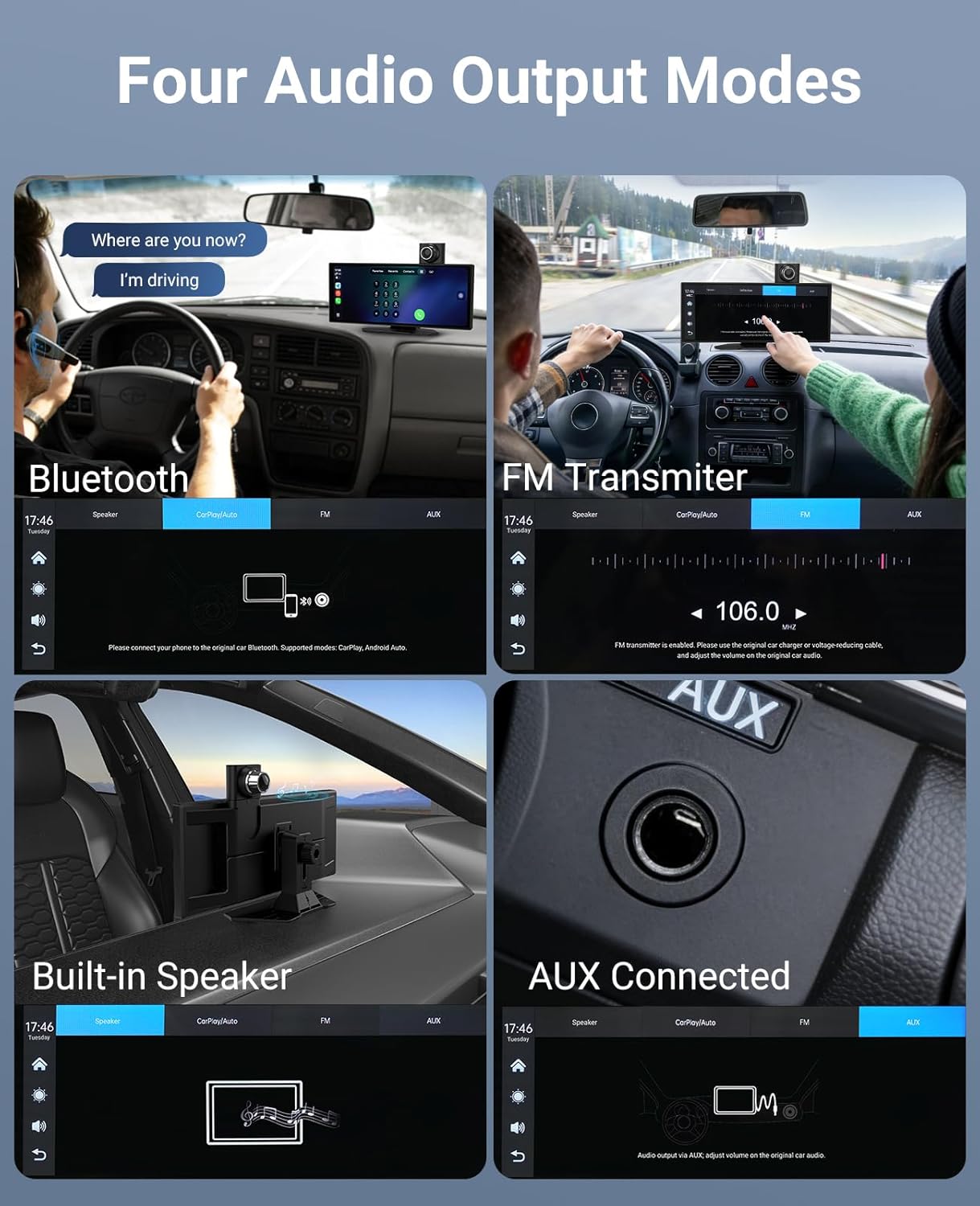
Image: The 1080p waterproof rear backup camera, illustrating its design and connection points.
4. Insert Memory Card
The device comes with a 64GB memory card. Insert it into the T-Flash Card slot on the display unit. This card is essential for recording dash camera footage.
5. Audio Output Configuration
The Promoterk display offers several audio output options:
- Built-in Speaker: For basic audio prompts and calls directly from the unit.
- Bluetooth: Connect to your car's Bluetooth system for audio playback.
- FM Transmitter: Transmit audio to your car's FM radio. Select an unused FM frequency on the display and tune your car radio to the same frequency.
- AUX Connected: Use the provided AUX cable to connect the display to your car's AUX input for high-quality audio.

Image: Visual representation of the four available audio output methods for the Promoterk display.
Operating Instructions
1. Wireless CarPlay Connection
- On the display, select the CarPlay icon.
- On your iPhone, go to Settings > Bluetooth and select the device named "Cudy-5CEN-5G" (or similar).
- Confirm the pairing request on both devices.
- Select "Connect" to initiate CarPlay.

Image: Visual steps for connecting an iPhone to the display via Wireless CarPlay.
2. Wireless Android Auto Connection
- On the display, select the Android Auto icon.
- On your Android phone, ensure both Wi-Fi and Bluetooth are turned on.
- Go to Bluetooth settings and select the device named "Cudy-5CEN-5G" (or similar).
- Confirm the connection. You can check the connection status in your phone's notification bar.

Image: Visual steps for connecting an Android phone to the display via Wireless Android Auto.
3. Dash Camera Operation
- The 4K front dash camera automatically begins recording when the device powers on.
- Recordings are saved to the inserted 64GB memory card in a continuous loop.
- The built-in G-sensor detects sudden impacts or collisions and automatically locks the current video file to prevent it from being overwritten.
- Review recorded footage directly on the display or by removing the memory card and viewing it on a computer.

Image: Illustration of the dual camera system (4K front, 1080p rear) and features like loop recording and G-sensor collision detection.
4. Backup Camera Display
When the rear camera is properly installed and wired to the reverse light, the display will automatically switch to the 1080p rear camera view when you shift your vehicle into reverse. Dynamic guidelines will assist with parking maneuvers.

Image: A simulated view from the 1080p HD night vision backup camera, showing parking guidelines on the screen.
5. GPS Navigation and Voice Control
Utilize your smartphone's navigation apps (e.g., Google Maps, Waze) through CarPlay or Android Auto. The display provides real-time map information. Voice control features (e.g., "Hey Siri," "Hi Google") allow for hands-free navigation, calls, and music control.

Image: A driver interacting with the display using voice commands for navigation and communication.
6. Split-Screen and Mirror Link
- Split-Screen: The display supports split-screen functionality, allowing you to view navigation and another application (e.g., music player) simultaneously.
- AirPlay (iOS): Connect your iPhone via Wi-Fi to mirror its screen onto the display.
- Mirror Link (Android/iOS): Download the "Evelink" app to mirror your smartphone's screen.

Image: Instructions for using AirPlay to mirror an iOS device screen to the Promoterk display.

Image: Instructions for using Mirror Link with the Evelink app to mirror a smartphone screen to the Promoterk display.
Maintenance
- Cleaning the Screen: Use a soft, lint-free cloth to gently wipe the touchscreen. For stubborn smudges, slightly dampen the cloth with water or a screen-safe cleaner. Avoid harsh chemicals or abrasive materials.
- Camera Lenses: Keep the front and rear camera lenses clean for clear recordings. Use a soft cloth to remove dust or dirt.
- Firmware Updates: The device supports Over-The-Air (OTA) firmware updates to ensure optimal performance and access to new features. Check for updates periodically through the device settings.
- Memory Card: Periodically format the memory card (at least once a month) to maintain optimal recording performance and prevent data corruption. Back up any important footage before formatting.
Troubleshooting
Common Issues and Solutions:
| Problem | Possible Cause | Solution |
|---|---|---|
| Device does not power on. | No power from cigarette lighter socket; loose connection. | Check if the cigarette lighter socket is working. Ensure the power cable is securely plugged into both the device and the socket. |
| Wireless CarPlay/Android Auto disconnects frequently. | Interference; unstable Bluetooth/Wi-Fi connection; phone settings. | Ensure your phone's Bluetooth and Wi-Fi are stable. Try restarting both the phone and the display unit. Check for firmware updates. |
| No audio through car speakers. | Incorrect audio output mode selected; loose AUX cable; FM frequency interference. | Verify the selected audio output mode (Bluetooth, FM, AUX). If using AUX, ensure the cable is fully inserted. If using FM, try a different, clear frequency. |
| Rear camera not displaying. | Incorrect wiring; loose connection; camera malfunction. | Check the connection of the rear camera cable to the AV IN port. Ensure the reverse light trigger wire is correctly connected. Test the camera connection. |
| Dash camera not recording or footage is corrupted. | Memory card issue; card full; card not formatted. | Ensure the 64GB memory card is properly inserted. Format the memory card regularly. If issues persist, try a new high-speed memory card. |
| Screen is unresponsive or frozen. | Software glitch; temporary error. | Perform a soft reset by disconnecting and reconnecting the power. If available, look for a reset button on the device. |
Specifications
| Feature | Detail |
|---|---|
| Brand | Promoterk |
| Model Name | C8 |
| Screen Size | 11.26 inches (IPS Touch Display) |
| Connectivity Technology | Bluetooth, Wireless |
| Front Camera Resolution | 4K |
| Rear Camera Resolution | 1080p |
| Front Camera Field of View | 360 degrees |
| Rear Camera Field of View | 170 degrees |
| Control Method | Touch, Voice |
| Included Memory Card | 64 GB |
| Compatible Vehicle Types | Car, Truck, Van, SUV (12-24V compatible) |
| Item Dimensions (D x W x H) | 1"D x 10.43"W x 4.09"H |
| UPC | 725380346400 |
| ASIN | B0GJYS79ZN |

Image: Physical dimensions of the Promoterk display unit.
Image: Illustration of the wide compatibility of the Promoterk display with different vehicle types (12-24V).
Warranty Information
This Promoterk product is covered by a 2-Year Manufacturer's Warranty from the date of purchase. This warranty covers defects in materials and workmanship under normal use. It does not cover damage caused by misuse, accident, unauthorized modification, or improper installation.
Please retain your proof of purchase for warranty claims.
Customer Support
For technical assistance, troubleshooting, or warranty inquiries, please contact Promoterk customer support through the following channels:
- Online Support: Visit the official Promoterk website or the Promoterk Store on Amazon.
- Email: Refer to the contact information provided in your product packaging or on the official website.
When contacting support, please have your product model (C8) and purchase details ready.