
Yunseity Yunseitya4c56fmjlt
Yunseity 1080P WiFi Security Camera User Manual
Model: Yunseitya4c56fmjlt
Introduction
Thank you for choosing the Yunseity 1080P WiFi Security Camera. This manual provides detailed instructions for setting up, operating, and maintaining your security camera. Please read this manual thoroughly before use to ensure proper functionality and safety.
This camera features 1080P resolution, 360-degree rotation, AI motion detection, infrared night vision, and remote monitoring capabilities for both indoor and outdoor use.
Package Contents
Verify that all items are present in the package:
- 1 x Yunseity 1080P Rotatable Camera
- 1 x Card Reader
- 1 x Instruction Manual (this document)
- 1 x Charging Cable
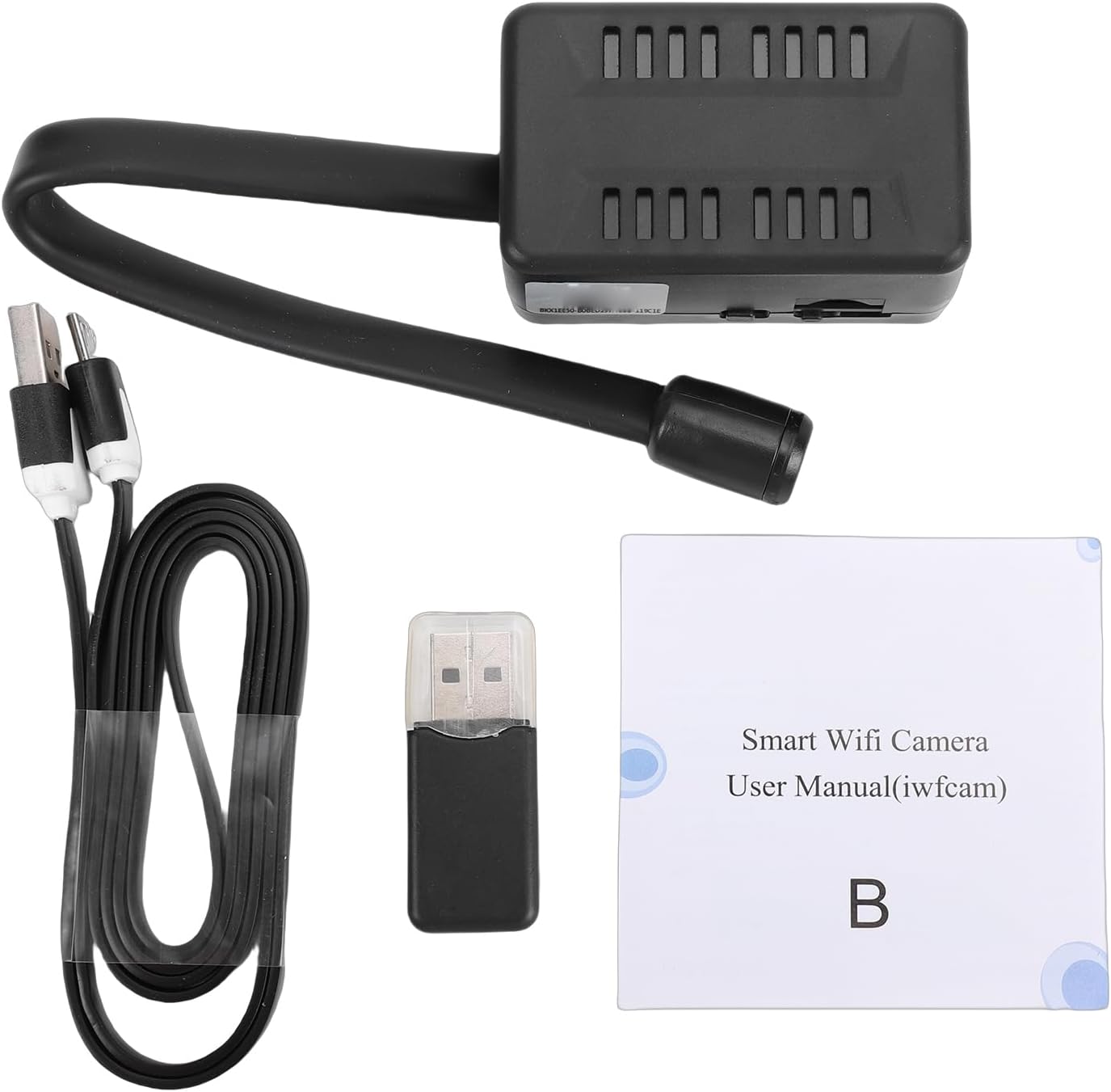
Image: Contents of the Yunseity 1080P WiFi Security Camera package.
Setup
1. Charging the Camera
Before initial use, fully charge the camera using the provided charging cable. The camera has a built-in 2000mAh Lithium-ion battery, offering up to 8 hours of backup during power outages.
2. Inserting a Memory Card (Optional)
For continuous loop recording, insert a small memory card (up to 32GB, not included) into the designated slot on the camera. The camera supports recording in 10-minute segments.
3. App Installation and WiFi Connection
Download and install the iWFCam application on your smartphone. The camera utilizes an AP hotspot module for initial connection. To enable remote control and monitoring, connect the camera to your home WiFi network through the iWFCam app.

Image: Remote monitoring via the iWFCam app, showing multiple locations.
Ensure your router is turned on during installation. Once connected to your home WiFi, real-time monitoring can be achieved from different places and unlimited distances.

Image: Real-time monitoring of an indoor space through the camera app.
4. Camera Placement
The camera features a 360-degree adjustable joint for flexible positioning. Choose a location that provides optimal viewing coverage for your desired monitoring area. The camera is suitable for both indoor and outdoor use.
The camera can be wall-mounted. Ensure the mounting surface is stable and secure.
Operating Instructions
1. Live View and Recording
Open the iWFCam app on your smartphone to access the live video feed from your camera. You can initiate manual recordings or rely on the continuous loop recording feature if a memory card is installed.
2. AI Human Detection and Alerts
The camera's AI recognition system detects human movement. When motion is detected, the camera automatically records video clips (20 seconds to 2 minutes in length) and sends real-time alerts to your phone.

Image: AI Human Detection triggering an alert on a smartphone.
You can customize specific arming areas within the app to focus on critical zones, ensuring alerts are only triggered for areas you care about most.

Image: Customizing the arming area within the camera app.

Image: AI Humanoid Recognition Alarm Push notification on a smartphone.
3. Infrared Night Vision
The camera is equipped with infrared technology for clear black and white footage in low-light conditions. The night vision function is automatically sensed and activated by the camera.

Image: Night vision capability providing clear images in dark conditions.

Image: Demonstration of the camera's automatic night vision function in an office setting.
4. Synchronized Audio
Enable the audio recording feature within the iWFCam app to capture synchronized audio alongside video footage, even during nighttime surveillance.
Maintenance
- Cleaning: Use a soft, dry cloth to clean the camera lens and body. Avoid using harsh chemicals or abrasive materials.
- Battery Care: To prolong battery life, avoid extreme temperatures and fully charge the camera periodically if not in continuous use.
- Firmware Updates: Check the iWFCam app regularly for any available firmware updates to ensure optimal performance and security.
Troubleshooting
- Camera not connecting to WiFi:
- Ensure the camera is within range of your WiFi router.
- Verify that your WiFi password is entered correctly in the iWFCam app.
- Restart your router and the camera, then attempt to reconnect.
- Confirm that the camera is connected to a 2.4GHz WiFi network, as 5GHz networks may not be supported.
- No video recording to memory card:
- Ensure a memory card (up to 32GB) is properly inserted.
- Check if the memory card is full; format it if necessary (this will erase all data).
- Verify that recording settings are enabled in the iWFCam app.
- Poor night vision quality:
- Ensure the camera lens is clean and free from obstructions.
- Check for any reflective surfaces close to the camera that might interfere with infrared light.
Specifications
| Feature | Detail |
|---|---|
| Model Name | Yunseitya4c56fmjlt |
| Resolution | 1920x1080P (Maximum) |
| Camera Rotation Angle | 360° (Adjustable Joint) |
| Storage | Supports up to 32G small memory Card (Not Included) |
| Battery | Lithium ion 2000mAh (Built-in) |
| Battery Backup | Approx. 8 hours during power outages |
| Connectivity Technology | WiFi (AP hotspot module for initial setup, then home WiFi) |
| Software Name | iWFCam |
| AI Features | AI Human Detection, AI Humanoid Recognition Alarm Push |
| Night Mode | Infrared Night Vision (Black and White) |
| Indoor/Outdoor Usage | Yes |
| Power Source | AC/DC |
| Item Dimensions | 7.08 x 2.75 x 1.96 inches |
Warranty and Support
For warranty information and technical support, please refer to the official Yunseity website or contact their customer service directly. Keep your purchase receipt as proof of purchase.
Note: Specific warranty terms may vary by region and retailer.
Related Documents - Yunseitya4c56fmjlt
 |
WooLink E27 Bulb Camera Quick Start Guide A quick start guide for setting up and using the WooLink E27 Bulb Camera, including app download, camera connection, and basic usage instructions. |
 |
LaView R3 Indoor Security Camera User Manual Comprehensive user manual for the LaView R3 Indoor Security Camera, detailing setup, installation, troubleshooting, features like motion detection and night vision, technical specifications, and customer support information. |
 |
APWIKOGER 1080P HD Wireless Surveillance Camera Specifications Technical specifications and feature overview for the APWIKOGER 1080P HD Wireless Surveillance Camera, featuring night vision, motion detection, and compact design. |
 |
MINI WIFI HD Hidden Camera A10 User Manual User manual for the MINI WIFI HD Hidden Camera A10, detailing its features, setup, connection methods (AP and Router modes), app functions, interface controls, cloud storage, device sharing, specifications, and important notes. |
 |
MultiX DT-8000 Portable Integrated TSCM Equipment User Manual Comprehensive user manual for the MultiX DT-8000 Portable Integrated TSCM Equipment. Learn about its features, technical specifications, operation, safety, and troubleshooting for advanced surveillance countermeasures. |
 |
S1 HD 1080P Mini WiFi Camera User Manual User manual and safety instructions for the S1 HD 1080P Mini WiFi Camera, covering setup, operation, and maintenance. |
Ask a question about this manual
Ask about setup, troubleshooting, compatibility, parts, safety, or missing instructions. Manuals+ will review the question and use this page’s manual context to help answer it.