
1. Introduction
This manual provides detailed instructions for the IINE Wireless Pro Controller. This multi-platform gamepad is designed for use with Switch 1/2, PC, iOS, Android, and Steam Deck. It features one-touch wake functionality, 6-axis motion control, NFC, adjustable RGB lighting, and programmable macro and turbo functions. Please read this manual thoroughly before use to ensure proper operation and to maximize your gaming experience.
2. Package Contents
- IINE Wireless Pro Controller
- USB-C Charging Cable
- User Manual
3. Controller Layout
Familiarize yourself with the buttons and features of your IINE Wireless Pro Controller.
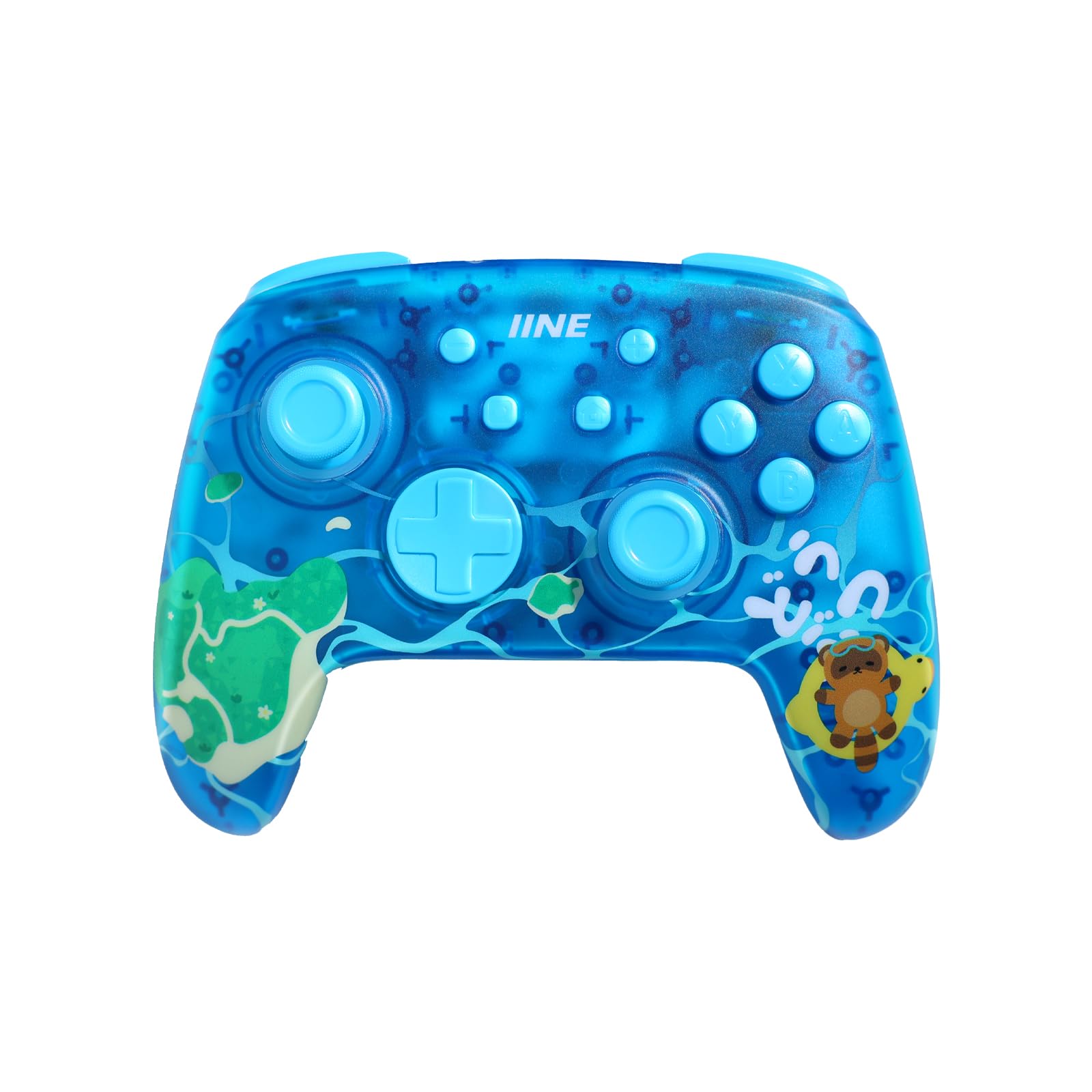
This image displays the IINE Wireless Pro Controller, highlighting its main features including one-touch wake for Switch, 6-axis motion sensing, NFC functionality, and macro recording capabilities.
4. Setup
4.1 Charging the Controller
Connect the supplied USB-C charging cable to the controller's USB-C port and the other end to a USB power source (e.g., console, PC, USB wall adapter). The LED indicators will show charging status and turn off or change color when fully charged. A full charge provides extended gameplay with the 950mAh battery.
4.2 Pairing with Devices
4.2.1 Nintendo Switch (1 & 2)
- From the HOME Menu, select Controllers > Change Grip/Order.
- Press and hold the Pairing Button on the top of the controller for a few seconds until the LED indicators begin to flash rapidly.
- Once paired, the player LED(s) on the controller will remain lit.
4.2.2 PC, iOS, Android, Steam Deck
- Ensure the controller is powered off.
- Press and hold the Pairing Button on the top of the controller for a few seconds until the LED indicators begin to flash rapidly.
- On your device, go to Bluetooth settings and search for new devices.
- Select "IINE Controller" or similar from the list of available devices to connect.
- Once paired, the controller's LED indicators will stabilize.
5. Operating Instructions
5.1 One-Touch Wake for Switch
When the Nintendo Switch console is in sleep mode, press the HOME button on the IINE Wireless Pro Controller to wake up the console directly. This feature allows for quick resumption of gameplay without needing to interact with the console itself.

This image shows the IINE Wireless Pro Controller activating a Nintendo Switch console, illustrating the convenient one-button wake-up function.
5.2 6-Axis Motion Control
The controller features a built-in 6-axis gyroscope for precise motion sensing. This allows for immersive gameplay in titles that support motion controls, providing a more interactive experience.
5.3 NFC Function
The integrated NFC function supports compatible features and accessories, such as Amiibo figures on the Nintendo Switch. To use, simply tap the NFC-enabled accessory to the designated NFC area on the controller.
5.4 Macro & Turbo Functions
The controller includes programmable macro and turbo (rapid-fire) functions to enhance gameplay efficiency. Refer to the specific instructions provided with the controller for detailed steps on how to program and activate these functions, typically involving dedicated macro buttons (e.g., XR, XL) and a programming mode.

A view of the controller's back, detailing the XR and XL macro buttons and explaining the 21-button macro recording feature.
5.5 Adjustable RGB Lighting
Customize the controller's appearance with adjustable RGB lighting. Specific button combinations or a dedicated button will allow you to cycle through various colors, effects, and brightness levels. Consult the quick start guide for exact controls.
6. Maintenance
- Cleaning: Use a soft, dry cloth to clean the controller. Avoid using harsh chemicals or abrasive materials.
- Storage: Store the controller in a cool, dry place away from direct sunlight and extreme temperatures.
- Battery Care: To prolong battery life, avoid fully discharging the controller frequently. Charge it regularly, even if not in use for extended periods.
7. Troubleshooting
- Controller not connecting: Ensure the controller is charged. Re-attempt the pairing process. Check if the device's Bluetooth is enabled.
- Buttons not responding: Verify the controller is properly connected. If issues persist, try resetting the controller (refer to specific reset instructions if available, usually a small pinhole button).
- Charging issues: Ensure the USB-C cable is securely connected to both the controller and the power source. Try a different USB-C cable or power source.
- Motion control not working: Ensure the game supports motion controls. Try recalibrating the controller's gyroscope through your device's settings if available.
8. Specifications
| Feature | Detail |
|---|---|
| Compatible Devices | Switch 1/2, PC, iOS, Android, Steam Deck |
| Controller Type | Gamepad |
| Additional Features | Wireless, One-Touch Wake, 6-Axis Motion Control, NFC, RGB Lighting, Macro, Turbo |
| Battery Capacity | 950mAh Rechargeable Battery |
| Brand | IINE |
9. Product Video
Watch the official product video for a visual overview of the IINE Wireless Pro Controller's features and design.
Official product video showcasing the IINE Wireless Pro Controller's design, features, and in-game use, including one-button wake-up, NFC, 6-axis motion control, RGB lighting, and macro functions.
10. Warranty and Support
For warranty information and customer support, please refer to the documentation included with your purchase or visit the official IINE website. Keep your proof of purchase for any warranty claims.
