
1. Introduction
This manual provides detailed instructions for the installation, configuration, and operation of your ZOSI 4K PoE Security Camera System. Please read this manual thoroughly before using the product to ensure proper functionality and safety.
Key Features:
- 4K Ultra HD Resolution: Experience superior clarity with 8MP cameras.
- Power over Ethernet (PoE): Simplified installation with a single cable for power and data.
- H.265+ Video Compression: Efficient storage and bandwidth usage.
- Smart AI Detection: Accurate human, face, and vehicle detection to reduce false alarms.
- Color Night Vision: Enhanced visibility in low-light conditions with integrated spotlight.
- 24/7 Recording: Continuous recording with a pre-installed 2TB HDD, expandable up to 8TB.
- Remote Access: Monitor your property from anywhere using the ZOSI Smart App or ZOSI Client.
- Weatherproof Cameras: IP66-rated cameras suitable for outdoor and indoor use.
2. Package Contents
Verify that all items listed below are included in your package. If any items are missing or damaged, please contact ZOSI customer support.

Image: All components of the ZOSI 4K PoE Security Camera System, including NVR, cameras, cables, power supply, mouse, mounting hardware, and quick start guide.
- 1 x 8-Channel 4K PoE NVR (with pre-installed 2TB HDD)
- 4 x 8MP Wired IP PoE Cameras
- 1 x NVR Power Supply
- 1 x USB Mouse
- 1 x HDMI Cable
- 4 x Ethernet Cables (various lengths)
- 4 x Mounting Screw Bags
- 1 x Allen Wrench
- 4 x Mounting Templates
- 1 x Warning Sticker
- 1 x Quick Start Guide
3. System Setup
3.1 NVR and Camera Connection
The ZOSI PoE system simplifies installation by using a single Ethernet cable for both power and video transmission. Follow these steps to connect your NVR and cameras:
- Connect Power Supply: Plug the NVR power supply into the NVR's DC IN port and then into a power outlet.
- Connect to Router: Connect the NVR's NETWORK port to your internet router using an Ethernet cable.
- Connect Monitor: Connect a monitor to the NVR's HDMI or VGA port.
- Connect USB Mouse: Plug the USB mouse into one of the NVR's USB ports for navigation.
- Connect Cameras: Connect each PoE camera to an available PoE port (POE 1-8) on the NVR using the provided Ethernet cables. Ensure the waterproof connector is properly sealed for outdoor installations.
- Power On: Turn on the NVR using the power switch. The system will boot up automatically.
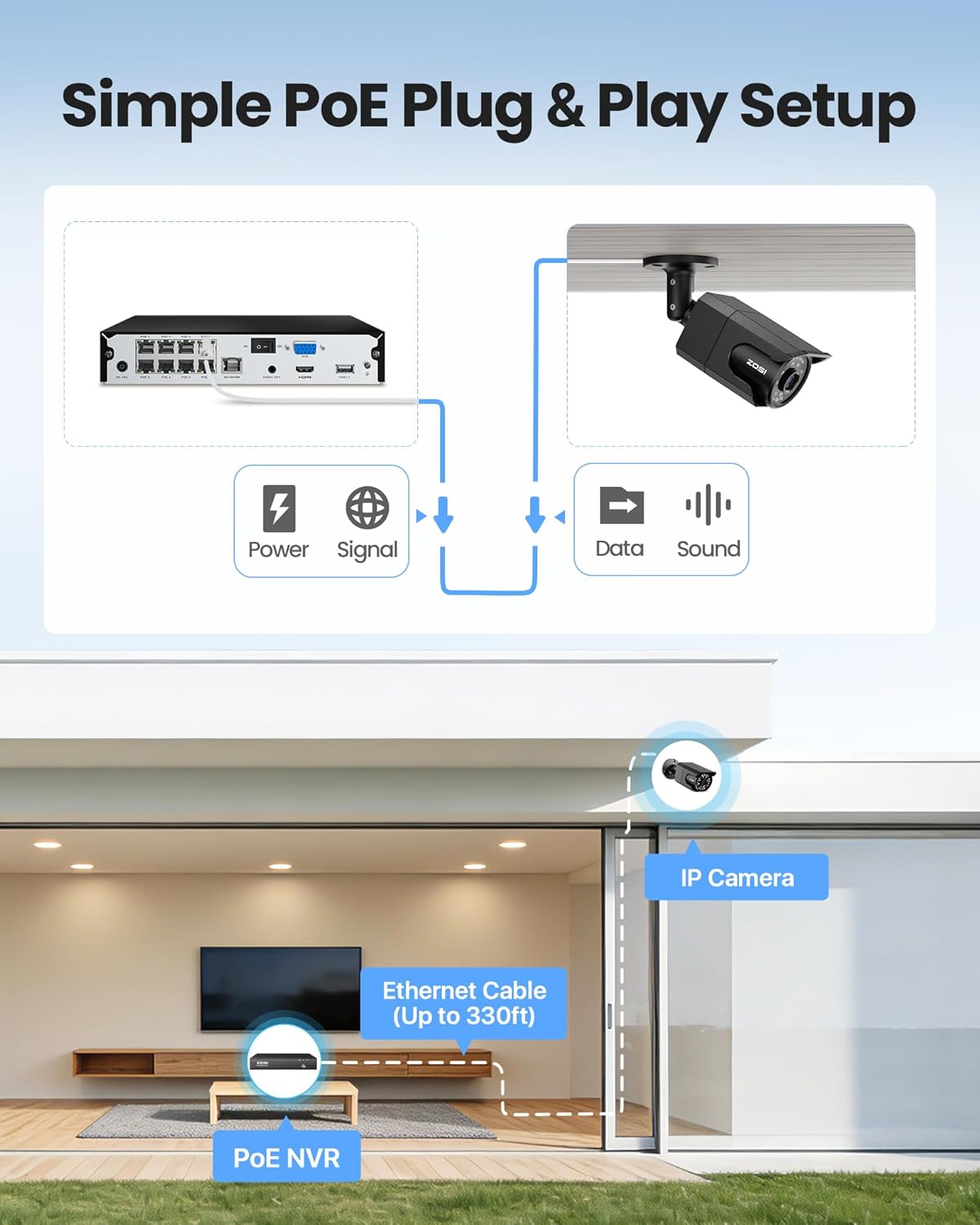
Image: Simple PoE Plug & Play Setup diagram.
3.2 Camera Installation
Choose suitable locations for your cameras, ensuring good coverage and a stable network connection. The cameras are IP66 weatherproof, making them suitable for both indoor and outdoor environments.
- Select Location: Identify a mounting location that provides the desired viewing angle and is within reach of an Ethernet cable connection to the NVR.
- Attach Mounting Sticker: Use the provided mounting template sticker to mark the drill holes on the wall or ceiling.
- Drill Holes: Drill holes as marked and insert the rubber plugs.
- Mount Camera: Fix the camera to the mounting surface using the screws. Adjust the camera angle as needed.

Image: IP66 Weatherproof camera mounted outdoors.
3.3 Mobile App Setup (ZOSI Smart App)
To view your cameras remotely, download and configure the ZOSI Smart App on your mobile device.
- Download App: Scan the QR code on the NVR or in the Quick Start Guide to download the ZOSI Smart App, or search for "ZOSI Smart" in your device's app store.
- Register and Login: Create an account and log in to the app.
- Add NVR Device: Click the "+" icon in the app to add a new device. Scan the QR code located on the NVR.
- Confirm Connection: Ensure the NVR is connected to the internet and follow the on-screen prompts to complete the device addition.
- Set Device Name: Assign a name to your NVR for easy identification.
Video: This video demonstrates the step-by-step process of setting up the ZOSI PoE security camera system, including connecting the NVR and adding the device to the ZOSI Smart App for remote viewing.
4. Operation
4.1 Live View and Recording
Once your system is set up, you can view live footage and manage recordings.
- Local Viewing: Connect the NVR to a monitor via HDMI/VGA to view live feeds directly.
- Remote Viewing: Use the ZOSI Smart App on your mobile device or the ZOSI Client software on your PC/tablet to access live views from anywhere.
- 24/7 Continuous Recording: The NVR records continuously to the pre-installed 2TB hard drive. You can customize recording schedules and modes (e.g., scheduled, motion-activated).

Image: Multiple camera views showing 24/7 recording.
4.2 Smart AI Detection
The system features advanced AI algorithms for accurate detection of humans, faces, and vehicles.
- Reduced False Alarms: AI detection minimizes alerts caused by animals, rain, or other environmental factors.
- Light Alerts: When activity is detected, the camera's built-in warning light can activate to deter intruders.
- Instant Notifications: Receive real-time app push notifications and email alerts with snapshots.

Image: Smart AI Human, Face, and Vehicle Detection.
4.3 Color Night Vision
The 8MP IP cameras provide starlight color night vision in low-light conditions and up to 100ft infrared night vision.

Image: 100ft Color Night Vision comparison.
4.4 Smart Playback and Audio Recording
- Smart Playback: Easily search and playback recordings by date, hour, or minute to quickly find important events.
- One-Way Audio: Cameras include a built-in microphone for one-way audio recording, allowing you to hear what is happening.

Image: Audio Recording in action.
5. Maintenance
Regular maintenance ensures optimal performance and longevity of your ZOSI security system.
- Clean Cameras: Periodically clean camera lenses with a soft, damp cloth to remove dust and smudges that may affect image quality.
- Check Connections: Ensure all cable connections (power, Ethernet) are secure and free from damage.
- Firmware Updates: Check the ZOSI website or app regularly for firmware updates to improve system stability and add new features. Follow the instructions provided with the update carefully.
- Hard Drive Health: The NVR's 2TB HDD is designed for continuous use. Monitor its health through the NVR's system settings. Back up important footage regularly.
- Environmental Protection: While cameras are weatherproof, avoid directing high-pressure water jets directly at them. Ensure proper drainage around outdoor installations.
6. Troubleshooting
If you encounter issues with your ZOSI security system, refer to the following common solutions:
- No Video Display:
- Check NVR power and monitor connections.
- Ensure HDMI/VGA cables are securely connected.
- Verify cameras are powered and connected to the NVR's PoE ports.
- No Remote Access:
- Confirm the NVR is connected to the internet (check network cable and router status).
- Ensure the ZOSI Smart App is updated to the latest version.
- Verify correct device ID and password in the app.
- Poor Image Quality:
- Clean the camera lens.
- Check for obstructions in the camera's field of view.
- Ensure sufficient lighting for optimal night vision performance.
- False Motion Alerts:
- Adjust AI detection sensitivity settings in the NVR or app.
- Configure detection zones to exclude areas with frequent irrelevant motion (e.g., moving trees).
- Hard Drive Full:
- The NVR supports overwrite mode, automatically deleting oldest footage.
- Consider upgrading to a larger HDD (up to 8TB) or adjusting recording settings to conserve space.
For further assistance, please contact ZOSI customer support.
7. Specifications
| Feature | Specification |
|---|---|
| Brand | ZOSI |
| Model Number | 8HQ-1058B4-20-US |
| Connectivity Technology | Wired (PoE) |
| Video Capture Resolution | 4K (8MP) |
| Number of Channels | 8 (16CH Expandable with optional PoE switch) |
| Memory Storage Capacity | 2 TB HDD (pre-installed) |
| Special Features | Human Detection, Face Detection, Vehicle Detection, Color Night Vision, One-Way Audio, Weatherproof (IP66) |
| Power Source | Corded Electric |
| Color | Black |
| Item Dimensions (NVR) | 17 x 11 x 7 inches (approximate) |
8. Warranty and Support
ZOSI is committed to providing high-quality products and excellent customer service.
8.1 Warranty Information
- 2-Year Coverage: Your ZOSI 4K PoE Security Camera System is covered by a 2-year warranty from the date of purchase.
- 30-Day Hassle-Free Return Policy: Enjoy a 30-day return policy for your peace of mind.
For detailed warranty terms and conditions, please refer to the official ZOSI website or contact customer support.
8.2 Technical Support
ZOSI offers comprehensive after-sales support to assist you with any questions or issues.
- Lifetime Technical Support: Benefit from lifetime technical support for your product.
- Contact Information: For technical assistance, visit the official ZOSI website at ZOSI Store or refer to the contact details provided in your Quick Start Guide.
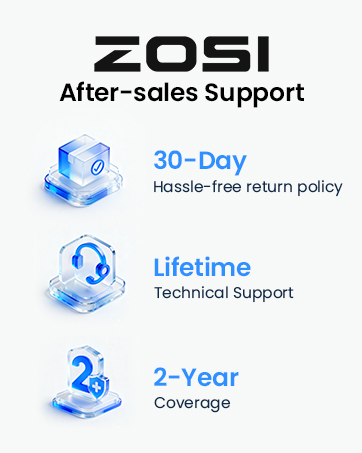
Image: ZOSI Customer Support.