
1. Product Overview
The GOWENIC 2.7K HD Camera Glasses are designed for hands-free video and photo capture, integrating a high-resolution camera into a compact, wearable form factor. This device supports 2.7K video recording and 12MP still photography, featuring a wide-angle lens, dual directional microphones for clear audio, and Wi-Fi connectivity for easy content management.

Image: The GOWENIC camera glasses module, highlighting its ultra-lightweight design and compact form factor, suitable for attachment to various glasses frames.
2. Package Contents
- Sports Camera Glasses
- 32GB Memory Card (pre-installed or separate)
- Card Reader
- Memory Card Storage Box
- Instruction Manual
- Storage Bag
- Glasses Case
- Charging Cable
3. Setup
3.1 Charging the Device
- Connect the provided charging cable to the camera glasses.
- Plug the other end of the cable into a standard USB power adapter (not included) or a computer USB port.
- The device's indicator light will show charging status. Ensure the device is fully charged before first use.
3.2 Inserting the Memory Card
The device supports a small memory card up to 128GB. A 32GB card is included.
- Locate the memory card slot on the camera glasses.
- Gently insert the memory card with the contacts facing down until it clicks into place.
- To remove, press the card gently to release it.
3.3 Attaching to Glasses
The camera module is designed to clip onto most standard glasses frames.
- Align the camera module's clip mechanism with the arm of your glasses frame.
- Gently press to secure the module onto the frame. Ensure it is stable and does not obstruct your vision.
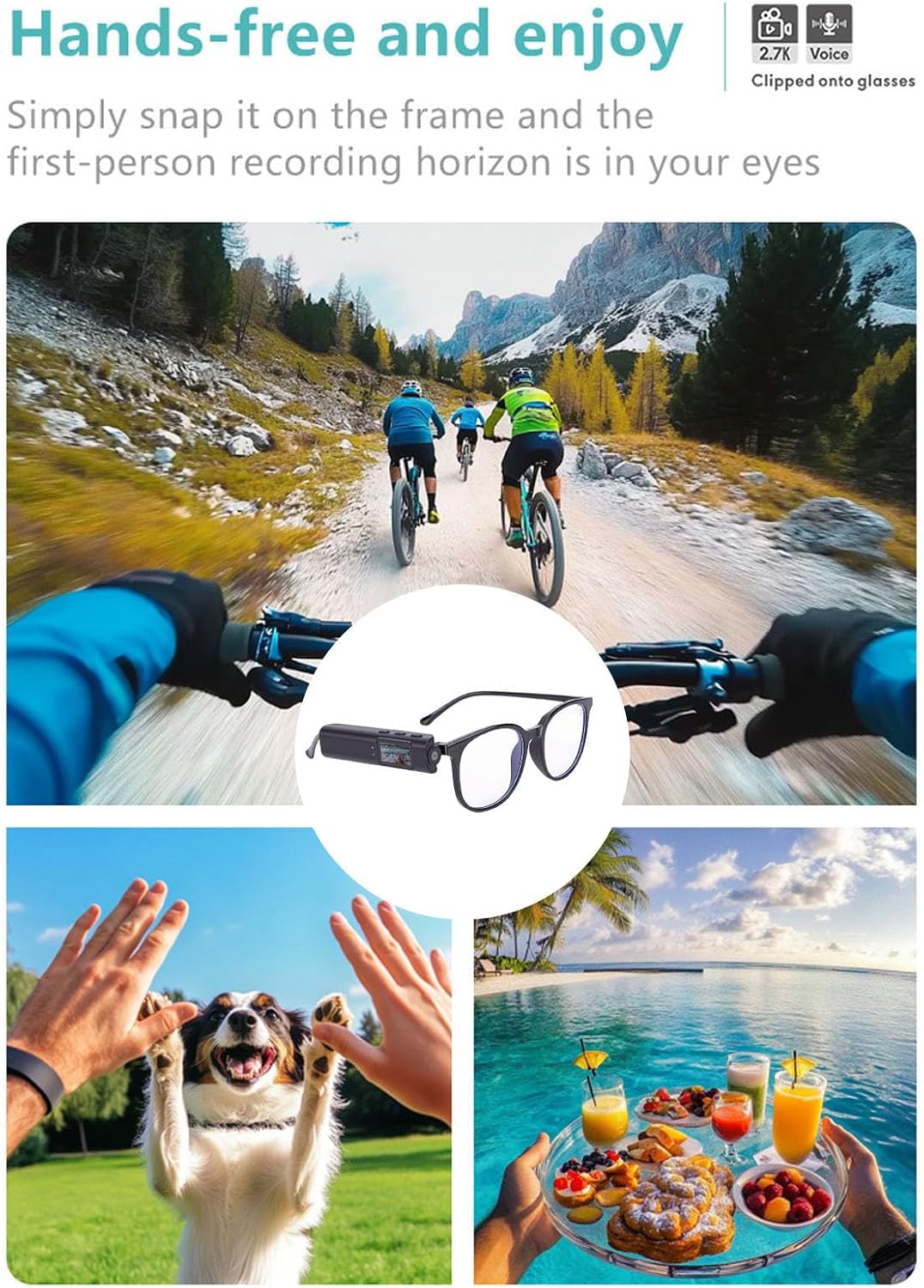
Image: The camera glasses module attached to a pair of glasses, illustrating the hands-free, first-person recording capability during activities like cycling.
4. Operating Instructions
4.1 Power On/Off
- To power on: Press and hold the power button until the indicator light illuminates.
- To power off: Press and hold the power button until the indicator light turns off.
4.2 Video Recording
The device supports 2.7K, 1080p, and 720p video resolutions.
- Ensure the device is powered on.
- Press the video recording button once to start recording. The indicator light will change to confirm recording is active.
- Press the video recording button again to stop recording. The video file will be saved to the memory card.

Image: A user wearing the camera glasses during a hike, demonstrating the 2.7K video recording capability in an outdoor setting.
4.3 Photo Capture
The device supports 12MP, 10MP, 8MP, 5MP, 3MP, 2MHD, 1.3MP, and 1MP photo resolutions.
- Ensure the device is powered on.
- Press the photo capture button once to take a picture. The indicator light will flash briefly.
- The photo file will be saved to the memory card.
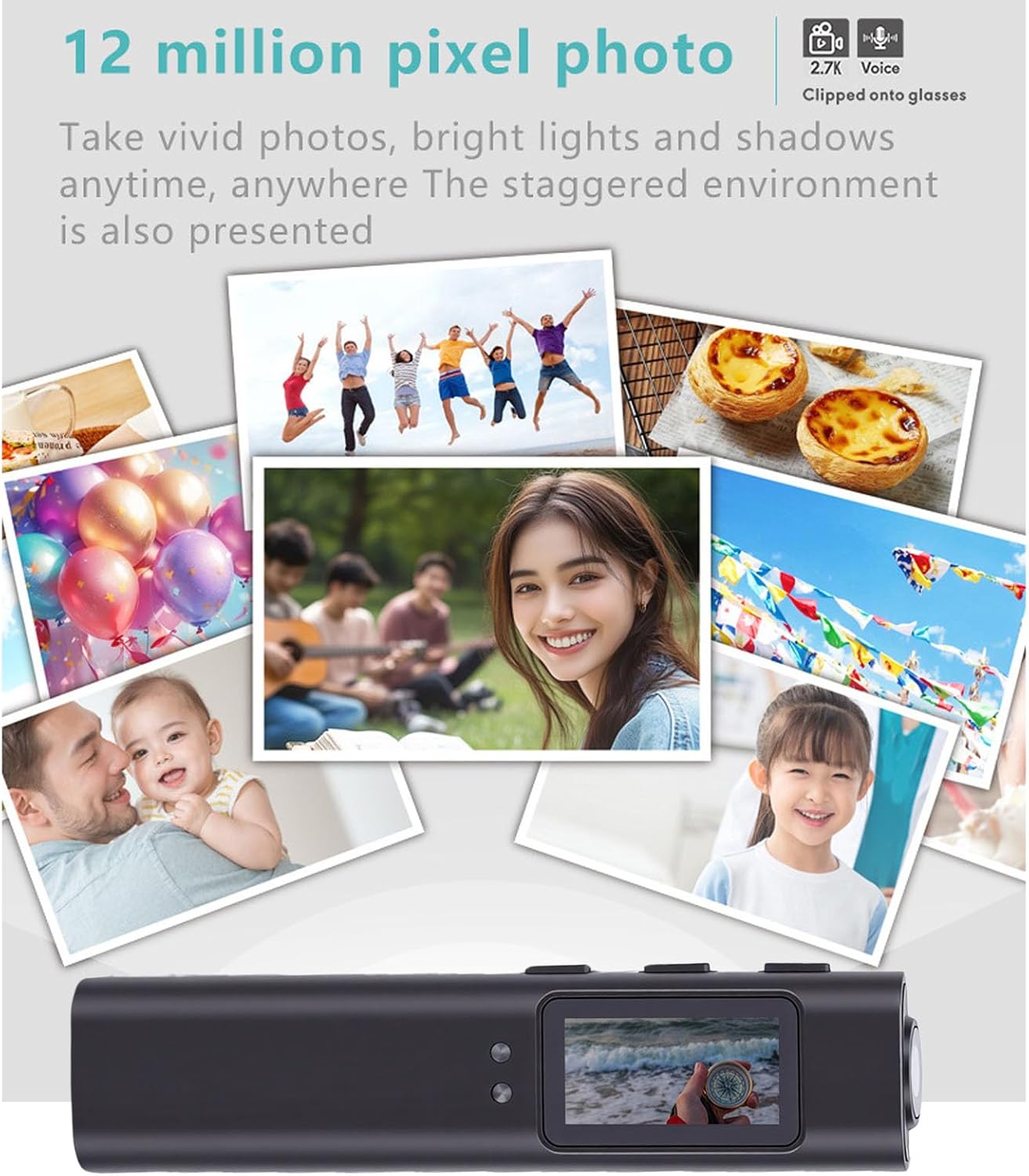
Image: A collection of vivid photographs captured with the camera glasses, showcasing the 12-megapixel photo resolution and clarity.
4.4 Audio Recording
The camera glasses feature dual directional microphones for 48kHz high-fidelity audio recording with noise reduction.
- Audio is recorded automatically during video capture.
- Ensure the microphone is not obstructed for optimal audio quality.
4.5 Wi-Fi Connectivity and App Usage
The device supports Wi-Fi for connecting to a mobile application for live view, playback, and file management.
- Download the dedicated mobile application (refer to the packaging or product information for app name).
- Power on the camera glasses and activate Wi-Fi mode (usually by pressing a dedicated Wi-Fi button or through menu options).
- On your smartphone, connect to the camera glasses' Wi-Fi network.
- Open the app to access features like live preview, video/photo playback, and file transfer.

Image: A smartphone displaying the Wi-Fi application interface, allowing users to replay recorded content and manage files from the camera glasses.
4.6 Voice Prompts
The device provides functional voice prompts to indicate changes in mode or status, such as starting or stopping recording, taking pictures, or activating Wi-Fi.

Image: A visual representation of the voice prompt system, indicating audible feedback for actions such as starting/stopping recording, taking photos, and Wi-Fi activation.
5. Maintenance
5.1 Cleaning
- Use a soft, dry cloth to clean the camera lens and the device body.
- Avoid using liquid cleaners or abrasive materials that could damage the lens or surface.
5.2 Storage
- Store the camera glasses in the provided storage bag or glasses case when not in use to protect them from dust and scratches.
- Keep the device in a cool, dry place, away from direct sunlight and extreme temperatures.
5.3 Battery Care
- To prolong battery life, avoid fully discharging the battery frequently.
- Charge the device regularly, even if not in frequent use, to maintain battery health.
6. Troubleshooting
6.1 Device Not Powering On
- Ensure the device is fully charged. Connect it to a power source and wait for a few minutes before attempting to power on again.
- Check the charging cable and adapter for any damage.
6.2 Recording Issues
- Verify that a memory card is properly inserted and has sufficient free space.
- Ensure the memory card is formatted correctly (refer to device settings or manual for recommended format).
- Check if the battery level is critically low.
6.3 Wi-Fi Connection Problems
- Make sure Wi-Fi is enabled on both the camera glasses and your smartphone.
- Ensure your smartphone is within close proximity to the camera glasses.
- Restart both the camera glasses and your smartphone, then try connecting again.
7. Specifications
| Feature | Specification |
|---|---|
| Model Name | GOWENIC7x0hbk6j8a-11 |
| Video Resolution | 2.7K (2560×1440), 1080p, 720p |
| Photo Pixels | 12MP, 10MP, 8MP, 5MP, 3MP, 2MHD, 1.3MP, 1MP |
| Lens Angle | 110° Wide Angle |
| Audio | Dual directional microphones, 48kHz high fidelity, noise-cancelling |
| Display | 0.96" IPS colorful display |
| Memory Card Support | Up to 128GB (small memory card) |
| Battery | Lithium-ion Battery 250mAh |
| Continuous Recording | Up to 18 hours (2.7K) |
| Weight | 21g (0.74oz) |
| Frame Size | Approx. 3.81 x 2.79cm / 1.5 x 1.1in |
| Connectivity | USB, Wi-Fi |
| Manufacturer | GOWENIC |
| Country of Origin | China |
8. Warranty Information
This product is covered by a manufacturer's warranty for 90 days from the date of purchase. Please retain your proof of purchase for warranty claims. The warranty covers defects in materials and workmanship under normal use. It does not cover damage caused by misuse, accidents, unauthorized modifications, or normal wear and tear.
9. Customer Support
For technical assistance, troubleshooting, or warranty inquiries, please contact GOWENIC customer support. Refer to the product packaging or the official GOWENIC website for the most current contact information.