
1. Introduction
The FusyTuly F20K Smart Fingerprint Access Control System provides a secure and convenient solution for managing access to homes and offices. This comprehensive kit includes the F20K main unit, an electric strike lock, a K80 power supply, an E6 exit button, and 10 Blue Waterproof IC Key Fobs. It supports multiple access methods including fingerprint, RFID card, PIN code, and remote unlock via the Tuya Smart APP, offering flexible and robust security.
2. Safety Information
- Read all instructions carefully before installation and operation.
- Ensure all wiring is performed by a qualified professional to prevent electrical hazards.
- Disconnect power before performing any maintenance or installation procedures.
- Do not expose the device to extreme temperatures or corrosive environments.
- Keep the device away from strong magnetic fields.
3. Package Contents
Verify that all components are present in your package:
- F20K Access Control Machine
- K80 Access Control Power Supply (12V/3A)
- Electric Strike Lock (XXS model)
- E6 Exit Button
- 10 Blue Waterproof IC Key Fobs
- Mounting Hardware (screws, anchors)
- Wiring Cables

Figure 3.1: Complete F20K Access Control System Kit Components
4. Product Overview
The F20K access control unit features a sleek design with a touch keypad and integrated fingerprint reader. It is designed for both indoor and outdoor use due to its IP68 waterproof rating.
4.1 F20K Unit Features
- Dimensions: 138mm (H) x 70mm (W) x 18mm (D)
- Access Methods: Fingerprint, RFID Card, PIN Code, Tuya APP Remote Unlock
- User Capacity: Supports up to 100 fingerprints, 8000 RFID cards, and 8000 PIN codes.
- Connectivity: WiFi for Tuya Smart APP integration.
- Durability: IP68 waterproof rating for outdoor installation.
- Additional Features: Doorbell function, indicator lights, ID card area.
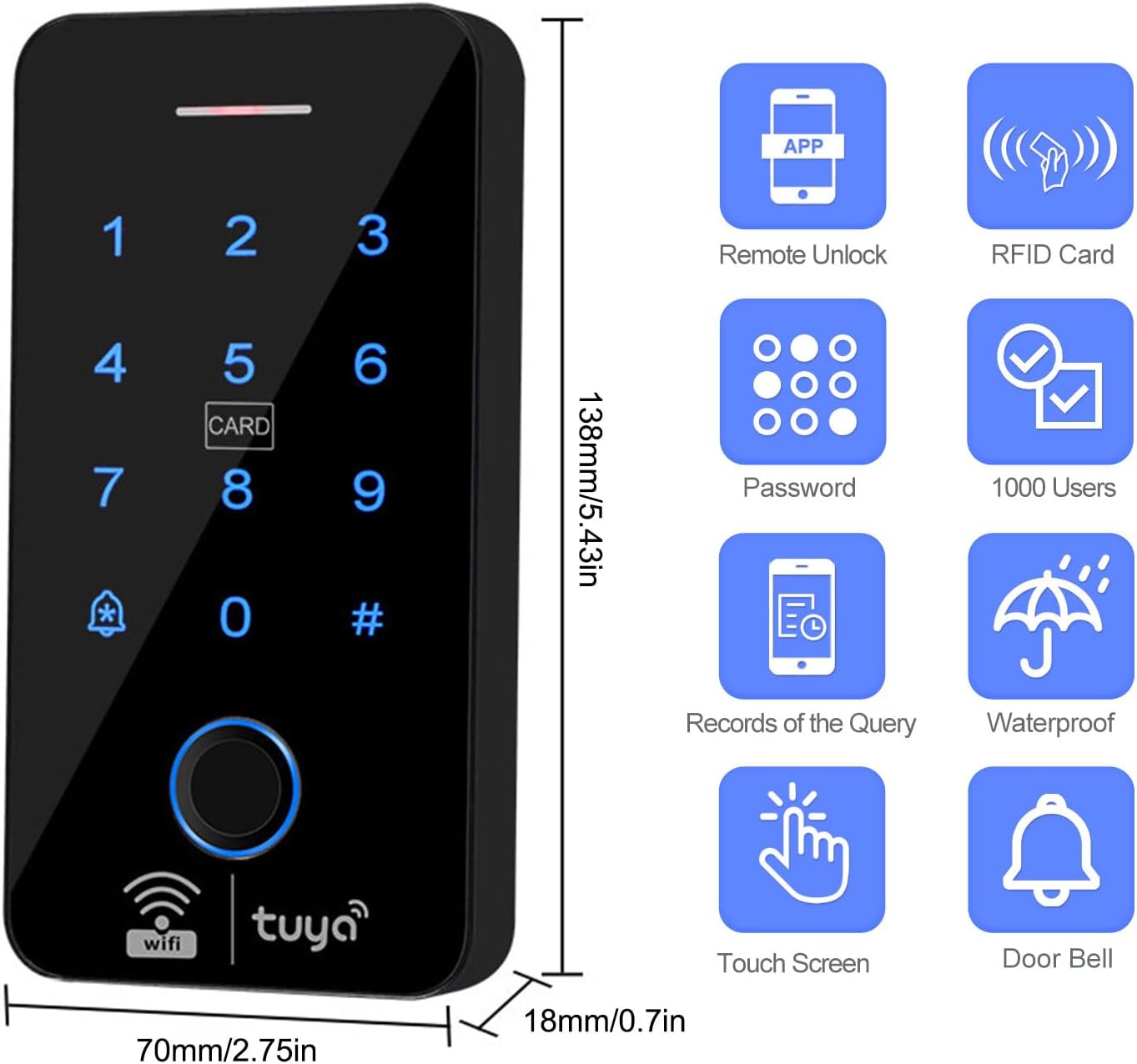
Figure 4.1: F20K Access Control Keypad with Dimensions
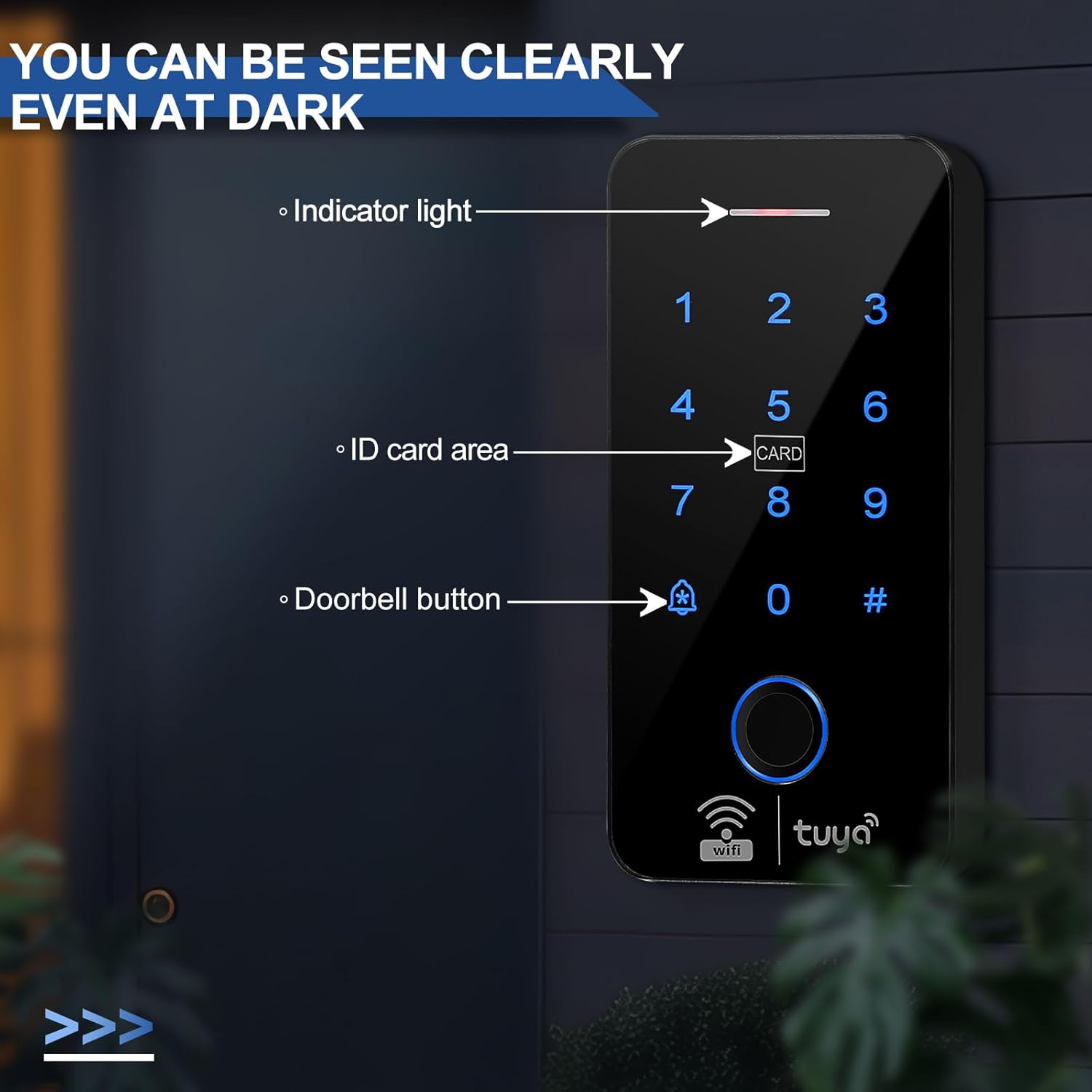
Figure 4.2: Keypad Features (Indicator Light, ID Card Area, Doorbell Button)

Figure 4.3: IP68 Waterproof Feature
5. Setup and Installation
Proper installation is crucial for the optimal performance and security of your access control system. Follow these steps carefully.
5.1 Wiring Diagram
The following diagram illustrates the connections between the F20K access controller, K80 power supply, electric strike lock, and exit button. Ensure all connections are secure and match the diagram.

Figure 5.1: System Wiring Diagram
5.2 Physical Installation
- Mount the F20K Access Controller: Choose a suitable location near the door, ensuring it is within reach and has clear line of sight for fingerprint scanning. Secure the backplate to the wall using the provided screws and then attach the F20K unit.
- Install the Electric Strike Lock: Mount the electric strike lock on the door frame and the corresponding strike plate on the door, ensuring proper alignment for secure locking.
- Mount the K80 Power Supply: Install the power supply in a secure, accessible location, typically near the F20K unit or the main power source.
- Install the E6 Exit Button: Mount the exit button on the inside of the door for convenient egress.
- Connect Wiring: Follow the wiring diagram (Figure 5.1) to connect all components. Pay close attention to polarity and ensure all connections are tight and insulated.
- Power On: Once all connections are verified, connect the K80 power supply to the main power source. The F20K unit should power on.
For a visual guide on opening the F20K keypad for wiring, refer to the video demonstration in Section 7.1 (0:00-0:21).
6. Operating Instructions
The F20K system offers multiple ways to unlock your door. This section details how to use each method.
6.1 Tuya Smart APP Remote Unlock
The F20K integrates with the Tuya Smart APP, allowing remote management and unlocking.
- Download and Install: Download the Tuya Smart APP from your device's app store.
- Pair Device: Follow the in-app instructions to pair your F20K access controller with the app via WiFi.
- Remote Unlocking: Open the Tuya Smart APP, navigate to your F20K device, and press and hold the lock icon to remotely unlock the door.
- User Management: Use the app to add or remove users, grant temporary access, and view unlock history.

Figure 6.1: Remote Unlocking via Tuya Smart APP
6.2 Fingerprint Unlocking
The F20K supports up to 100 unique fingerprints for access.
- Enroll Fingerprints: Refer to the F20K's programming guide (usually accessible via the keypad or Tuya app) to enroll new fingerprints.
- Unlock: Place your enrolled finger firmly on the fingerprint sensor. The system will verify your fingerprint and unlock the door if authorized.
6.3 RFID Card Unlocking
The system supports up to 8000 RFID cards for quick and easy access.
- Enroll RFID Cards: Use the F20K's programming mode to add new RFID cards to the system.
- Unlock: Present an enrolled RFID card to the 'CARD' area on the F20K keypad. The system will verify the card and unlock the door.

Figure 6.2: RFID Card and PIN Code Unlocking
6.4 PIN Code Unlocking
You can set up to 8000 unique PIN codes for access.
- Set PIN Codes: Access the F20K's programming mode to create and manage PIN codes.
- Unlock: Enter your valid PIN code on the keypad, then press the '#' key. The system will verify the code and unlock the door.
6.5 Temporary Password Generation
The Tuya Smart APP allows you to generate temporary passwords for guests or service providers. These passwords can be time-limited (e.g., valid for 6 hours).
- Generate: In the Tuya Smart APP, navigate to the temporary password section and generate a new code.
- Share: The app allows you to share this code via various messaging platforms (WeChat, Email, Message).
- Use: The recipient can enter this temporary PIN code on the F20K keypad to gain access within the specified timeframe.
6.6 Door Exit Button Unlocking
For convenient exit from the secured area, press the E6 exit button. This will momentarily release the electric strike lock, allowing the door to open.
6.7 Doorbell Function
The F20K unit includes a doorbell function. When the doorbell button (marked with a bell icon) on the keypad is pressed, it will trigger an audible chime.
6.8 Normally Open Mode
For areas with frequent entry and exit, the system can be configured to a 'Normally Open' mode, keeping the door unlocked until manually re-secured or a schedule is activated. Refer to the F20K programming guide for details on enabling this mode.

Figure 6.3: F20K in a Normally Open Mode Setting
7. Video Demonstrations
Watch the following video for visual demonstrations of the F20K system's features and operations.
Video 7.1: F20K Access Control Keypad Features and Unlocking Methods
- 0:00 - 0:21: F20K Keypad Overview and Internal Components
- 0:21 - 0:36: IP68 Waterproof Test Demonstration
- 0:36 - 0:45: Remote Unlocking via Tuya Smart APP
- 0:45 - 0:58: Setting and Using a Temporary Password
- 0:58 - 1:02: Sharing Passwords via Messaging Apps
- 1:02 - 1:08: Fingerprint Unlocking
- 1:08 - 1:12: RFID Card Unlocking
- 1:12 - 1:18: PIN Code Unlocking
- 1:18 - 1:23: Remote Control (Key Fob) Unlocking
- 1:23 - 1:27: Door Exit Button Unlocking
- 1:27 - 1:30: Doorbell Function Demonstration
8. Maintenance
- Regularly clean the keypad surface and fingerprint sensor with a soft, dry cloth.
- Avoid using abrasive cleaners or solvents.
- Periodically check wiring connections for any signs of wear or damage.
- Ensure the electric strike lock mechanism is free of obstructions.
9. Troubleshooting
| Problem | Possible Cause | Solution |
|---|---|---|
| Door does not unlock. | Incorrect PIN/fingerprint/card; power issue; lock malfunction. | Verify credentials. Check power supply and wiring. Inspect electric lock. |
| Keypad unresponsive. | No power; internal fault. | Check power connections. Contact support if power is confirmed. |
| Tuya APP not connecting. | WiFi issue; incorrect pairing. | Ensure stable 2.4GHz WiFi. Re-pair the device in the app. |
| Doorbell not ringing. | Wiring issue; internal fault. | Check doorbell wiring. |
10. Specifications
| Feature | Detail |
|---|---|
| Brand | FusyTuly |
| Model Number | F20K |
| Power Source | Corded Electric (AC110-240V 50-60Hz input, DC12V 3A output) |
| Item Dimensions (L x W x H) | 13.8 x 7 x 1.8 Centimetres |
| Connectivity Technology | Wired, WiFi |
| Access Methods | Fingerprint, RFID Card, PIN Code, Tuya APP Remote Unlock |
| Fingerprint Capacity | 100 |
| Card/PIN Capacity | 8000 |
| Waterproof Rating | IP68 |
| Included Components | Access control machine, access control power supply, electric strike lock, exit button, 10 IC cards |
11. Warranty and Support
For warranty information and technical support, please refer to the documentation provided with your purchase or contact FusyTuly customer service directly. Keep your purchase receipt for warranty claims.