
1. Introduction
The BIQU Panda Den Air is a filament waste collection system and tool storage solution designed for Bambu-Lab 3D printers. It provides an organized and efficient way to manage filament waste and keep essential tools accessible, enhancing your 3D printing workspace.
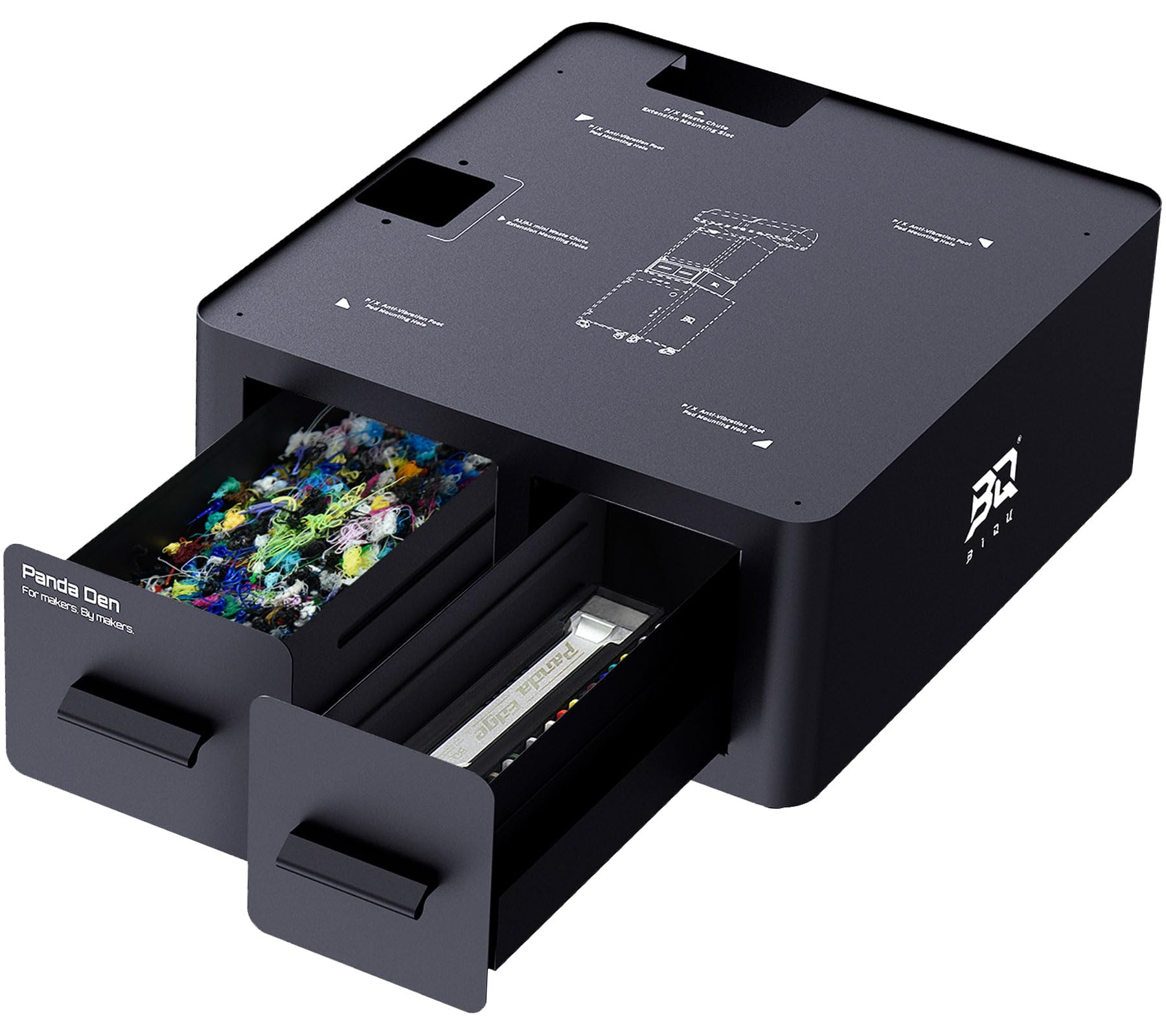
Figure 1: BIQU Panda Den Air filament waste collection system and tool storage drawer.
2. Key Features
- Effortless Waste Collection: Direct-drop system for filament waste, simplifying disposal.
- Wide Compatibility: Compatible with Bambu-Lab X2D, P2S, P1S, P1P, X1C, X1E, A1, and A1 Mini 3D printers.
- Smart Tool Storage: Integrated drawer for organizing and storing essential tools.
- Modular & Expandable: Designed for integration with additional accessories like filament spool holders and build plate racks.
- Industrial-Grade Quality: Constructed from durable aluminum and steel for lasting performance.

Figure 2: BIQU Panda Den Air integrated into a 3D printing workstation.
3. Package Contents
Verify that all components listed below are present in your package:
- Panda Den Air x1
- Removable Waste Drawer Cover x1
- Filament Spool Holder Bracket x1
- Hex Key Set x1 (Sizes: 2.0 / 2.5 mm)
- M4×8 Button Head Socket Cap Screws x2
- M4×10 Button Head Socket Cap Screws x2
- M3×8 Countersunk Socket Head Screws x8
- Magnets x5
- Screw Accessory Set x1

Figure 3: Detailed view of the Panda Den Air package contents.
4. Setup Instructions
- Unpack Components: Carefully remove all items from the packaging and verify against the package contents list.
- Position the Panda Den Air: Place the Panda Den Air on a stable, level surface next to or beneath your compatible Bambu-Lab 3D printer. Ensure the printer's filament waste chute aligns with the opening on top of the Panda Den Air.
- Install Filament Spool Holder (Optional): Attach the metal filament spool holder bracket to the designated mounting points on the Panda Den Air using the provided screws and hex keys. This allows for smooth filament management.
- Install Optional Accessories (If Applicable): If you have additional modular accessories such as a side build plate rack or a hotend storage box, follow their respective instructions for attachment to the Panda Den Air. A reserved mounting slot on the back is available for the Panda Branch for neat wiring.
- Secure the Waste Drawer Cover: Ensure the removable waste drawer cover is properly seated in the waste collection drawer.

Figure 4: Modular expansion options, including filament spool holder and build plate rack.
5. Operating the Panda Den Air
5.1 Filament Waste Collection
- Ensure your Bambu-Lab 3D printer's filament waste chute is positioned directly above the opening on the top of the Panda Den Air.
- During printing, filament waste will drop directly into the integrated waste collection drawer.
- When the drawer is full, gently pull it out.
- Flip open the panel within the drawer to easily empty the collected waste into a trash receptacle.
- Close the panel and push the drawer back into the unit until it is securely closed.

Figure 5: Process of emptying the filament waste collection drawer.
5.2 Tool Storage Drawer
- The Panda Den Air includes an additional drawer for tool storage.
- Organize your 3D printing tools, such as pliers, cutters, spatulas, and nozzles, within this drawer. DIY dividers can be used to customize compartments for specific tools.
- Gently push the drawer to close it; the soft-close damper mechanism will ensure a smooth and quiet closure.

Figure 6: Organized tool storage drawer.
6. Maintenance
- Cleaning the Waste Drawer: Regularly empty the filament waste drawer to prevent overflow and maintain a clean workspace. The drawer can be wiped clean with a damp cloth if needed.
- General Cleaning: Wipe the exterior surfaces of the Panda Den Air with a soft, dry cloth to remove dust and debris. Avoid using abrasive cleaners or solvents.
- Inspection: Periodically check all screws and connections to ensure they remain tight and secure.
7. Troubleshooting
- Filament Waste Not Dropping: Ensure the Panda Den Air is correctly positioned directly beneath the printer's waste chute. Check for any obstructions in the chute or the Panda Den Air's opening.
- Drawer Sticking: Ensure the drawer is not overloaded with waste or tools. Check for any foreign objects obstructing the drawer's runners. Clean the runners if necessary.
- Stability Issues: Verify that the Panda Den Air is placed on a flat, stable surface. Ensure the four shock absorption pads on the bottom are intact and properly positioned.
8. Specifications
| Feature | Detail |
|---|---|
| Product Name | Panda Den Air |
| Compatible Models | Bambu-Lab A1, A1 Mini, P1P, P1S, P2S, X1C, X1E, X2D |
| Material | Steel |
| Package Dimensions | 20.5 x 19 x 11.25 inches |
| Item Weight | 24.9 pounds |
| Manufacturer | BIGTREETECH Direct |

Figure 7: Product specifications table.
9. Warranty and Support
For warranty information, technical support, or any inquiries regarding your BIQU Panda Den Air, please contact BIGTREETECH Direct customer service. Refer to the product packaging or the official BIGTREETECH Direct website for the most current contact details and warranty terms.
BIGTREETECH is committed to providing a complete 3D printing ecosystem and advancing 3D printer technology.