
1. Introduction
Thank you for choosing the FeirTon 9.7-inch Android 14 Car Stereo. This manual provides essential information for the proper installation, operation, and maintenance of your new car stereo system. Designed specifically for Ford Mustang models from 2010 to 2014, this unit integrates advanced features such as Android 14 operating system, a large IPS touchscreen, wireless CarPlay and Android Auto, GPS navigation, WiFi 6, and Bluetooth 5.4 connectivity. Please read this manual thoroughly before installation and use to ensure optimal performance and safety.
2. Package Contents
Verify that all items listed below are included in your package. If any items are missing or damaged, please contact customer support.
- Car radio (1280*720) with frame x 1
- User manual x 1
- Power cord x 1
- USB 4Pin cable x 1
- USB 6Pin cable x 1
- GPS antenna x 1
- CVBS 720P rear view camera x 1
- RCA Cable x 1
- Canbus x 1
- Removal Tool x 1

Image: The car stereo unit with frame, power cable, USB cables, GPS antenna, RCA cable, camera input, Canbus, USB cables, removal tool, and rear camera.
3. Key Features
The FeirTon Android 14 Car Stereo offers a range of features designed to enhance your driving experience:
- Operating System: Android 14 for a modern and responsive user interface.
- Display: 9.7-inch IPS HD Touchscreen with 1280*720P resolution for clear visuals.
- Connectivity: Built-in WiFi 6 (2.4GHz & 5GHz dual-band), Bluetooth 5.4 for stable connections.
- Smartphone Integration: Wired/Wireless CarPlay and Android Auto support for seamless phone integration.
- Navigation: Integrated GPS for online and offline navigation.
- Multimedia: Supports 4K HD video playback, FM radio, and various Android apps.
- Camera Support: Compatible with OEM factory cameras and parking sensors, supports AHD high-definition rearview cameras (720P/1080P) and CVBS signals.
- Steering Wheel Control: Supports original car steering wheel control functions via the "Settingwheel" APP.
- Dual USB Input: For connecting multiple devices.

Image: An overview of the car stereo's main features including Android 14, Bluetooth 5.4, WiFi 6, CarPlay, Android Auto, FM Radio, and DSP.
4. Compatibility
This FeirTon car stereo is designed for specific Ford Mustang models. Please ensure your vehicle is compatible before proceeding with installation.
- Compatible Vehicle: Ford Mustang
- Compatible Model Years: 2010, 2011, 2012, 2013, 2014
If you are unsure about compatibility, please consult a professional installer or contact FeirTon customer support with your vehicle's make, model, and year.
5. Setup & Installation
Installation of this car stereo requires technical knowledge of automotive electrical systems and head unit installation. Professional installation is highly recommended to avoid damage to the unit or your vehicle.
5.1 Pre-Installation Checklist
- Ensure the vehicle's battery is disconnected before starting installation.
- Verify all package contents are present.
- Acquire any necessary vehicle-specific wiring harnesses or adapters if not included.
5.2 Installation Steps (General Guide)
- Carefully remove the original car radio and dashboard trim using the provided removal tools.
- Connect the power cord, USB cables, GPS antenna, and RCA cables to the new car stereo. Refer to the wiring diagram provided in the separate wiring manual for specific connections.
- If installing the rearview camera, route the camera cable from the rear of the vehicle to the stereo unit and connect it to the designated camera input.
- Connect the Canbus module if your vehicle requires it for steering wheel controls or other integrated functions.
- Mount the new car stereo unit into the dashboard opening. Ensure a secure fit.
- Reconnect the vehicle's battery.
- Turn on the ignition and test all functions of the stereo, including audio, touchscreen, navigation, Bluetooth, WiFi, and steering wheel controls.
- Reinstall any removed dashboard trim.
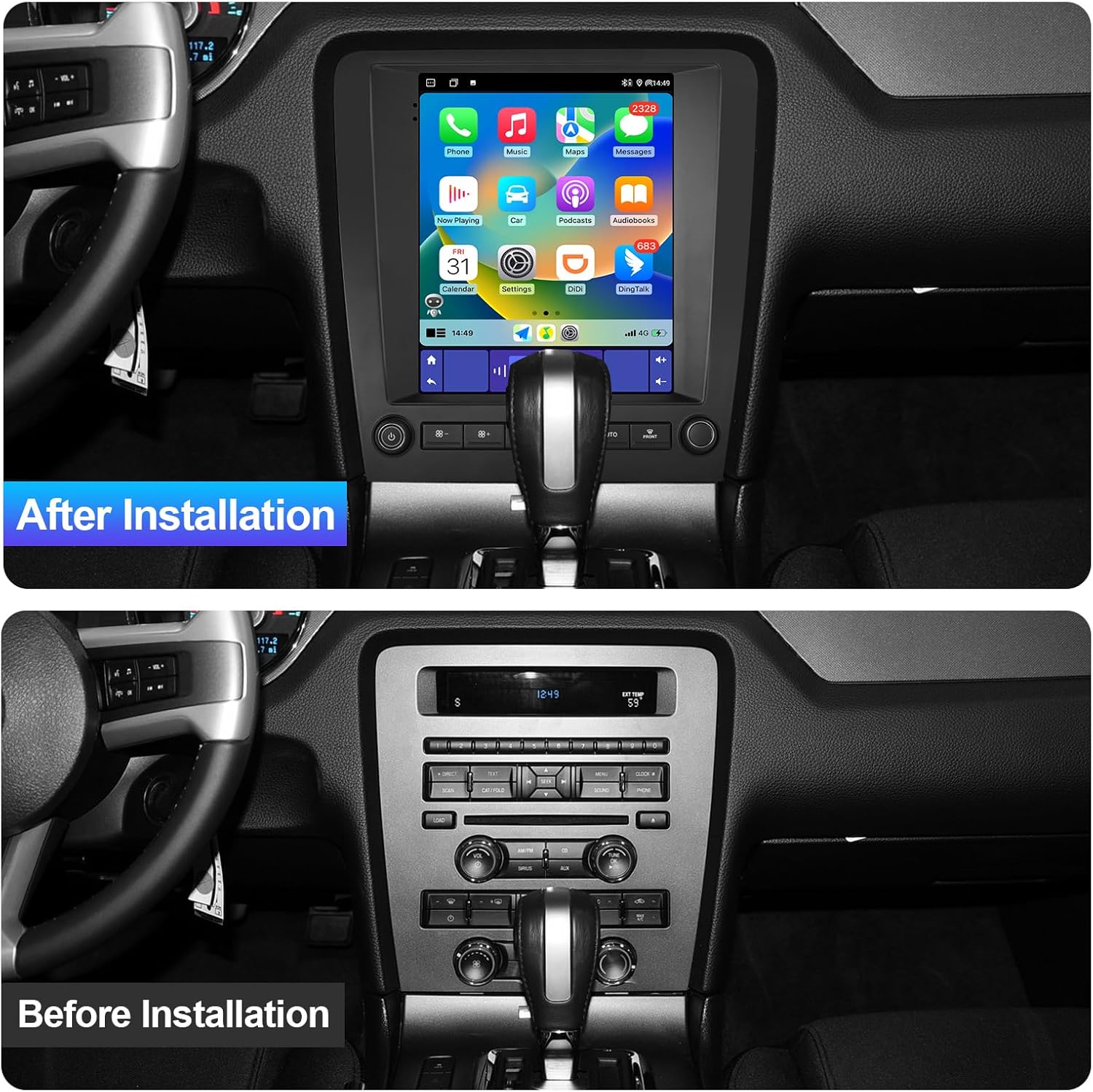
Image: A visual comparison of the Ford Mustang dashboard before and after the installation of the FeirTon 9.7-inch Android 14 Car Stereo.
Image: The car stereo displaying a rearview camera feed with parking sensor overlays, illustrating support for OEM and aftermarket cameras.
6. Operating Instructions
6.1 Power On/Off
- Power On: Turn the vehicle ignition to the ACC or ON position. The stereo will power on automatically.
- Power Off: Turn the vehicle ignition to the OFF position. The stereo will power off automatically.
6.2 Touchscreen Operation
The 9.7-inch IPS touchscreen allows for intuitive control. Tap, swipe, and pinch gestures are supported for navigating menus, adjusting settings, and interacting with applications.
6.3 Steering Wheel Controls
The unit supports the original car's steering wheel control functions. To configure these controls, navigate to the "Settingwheel" application on the car stereo. Follow the on-screen instructions to map your steering wheel buttons to the desired functions (e.g., volume up/down, track skip, mode change).

Image: An illustration of a hand interacting with steering wheel controls, demonstrating the car stereo's compatibility with these functions.
6.4 Android Applications
As an Android 14 device, the stereo allows you to download and install various applications from the Google Play Store. Connect to WiFi to access and download apps.

Image: The car stereo screen displaying the Google Play Store interface, indicating the ability to download Android applications.
7. Connectivity
7.1 CarPlay & Android Auto
The car stereo supports both wired and wireless CarPlay and Android Auto. This allows you to seamlessly integrate your smartphone for navigation, music, calls, and messaging.
- Wired Connection: Use the original USB data cable to connect your Apple or Android phone to one of the stereo's USB ports.
- Wireless Connection: For wireless CarPlay/Android Auto, ensure your phone's Bluetooth and WiFi are enabled. Pair your phone with the car stereo via Bluetooth, and the system will prompt you to establish a wireless CarPlay/Android Auto connection.

Image: A split image showing the car stereo screen with CarPlay and Android Auto interfaces, demonstrating both wired and wireless connection capabilities.

Image: The car stereo displaying the CarPlay interface with voice command prompts for Siri and Google Assistant, highlighting hands-free operation.
7.2 Bluetooth 5.4
The integrated Bluetooth 5.4 module provides a stable and fast connection for hands-free calling and audio streaming.
- Pairing: Go to the Bluetooth settings on the car stereo and your phone. Search for available devices on your phone and select the car stereo's Bluetooth name. Confirm the pairing code if prompted.
- Hands-Free Calling: Once paired, you can make and receive calls directly through the car stereo. Your phone's contact list may sync automatically.
- Bluetooth Music: Stream audio from your phone to the car stereo for playback.

Image: A collage demonstrating Bluetooth 5.4 capabilities, including music playback, hands-free calling, and the call interface on the car stereo.
7.3 WiFi 6
The built-in WiFi 6 module supports both 2.4GHz and 5GHz dual-band frequencies, offering faster and more stable internet access.
- Connecting to WiFi: Go to the WiFi settings on the car stereo. Select an available network and enter the password if required.
- Mobile Hotspot: You can also connect the stereo to your smartphone's mobile hotspot for internet access on the go.
- Benefits: Enables online navigation, app downloads, and internet browsing directly from the car stereo.

Image: The car stereo screen displaying WiFi settings, emphasizing the built-in WiFi 6 with 2.4G and 5GHz support for high-speed internet.
8. Navigation & Multimedia
8.1 GPS Navigation
The car stereo features a built-in GPS module, allowing for accurate navigation. You can use pre-installed navigation apps or download your preferred navigation software from the Google Play Store.
- Online Navigation: Requires an internet connection (via WiFi or mobile hotspot) for real-time traffic updates and map data.
- Offline Navigation: Download maps for offline use to navigate without an internet connection.
8.2 FM Radio
Access local radio stations with the integrated FM tuner.
- Scanning: Use the radio application to scan for available stations.
- Presets: Save your favorite stations for quick access.

Image: The car stereo displaying the FM radio interface, showing frequency tuning and station presets.
8.3 Video Playback
The unit supports 4K HD video playback, providing a high-quality viewing experience on the IPS screen.
- Supported Formats: The stereo supports various video formats. Refer to the system settings for a complete list.
- Sources: Play videos from USB drives or streaming apps.

Image: The car stereo screen displaying a high-definition video, highlighting its 4K HD video playback capability and 1280*720P IPS HD screen resolution.
9. Maintenance
Proper maintenance ensures the longevity and optimal performance of your car stereo.
- Screen Cleaning: Use a soft, lint-free cloth to clean the touchscreen. Do not use abrasive cleaners or solvents.
- Software Updates: Periodically check for system software updates to ensure you have the latest features and bug fixes. Connect to WiFi to download updates.
- Avoid Extreme Temperatures: Do not expose the unit to extreme heat or cold, as this can affect performance and lifespan.
- Power Management: Ensure the vehicle's electrical system is stable to prevent power surges that could damage the unit.
10. Troubleshooting
If you encounter issues with your FeirTon car stereo, refer to the following troubleshooting tips:
| Problem | Possible Cause | Solution |
|---|---|---|
| No power | Incorrect wiring; Blown fuse; Vehicle ignition off | Check power connections; Inspect vehicle fuses; Turn ignition to ACC or ON |
| No sound | Speaker wires disconnected; Volume too low; Mute activated | Check speaker wiring; Increase volume; Deactivate mute function |
| Bluetooth/WiFi connection issues | Incorrect pairing; Signal interference; Module error | Ensure correct pairing process; Move away from interference sources; Restart stereo and phone |
| CarPlay/Android Auto not connecting | Incorrect USB cable; Phone software issue; Wireless connection not initiated | Use original USB cable; Update phone OS; Ensure Bluetooth/WiFi are on for wireless connection |
| Steering wheel controls not working | Canbus not connected; Controls not configured in app | Verify Canbus connection; Configure controls in the "Settingwheel" app |
| Screen unresponsive or frozen | Software glitch; Temporary system error | Perform a soft reset (refer to device settings or contact support); Restart vehicle |
If the problem persists after attempting these solutions, please contact FeirTon customer support for further assistance.
11. Specifications
Detailed technical specifications for the FeirTon 9.7-inch Android 14 Car Stereo:
| Feature | Specification |
|---|---|
| Brand | FeirTon |
| Model Name | for Ford Mustang 2010-2014 |
| Operating System | Android 14 |
| Screen Size | 9.7 Inches |
| Display Type | IPS |
| Touch Screen Type | Capacitive |
| Memory Storage Capacity | 64 GB |
| Connectivity Technology | Bluetooth, WiFi |
| Bluetooth Version | 5.4 |
| WiFi Support | WiFi 6 (2.4GHz & 5GHz) |
| Supported Satellite Navigation System | GPS |
| Audio Output Mode | Stereo |
| Human-Interface Input | Microphone, Touchscreen |
| Included Components | User manual, power cord, USB cables, car radio with frame, GPS antenna, CVBS 720P rear view camera, RCA Cable |
12. Warranty & Support
FeirTon provides comprehensive support for its products.
- Warranty: This touchscreen car radio comes with a 12-month quality assurance warranty.
- Customer Support: A professional after-sales team is available 7 days a week, 24 hours a day, to assist with any questions during installation or use.
For warranty claims or technical assistance, please contact FeirTon customer service through the retailer where the product was purchased or visit the official FeirTon website for contact information.