
1. Introduction
This manual provides instructions for the proper setup, operation, maintenance, and troubleshooting of your AOC ACG2530 Wired Gaming Headset. Please read this manual thoroughly before using the product to ensure optimal performance and longevity.
2. Setup
2.1 What's in the Box
Verify that all components are present in the packaging:
- AOC ACG2530 Wired Gaming Headset
- User Manual
- Audio Cable (3.5mm)
- USB Cable (for lighting)

Figure 2.1: Contents of the AOC ACG2530 headset box, including the headset, audio cable, USB cable, and user manual.
2.2 Connecting the Headset
The ACG2530 headset features both a 3.5mm audio jack for sound and a USB connector for headset lighting.
- Audio Connection: Plug the 3.5mm audio jack into the corresponding audio port on your computer, console controller, or mobile device.
- Lighting Connection: Plug the USB connector into an available USB port on your computer or console to power the headset's lighting feature.

Figure 2.2: Multi-platform compatibility of the AOC ACG2530 headset with various devices.
2.3 Adjusting the Fit
For optimal comfort and sound isolation, adjust the headset to fit your head:
- Gently extend or retract the headband until the earcups rest comfortably over your ears.
- Ensure the earcups fully enclose your ears to maximize audio quality and minimize external noise.
3. Operation
3.1 Audio Controls
The headset features an inline remote for convenient audio management:
- Volume Wheel: Rotate the wheel up or down to adjust the audio output volume.
- One-Key Mute: Press the designated button on the inline remote to instantly mute or unmute the microphone.
- Light Switch: Use the switch on the inline remote to turn the headset's lighting feature on or off.

Figure 3.1: Inline remote control functions.
3.2 Microphone Usage
The integrated boom microphone is designed for clear communication and durability.
- Adjusting the Microphone: The microphone can be rotated up to 90 degrees. Position it close to your mouth for optimal voice pickup.
- Muting: Use the one-key mute button on the inline remote to quickly mute the microphone when not in use.

Figure 3.2: Adjustable microphone positioning.
3.3 Side Lighting Feature
The headset features integrated side lighting. For the white model, this is a single-color LED. For the black model, it is RGB lighting.
- Activation: Connect the USB cable to a powered USB port.
- Control: Use the light switch on the inline remote to toggle the lighting on or off.
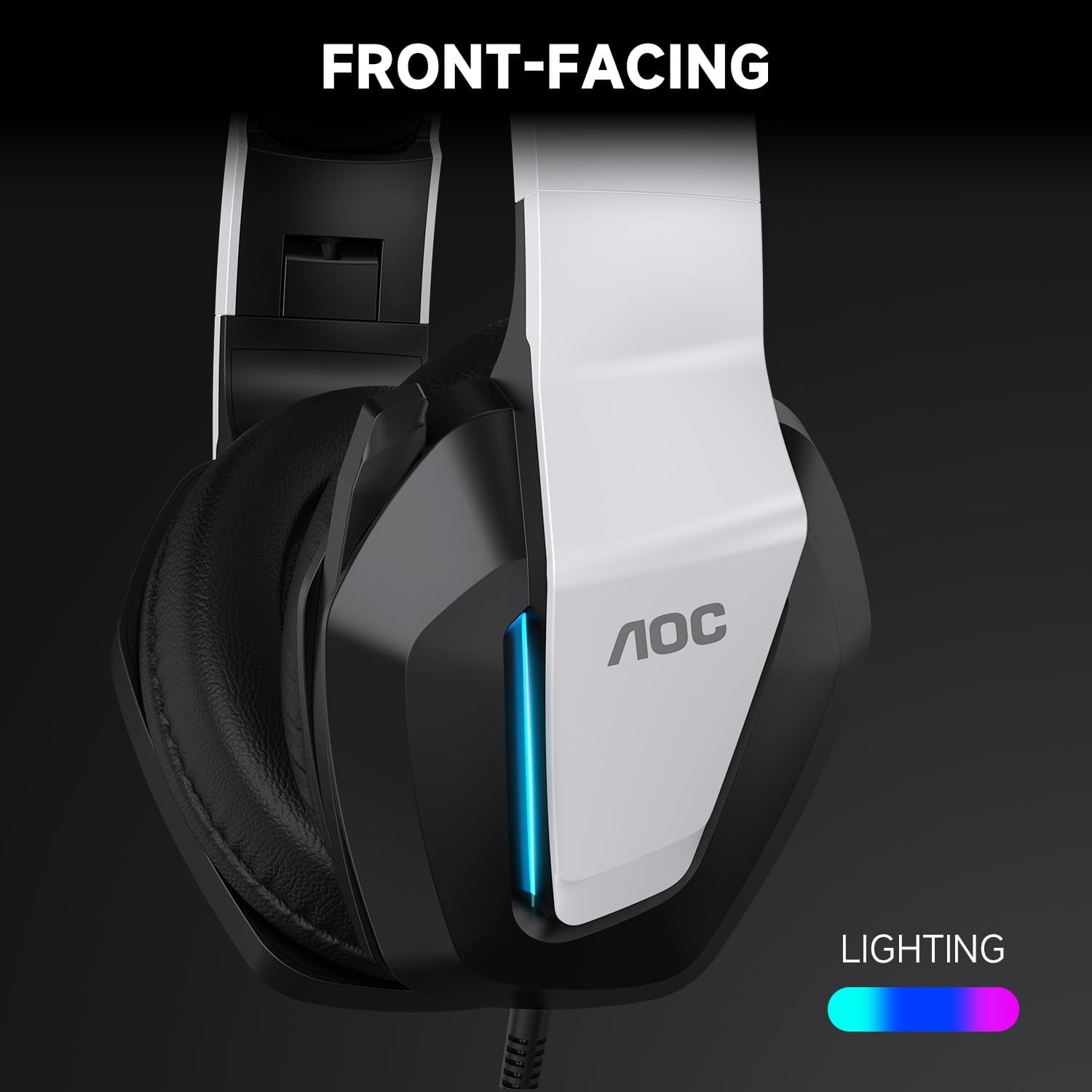
Figure 3.3: Headset side lighting in operation.
4. Maintenance
4.1 Cleaning
To maintain the headset's condition, follow these cleaning guidelines:
- Use a soft, dry cloth to wipe down the earcups and headband.
- For stubborn dirt, lightly dampen the cloth with water. Avoid using harsh chemicals or abrasive cleaners.
- Do not immerse the headset in water or any other liquid.
4.2 Storage
When not in use, store the headset in a clean, dry place away from extreme temperatures and direct sunlight. Avoid placing heavy objects on the headset.
5. Troubleshooting
If you encounter issues with your headset, refer to the following common solutions:
5.1 No Sound from Headset
- Ensure the 3.5mm audio jack is fully inserted into the device's audio port.
- Check the volume wheel on the inline remote and your device's system volume settings.
- Verify that the headset is selected as the default audio output device in your operating system's sound settings.
- Test the headset with another device to rule out a device-specific issue.
5.2 Microphone Not Working
- Ensure the microphone mute button on the inline remote is not activated.
- Verify that the 3.5mm audio jack is securely connected.
- Check your device's sound settings to ensure the headset microphone is selected as the default input device and its volume is not muted.
- Confirm that the application you are using (e.g., game, communication software) has the correct microphone input selected.
5.3 Headset Lighting Not Functioning
- Ensure the USB cable is securely plugged into a powered USB port.
- Check the light switch on the inline remote to ensure it is in the 'on' position.
- Try connecting the USB cable to a different USB port.
6. Specifications
Key technical specifications for the AOC ACG2530 Wired Gaming Headset:
| Brand | AOC |
| Model Name | ACG2530 |
| Connectivity Technology | Wired (3.5mm audio, USB for lighting) |
| Ear Placement | Over Ear |
| Color | White (as per product details, black model also available) |
| Microphone | Rotatable Boom Microphone |
| Driver Size | 50mm (Ru Magnetic Boron Horn) |

Figure 6.1: Internal structure of the 50mm audio drivers.
7. Warranty
The AOC ACG2530 Wired Gaming Headset comes with a 1-Year Limited Warranty from the date of purchase. This warranty covers manufacturing defects under normal use. Please retain your proof of purchase for warranty claims. For full warranty terms and conditions, please refer to the official AOC website or contact customer support.
8. Support
For further assistance, technical support, or service inquiries, please visit the official AOC website or contact their customer support department. You may find contact information and additional resources on the AOC support page.


