
1. Introduction
This manual provides instructions for the setup, operation, and maintenance of the Symbol Zebra DS8178 Wireless 2D/1D/QR Barcode Scanner. The DS8178 is a high-performance, enterprise-grade scanner designed for accurate barcode capture in various environments, including retail, warehouse, healthcare, and logistics. It is capable of reading 1D, 2D, and QR codes, including those displayed on screens or that are damaged or poorly printed. The scanner features Bluetooth wireless connectivity, allowing it to operate with its included hands-free cradle or directly connect to Android, Windows, and iOS devices.
2. Package Contents
Verify that all items are present in your package:
- Symbol Zebra DS8178 Wireless Barcode Scanner Unit
- Hands-Free Cradle
- USB Communication/Charging Cable
- Rechargeable Battery (may be pre-installed or separate)

Figure 2.1: Included components of the DS8178 system.
3. Product Overview
The Symbol Zebra DS8178 consists of the handheld scanner and a hands-free communication/charging cradle. Familiarize yourself with the main components:

Figure 3.1: DS8178 Scanner in Cradle.
3.1 Scanner Components
- Scan Trigger: Activates the scanning beam.
- Scan Window: Area through which barcodes are read.
- LED Indicators: Provide feedback on scan status, battery, and Bluetooth connectivity.
- Battery Compartment: Houses the rechargeable battery.
3.2 Cradle Components
- Charging Contacts: Connect with the scanner for battery charging.
- USB Port: Connects the cradle to a host device (e.g., computer, POS system) for data transmission and power.
- Bluetooth Pairing Button: Initiates Bluetooth pairing with the scanner.
- Status LEDs: Indicate power and connectivity status.
4. Setup
4.1 Installing the Battery
- If the battery is not pre-installed, locate the battery compartment on the scanner handle.
- Insert the battery, ensuring the contacts align correctly.
- Close the battery compartment cover securely.
4.2 Connecting the Cradle
- Connect one end of the USB cable to the USB port on the back of the cradle.
- Connect the other end of the USB cable to an available USB port on your host device (e.g., computer, POS terminal).
- The cradle's power LED should illuminate, indicating it is receiving power.
4.3 Charging the Scanner
- Place the DS8178 scanner into the connected cradle. Ensure it is seated firmly and the charging contacts align.
- The scanner's battery LED will indicate charging status (e.g., amber for charging, green for fully charged). Allow sufficient time for a full charge before initial use.
4.4 Bluetooth Pairing
The DS8178 can be paired with its cradle or directly with a Bluetooth-enabled host device.
4.4.1 Pairing with the Cradle
- Ensure the scanner is charged and powered on.
- Place the scanner in the cradle.
- The scanner and cradle should automatically establish a Bluetooth connection. The Bluetooth LED on both devices will indicate a successful connection.
4.4.2 Pairing with a Host Device (Android/Windows/iOS)
- Ensure the scanner is charged and powered on.
- On your host device, enable Bluetooth and search for available devices.
- The DS8178 scanner should appear in the list of discoverable devices (e.g., "DS8178_XXXXXX").
- Select the scanner to initiate pairing. Follow any on-screen prompts to complete the connection.
- The scanner's Bluetooth LED will indicate a successful connection.
5. Operating Instructions
5.1 Basic Scanning
- Aim the scanner's scan window at the barcode you wish to read.
- Press and hold the scan trigger. A red aiming pattern will appear.
- Center the aiming pattern over the barcode.
- Once successfully read, the scanner will emit a beep and the scan LED will flash green. The decoded data will be transmitted to your connected host device.
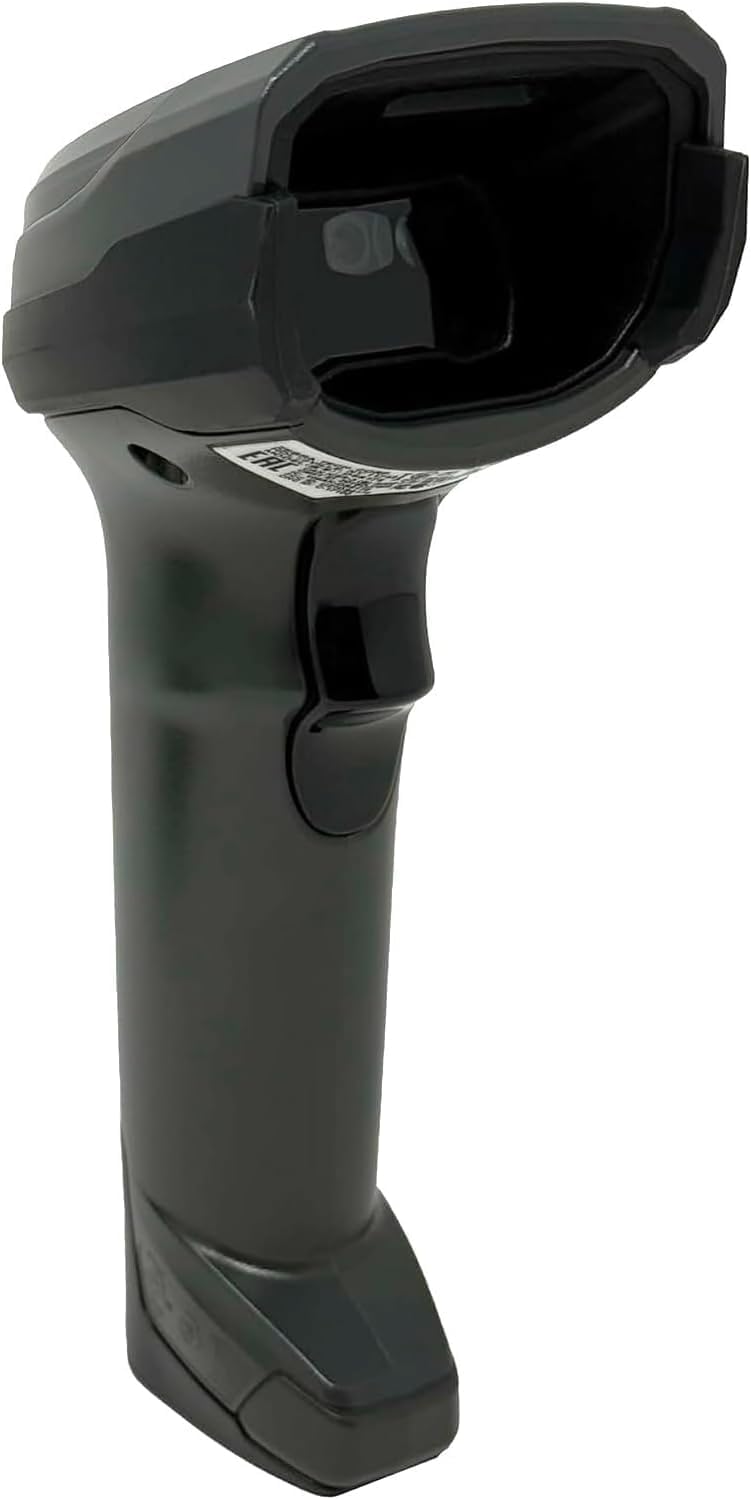
Figure 5.1: Front view of the DS8178 scanner, highlighting the scan window.
5.2 Scanning from Screens
The DS8178 is optimized to read barcodes from digital displays, such as smartphone screens or computer monitors. For best results:
- Ensure the screen brightness is set to a moderate level.
- Avoid glare on the screen.
- Hold the scanner at a slight angle to the screen to minimize reflections.
5.3 Presentation Mode (with Cradle)
When the scanner is placed in its hands-free cradle, it can operate in presentation mode. In this mode, the scanner automatically detects and reads barcodes presented within its field of view without requiring the trigger to be pressed.
6. Maintenance
6.1 Cleaning the Scanner and Cradle
- Use a soft, clean cloth dampened with water or a mild cleaning solution.
- Do not use abrasive cleaners, solvents, or harsh chemicals.
- Gently wipe the exterior surfaces. For the scan window, use a lint-free cloth to avoid scratching.
- Ensure no liquid enters the device openings.
6.2 Battery Care
- Charge the battery fully before first use.
- Avoid extreme temperatures, which can reduce battery life.
- If the scanner will not be used for an extended period, store it with a partial charge (around 50%) and recharge periodically.
7. Troubleshooting
If you encounter issues with your DS8178 scanner, refer to the following common problems and solutions:
| Problem | Possible Cause | Solution |
|---|---|---|
| Scanner does not power on. | Low or depleted battery. | Place scanner in cradle to charge. Ensure cradle is powered. |
| Scanner does not read barcodes. | Barcode damaged or poorly printed. Incorrect aiming. Scanner not paired. | Ensure barcode is clear. Aim correctly. Verify Bluetooth connection. |
| Bluetooth connection fails or drops. | Out of range. Interference. Pairing issue. | Move scanner closer to host/cradle. Reduce interference. Re-pair the device. |
| Cradle not charging scanner. | Cradle not powered. Poor contact. | Check USB cable connection to host and cradle. Ensure scanner is seated correctly. |
8. Specifications
| Feature | Description |
|---|---|
| Brand | Symbol |
| Model | DS8178 |
| Connectivity | Bluetooth Wireless |
| Barcode Compatibility | 1D, 2D, QR Codes (including digital/screen-based) |
| Host Compatibility | Android, Windows, iOS devices |
| Included Accessories | Hands-Free Cradle, USB Cable |
| GTIN | 611393754724 |
| ASIN | B0GJ6Q7HG5 |
9. Warranty and Support
For warranty information and technical support, please refer to the documentation provided with your purchase or visit the official Symbol/Zebra website. Keep your proof of purchase for warranty claims.


