
1. Introduction
Thank you for choosing the Frontech Wireless Keyboard and Mouse Combo. This manual provides essential information for setting up, operating, and maintaining your new wireless peripheral set. The KB-0032BLU offers a compact 61-key layout keyboard and an ergonomic 1600 DPI optical mouse, both connecting via a single 2.4GHz USB Nano receiver for a clutter-free workspace.

Image 1.1: The Frontech Wireless Keyboard and Mouse Combo in a typical desktop setup.
2. Setup Guide
2.1 Package Contents
- Frontech 61-Key Wireless Keyboard
- Frontech 1600 DPI Wireless Optical Mouse
- 2.4GHz USB Nano Receiver
- User Manual
2.2 Battery Installation
Both the keyboard and mouse require AA batteries (not included). Follow these steps to install them:
- Locate the battery compartment on the underside of the keyboard and mouse.
- Gently slide open the battery cover.
- Insert one AA battery into the keyboard, ensuring correct polarity (+/-).
- Insert one AA battery into the mouse, ensuring correct polarity (+/-).
- Close the battery covers securely.

Image 2.1: Battery installation for the keyboard and mouse.
2.3 Connecting the Receiver
The keyboard and mouse share a single USB Nano receiver for connection.
- Locate the USB Nano receiver, typically stored in the mouse's battery compartment or packaging.
- Plug the USB Nano receiver into an available USB port on your computer.
- Your computer should automatically detect and install the necessary drivers. This may take a few moments.
- Once installed, the keyboard and mouse are ready for use.
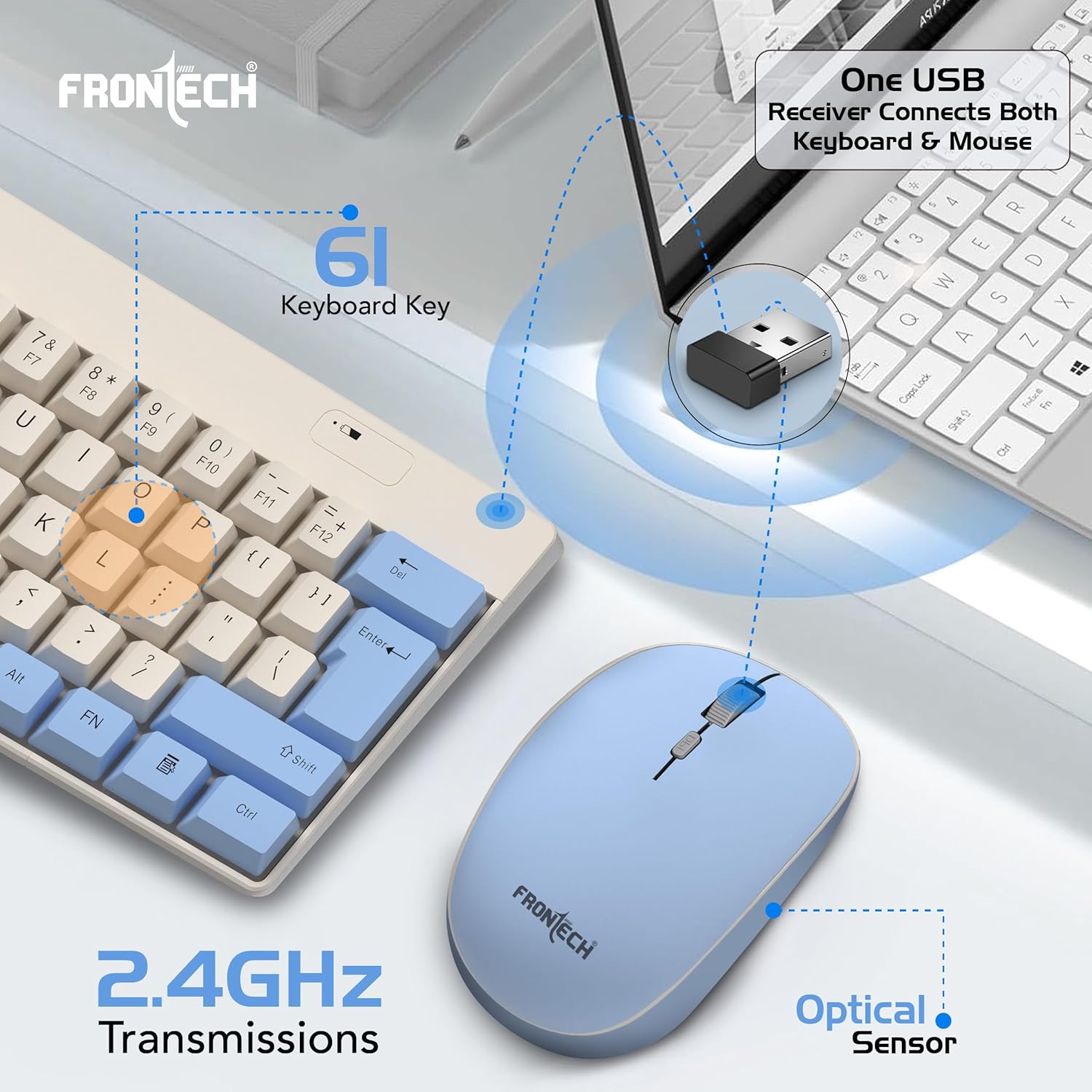
Image 2.2: Connecting the 2.4GHz USB Nano receiver to your computer.
3. Operating Instructions
3.1 Keyboard Usage
- The keyboard features a compact 61-key layout with suspended high keycaps for comfortable typing.
- Ensure the keyboard's power switch (if present, usually on the underside) is in the 'ON' position.
- Function keys (F1-F12) and multimedia controls may be accessed using the 'Fn' key in combination with other keys. Refer to the keycap legends for specific functions.
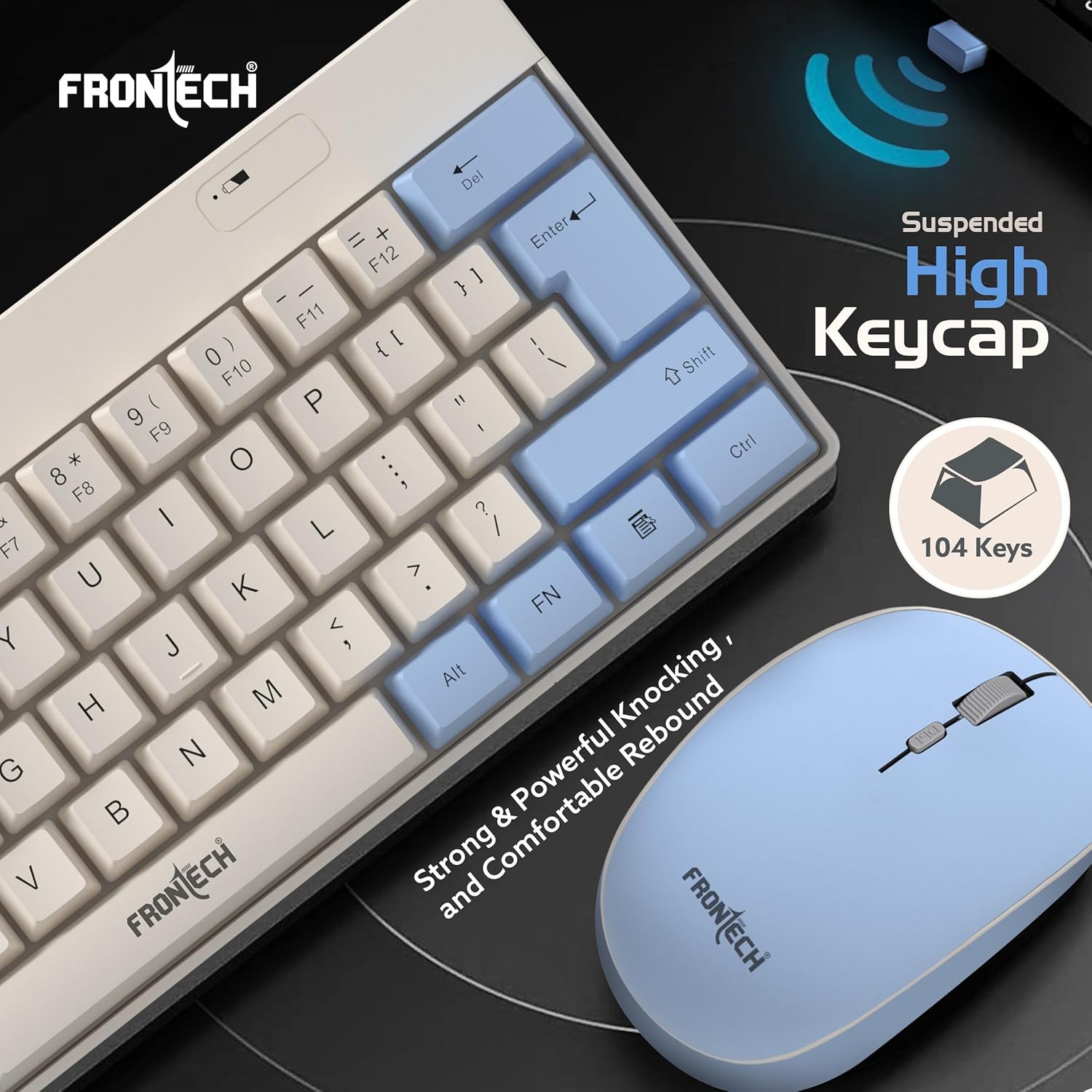
Image 3.1: Detail of the keyboard's suspended high keycaps.
3.2 Mouse Usage
- The mouse features an ergonomic design with soft-click buttons and an anti-skid scroll wheel.
- Ensure the mouse's power switch (if present, usually on the underside) is in the 'ON' position.
- The mouse operates at 1600 DPI (Dots Per Inch), providing precise tracking.
- DPI adjustment may be available via a dedicated button on the mouse (refer to image 3.2).

Image 3.2: Ergonomic design and features of the wireless mouse.
3.3 Wireless Range
The combo offers a stable 10-meter (approximately 33 feet) wireless range, allowing for flexible placement and usage without signal interruption. Optimal performance is achieved within this range and without significant physical obstructions.

Image 3.3: Illustration of the 10-meter wireless communication range.
4. Maintenance
4.1 Cleaning
- To clean the keyboard and mouse, power them off and remove the batteries.
- Use a soft, dry, lint-free cloth to wipe surfaces.
- For stubborn dirt, slightly dampen the cloth with water or a mild, non-abrasive cleaner. Avoid excessive moisture.
- Do not use harsh chemicals, solvents, or abrasive materials.
4.2 Battery Replacement
When the keyboard or mouse performance degrades (e.g., lag, unresponsiveness), it may be time to replace the batteries. Follow the battery installation steps in Section 2.2.
5. Troubleshooting
If you encounter issues with your Frontech Wireless Keyboard and Mouse Combo, try the following troubleshooting steps:
- No Connection / Unresponsive:
- Ensure batteries are correctly installed and not depleted. Replace if necessary.
- Verify the keyboard and mouse power switches are 'ON'.
- Ensure the USB Nano receiver is securely plugged into a working USB port on your computer. Try a different USB port.
- Move the keyboard and mouse closer to the receiver to rule out range issues or interference.
- Restart your computer.
- Laggy or Intermittent Performance:
- Check for potential sources of interference (e.g., other 2.4GHz wireless devices, large metal objects) near the receiver.
- Replace batteries.
- Mouse Cursor Jumps or is Inaccurate:
- Ensure the mouse sensor is clean and free of debris.
- Use the mouse on a suitable surface (e.g., a mouse pad). Avoid highly reflective or transparent surfaces.
6. Specifications
| Feature | Detail |
|---|---|
| Brand | FRONTECH |
| Model Number | KB-0032BLU |
| Connectivity Technology | 2.4GHz Wireless (USB Nano Receiver) |
| Keyboard Layout | 61-Key Compact Layout |
| Keycap Type | Suspended High Keycaps |
| Mouse DPI | 1600 DPI Optical |
| Wireless Range | Up to 10 meters |
| Power Source | 1x AA Battery (Keyboard), 1x AA Battery (Mouse) |
| Product Dimensions (Keyboard) | 29.1 x 12.3 x 2.7 cm |
| Item Weight | 465 g (Combo) |
| Country of Origin | China |
7. Warranty Information
The Frontech Wireless Keyboard and Mouse Combo (KB-0032BLU) comes with a 1-Year Limited Warranty from the date of purchase. This warranty covers manufacturing defects and ensures reliable brand support. Please retain your proof of purchase for warranty claims. The warranty does not cover damage caused by misuse, accidents, unauthorized modifications, or normal wear and tear.
8. Support
For technical assistance, warranty claims, or further inquiries regarding your Frontech product, please contact Frontech customer support. You can typically find contact information on the official Frontech website or on the product packaging.
Manufacturer: Frontech Private Limited, Ecocentre Unit No. 801, EM 4, Sector V Kolkata – 700091