
1. Product Overview
The Generic G96 Max Android Smart TV Box transforms your television into a smart entertainment hub. This device supports 4K Ultra HD resolution with HDR10, offering enhanced visual clarity and vibrant colors. It features 4GB RAM and 32GB internal storage for smooth performance and ample space for applications. Connectivity includes 2.4G WiFi for reliable internet access and Bluetooth for peripherals. The package includes a voice-enabled remote control and an HDMI cable for straightforward setup.
Key Features
- 4K Ultra HD Streaming: Delivers 4K Ultra HD resolution with HDR10 support for vibrant colors and clear picture quality.
- Powerful Performance: Equipped with 4GB RAM and 32GB internal storage for smooth multitasking and media content.
- Android TV Platform: Access popular streaming applications like Netflix, YouTube, Prime Video, Sling, Vudu, and Hulu.
- Wireless Connectivity: Built-in 2.4G WiFi enables seamless internet connection for streaming.
- Complete Package: Includes a voice-enabled remote control and an HDMI cable for quick setup.
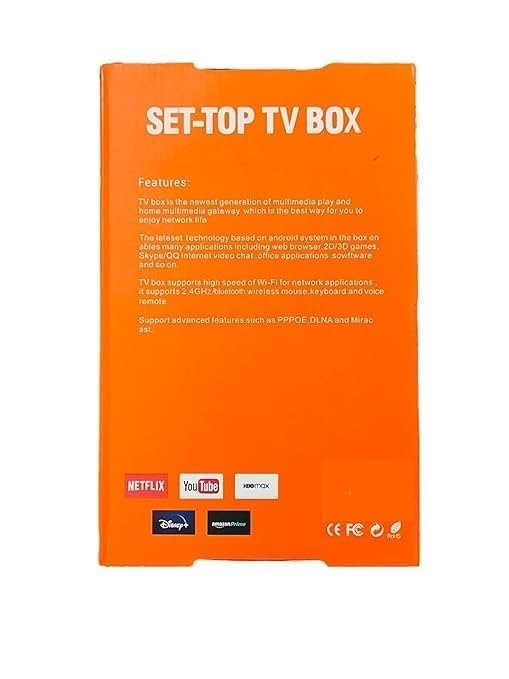
This image displays the rear of the product packaging, highlighting the device's main features and supported streaming services such as Netflix, YouTube, and HBO Max.
2. Package Contents
Please verify that all items listed below are present in your package:
- G96 Max Android Smart TV Box
- Bluetooth Voice Remote Control
- Power Adapter
- HDMI Cable
- User Manual (this document)
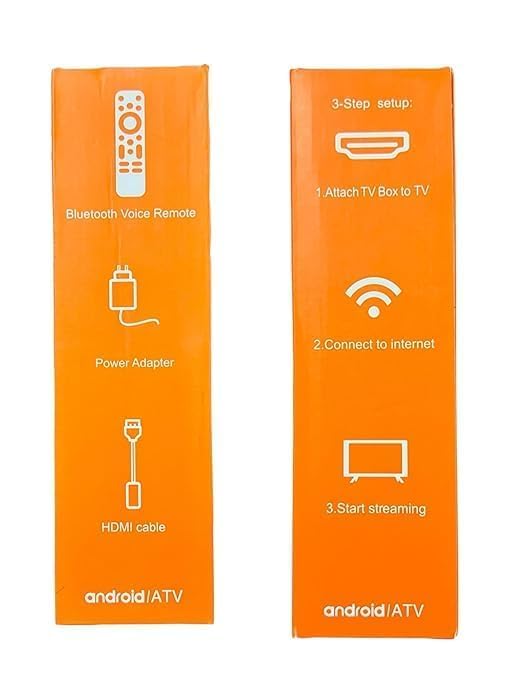
This image shows the side of the product box, detailing the included accessories: a Bluetooth Voice Remote, a Power Adapter, and an HDMI cable.
3. Setup Guide
Connecting Your TV Box
Follow these steps to connect your G96 Max Android Smart TV Box:
- Connect TV Box to TV: Plug one end of the included HDMI cable into the HDMI port on the G96 Max TV Box and the other end into an available HDMI input on your television.
- Connect to Power: Plug the power adapter into the DC IN port on the TV Box, then plug the adapter into a wall outlet.
- Connect to Internet: Once powered on, navigate to the network settings to connect to your 2.4G WiFi network.
- Start Streaming: After successful connection, you can begin setting up your Android TV interface and installing streaming applications.
This image provides a visual guide to the quick 3-step setup: connecting the TV Box to your television, establishing an internet connection, and then starting to stream content.
4. Operating Instructions
Powering On/Off
To power on the device, ensure it is connected to power and press the power button on the remote control. To power off, press the power button again.
Navigating the Interface
Use the directional pad (up, down, left, right) on the remote control to navigate through menus and select items. The "OK" button confirms selections.
Using the Voice Remote
The included remote control features voice command capabilities. Press the dedicated voice button (often a microphone icon) and speak clearly into the remote to search for content, open applications, or control playback.
Installing and Using Applications
The G96 Max runs on the Android TV platform, allowing access to a wide range of applications.
- From the home screen, navigate to the "Apps" section or the Google Play Store icon.
- Browse or search for desired applications (e.g., Netflix, YouTube, Prime Video).
- Select an app and choose "Install" to download and set it up.
- Once installed, the app will appear in your app list for quick access.
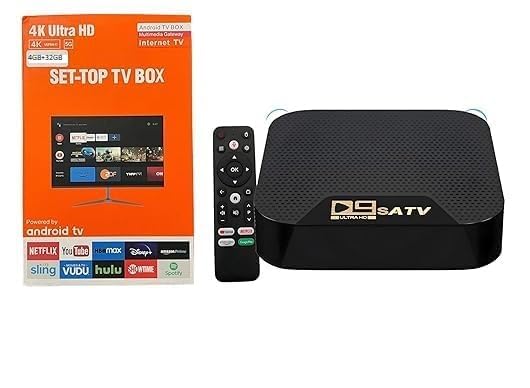
This image shows the G96 Max Android Smart TV Box, a black rectangular device with a textured top surface, alongside its black voice-enabled remote control.
5. Maintenance
Care and Cleaning
- Keep the device in a dry, well-ventilated area, away from direct sunlight and heat sources.
- Do not expose the device to water or excessive moisture.
- Clean the device and remote control with a soft, dry cloth. Avoid using liquid cleaners or abrasive materials.
- Ensure ventilation holes are not blocked to prevent overheating.
Storage
If storing the device for an extended period, disconnect it from power and store it in a cool, dry place.
6. Troubleshooting
Common Issues and Solutions
- No Power:
- Ensure the power adapter is securely connected to the TV Box and a working power outlet.
- Check if the power outlet is functional.
- No Picture/Sound:
- Verify the HDMI cable is securely connected to both the TV Box and the TV.
- Ensure your TV input is set to the correct HDMI port.
- Check TV volume settings.
- Remote Control Not Responding:
- Replace the batteries in the remote control.
- Ensure there are no obstructions between the remote and the TV Box.
- For Bluetooth remotes, ensure it is properly paired (refer to initial setup if needed).
- WiFi Connection Issues:
- Ensure your WiFi router is on and functioning correctly.
- Check if the WiFi password entered is correct.
- Move the TV Box closer to the router or reduce interference from other devices.
- App Freezing/Crashing:
- Restart the application.
- Clear the app's cache and data in the device settings.
- Restart the TV Box.
- Ensure the device's software is up to date.
If problems persist, contact customer support.
7. Technical Specifications
G96 Max Android Smart TV Box
| Feature | Detail |
|---|---|
| Model Name | G96 Max |
| Brand | Generic |
| Resolution | 4K (3840 Pixels) |
| RAM Memory | 4 GB |
| Storage Capacity | 32 GB |
| Connectivity Technology | Bluetooth, HDMI, WiFi 2.4G |
| Supported Internet Services | Amazon Prime, Hulu, Netflix, Sling, Vudu, YouTube |
| Controller Type | IR Remote, Voice Remote |
| Video Codec Support | H.264, H.265, VP9 |
| Special Features | HDR10 Support, Voice Remote Control |
| Compatible Devices | HDTV, LCD TV, LED TV, Smart TV, Television |
| Dimensions (L x W x H) | 15L x 12W x 2H Centimeters |
| Weight | 150 Grams |
| Manufacturer | MVC ENTERPRISE |
| Color | Black |
| Form Factor | Set Top Box |
8. Warranty Information
This product comes with NO WARRANTY as per manufacturer specifications. Please retain your proof of purchase for any potential support inquiries.
9. Customer Support
For further assistance or inquiries not covered in this manual, please refer to the retailer's support channels or the manufacturer's website if available.