Introduction
Welcome to the user manual for your new Generic QC-01 Mini Smartwatch. This device combines the functionality of a smartphone with the compact form factor of a smartwatch, running on Android 12.0. It features a 3.97-inch HD screen, dual SIM support, dual cameras, and ample storage. This manual provides essential information for setting up, operating, maintaining, and troubleshooting your device to ensure optimal performance.
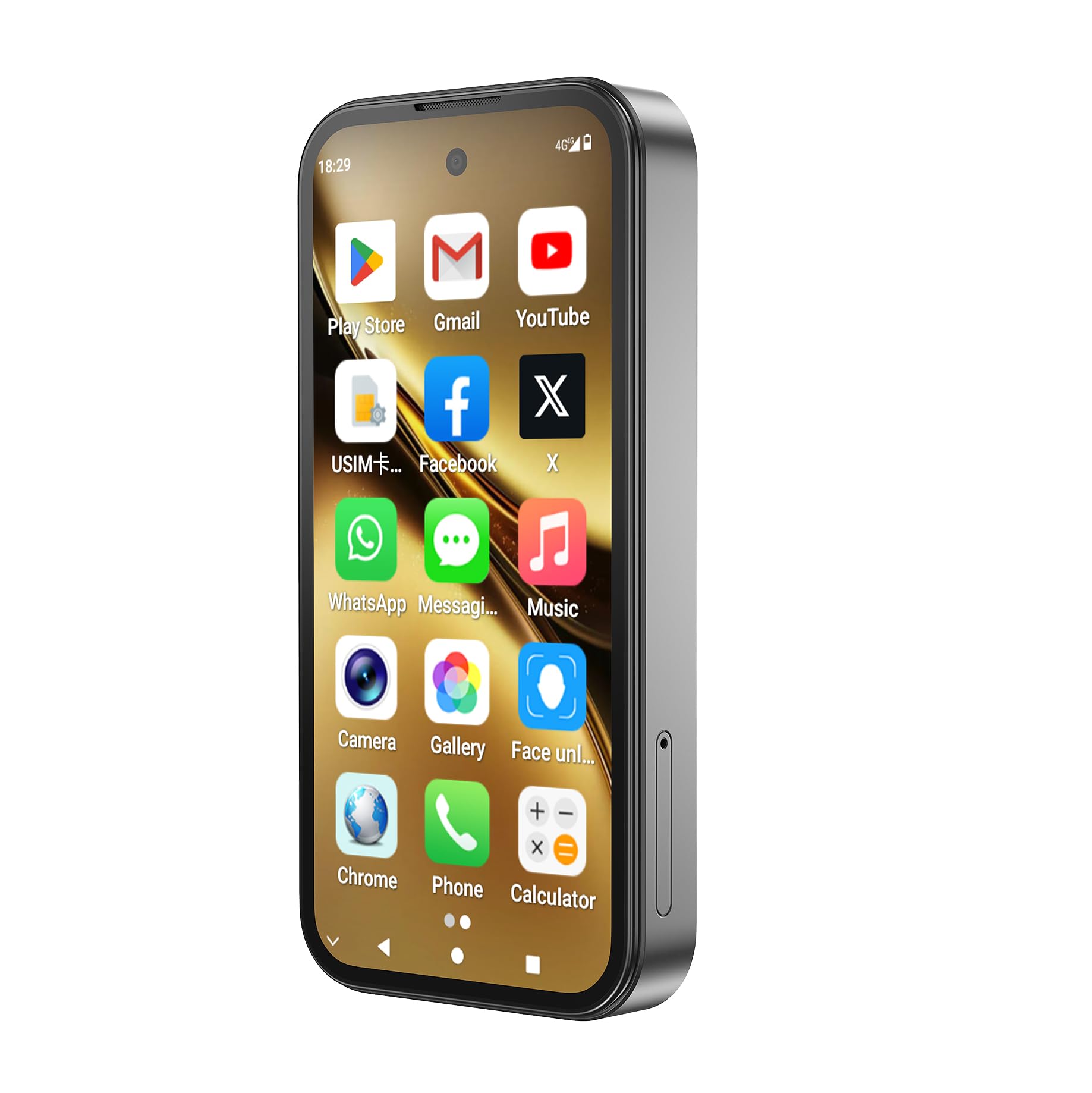
Image: The QC-01 Mini Smartwatch, showcasing its compact design and Android interface.
1. Setup
1.1 Unboxing and Package Contents
Carefully unpack your QC-01 Mini Smartwatch and verify all contents. The package should include:
- 1x QC-01 Smartwatch
- 1x Charging Data Cable (USB Type-C)
- 1x User Manual (this document)
- 1x Screwdriver
- 1x Card Removal Pin
- 1x Packaging Box
1.2 Charging the Device
Before first use, fully charge your smartwatch.
- Connect the USB Type-C charging cable to the charging port on your smartwatch.
- Connect the other end of the cable to a compatible USB power adapter (not included) or a computer's USB port.
- The battery indicator on the screen will show charging progress. A full charge typically takes approximately 2-3 hours.
The device is equipped with a 2000mAh Lithium Polymer battery.
1.3 SIM Card and TF Card Installation
The QC-01 supports dual SIM cards and a TF (microSD) card for expandable storage up to 256GB.
- Locate the SIM/TF card tray on the side of the smartwatch.
- Use the provided card removal pin to gently eject the tray.
- Carefully place your Nano-SIM cards (up to two) and/or TF card into the designated slots on the tray. Ensure the gold contacts are facing down and the cards are correctly oriented.
- Gently reinsert the tray into the smartwatch until it clicks into place.

Image: The smartwatch supports 4G Full Netcom and WiFi, indicating its connectivity features for SIM and network usage.
1.4 Powering On and Initial Setup
- Press and hold the power button (usually on the side) until the screen lights up.
- Follow the on-screen prompts to complete the initial setup, which includes selecting your language, connecting to Wi-Fi, setting up your Google account, and configuring security options.
- The device runs on Android 12.0, providing a familiar and user-friendly interface.
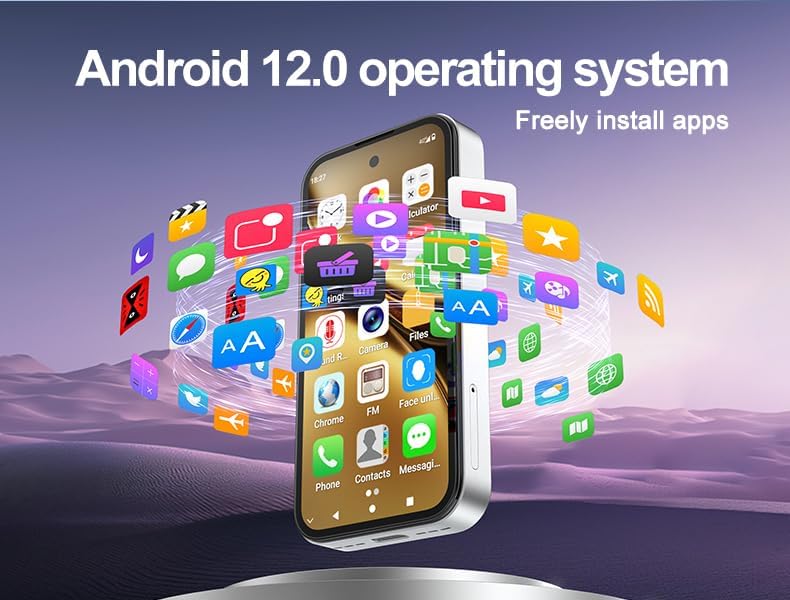
Image: The QC-01 Mini Smartwatch running Android 12.0, illustrating the ability to freely install applications.
2. Operating the Smartwatch
2.1 Basic Navigation
The QC-01 features a 3.97-inch HD multi-touch display for intuitive interaction.
- Tap: Select an item or open an application.
- Swipe: Navigate through screens, menus, or scroll content.
- Pinch-to-zoom: Zoom in or out on images and web pages.
- Long press: Access contextual menus or move app icons.
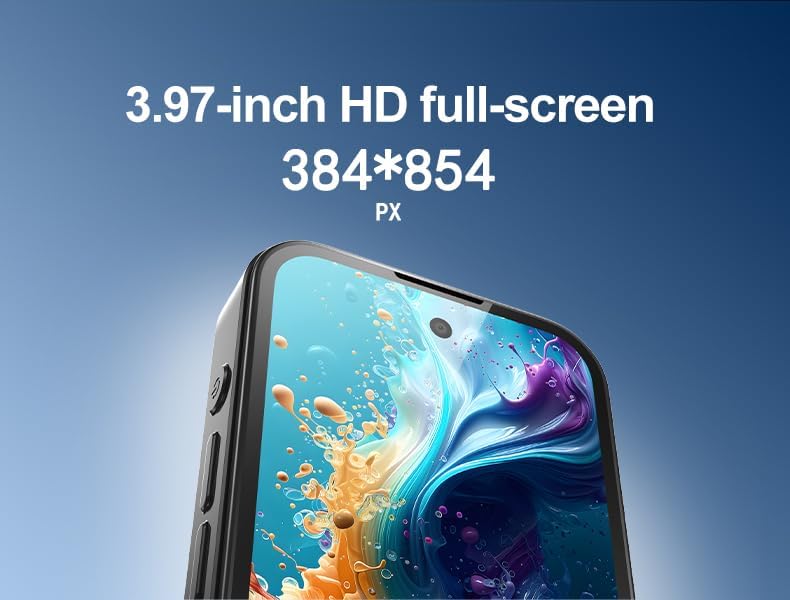
Image: A detailed view of the 3.97-inch HD full-screen display, showing its resolution.
2.2 Calls and Messaging
With dual SIM support and 4G LTE connectivity, you can make and receive calls and messages directly from your smartwatch.
- Open the Phone app to dial numbers or access your contacts.
- Use the Messages app for SMS and MMS.
- For video calls, apps like WhatsApp are pre-installed or can be downloaded from the Google Play Store.

Image: The smartwatch displaying a WhatsApp video chat, demonstrating its communication capabilities.
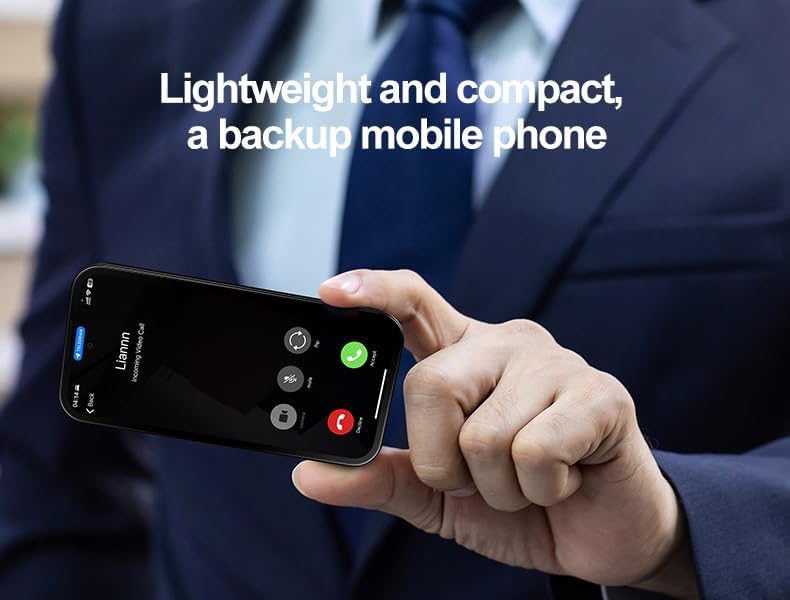
Image: The lightweight and compact smartwatch, shown receiving an incoming video call, highlighting its use as a backup mobile phone.
2.3 Camera Usage
The smartwatch is equipped with a 5MP front camera and an 8MP rear camera with auto-focus.
- Open the Camera app from the home screen or app drawer.
- Tap the screen to focus.
- Tap the shutter button to take a photo or start/stop video recording.
- Switch between front and rear cameras using the icon on the screen.
2.4 App Installation and Management
With Google Play Store pre-installed, you have access to millions of applications.
- Open the Play Store app.
- Search for desired applications.
- Tap Install to download and install apps.
- To manage apps, go to Settings > Apps.
2.5 Connectivity (Bluetooth, Wi-Fi, GPS)
Your smartwatch supports Bluetooth 5.0, dual-band Wi-Fi (2.4G/5G), and GPS.
- Bluetooth: Go to Settings > Connected devices > Bluetooth to pair with headphones, speakers, or other devices.
- Wi-Fi: Go to Settings > Network & internet > Wi-Fi to connect to available Wi-Fi networks.
- GPS: The device includes GPS for navigation and location-based services. Ensure location services are enabled in Settings > Location for apps like Google Maps.
2.6 Face Recognition
The QC-01 features intelligent face recognition for secure unlocking.
- Go to Settings > Security & privacy > Face unlock.
- Follow the on-screen instructions to register your face.
- Once set up, simply look at the front camera to unlock your device.
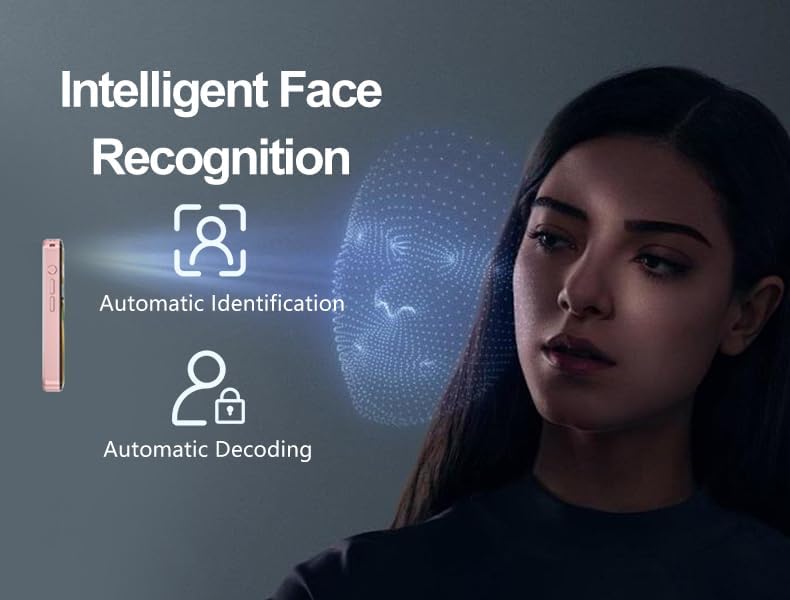
Image: Visual representation of the smartwatch's Intelligent Face Recognition technology for secure access.
3. Maintenance
3.1 Cleaning Your Smartwatch
To keep your smartwatch in optimal condition:
- Wipe the screen and body with a soft, lint-free cloth.
- Avoid using harsh chemicals, abrasive cleaners, or aerosol sprays.
- Do not submerge the device in water.
3.2 Software Updates
Regularly check for software updates to ensure your device has the latest features and security patches.
- Go to Settings > System > System update.
- Connect to a stable Wi-Fi network before downloading updates.
3.3 Battery Care
To prolong battery life:
- Avoid extreme temperatures.
- Do not let the battery completely drain frequently.
- Use the provided charging cable.
4. Troubleshooting
If you encounter issues with your QC-01 Mini Smartwatch, refer to the following common solutions:
4.1 Device Not Powering On
- Ensure the battery is charged. Connect the device to a charger for at least 30 minutes.
- Press and hold the power button for 10-15 seconds to perform a forced restart.
4.2 Connectivity Issues (Wi-Fi/Bluetooth)
- Wi-Fi: Ensure Wi-Fi is enabled in settings. Forget the network and reconnect. Restart your router.
- Bluetooth: Ensure Bluetooth is enabled on both devices. Unpair and re-pair the device. Move closer to the paired device.
4.3 Apps Crashing or Freezing
- Close and reopen the app.
- Clear the app's cache and data in Settings > Apps > [App Name] > Storage.
- Restart the smartwatch.
- Ensure the app is updated to its latest version.
4.4 Poor Performance / Lag
- Close unnecessary background applications.
- Clear cache for frequently used apps.
- Ensure sufficient storage space is available.
- Restart the device periodically.
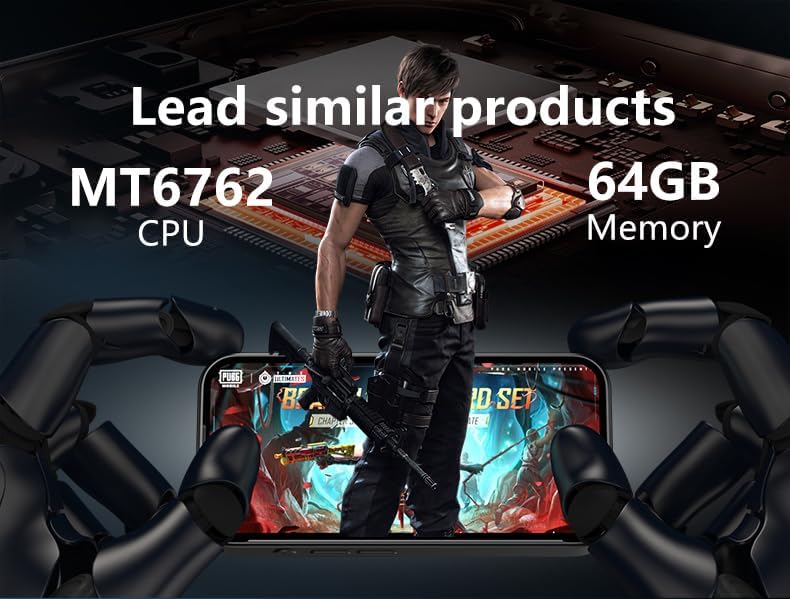
Image: The smartwatch demonstrating its performance capabilities with the MT6762 CPU and 64GB memory, suitable for gaming and multitasking.
5. Specifications
Detailed technical specifications for the Generic QC-01 Mini Smartwatch:
| Feature | Detail |
|---|---|
| Model | QC-01 |
| Operating System | Android 12.0 with Google Mobile Services |
| Processor | Octa-Core MTK6762 Chipset |
| Display | 3.97-inch HD Screen (384×854 pixels), Multi-Touch, AMOLED |
| Memory (RAM) | 4GB DDR3 RAM |
| Storage (ROM) | 64GB eMMC (Expandable via TF Card up to 256GB) |
| Cameras | Front 5MP (Interpolated) / Rear 8MP with Auto-Focus (Interpolated) |
| Connectivity | Dual SIM (4G LTE), 2.4G/5G Wi-Fi, Bluetooth 5.0, GPS, USB Type-C |
| Battery | 2000mAh Built-in Lithium Polymer |
| Dimensions | 98.2×48.2×12 mm |
| Weight | 81g |
| Human Interface Input | Touchscreen |
| Special Features | GPS, Face Recognition, Handwriting input, Gyroscope sensor |
6. Warranty and Support
6.1 Product Warranty
Your Generic QC-01 Mini Smartwatch comes with a standard manufacturer's warranty. Please refer to the warranty card included in your product packaging or your purchase documentation for specific terms, conditions, and duration. Keep your proof of purchase for warranty claims.
6.2 Customer Support
For further assistance, technical support, or inquiries not covered in this manual, please contact your retailer or the manufacturer's customer service. Contact details can typically be found on the product packaging or the official brand website.
Manufacturer: Generic
Place of Business: Shenzhen Xingjicheng Technology Co; Ltd huizhanwan shuian4-2101 fuhai street baoan district shenzhen city guangdong province china ,tel: 008618268003535


