
Introduction
The Ant Esports MK4400 Pro is a versatile mechanical gaming keyboard designed for performance and flexibility. It features Tri-Mode connectivity (Bluetooth, 2.4GHz wireless, and USB-C wired), per-key RGB lighting, and durable ANT Red mechanical switches. This manual provides detailed instructions for setting up, operating, maintaining, and troubleshooting your keyboard to ensure optimal performance across various devices and operating systems.
What's in the Box
Please check the package contents upon unboxing to ensure all items are present:
- Ant Esports MK4400 Pro Mechanical Gaming Keyboard
- USB-A to Type-C Cable
- USB Dongle (for 2.4GHz wireless connectivity)
- User Manual

Image: The Ant Esports MK4400 Pro keyboard shown alongside its retail packaging, illustrating the product and its included accessories.
Product Overview
The MK4400 Pro features a full-size 104-key layout with additional multimedia keys, designed for both gaming and productivity. It incorporates ANT Red mechanical switches for a smooth and responsive typing experience.

Image: A top-down view of the Ant Esports MK4400 Pro keyboard, highlighting its full 104-key layout plus 4 dedicated multimedia keys and vibrant RGB backlighting.
Key Features:
- Tri-Mode Connectivity: Supports Wired (USB-C), 2.4GHz Wireless, and Bluetooth (up to 3 devices).
- ANT Red Mechanical Switches: Linear switches with a 20 million click lifespan for smooth and fast keystrokes.
- Per-Key RGB Lighting: Customizable backlighting with multiple effects.
- Full Anti-Ghosting: Ensures all keystrokes are registered accurately during intense gaming.
- 1000mAh Rechargeable Battery: Provides extended wireless usage.
- Wide OS Compatibility: Compatible with Windows, Mac, Linux, and Android.

Image: A close-up view of the Ant Esports MK4400 Pro keyboard, showcasing the responsive ANT Red mechanical switches with their linear action and transparent housing for RGB lighting.
Indicator Lights:
The keyboard features three indicator lights located above the numeric keypad:
- Num Lock Indicator: Illuminates when Num Lock is active.
- Caps Lock Indicator: Illuminates when Caps Lock is active.
- Scroll Lock Indicator: Illuminates when Scroll Lock is active.
Additional indicators for connectivity and battery status are integrated:
- Charging Indicator: Red light illuminates when charging and turns off when fully charged.
- Low Power Alert: Red light flashes slowly when the battery is low.
- 2.4G Wireless Indicator: Green light flashes quickly during pairing and remains solid green upon successful connection.
- Bluetooth Indicators (BT1, BT2, BT3): Blue light flashes quickly during pairing and remains solid blue upon successful connection to the respective channel.
Setup and Connectivity
The Ant Esports MK4400 Pro offers three connectivity modes: Wired, 2.4GHz Wireless, and Bluetooth. You can switch between these modes using the function keys.

Image: The Ant Esports MK4400 Pro keyboard highlighting its three connectivity options: Wired Type-C, Bluetooth, and 2.4G wireless, with corresponding icons.
1. Wired Mode (USB-C)
- Connect the provided USB-A to Type-C cable to the keyboard's Type-C port and your computer's USB-A port.
- Press FN + B to select wired mode. The keyboard will be recognized automatically by your system.
2. 2.4GHz Wireless Mode
- Plug the USB dongle into an available USB port on your computer.
- Press FN + V to activate 2.4GHz wireless mode. The green indicator light will flash quickly.
- Once connected, the green indicator light will become solid, and the keyboard is ready for use.
3. Bluetooth Mode (BT1, BT2, BT3)
The keyboard supports connecting to up to three Bluetooth devices.
- Press FN + Z (for BT1), FN + X (for BT2), or FN + C (for BT3) to select the desired Bluetooth channel.
- Hold the selected FN + Z/X/C key combination for 3 seconds. The blue indicator light for the selected channel will flash quickly, indicating pairing mode.
- On your device (PC, laptop, tablet, smartphone), enable Bluetooth and search for new devices. Select "BT Keyboard" from the list of available devices.
- Once connected, the blue indicator light will become solid, and the keyboard is ready for use.
- To switch between paired Bluetooth devices, simply press FN + Z/X/C for the desired channel.
System Compatibility
The MK4400 Pro is compatible with a wide range of operating systems:
- Windows (11/10/8/7)
- Mac OS
- Linux
- Android

Image: The Ant Esports MK4400 Pro keyboard displayed on a desk with a monitor, illustrating its compatibility with Windows, Apple macOS, Linux, and Android operating systems.
Operating Instructions
Function Key Combinations (FN + Key)
The keyboard features various function key combinations to control multimedia, system functions, and lighting effects:
| Key Combination | Function |
|---|---|
| FN + F1 | My Computer |
| FN + F2 | Search |
| FN + F3 | Calculator |
| FN + F4 | Media Player |
| FN + F5 | Previous Track |
| FN + F6 | Next Track |
| FN + F7 | Play/Pause |
| FN + F8 | Stop |
| FN + F9 | Mute |
| FN + F10 | Volume Down |
| FN + F11 | Volume Up |
| FN + F12 | |
| FN + ESC (Hold 3s) | Reset to Factory Defaults |
| FN + Win | Lock/Unlock Windows Key |
| FN + Tab | Switch System (Windows/Mac) |
| FN + INS / HOME / PGUP | Cycle through 19 Backlight Modes |
| FN + DEL / END / PGDN | Cycle through Backlight Colors |
| FN + Left Arrow | Decrease Backlight Speed |
| FN + Right Arrow | Increase Backlight Speed |
| FN + Up Arrow | Increase Backlight Brightness |
| FN + Down Arrow | Decrease Backlight Brightness |
RGB Lighting Control
The MK4400 Pro features per-key RGB lighting with various customization options.
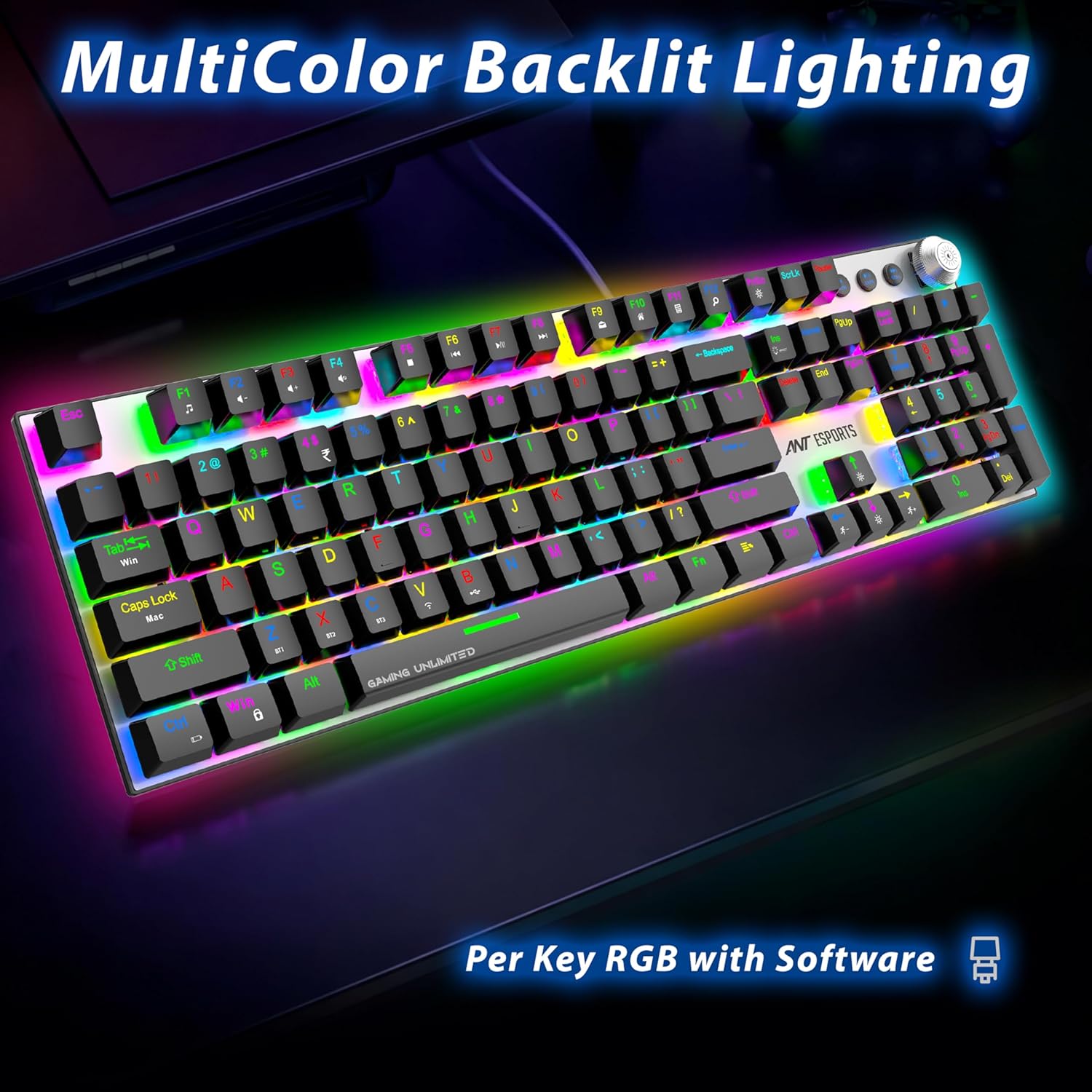
Image: The Ant Esports MK4400 Pro keyboard displaying its vibrant multicolor backlit lighting, with individual keys illuminated in various RGB hues.
- Change Lighting Mode: Press FN + INS, FN + HOME, or FN + PGUP to cycle through 19 different backlight effects.
- Change Lighting Color: Press FN + DEL, FN + END, or FN + PGDN to change the color of the current lighting effect (if applicable).
- Adjust Brightness: Press FN + Up Arrow to increase brightness and FN + Down Arrow to decrease brightness.
- Adjust Speed: Press FN + Right Arrow to increase the speed of dynamic effects and FN + Left Arrow to decrease speed.
Volume Knob Function
The dedicated knob on the top right of the keyboard provides quick audio control:
- Short Press: Mute or unmute audio.
- Rotate: Turn clockwise to increase volume, turn counter-clockwise to decrease volume.
Maintenance
Proper maintenance ensures the longevity and optimal performance of your keyboard.
- Cleaning: Use a soft, dry cloth to wipe the keyboard surface. For deeper cleaning, use compressed air to remove dust and debris from between the keycaps. Avoid using harsh chemicals or abrasive materials.
- Keycap Removal: If necessary, keycaps can be carefully removed using a keycap puller (not included) for thorough cleaning of the switches. Exercise caution to avoid damaging the switches.
- Storage: Store the keyboard in a cool, dry place away from direct sunlight and extreme temperatures.
- Battery Care: To prolong battery life, avoid fully discharging the keyboard frequently. Charge the keyboard when the low power alert is indicated.
Troubleshooting
If you encounter issues with your Ant Esports MK4400 Pro keyboard, refer to the following common troubleshooting steps:
- Keyboard Not Responding:
- Ensure the keyboard is charged. Connect the USB-C cable to charge.
- Verify the correct connectivity mode is selected (Wired, 2.4GHz, or Bluetooth) using FN + B/V/Z/X/C.
- For 2.4GHz, ensure the USB dongle is securely plugged in and the green indicator is solid.
- For Bluetooth, ensure the keyboard is paired correctly and the blue indicator is solid. Try re-pairing if necessary.
- Try connecting the keyboard in wired mode to rule out wireless issues.
- Keys Not Registering / Ghosting:
- The keyboard features full anti-ghosting. If specific keys are not registering, ensure no debris is lodged under the keycap.
- Try resetting the keyboard to factory defaults by holding FN + ESC for 3 seconds.
- RGB Lighting Not Working/Incorrect:
- Ensure the keyboard is powered on.
- Use FN + INS/HOME/PGUP to cycle through lighting modes.
- Use FN + Up/Down Arrow to adjust brightness.
- If issues persist, reset the keyboard to factory defaults.
- Bluetooth Connection Issues:
- Ensure the keyboard is within range of the device.
- Remove "BT Keyboard" from your device's Bluetooth list and attempt to re-pair.
- Ensure no other Bluetooth devices are causing interference.
Specifications
Detailed technical specifications for the Ant Esports MK4400 Pro keyboard:
| Feature | Detail |
|---|---|
| Brand | Ant Esports |
| Model Name | MK4400 Pro |
| Connectivity Technology | 2.4GHz Wireless, Bluetooth, USB-C Wired |
| Keyboard Type | Mechanical Gaming Keyboard |
| Number of Keys | 104 + 4 Multimedia Keys |
| Switch Type | ANT Red Mechanical Switches |
| Key Lifespan | 20 Million Clicks |
| Anti-Ghosting | Full Anti-Ghosting (100%) |
| Backlighting | Per-Key RGB with Custom Control |
| Battery Capacity | 1000mAh Rechargeable Battery |
| Working Voltage | 5V |
| Working Current | 100mA |
| Compatible OS | Windows 11/10/8/7, Mac OS, Linux, Android |
| Dimensions (L x W x H) | 462 x 130 x 35 mm (approx. 47L x 17W x 4H Centimeters) |
| Product Weight | ~650g (approx. 800 Grams with packaging) |
| Enclosure Material | Acrylonitrile Butadiene Styrene (ABS) |
Warranty and Support
The Ant Esports MK4400 Pro Wireless Mechanical Gaming Keyboard comes with a 1 Year Warranty from the date of purchase.
For warranty claims, technical support, or any product-related inquiries, please contact Ant Esports customer service. You may also visit their official website for more information and support resources.
Manufacturer Contact Information: Ant Esports
Official Website: https://bit.ly/3S6slUw