
1. Introduction
Thank you for choosing the Longben Mini Smartphone XS19Pro. This compact device runs on Android 12.0 and offers a range of features including 4G connectivity, dual SIM support, Face ID, GPS, Wi-Fi, and OTG functionality. This manual provides essential information for setting up, operating, maintaining, and troubleshooting your new smartphone to ensure optimal performance and user experience.

Image 1.1: Longben Mini Smartphone XS19Pro. This image displays the compact blue smartphone from a slight angle, showcasing its screen and side buttons.
2. Product Overview
The Longben Mini Smartphone XS19Pro is designed for portability and functionality. It features a 3.88-inch screen and weighs approximately 83g, making it easy to carry. The device supports dual Nano SIM cards or one Nano SIM card and one TF (Micro SD) memory card for expanded storage.
2.1 Key Features
- Display: 3.88-inch OLED screen with 384 x 854 resolution.
- Processor: 8-core CPU, 2 GHz speed.
- Operating System: Android 12.0.
- Memory: 3GB RAM, 32GB internal storage (expandable up to 64GB with TF card).
- Cameras: 2MP front camera, 5MP rear camera.
- Connectivity: 4G, Wi-Fi, Bluetooth, GPS, OTG, USB Type-C.
- Battery: 1950mAh capacity.
- Security: Face ID.

Image 2.1: The Longben Mini Smartphone XS19Pro easily fits into a pocket, demonstrating its compact size and portability.

Image 2.2: An illustration depicting the multi-core processor, highlighting the internal technology of the Longben Mini Smartphone XS19Pro.
3. Setup
3.1 Inserting SIM and Memory Cards
- Locate the SIM card tray on the side of the device.
- Use the provided SIM ejector tool to open the tray.
- Carefully place your Nano SIM card(s) and/or TF (Micro SD) memory card into the designated slots. Ensure the gold contacts are facing down.
- Gently push the tray back into the device until it clicks into place.
3.2 Initial Power On and Charging
- Press and hold the power button (usually on the right side) until the screen lights up.
- Follow the on-screen prompts to select your language, connect to a Wi-Fi network, and set up your Google account.
- To charge the device, connect the included USB Type-C cable to the charging port at the bottom of the phone and plug the other end into a power adapter.

Image 3.1: The Longben Mini Smartphone XS19Pro displaying a charging animation with a 1950mAh battery capacity indicator.
4. Operating
4.1 Basic Navigation
The Longben Mini Smartphone XS19Pro uses Android 12.0 gestures for navigation. Swipe up from the bottom to go to the home screen, swipe up and hold to view recent apps, and swipe from the left or right edge to go back.
4.2 Calls and Messaging
To make a call, tap the Phone icon and dial the number or select a contact. For messaging, open the Messages app to send and receive SMS/MMS.
4.3 Internet and Connectivity
- Wi-Fi: Go to Settings > Network & internet > Wi-Fi to connect to available networks.
- Bluetooth: Go to Settings > Connected devices > Bluetooth to pair with Bluetooth accessories.
- Mobile Data: Ensure your SIM card is active and mobile data is enabled in Settings > Network & internet > Mobile network.
4.4 Google Play Store
Access the Google Play Store to download and install applications such as social media, games, and productivity tools. A Google account is required.
4.5 Face ID
Set up Face ID for secure unlocking. Go to Settings > Security > Face unlock and follow the instructions to register your face. This feature provides convenient and secure access to your device.

Image 4.1: An illustration demonstrating the Face ID recognition feature on the Longben Mini Smartphone XS19Pro, showing a face being scanned for unlocking.
4.6 Camera Usage
The phone is equipped with a 2MP front camera and a 5MP rear camera. Open the Camera app to take photos and videos. Tap the screen to focus and press the shutter button to capture.

Image 4.2: The Longben Mini Smartphone XS19Pro showcasing its dual camera system (2MP front, 5MP rear) with example photos of people and pets.
4.7 OTG Functionality
The device supports On-The-Go (OTG) functionality, allowing you to connect USB devices such as flash drives, keyboards, mice, or gamepads directly to your phone using an OTG adapter (not included). This enables easy data transfer and expanded peripheral use.
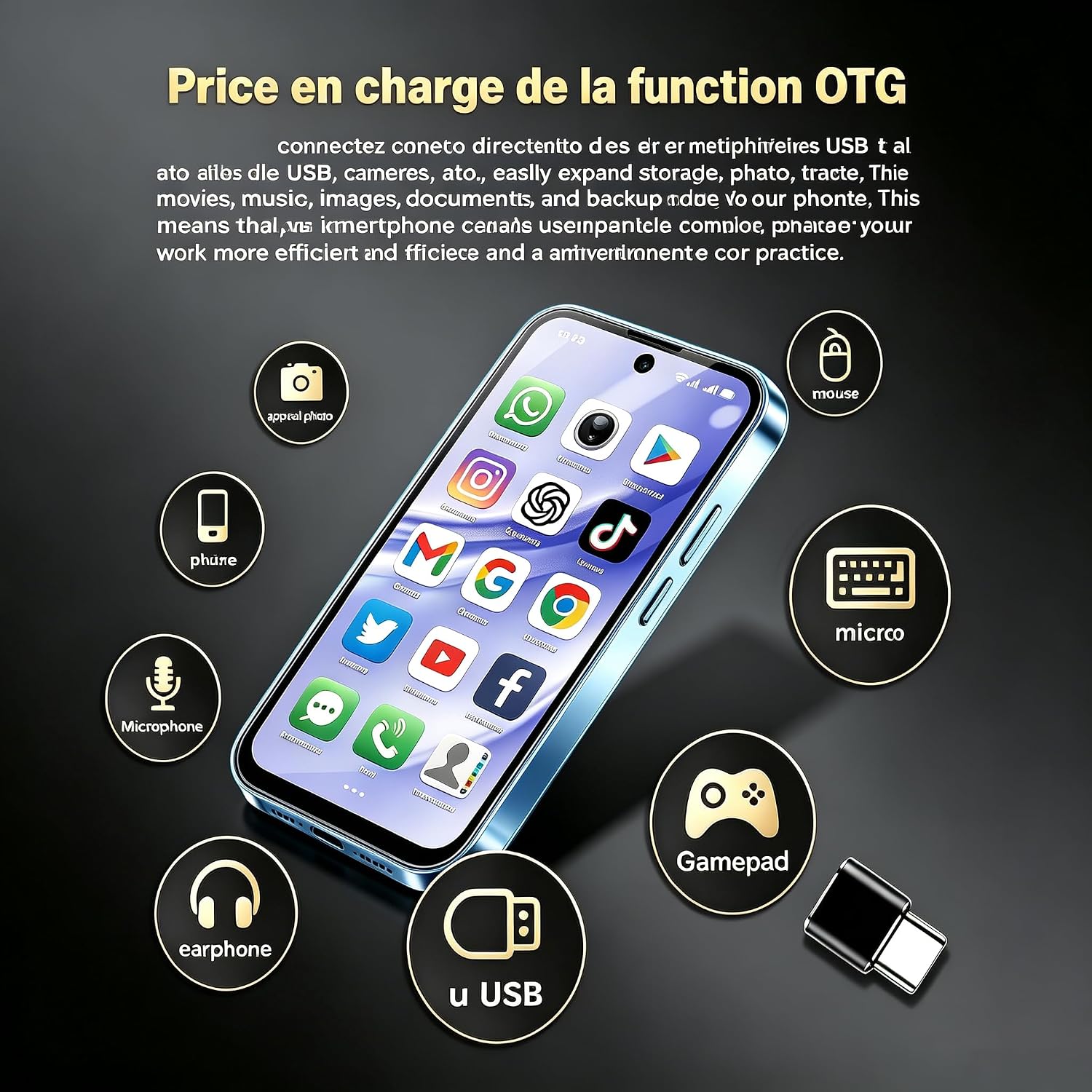
Image 4.3: An illustration of the Longben Mini Smartphone XS19Pro demonstrating its OTG function, showing various peripherals like a USB drive, mouse, gamepad, and microphone connected.
5. Maintenance
5.1 Battery Care
- Avoid extreme temperatures, which can degrade battery life.
- Do not leave the phone charging for extended periods after it reaches 100%.
- For optimal battery health, try to keep the charge level between 20% and 80%.
5.2 Cleaning the Device
Use a soft, lint-free cloth to clean the screen and body of the phone. Avoid using harsh chemicals or abrasive materials. Do not expose the device to excessive moisture as it is not waterproof.
5.3 Software Updates
Regularly check for software updates to ensure your device has the latest features, security patches, and performance improvements. Go to Settings > System > System update.
5.4 Storage Management
To maintain optimal performance, regularly manage your device's storage. Delete unnecessary files, uninstall unused apps, and move large media files to a connected TF card or cloud storage.
6. Troubleshooting
6.1 Common Issues and Solutions
- Device not turning on: Ensure the battery is charged. Connect to a charger and wait a few minutes before attempting to power on again.
- Apps crashing or freezing: Close the app and reopen it. If the issue persists, clear the app's cache (Settings > Apps > [App Name] > Storage & cache > Clear cache) or uninstall and reinstall the app.
- Poor network connectivity: Check if your SIM card is properly inserted. Restart the device. Verify mobile data settings or Wi-Fi connection.
- Battery draining quickly: Reduce screen brightness, close background apps, disable unnecessary features like GPS or Bluetooth when not in use.
6.2 Factory Reset
If you encounter persistent software issues, a factory reset may resolve them. Warning: This will erase all data on your phone. Back up important data before proceeding. Go to Settings > System > Reset options > Erase all data (factory reset).
7. Specifications
| Feature | Specification |
|---|---|
| Brand | Longben |
| Model Name | XS19Pro |
| Operating System | Android 12.0 |
| RAM | 3 GB |
| Internal Storage | 32 GB |
| Expandable Storage | Up to 64 GB (TF card) |
| CPU Speed | 2 GHz (8-core) |
| Display Size | 3.88 inches |
| Display Type | OLED |
| Display Resolution | 384 x 854 pixels |
| Rear Camera | 5 MP |
| Front Camera | 2 MP |
| Battery Capacity | 1950 mAh |
| Cellular Technology | 4G |
| SIM Card Type | Nano SIM (Dual SIM support) |
| Connectivity | Bluetooth, Wi-Fi, GPS, OTG |
| USB Port | USB Type-C |
| Biometric Security | Face Recognition |
| Water Resistance | Not waterproof |
| Dimensions | 97 x 46 x 11 mm (approx.) |
| Weight | 83 g (approx.) |
8. Warranty and Support
8.1 Warranty Information
The Longben Mini Smartphone XS19Pro comes with a 1-year manufacturer's warranty from the date of purchase. This warranty covers manufacturing defects and malfunctions under normal use. It does not cover damage caused by misuse, accidents, unauthorized repairs, or normal wear and tear.
8.2 Customer Support
For technical assistance, warranty claims, or further inquiries, please contact Longben customer support through the retailer where you purchased the device or refer to the official Longben website for contact details. Please have your product model (XS19Pro) and proof of purchase ready when contacting support.


