
1. Introduction
The QQH Z80 15.6" 1080P Triple Portable Monitor Extender is designed to enhance your productivity by providing additional screen real estate for your Windows laptop. This ultra-slim, full HD IPS display offers a seamless plug-and-play experience without the need for additional drivers.
Important Compatibility Note: This device is designed exclusively for Windows systems (Windows 12 / 11 / 10 / 8.1 / 7 laptops). It is NOT compatible with macOS or other operating systems. Ensure your laptop has a full-featured USB-C port (Thunderbolt 3/4 or DP Alt Mode supported) for optimal single-cable connectivity.

Image: The QQH Z80 Triple Portable Monitor Extender shown with Windows operating system logos (Windows 12, 11, 10, 8.1, 7) and a 'Windows Only' label, indicating its exclusive compatibility.
2. What's in the Box
- 1x 15.6-inch Triple Portable Monitor
- 1x USB-C to USB-C Cable (For Video Output)
- 1x USB-C to USB-A Cable (For Power Supply)
- 1x 5V/3A Power Adapter

Image: A visual representation of the package contents, showing the triple portable monitor, USB-C to USB-C cable, USB-C to USB-A cable, 5V/3A power adapter, and user manual.
3. Setup
3.1 Physical Setup
The QQH Z80 features a desktop placement design with a rear support that can tilt up to 90 degrees, providing a stable and comfortable viewing angle without stressing your laptop hinges. It is compatible with 12-16 inch laptops.

Image: The QQH Z80 Monitor Extender set up on a desk with a laptop, illustrating its stable desktop placement design and compatibility with 12-16 inch laptops.
3.2 Connection Method
For Windows laptops with a full-featured USB-C port (Thunderbolt 3/4 or DP Alt Mode supported), simply connect the monitor extender using the provided USB-C to USB-C cable. This enables both video output and power delivery through a single cable, offering a clean and driver-free setup.

Image: A close-up of the QQH Z80 Monitor Extender connected to a laptop via a single USB-C cable, highlighting the 'For Video' and 'For Power' ports.
If your laptop's USB-C port does not support sufficient power delivery or video output, use the provided USB-C to USB-A cable with the 5V/3A power adapter for external power.
3.3 Important Pre-Purchase Information
- Windows Only: Not compatible with Mac OS.
- USB-C Devices Only: Ensure your laptop has a FULL-FUNCTIONAL USB-C Port.
- Laptop Size: Optimized for 12-16 inch screen sizes.
To identify a full-featured USB-C port, look for symbols such as Thunderbolt 3 or 4, or a USB-C port with video output capabilities. Refer to your laptop's manual or manufacturer's website for port specifications.
Video: An official QQH video demonstrating the plug-and-play setup of the Z80 Laptop Monitor Extender for Windows systems, highlighting its driver-free operation.
4. Operating
4.1 Display Modes
The QQH Z80 supports multiple display modes to enhance productivity and versatility:
- Extended Mode: Expands your desktop across all three screens, allowing for intelligent multitasking.
- 2nd Screen Mode: Displays content on one of the external monitors, useful for focused work or presentations.
- Presentation Mode: Orients the external screens to face away from the user, ideal for sharing content with clients or colleagues.
- Mirror Mode: Duplicates your main laptop screen onto the external monitors.
- Portrait Mode: Allows for vertical orientation of the external screens, beneficial for coding or viewing long documents.

Image: The QQH Z80 Monitor Extender demonstrating its multiple display modes, including Extended, 2nd Screen, Presentation, and Mirror Mode, showcasing its versatility.
4.2 Screen Rotation
Each external display can rotate up to 360 degrees, providing flexible viewing angles for any task or scenario. This allows for easy adjustment between landscape and portrait orientations.
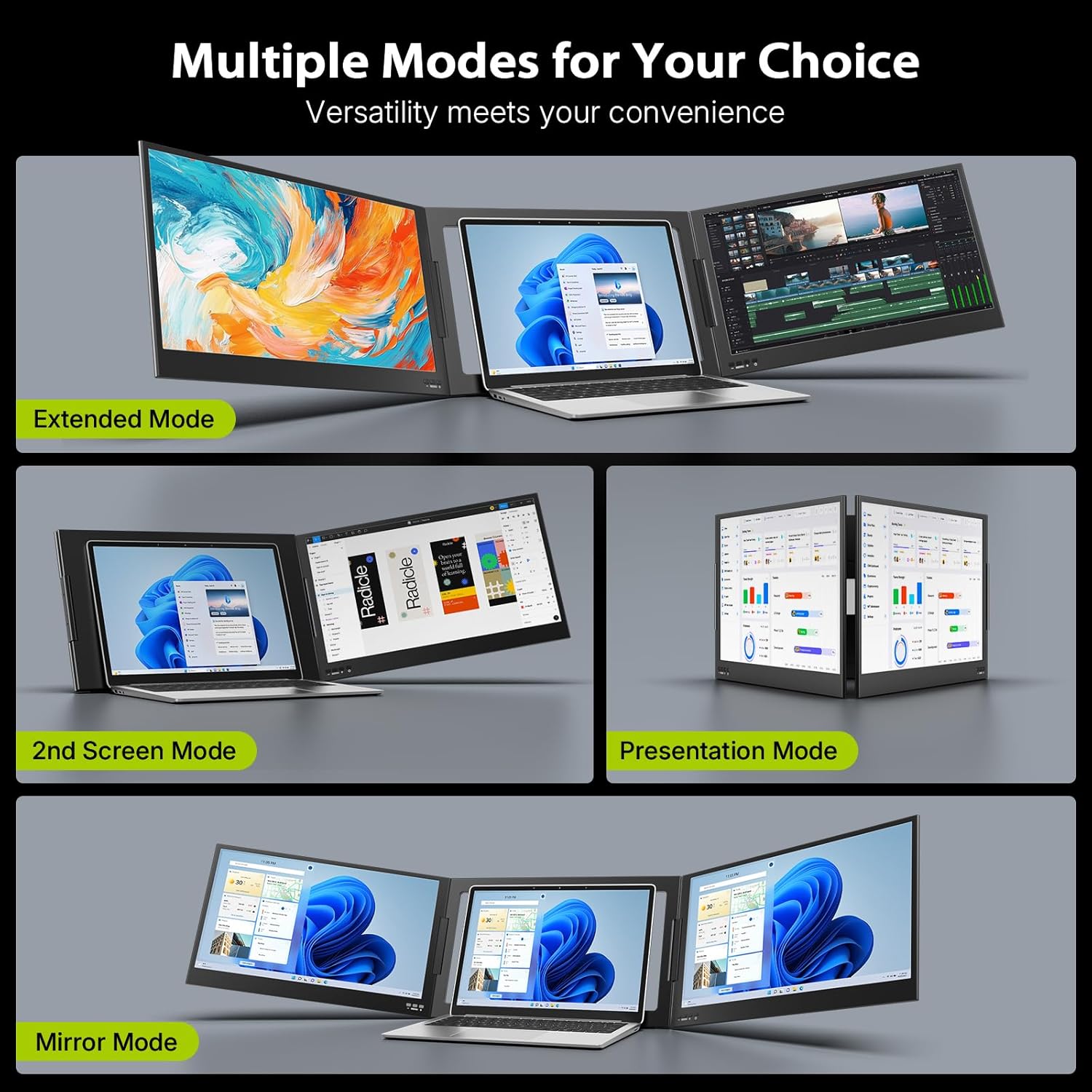
Image: The QQH Z80 Monitor Extender illustrating its full 360-degree screen rotation feature, allowing for flexible viewing angles.
4.3 On-Screen Display (OSD) Settings
Each display features independent OSD controls (Menu, +, - buttons) located on the bottom bezel. These buttons allow you to personalize settings such as brightness, contrast, color temperature, and other display parameters for each screen individually.

Image: The QQH Z80 Monitor Extender demonstrating separate OSD settings for each screen, allowing individual customization of display parameters.
5. Maintenance
To ensure the longevity and optimal performance of your QQH Z80 monitor extender, follow these maintenance guidelines:
- Cleaning: Use a soft, lint-free cloth slightly dampened with water or a screen-cleaning solution. Avoid harsh chemicals or abrasive materials.
- Storage: When not in use, fold the screens securely to protect them. Store in a cool, dry place away from direct sunlight and extreme temperatures.
- Handling: Handle the device with care to prevent drops or impacts, which could damage the screens or internal components.
- Cable Management: Avoid sharp bends or kinks in the cables to prevent damage.
6. Troubleshooting
If you encounter issues with your QQH Z80 monitor extender, please refer to the following common solutions:
- No Signal: Ensure your laptop's USB-C port is full-featured (supports video output) and that the USB-C to USB-C cable is securely connected. If using a USB-C to USB-A cable, ensure the power adapter is also connected.
- Displays Not Detected: Verify your laptop is running a supported Windows operating system. Check your Windows display settings (Right-click desktop > Display settings) to ensure the monitors are detected and configured correctly (e.g., Extend mode).
- Power Issues: If the screens are not powering on or are flickering, ensure your laptop's USB-C port provides sufficient power, or use the external 5V/3A power adapter.
- Image Quality: Adjust brightness, contrast, and color settings using the OSD buttons on each display.
- Physical Stability: Ensure the rear kickstand is fully extended and properly supporting the monitor extender on a flat surface.
7. Specifications
| Feature | Specification |
|---|---|
| Brand | QQH |
| Model Number | Z80 |
| Screen Size | 15.6 Inches (x2) |
| Resolution | FHD 1080p (1920 x 1080 Pixels) |
| Aspect Ratio | 16:9 |
| Screen Surface | Matte |
| Contrast Ratio | 1200:1 |
| Refresh Rate | 60 Hz |
| Display Technology | IPS LCD |
| Viewing Angle | 178 Degrees |
| Brightness | 300 Candela (Nits) |
| Connectivity Technology | USB 3.1 Type C (DisplayPort Alt Mode) |
| Item Dimensions (D x W x H) | 17.64"D x 10.43"W x 1.97"H |
| Weight | 4 lbs |
| Color | Black |
8. Warranty & Support
The QQH Z80 Laptop Screen Extender comes with a 1-Year Manufacturer Warranty.
For technical assistance or support inquiries, please contact QQH customer service. Refer to the user manual for specific contact details or visit the official QQH website.


