
1. Important Safety Information
Please read all instructions carefully before using the vivirata Automatic Self-Cleaning Litter Box. Keep this manual for future reference.
- This appliance is for indoor use only.
- Do not immerse the base unit in water. The base contains electronic components and should not be washed with water.
- Ensure the power cord is not damaged and is placed where it cannot be tripped over or chewed by pets.
- Keep children and pets away from the unit during operation to prevent injury.
- Use only clumping cat litter as recommended. Other types of litter may damage the unit or impair its function.
- Do not attempt to repair or modify the unit yourself. Contact customer support for assistance.

Image: The vivirata Automatic Litter Box features anti-pinch infrared sensors and weight detection to ensure cat safety during operation.
The litter box is equipped with infrared and weight sensors that automatically pause operation if a cat enters the unit during a cleaning cycle. This advanced safety protection system is designed for the well-being of your pets.
2. Product Overview
The vivirata Automatic Self-Cleaning Litter Box is designed to simplify cat care with its automated cleaning cycles, smart app control, and safety features.

Image: The vivirata Automatic Self-Cleaning Litter Box, showcasing its modern design and self-cleaning function.
Key Features:
- Automatic Cleaning: Initiates cleaning cycles after your cat exits the unit.
- Smart APP Control: Remote management, customized settings, and health monitoring.
- Dual Safety Sensors: Infrared and weight sensors ensure pet safety.
- Odor Control: Sealed waste bin and anti-leakage stickers minimize odors.
- Quiet Operation: Operates at less than 35dB for minimal disturbance.
- Large Capacity: Suitable for multiple cats, with a 65L sphere capacity and 10L waste bin.
3. Setup Guide
3.1 Unboxing and Assembly
- Carefully remove all components from the packaging.
- Place the base unit on a flat, stable surface.
- Assemble the sphere and waste bin according to the detailed instructions provided in the box. The unit is designed for simple assembly and disassembly.
3.2 Adding Litter
- Ensure the unit is powered off or in standby mode.
- Open the top of the sphere.
- Pour clumping cat litter into the sphere. The unit is compatible with most clumping litters, including mineral, bentonite, and mixed types.
- Do not exceed the maximum fill line indicated inside the sphere.
- Close the sphere securely.

Image: Demonstrating how to add clumping cat litter to the vivirata Automatic Litter Box, compatible with various litter types.
3.3 App Connection
- Download the smart APP from your device's app store.
- Register or log in to your account.
- Follow the in-app instructions to connect your litter box to your Wi-Fi network. Ensure your Wi-Fi is 2.4GHz.
- Press and hold the Wi-Fi pairing button on the unit for 3 seconds to enter pairing mode.
- Once connected, you can manage settings and monitor your cat's activity remotely.

Image: The smart app interface for remote control and monitoring of the vivirata Automatic Litter Box.
4. Operating Instructions
4.1 Automatic Cleaning Cycle
The litter box automatically detects when your cat has used the unit and exited. After a preset delay (customizable via the app), it will initiate a cleaning cycle. The internal sphere rotates, sifting clean litter and depositing waste into the sealed waste bin below.

Image: The automatic self-cleaning mechanism of the vivirata litter box in action, sifting litter.
4.2 Manual Mode and Controls
The unit can also be operated manually using the buttons on the front panel:
- Wi-Fi Pairing Button: Press and hold for 3 seconds to enter Wi-Fi pairing mode.
- Cleaning Button: Press and hold for 1 second to start a cleaning cycle manually.
- Litter Weight Reset Button: Press and hold for 3 seconds (when adding litter) to reset the litter weight baseline.

Image: The manual control panel of the litter box, showing buttons for Wi-Fi pairing, cleaning, and litter weight reset.
4.3 App Features and Customization
The smart app provides extensive control and monitoring capabilities:
- Remote Cleaning: Initiate a cleaning cycle from anywhere.
- Customized Clumping Time: Adjust the delay before cleaning starts.
- Specialized Modes: Activate Kitten Mode for younger cats or Sleep Mode for quiet operation during specific hours.
- Waste Bin Reminder: Receive notifications when the waste bin is full.
- Status Monitoring: View real-time status (Cat Inside, Cleaning, Standby) and litter level.
- Health Tracking: Monitor your cat's bathroom habits and usage frequency with daily, monthly, and yearly statistics.

Image: A user interacting with the smart app to manage the litter box settings and monitor cat activity.
4.4 Noise Control
The vivirata litter box operates at a whisper-quiet level, typically below 35dB, ensuring a peaceful environment for both you and your pets.

Image: The litter box operating quietly, demonstrating its low noise level for undisturbed sleep.
5. Maintenance
5.1 Emptying the Waste Bin
- When the app indicates the waste bin is full, or when you notice it needs emptying, slide out the waste bin from the bottom of the unit.
- Tie off the garbage bag and dispose of it.
- Place a new garbage bag in the waste bin and slide it back into the unit.
5.2 Cleaning the Unit
- Disconnect the power before cleaning.
- The internal sphere and waste bin are fully washable. Remove them from the base unit and clean with mild soap and water.
- Wipe down the exterior of the base unit with a damp cloth. Do not wash the base unit with water.
- Ensure all components are completely dry before reassembling and reconnecting power.

Image: Illustration of removing the waste drawer and cleaning the internal sphere for easy maintenance.
6. Troubleshooting
If you encounter any issues with your vivirata Automatic Self-Cleaning Litter Box, please refer to the following common solutions:
| Problem | Possible Cause | Solution |
|---|---|---|
| Unit not cleaning automatically | Cat still inside, sensors obstructed, power issue, app settings. | Check if cat is inside. Clean sensors. Ensure power is connected. Verify app settings for cleaning delay. |
| Odor persists | Waste bin full, improper litter, seals not secure. | Empty waste bin. Use high-quality clumping litter. Ensure waste bin is properly sealed. |
| App not connecting | Incorrect Wi-Fi, unit not in pairing mode, app error. | Ensure 2.4GHz Wi-Fi. Put unit in pairing mode. Restart app and unit. |
| Unusual noise during operation | Obstruction, component misalignment. | Check for foreign objects. Ensure sphere is correctly assembled. |
If the problem persists after attempting these solutions, please contact vivirata customer support for further assistance.
7. Specifications
| Feature | Detail |
|---|---|
| Model Number | 4073D-new |
| Product Dimensions (L x W x H) | 22.8" x 22.6" x 13.2" |
| Material | Acrylonitrile Butadiene Styrene (ABS) |
| Litter Box Type | Automated Self-Cleaning Litter Box |
| Pet Type | Cat |
| Sphere Capacity | 65 Liters |
| Waste Bin Capacity | 10 Liters |
| Noise Level | ≤ 35dB |
| Color | Gray |
| Smart Home Compatibility | Not Smart Home Compatible (App control only) |
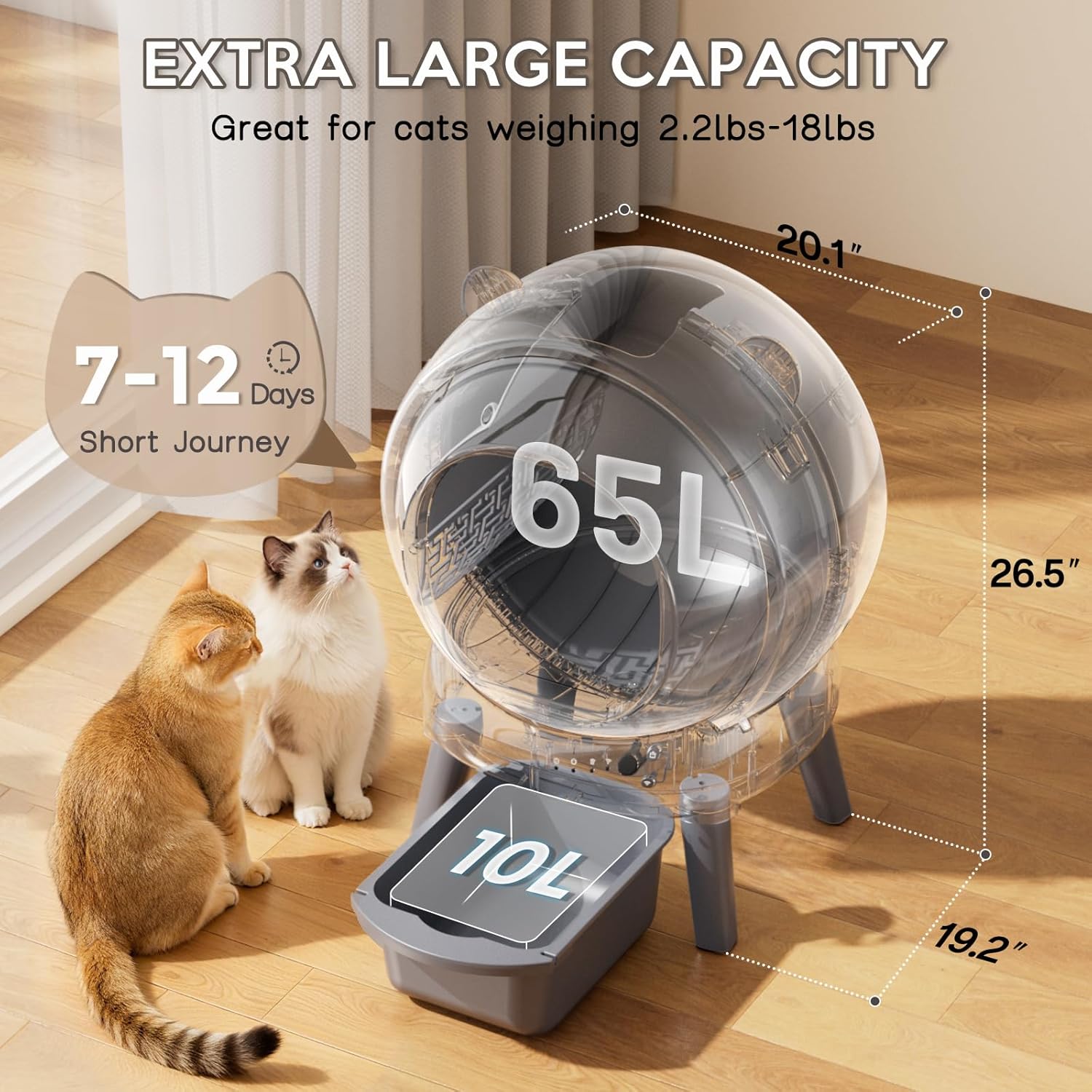
Image: The vivirata Automatic Litter Box highlighting its extra-large capacity and dimensions.
8. Warranty and Support
For warranty information or technical support, please contact vivirata customer service. Our team is available to assist you with any questions or concerns regarding your product.
- Customer Service: Refer to the contact information provided with your product packaging or visit the official vivirata website.
- Online Resources: Check the vivirata website for FAQs, additional guides, and software updates.