
ATOTO S8
ATOTO S8 7-inch Double DIN Android Car Stereo User Manual
Model: S8
Introduction
This user manual provides comprehensive instructions for the installation, operation, and maintenance of your ATOTO S8 7-inch Double DIN Android Car Stereo. Please read this manual thoroughly before using the device to ensure proper functionality and safety.
Package Contents
Verify that all items listed below are present in your package:
- ATOTO S8 Head Unit (7-inch)
- 16-Pin Wire Harness
- Rear Camera Input Cable
- Front Recording Camera Input Cable
- RCA Connector with SIM Card Slot
- Audio Output Cable
- 4G LTE Antenna
- GPS Antenna
- USB External Storage Cable
- USB Phone Link Cable
- External Microphone
- Double-DIN Brackets
- Mounting Brackets
- Installation Frame
- Mounting Screws
- Front Recording Camera (AC-FCR04W)
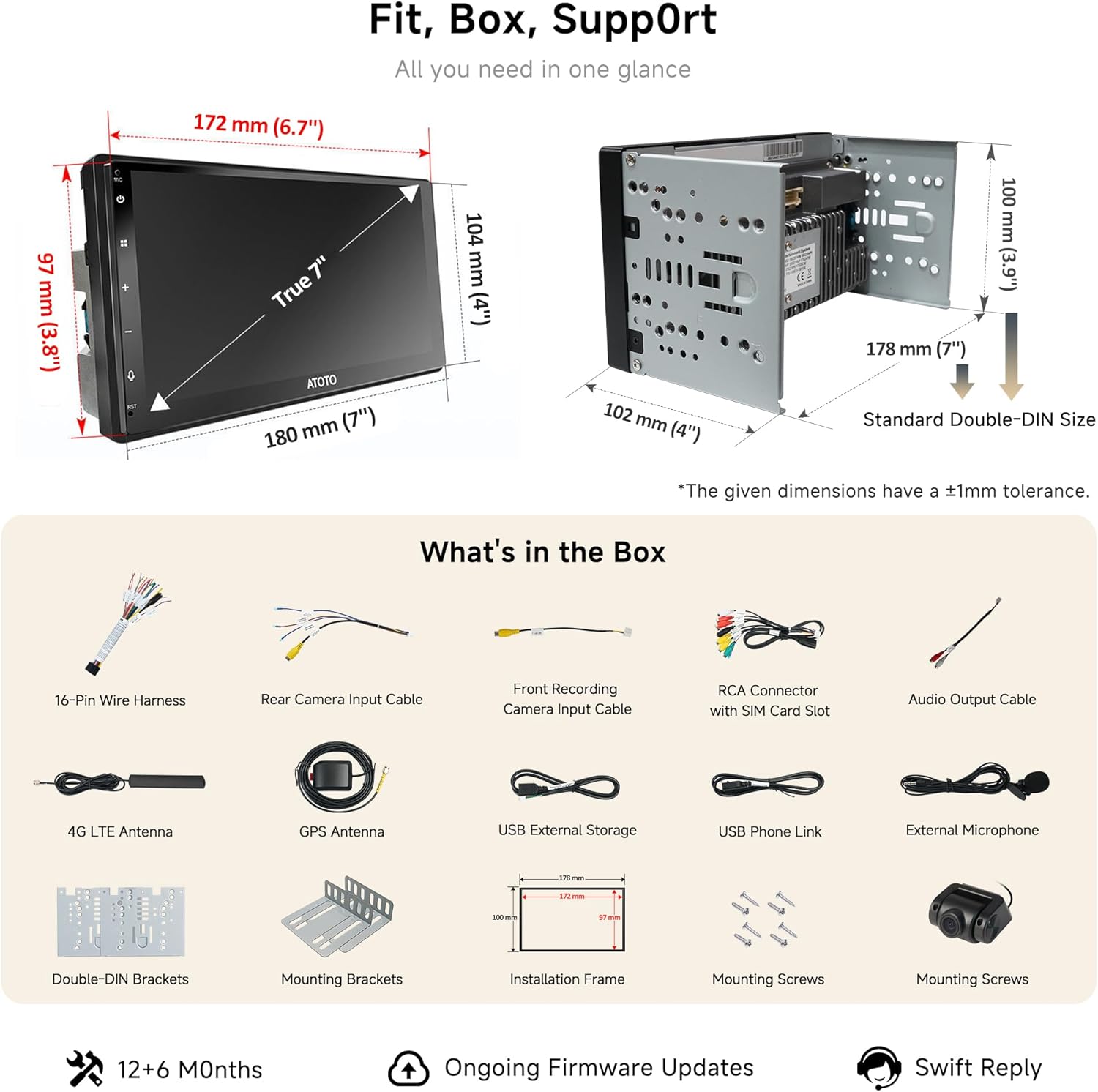
Image: Overview of the ATOTO S8 head unit dimensions and included accessories in the package.
Setup and Installation
1. Physical Installation
The ATOTO S8 is designed for standard Double-DIN openings. Minor modifications to your vehicle's dash may be required for a perfect fit. Use the provided Double-DIN brackets, mounting brackets, and installation frame.

Image: Diagram illustrating the standard Double-DIN size and OEM-like fitment with mounting brackets and installation frame.
2. Wiring Connections
Connect the 16-pin wire harness to your vehicle's wiring. Ensure correct connections for power, ground, speakers, and accessory wires. Refer to the detailed wiring diagram below for specific pin assignments.
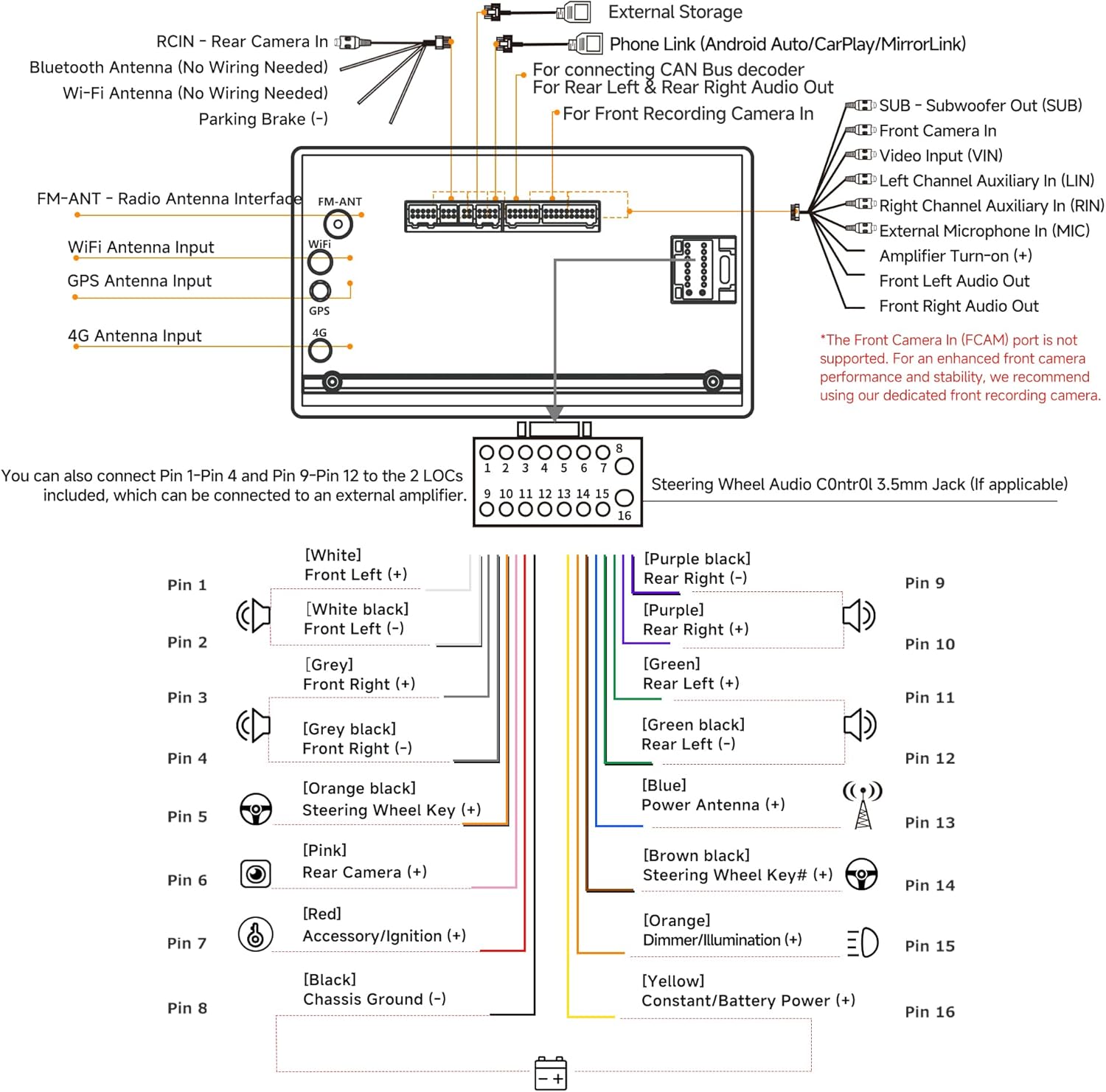
Image: Detailed wiring diagram for the ATOTO S8 head unit, showing connections for power, speakers, antennas, and camera inputs.
- Power Connections: Connect the yellow wire to constant power (+12V), red wire to accessory/ignition power, and black wire to chassis ground.
- Speaker Connections: Connect the speaker wires (white, white/black, grey, grey/black, green, green/black, purple, purple/black) to the corresponding vehicle speaker wires.
- Antennas: Connect the 4G LTE antenna, GPS antenna, and Wi-Fi antenna.
- Camera Inputs: Connect the front recording camera (AC-FCR04W) to the dedicated input. Optional rear and cabin cameras can also be connected.
- Steering Wheel Controls: Connect the steering wheel control wires (pink, brown, orange/black) if your vehicle supports this feature. An external data interface may be required for some vehicles.
3. Initial Power-On
After completing all connections, turn on your vehicle's ignition. The ATOTO S8 should boot up within approximately 2 seconds from sleep mode. During the first boot, follow the on-screen prompts for initial setup, including language, time zone, and network configuration.

Image: Illustration of the TwoSecBoot technology, showing the quick boot-up time from sleep mode.
Operating Instructions
1. Connectivity (4G LTE, Wi-Fi, Bluetooth, USB Tethering)
The ATOTO S8 offers multiple ways to stay connected. Insert a 4G SIM card into the RCA connector's SIM card slot for direct 4G LTE access. Alternatively, connect to a Wi-Fi hotspot or use Bluetooth/USB tethering from your smartphone to access online features, navigation, and streaming services.

Image: Display showing various connectivity options including 4G, Wi-Fi, USB, and Bluetooth sharing, enabling online access for applications.
2. Wireless CarPlay & Android Auto
Connect your iPhone or Android smartphone wirelessly for seamless integration of calls, maps, and media. Once paired, your device will automatically connect. For non-CarPlay/Android Auto supported apps, use the Phone Mirroring feature.
- Pairing: Go to the CarPlay/Android Auto application on the head unit and follow the on-screen instructions to pair your smartphone via Bluetooth and Wi-Fi.
- Phone Mirroring: Access the Phone Mirroring app on the head unit and follow the prompts to cast your phone's screen.

Image: Screenshots demonstrating the seamless integration of wired and wireless CarPlay and Android Auto, along with phone mirroring.
3. AI Voice Control & AI Agents
Utilize the built-in AI voice assistant for hands-free control of music, calls, and volume. Future AI Agents will provide advanced driving support, including OBD-II data interpretation, speed alerts, fuel station suggestions, and cabin status monitoring.
- Activating Voice Control: Use the designated voice command button on the steering wheel (if configured) or the on-screen voice assistant icon.
- Commands: Speak natural language commands such as "Volume up," "Call [Contact Name]," or "Play [Song Title]."

Image: Illustration of AI voice control functionality, showing commands like "Volume up" and "Tell a joke" being processed by the system.

Image: Depiction of the AI Co-Driver features, including various chatbots and assist functions like Travel Assist, Road Assist, and Cabin Assist.
4. Audio Customization (DSP, EQ)
The built-in Digital Signal Processor (DSP) with a 36-band equalizer allows for precise audio tuning. Choose from 9 preset sound modes or manually adjust frequencies to match your preferences. High-Pass Filter (HPF) and Low-Pass Filter (LPF) options are available to optimize speaker performance and reduce distortion.
- Accessing Audio Settings: Navigate to the "Sound" or "DSP" application on the head unit.
- Adjusting EQ: Select a preset or drag the frequency sliders to customize the sound profile.

Image: User interacting with the ATOTO S8's audio settings, demonstrating the 36-band EQ and DSP for tailored sound.

Image: Visual representation of the pro-grade sound features including DSP, Time Correction, HPF/LPF, and Crossover settings.
5. Camera System (Front, Rear, Cabin)
The ATOTO S8 supports a triple camera setup for enhanced visibility and recording. The AC-FCR04W 1080P front recording camera is included. Optional AC-RCR04W (cabin recording) and WR2-12HDLR (wireless rear camera) can be added.
- Front Dashcam: Records road activity in 1080P, providing clear evidence if needed.
- Live Rear View (LRV): With the optional wireless rear camera, you can view the rear of your vehicle even when driving forward, improving safety in dark or high-glare conditions.
- Parking Assist: The rear camera provides guidelines for easier parking.

Image: Overview of the triple camera system, showing views from the front dashcam, cabin recording cam, and live rear view.

Image: Examples of clear camera views in different conditions, highlighting 1080P HD, night vision, and strong light suppression.
6. Gesture Control & Split-Screen
The QLED touchscreen supports multi-finger gestures for quick access to functions. Swipe, tap, and pinch with two or three fingers to switch EQ, adjust brightness, navigate menus, or go back. The split-screen feature allows you to run two applications simultaneously, such as navigation and music, reducing distractions.

Image: Visual guide to quick and easy gesture controls for multi-task menu, EQ presets, home, back, font size, and brightness.

Image: Screenshot demonstrating the split-screen mode, allowing two applications to run side-by-side for multitasking.
7. Smart Privacy Protection (Bluetooth Auto Lock/Unlock)
The system can automatically lock the screen when you leave your vehicle and unlock it upon your return, based on Bluetooth proximity to your paired smartphone. This feature enhances privacy and security, especially in situations like valet parking or car sharing.

Image: Visual explanation of the Smart Privacy feature, showing the screen locking when the user is "Away" and unlocking when "Near" based on Bluetooth connection.
8. IoT & Tracking Power (TrackHU, BLE Devices)
The ATOTO S8 can link up to 6 Bluetooth Low Energy (BLE) devices, such as OBD2 scanners, ambient lights, or external displays. The TrackHU feature provides live GPS tracking, refreshing every 45 seconds by default (or faster with a plan), allowing you to monitor your vehicle's location. The SSHub app enables Remote Live View.

Image: Screenshots illustrating TrackHU Live GPS Tracking features, including instant geofence alerts, remote live view, and route playback.

Image: Depiction of the ATOTO S8 as an IoT Hub, showing connectivity with various accessories like ambient lights, OBDII scanner, and interactive LED signs.
Maintenance
1. Firmware Updates
Regular firmware updates are released to add new features, improve stability, and enhance performance. It is recommended to keep your device updated. Updates can typically be performed over-the-air (OTA) via the FindApps application or by downloading firmware files from the ATOTO support website and installing them via USB.
- Checking for Updates: Navigate to System Settings > About Device > System Update.
- Installation: Follow the on-screen instructions carefully during the update process. Do not power off the device during an update.
2. General Care
- Screen Cleaning: Use a soft, lint-free cloth to clean the QLED screen. Avoid abrasive cleaners or solvents.
- Temperature: Operate the device within recommended temperature ranges. Extreme temperatures can affect performance and longevity.
- Connections: Periodically check all wiring connections to ensure they are secure.
Troubleshooting
| Problem | Possible Cause | Solution |
|---|---|---|
| Device does not power on. | Incorrect wiring (power/ground), blown fuse, vehicle battery issue. | Check all power connections (yellow, red, black wires). Verify vehicle fuses. Ensure vehicle battery is charged. |
| No sound from speakers. | Incorrect speaker wiring, volume too low, mute activated, amplifier issue. | Check speaker wire connections. Increase volume. Ensure device is not muted. Verify external amplifier (if used) is powered and connected correctly. |
| Wireless CarPlay/Android Auto not connecting. | Bluetooth/Wi-Fi not enabled, incorrect pairing, phone compatibility. | Ensure Bluetooth and Wi-Fi are enabled on both the head unit and your phone. Re-pair the device. Check for phone compatibility and update phone OS if necessary. |
| GPS signal is weak or inaccurate. | GPS antenna placement, environmental interference. | Ensure the GPS antenna is mounted in a clear location with an unobstructed view of the sky. Avoid placing it near metal objects. |
| Battery drain when vehicle is off. | Constant power (yellow wire) connected incorrectly, high parasitic draw in sleep mode. | Verify the yellow wire is connected to a constant 12V source and the red wire to an ignition-switched source. If parasitic draw persists, consult a professional installer. The unit is designed for low power sleep mode (under 7mA) and should shut down completely after 7 days of no use. |
| Clock resets after turning off vehicle. | Constant power (yellow wire) not connected or faulty. | Ensure the yellow wire is correctly connected to a constant 12V power source. |
Specifications
| Feature | Detail |
|---|---|
| Brand | ATOTO |
| Model | S8 (7-inch Double DIN) |
| Connectivity Technology | Wi-Fi, 4G LTE, Bluetooth, USB |
| Special Features | DSP, Wireless CarPlay & Android Auto, AI Voice Control, Dual Cam Recording, QLED Display, GPS Track, IoT Hub |
| Audio Output Mode | Stereo (4x24W RMS / 4x45W Peak Amplifier) |
| Control Method | Touch, Steering Wheel Controls, Optional Remote |
| Display Type | HD QLED Display (1280x720 resolution, 178° wide viewing angle) |
| Internal Storage | 32GB (4G RAM) |
| Operating System | Android |
Warranty and Support
Warranty Information
Your ATOTO S8 unit comes with a standard 12-month warranty from the date of purchase. An additional 6-month extended warranty is available if you register your product and communicate with ATOTO within 30 days of purchase. Please retain your proof of purchase for warranty claims.
Customer Support
For technical assistance, troubleshooting, or warranty inquiries, please contact ATOTO customer support. You can find detailed online guides and contact information via the ATOTO official website or by scanning the QR code provided in your product packaging.
- Online Resources: Visit the ATOTO support website for FAQs, firmware downloads, and detailed guides.
- Contact: Reach out to customer service through your order center or via the contact details provided in the product documentation.

Image: Information regarding 12+6 months warranty, online manual, regular updates, and customer support contact methods.