1. Introduction
Thank you for choosing the ACEMAGIC M5 Mini PC. This manual provides essential information for setting up, operating, and maintaining your device. Please read it carefully to ensure optimal performance and longevity of your Mini PC.
The ACEMAGIC M5 is a compact and powerful computing solution, featuring an Intel Core i5-14500HX processor, 32GB DDR4 RAM, and a 1TB NVMe PCIe4.0 SSD. It comes pre-installed with Windows 11 Pro and supports triple 4K display output, making it suitable for various applications from office work to multimedia entertainment.
2. What's in the Box
Please check the contents of your package. If any items are missing or damaged, contact customer support.
- 1 x ACEMAGIC M5 Mini PC
- 1 x Power Adapter
- 1 x HDMI Cable
- 1 x VESA Mount & Screws
- 1 x User Manual

Image: Contents of the ACEMAGIC M5 Mini PC package, including the Mini PC unit, power adapter, HDMI cable, VESA mount, and user manual.
3. Product Overview
The ACEMAGIC M5 Mini PC is designed for high performance in a compact form factor. Below is an overview of its key features and connectivity options.

Image: An overview of the ACEMAGIC M5 Mini PC highlighting its Intel Core i5-14500HX processor, up to 64GB RAM support, dual M.2 high-speed storage expansion, 4K triple display, WiFi 6 + Bluetooth 5.2, and business features like TPM 2.0 and VESA mount.
3.1 Front and Side Ports
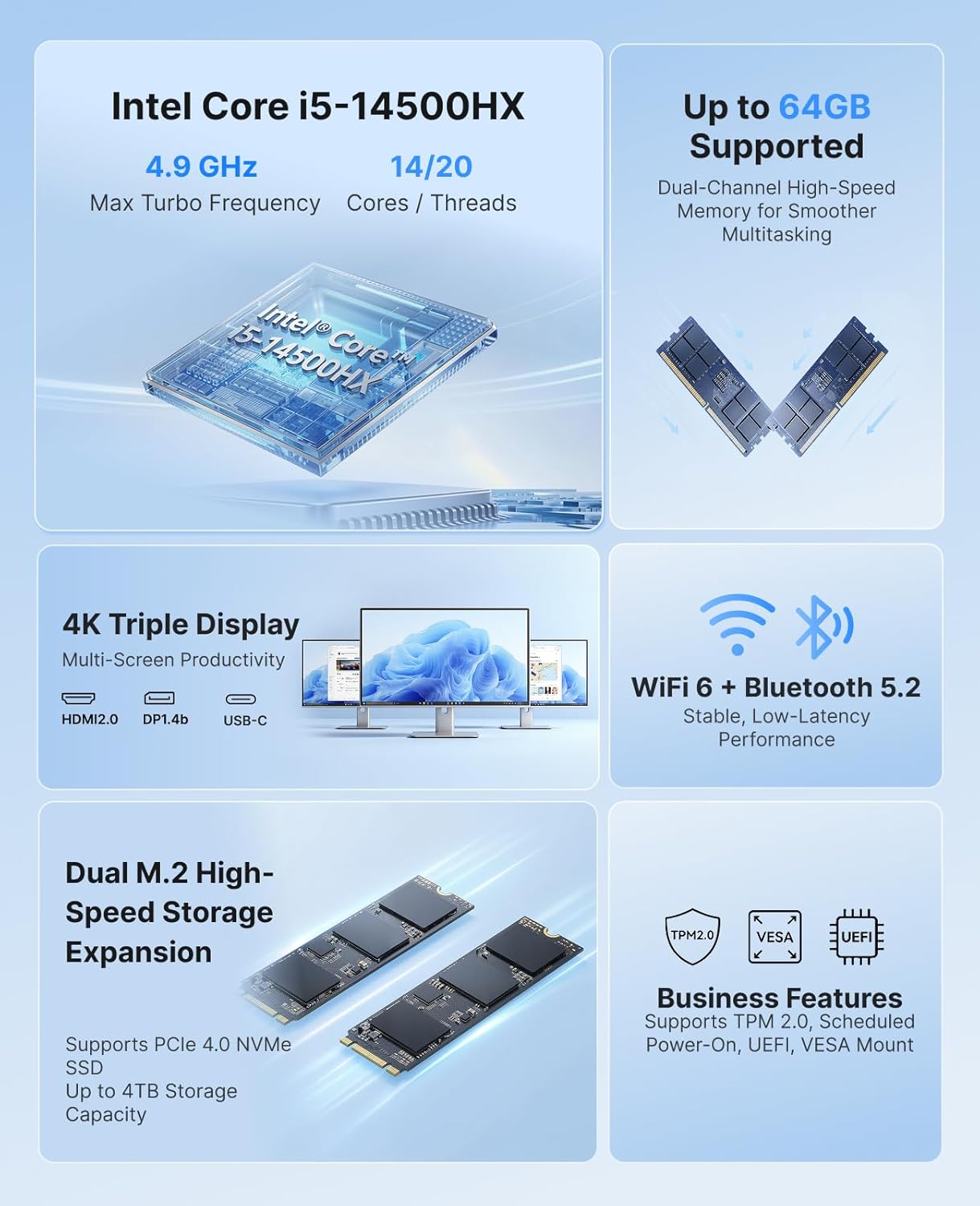
Image: Close-up view of the ACEMAGIC M5 Mini PC showing the front and side ports. The front includes a power button, USB 3.2 Gen 2 Type-A ports, and a 3.5mm audio jack. The sides feature ventilation grilles.
- Power Button: To power on/off the device.
- USB 3.2 Gen 2 Type-A Ports (x2): For connecting peripherals like keyboards, mice, or external drives.
- 3.5mm Audio Jack: For headphones or speakers.
- Ventilation Grilles: Ensures proper airflow for cooling.
3.2 Rear Ports

Image: A diagram illustrating the rear ports of the ACEMAGIC M5 Mini PC. It shows multiple USB ports, HDMI, DisplayPort, LAN, and DC power input.
- Type-C Port (x1): 10Gbps data transfer, DP1.4 4K@60Hz video output, and 15W PD output.
- USB 3.2 Gen 2 Type-A Ports (x4): High-speed connectivity for various USB devices.
- RJ45 Gigabit Ethernet Port (x1): For wired network connection.
- HDMI 2.0 Port (x1): Supports 4K@60Hz video output.
- DisplayPort 1.4b (x1): Supports 4K@60Hz video output.
- DC Power Input (x1): Connect the included power adapter here.
4. Setup Instructions
Follow these steps to set up your ACEMAGIC M5 Mini PC for the first time.
- Connect Display: Connect your monitor(s) to the Mini PC using the HDMI, DisplayPort, or Type-C ports. The device supports up to three 4K displays simultaneously.
- Connect Peripherals: Plug in your keyboard, mouse, and any other USB devices into the available USB ports.
- Connect Power: Connect the power adapter to the DC power input port on the back of the Mini PC, then plug the adapter into a power outlet.
- Power On: Press the power button on the front of the Mini PC. The power indicator light will illuminate.
- Initial Setup: The Mini PC comes with Windows 11 Pro pre-installed. Follow the on-screen instructions to complete the initial Windows setup. It is recommended to avoid connecting to Wi-Fi or LAN initially to prevent long updates from delaying desktop access.
5. Operating Instructions
5.1 Basic Operation
- Power On/Off: Press the power button once to turn on. To turn off, click the Start menu in Windows and select Power > Shut down.
- Restart: From the Start menu, select Power > Restart.
- Sleep Mode: From the Start menu, select Power > Sleep.
5.2 Display Configuration
The ACEMAGIC M5 supports triple 4K display output, allowing for enhanced multitasking and visual fidelity.

Image: A user working with three monitors connected to the ACEMAGIC M5 Mini PC, demonstrating its triple 4K display capability via HDMI, DisplayPort, and USB-C.
- Connect up to three monitors using any combination of HDMI, DisplayPort, and Type-C ports.
- To configure display settings in Windows, right-click on the desktop and select
Related Documents - M5

Acemagic X1 Dual Screen Laptop Instruction Manual
Comprehensive instruction manual for the Acemagic X1 Dual Screen Laptop, covering setup, features, basic parameters, troubleshooting, safety guidelines, and connectivity options.
ACEMAGIC Mini PC User Manual
User manual for the ACEMAGIC Mini PC (Model M1A/Tank03). Provides detailed instructions on product features, interface layout, quick setup, performance lighting modes, and hardware upgrades including RAM and M.2 SSD installation. Includes important disclaimers and safety precautions.
ACEMAGIC S1 Mini PC: Troubleshooting SSD Recognition Issues
Guide to resolving Solid State Drive (SSD) recognition problems on the ACEMAGIC S1 mini PC, covering NVMe and SATA SSD installation and BIOS recognition.
ACEMAGIC AX15 User Manual
User manual for the ACEMAGIC AX15 notebook, covering specifications, safety guidelines, and touchpad usage.
S1 Software Tutorial: Customizing Display Themes
Learn how to customize display themes using the S1 software. This guide covers changing backgrounds, adding and editing text, adjusting font styles, and managing display settings for the ACEMAGIC S1 Mini Tower PC.
ACEMAGIC AX15 User Manual: Features, Specifications, and Operation Guide
Comprehensive user manual for the ACEMAGIC AX15 laptop, detailing specifications, features, safety instructions, and touchpad operation. Includes Intel Alder Lake-N95 processor, 16GB RAM, 512GB storage, and 15.6-inch FHD display.