
1. Introduction
This manual provides detailed instructions for the installation, operation, and maintenance of your Shkalacar Universal Car Door Lock Keyless Entry System. This system offers convenient remote locking/unlocking, a trunk release feature, and a vehicle locator function. Please read this manual thoroughly before installation and use to ensure proper functionality and safety.
2. Product Overview and Components
The Shkalacar Universal Car Door Lock Keyless Entry System includes the following components:
- Control Box: The central unit for the keyless entry system.
- Remote Controllers (2): For remote locking, unlocking, trunk release, and vehicle location.
- Door Lock Actuators (4): Mechanisms for converting electrical signals into mechanical locking/unlocking actions for each door.
- Wire Harness: All necessary wiring for connecting the components.
- Installation Accessories: Includes rods, screws, and mounting brackets.
- English User Manual: This instruction guide.

Image 2.1: Complete kit showing the control box, two remote controllers, four door lock actuators, and wiring harness.

Image 2.2: The full kit including additional installation accessories like rods, screws, and mounting brackets.
3. Setup and Installation
This keyless entry system is designed for universal compatibility with various car types. Due to the complexity of automotive electrical systems, professional installation is highly recommended. Incorrect wiring can lead to damage to the product or your vehicle.
3.1 Wiring Diagram
Refer to the wiring diagram below for proper connection of the control box, door lock actuators, and other vehicle components. Ensure all connections are secure and insulated.

Image 3.1: Detailed wiring diagram for the keyless entry system, showing connections for the control box, door lock actuators, and other vehicle systems.
3.2 Installation Steps (General Guidance)
- Disconnect Battery: Before starting any electrical work, disconnect the vehicle's battery to prevent short circuits.
- Mount Control Box: Choose a secure, dry location inside the vehicle, away from excessive heat or moisture.
- Install Door Lock Actuators: Mount one actuator inside each car door, ensuring it can mechanically operate the door lock mechanism. Use the provided rods and brackets for proper alignment.
- Wire Connections: Follow the wiring diagram (Image 3.1) carefully. Connect the control box to the vehicle's power, ground, door lock actuators, and other relevant signals (e.g., turn signals for flashing alerts, trunk release).
- Test System: Reconnect the battery and test all functions (lock, unlock, trunk release, vehicle locator) before reassembling interior panels.
4. Operating Instructions
The system is operated using the provided remote controllers. Familiarize yourself with the buttons and their functions.
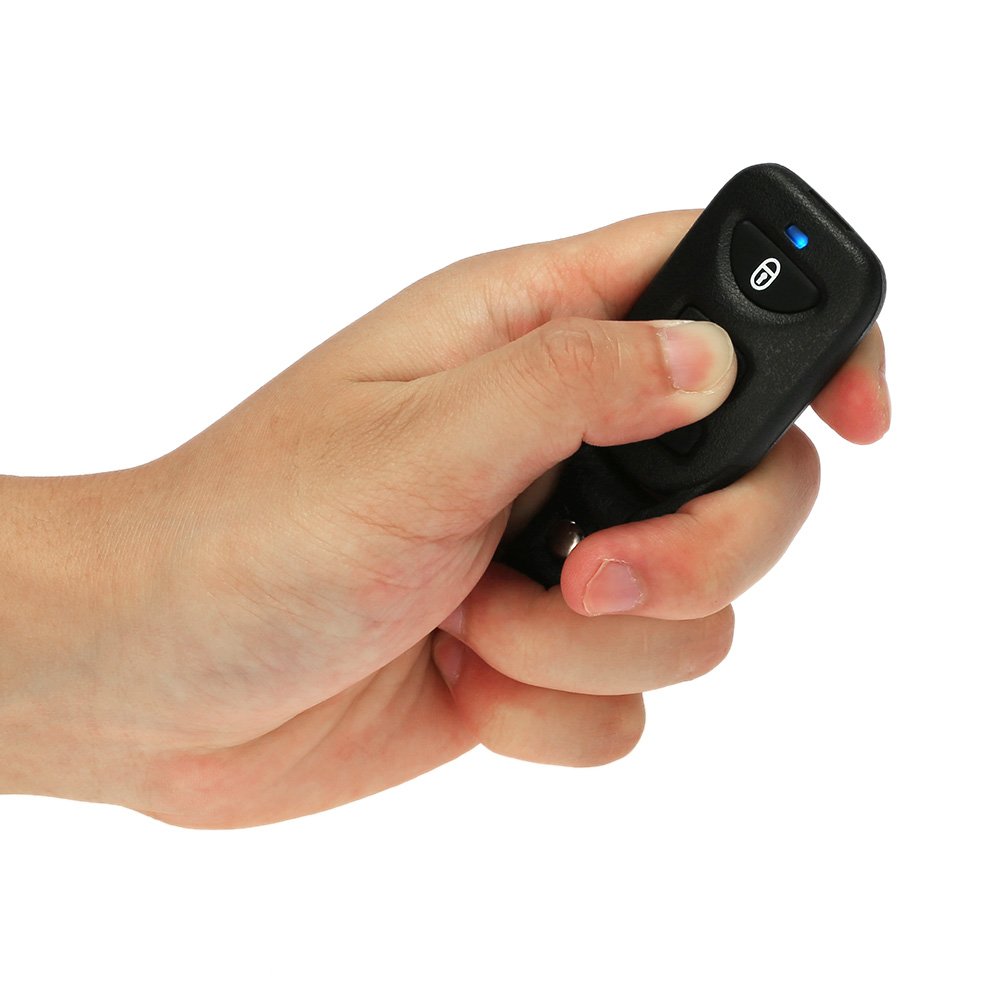
Image 4.1: A hand holding one of the remote controllers, showing the lock, unlock, and trunk release buttons.
4.1 Function Operational Specification
- Set (Lock):
Press the lock button () once. The turning lights will flash once, and the car doors will lock. - Unset (Unlock):
Press the unlock button () once. The turning lights will flash twice, and the car doors will unlock. - Trunk Release: (The car must have a trunk motor for this function)
In any state, press the trunk release button () for approximately 1.5 seconds. The trunk will release automatically, and the turning lights will flash three times. - Vehicle Locator (Flashing Alert System):
Press the lock button () for 3 seconds. The turning lights will flash three times, helping you locate your vehicle.
4.2 Learning Code (Remote Pairing)
To pair new remote controllers or re-pair existing ones:
- Long press the learning button on the control box for 3 seconds. The turning lights will flash for a long time, indicating entry into learning code mode.
- Press any button on the remote controller you wish to pair. The turning lights will flash once.
- If you need to pair more remotes, press any button on the next remote. The turning lights will flash twice.
- Up to four remote controllers can be learned at the same time.
5. Maintenance
To ensure the longevity and reliable operation of your keyless entry system, follow these general maintenance guidelines:
- Keep Components Dry: Avoid exposing the control box and remote controllers to water or excessive moisture.
- Clean Remotes: Periodically wipe the remote controllers with a soft, dry cloth. Avoid harsh chemicals.
- Check Wiring: If you experience issues, inspect visible wiring for any signs of damage or loose connections.
- Remote Battery Replacement: If the remote's range decreases or it stops responding, the battery may need replacement. Refer to the remote's design for battery access.
6. Troubleshooting
If you encounter problems with your keyless entry system, try the following troubleshooting steps:
- System Not Responding:
- Check the remote controller battery.
- Ensure you are within the effective remote distance (50-80 meters).
- Verify all power connections to the control box are secure.
- Doors Not Locking/Unlocking:
- Check the wiring to the specific door lock actuator.
- Ensure the door lock actuator is properly installed and not obstructed.
- Confirm the remote is paired correctly (refer to Section 4.2).
- Trunk Release Not Working:
- Verify your vehicle has a compatible trunk motor.
- Check the wiring for the trunk release function.
- Flashing Alert Not Working:
- Ensure the turn signal wires are correctly connected to the control box.
If problems persist after attempting these steps, it is recommended to consult a professional automotive electrician or contact Shkalacar customer support.
7. Specifications
| Component | Specification |
|---|---|
| Control Box Size | Approx. 9 x 6 x 2.5 cm |
| Remote Controller Size | Approx. 6 x 3.4 x 0.8 cm |
| Voltage | 12V ± 2V (DC) |
| Static Current | ≤15mA |
| Indicator Current | 20mA |
| Shock Sensor Current | <1mA |
| Frequency | 433.92MHz |
| Remote Distance | Approx. 50-80 meters |
| Model Name | Shkalacar7hzyomfl4a |
8. Warranty and Support
For warranty information or technical support, please refer to the purchase documentation or contact your seller directly. Keep your proof of purchase for any warranty claims.