
1. Introduction
This manual provides detailed instructions for the safe and effective use of your Akozon Action Camera. Please read this manual thoroughly before operating the device and retain it for future reference. The Akozon Action Camera is designed for capturing high-quality video and photos in various active scenarios, featuring a compact, wearable design and a 1.47-inch HD display.
2. Package Contents
Verify that all items listed below are included in your package. If any items are missing or damaged, please contact customer support.
- 1 x Akozon Action Camera
- 1 x Charging Case
- 1 x Card Reader
- 1 x Magnetic Chest Mount
- 1 x USB Data Cable
- 1 x User Manual (this document)

This image displays the various components included with your Akozon Action Camera: the charging case, a card reader, a magnetic chest mount, and a USB data cable, alongside the camera itself.
3. Product Overview
The Akozon Action Camera is a compact and versatile device designed for capturing your adventures. It features a 1.47-inch HD color screen for real-time preview and playback, and supports 1080P video recording and 12MP photography.
3.1 Camera Components
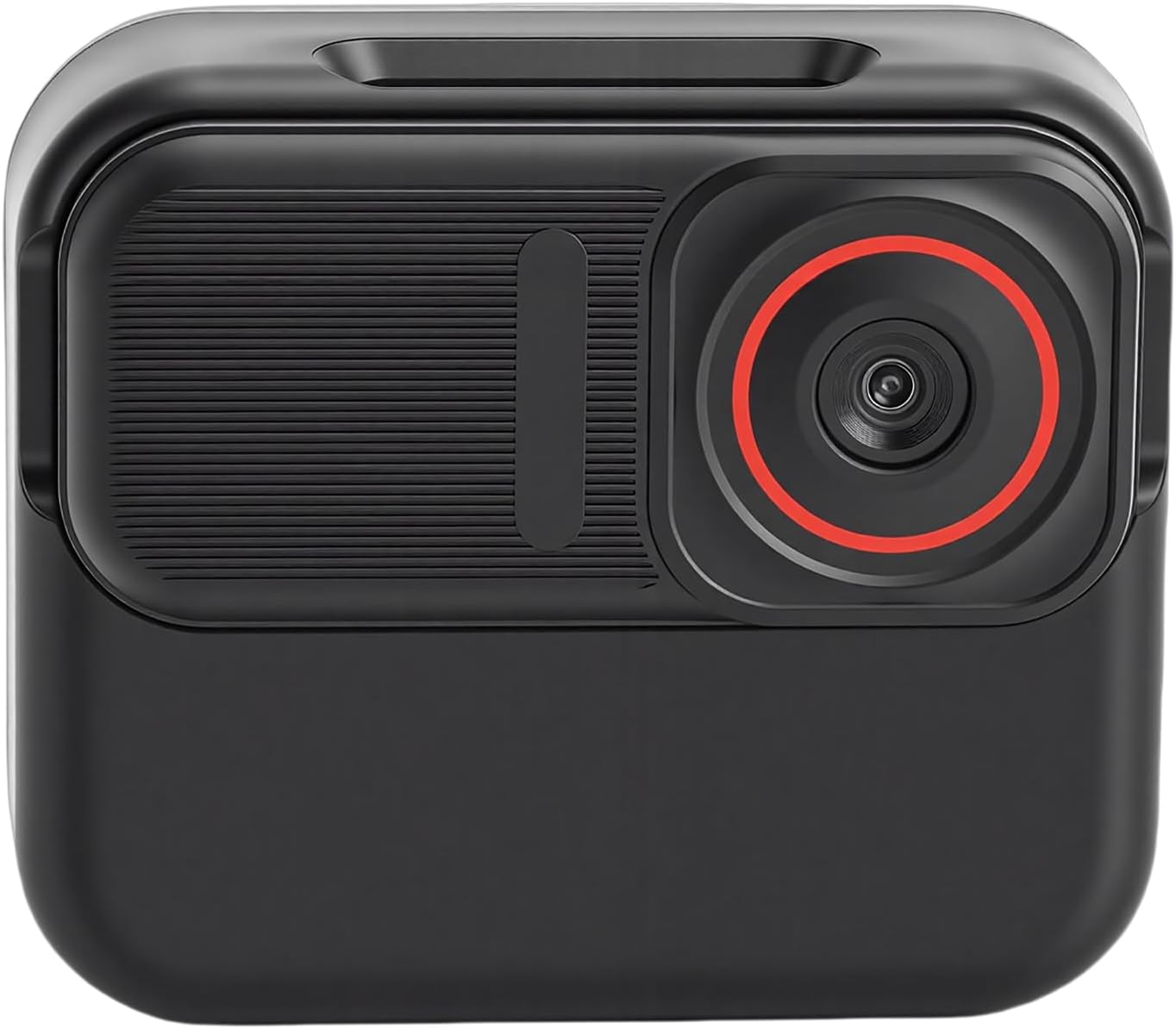
This image shows the front of the Akozon Action Camera, highlighting the camera lens with a red ring accent and the textured surface of the device.

This image presents the back of the camera, featuring its 1.47-inch HD color screen, which is used for live preview and menu navigation.

This image illustrates a side view of the camera, showing the gold charging contacts and a portion of the display screen.
4. Setup
4.1 Charging the Camera and Charging Case
Before first use, fully charge both the action camera and its charging case.
- Connect the USB data cable to the charging case and a power source (e.g., USB wall adapter, computer USB port).
- Place the action camera into the charging case. Ensure the charging contacts align.
- The indicator lights on the charging case will show the charging status. A full charge typically takes approximately 2-3 hours.
The camera has a built-in 400mAh Li-Ion battery, and the charging case has a 1000mAh Li-Ion battery.
4.2 Inserting a Memory Card
The camera supports a memory card up to 128GB (not included). A high-speed (Class 10 or U3 recommended) microSD card is required for optimal performance.
- Locate the memory card slot on the side of the camera.
- Gently insert the microSD card with the gold contacts facing down until it clicks into place.
- To remove, push the card in slightly until it springs out.
4.3 Mounting the Camera
The camera features a magnetic design for easy attachment to the included chest mount.
- Attach the magnetic chest mount to your clothing or desired surface. Ensure it is secure.
- Align the back of the action camera with the magnetic plate on the chest mount. The magnets will secure the camera in place.
- Adjust the camera angle as needed for your desired first-person perspective (POV) recording.
4.4 Powering On/Off
- To Power On: Press and hold the Power/Mode button (usually located on the top or side) for a few seconds until the screen illuminates.
- To Power Off: Press and hold the Power/Mode button again for a few seconds until the screen turns off.
5. Operating Instructions
5.1 Basic Navigation
Use the Power/Mode button to cycle through different modes (Video, Photo, Playback, Settings). Use other buttons (if present) or the touchscreen (if applicable) to navigate menus and select options.
5.2 Recording Video
The camera supports 1920x1080P Full HD video recording.
- Ensure the camera is in Video Mode. If not, press the Power/Mode button until the video icon appears on the screen.
- Press the Shutter/Record button (usually a prominent button on the top or front) to start recording. A red indicator light will typically flash, and a timer will appear on the screen.
- Press the Shutter/Record button again to stop recording. The video file will be saved to the memory card.
5.3 Taking Photos
Capture high-resolution 12MP photos.
- Switch to Photo Mode by pressing the Power/Mode button until the photo icon is displayed.
- Frame your shot using the 1.47-inch HD color screen.
- Press the Shutter/Record button to take a photo. The image will be saved to the memory card.
5.4 Loop Recording
The camera supports loop recording, which automatically overwrites the oldest files when the memory card is full. This feature is useful for continuous recording without manual deletion of old footage. Check the camera settings to enable or disable this function and adjust loop duration if available.
5.5 Using the Mobile App
For live video preview and management, download the dedicated mobile application (refer to the camera's on-screen instructions or packaging for app name and QR code). Connect your camera to your smartphone via Wi-Fi (if supported) to access features such as:
- Real-time live view of the camera's feed.
- Remote control of recording and photo capture.
- Playback and download of recorded content to your smartphone.
- Accessing and modifying camera settings.
6. Maintenance
Proper maintenance ensures the longevity and optimal performance of your Akozon Action Camera.
- Cleaning: Use a soft, dry cloth to clean the camera body. For the lens and screen, use a specialized lens cleaning cloth and solution. Avoid abrasive materials or harsh chemicals.
- Storage: Store the camera in a cool, dry place away from direct sunlight and extreme temperatures. Remove the memory card if storing for extended periods.
- Battery Care: To maintain battery health, avoid fully discharging the battery frequently. If storing for a long time, charge the battery to about 50% every few months.
- Water Resistance: The product description does not specify water resistance. Avoid exposing the camera to water or moisture unless explicitly stated otherwise by the manufacturer.
7. Troubleshooting
If you encounter issues with your camera, refer to the following common problems and solutions:
| Problem | Possible Cause | Solution |
|---|---|---|
| Camera does not power on. | Low battery; faulty battery; camera malfunction. | Charge the camera fully. Ensure the charging contacts are clean. If the issue persists, contact support. |
| Cannot record video/take photos. | Memory card full; memory card error; incorrect mode. | Check memory card storage. Format the memory card (this will erase all data). Ensure the camera is in the correct mode. Try a different memory card. |
| Poor video/photo quality. | Dirty lens; low light conditions; incorrect settings. | Clean the camera lens. Ensure adequate lighting. Check camera settings for resolution and exposure. |
| Camera freezes or becomes unresponsive. | Software glitch; memory card issue. | Perform a soft reset (press and hold power button for 10-15 seconds). Remove and reinsert the memory card. |
8. Specifications
Below are the technical specifications for the Akozon Action Camera (Model: Akozone4ciuk5sfn):
| Feature | Detail |
|---|---|
| Brand | Akozon |
| Model Name | Akozone4ciuk5sfn |
| Video Resolution | 1080P, 720P (1920x1080P Full HD) |
| Photo Pixels | 12MP |
| Screen Size | 1.47 Inches HD Color Screen |
| Storage Card Support | Up to 128GB (MicroSD, not included) |
| Camera Battery | 400mAh Li-Ion Battery (Built-in) |
| Charging Case Battery | 1000mAh Li-Ion Battery (Built-in) |
| Video Capture Format | AVI |
| Display Resolution Maximum | 1280 x 1024 Pixels |
9. Warranty and Support
Warranty: This product comes with a manufacturer warranty for 90 days from the date of purchase. This warranty covers manufacturing defects and workmanship. It does not cover damage caused by misuse, accidents, unauthorized modifications, or normal wear and tear.
Customer Support: If you have any questions, encounter issues not covered in this manual, or require warranty service, please contact Akozon customer support through the retailer where the product was purchased or visit the official Akozon website for contact information.
Please have your product model number (Akozone4ciuk5sfn) and proof of purchase ready when contacting support.