
FiiO EH11
FiiO EH11 Retro On-Ear Bluetooth Headphones User Manual
Model: EH11
Introduction
Thank you for choosing the FiiO EH11 Retro On-Ear Bluetooth Headphones. These headphones combine classic design with modern wireless technology, offering high-resolution audio and versatile connectivity. This manual provides essential information for the proper use, setup, and maintenance of your EH11 headphones.
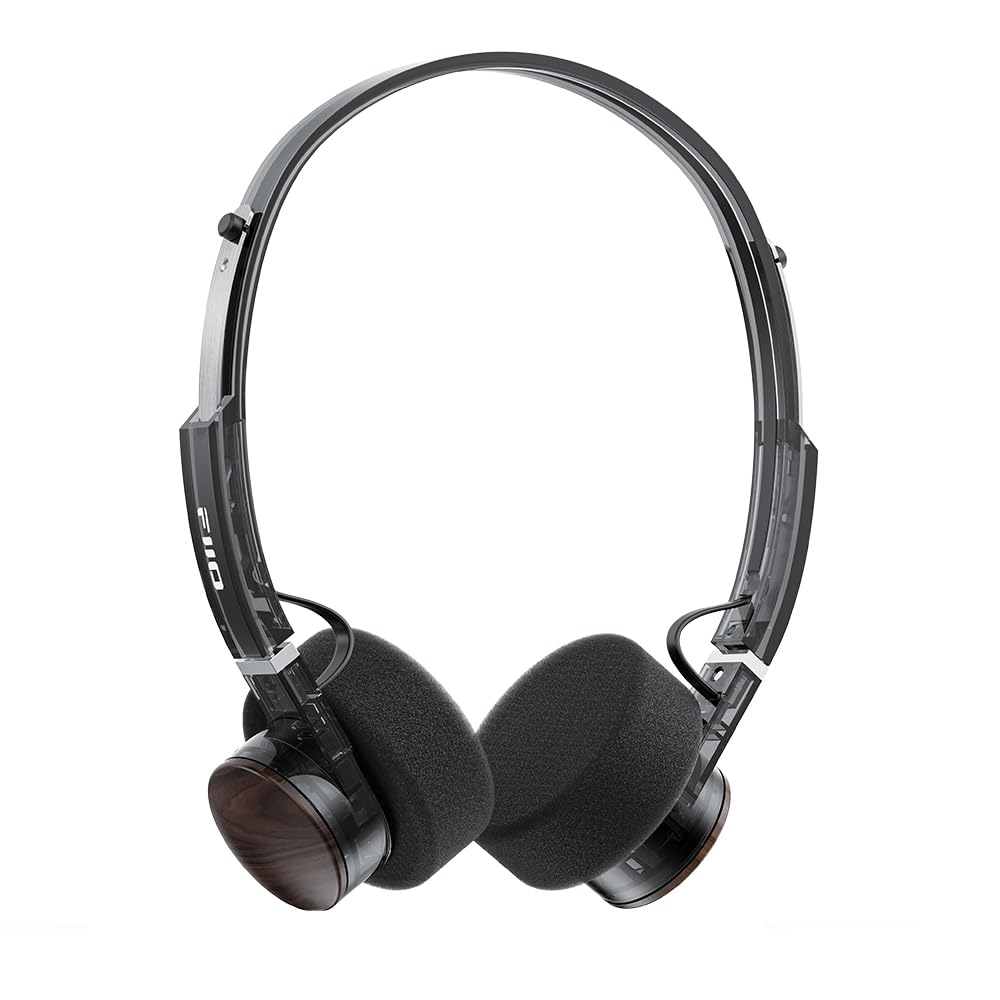
Image: FiiO EH11 Retro On-Ear Bluetooth Headphones, Transparent Black variant. This image displays the overall design of the headphones, highlighting the on-ear form factor and retro aesthetic.
Safety Information
- Do not expose the headphones to extreme temperatures, humidity, or corrosive environments.
- Avoid listening at high volume levels for extended periods to prevent hearing damage.
- Do not disassemble, repair, or modify the device yourself. Contact authorized service personnel for assistance.
- Keep the device away from children and pets.
- Dispose of the product and its battery responsibly according to local regulations.
Package Contents
Please check that all items are present in your package:
- FiiO EH11 Retro On-Ear Bluetooth Headphones
- Foam earpads (2 pairs)
- USB A to Type-C charging cable (1)
- Quick guide (1)
Product Overview
Familiarize yourself with the main components and controls of your FiiO EH11 headphones.
Controls and Ports
- Power/Multi-function Button: Used for power on/off, play/pause, answering/ending calls.
- Volume Knob: Rotatable knob for volume adjustment and track control.
- USB Type-C Port: For charging the headphones.
- Microphone: Built-in for calls and voice commands.
- LED Indicator: Displays power, charging, and Bluetooth status.
Note: Specific button functions and LED indicator behaviors are detailed in the 'Operating' section.
Setup
1. Charging the Headphones
- Connect the USB Type-C charging cable to the charging port on the headphones.
- Connect the other end of the cable to a USB power adapter (not included) or a computer's USB port.
- The LED indicator will show charging status (e.g., red while charging, off when fully charged).
- A full charge takes approximately 1.5 hours and provides up to 30 hours of playback.
Description: Connect the provided USB-C cable to the headphone's charging port and a power source to charge the internal battery.
2. Powering On/Off
- Power On: Press and hold the Power/Multi-function button for approximately 3 seconds until the LED indicator lights up and you hear a power-on prompt.
- Power Off: Press and hold the Power/Multi-function button for approximately 5 seconds until the LED indicator turns off and you hear a power-off prompt.
3. Bluetooth Pairing
- Ensure the headphones are powered off.
- Press and hold the Power/Multi-function button for approximately 5-7 seconds until the LED indicator flashes red and blue alternately, indicating pairing mode.
- On your device (smartphone, tablet, computer), enable Bluetooth and search for available devices.
- Select "FiiO EH11" from the list of found devices.
- Once connected, the LED indicator will flash blue periodically, and you will hear a connection prompt.
4. Dual Device Connection
The EH11 supports simultaneous connection to two Bluetooth devices.
- Pair the headphones with the first device as described above.
- Disable Bluetooth on the first device. The headphones will re-enter pairing mode.
- Pair the headphones with the second device.
- Re-enable Bluetooth on the first device. The headphones should automatically connect to both devices.
- You can now seamlessly switch between audio sources from the two connected devices.
5. FiiO Control App
Download the FiiO Control App from your device's app store to unlock additional features and customization options, including EQ presets and gaming mode settings.
- Search for "FiiO Control" in the App Store (iOS) or Google Play Store (Android).
- Install the app and ensure your EH11 headphones are connected via Bluetooth.
- Open the app to access settings such as EQ, gaming mode, and firmware updates.
Operating Instructions
Music Playback
- Play/Pause: Short press the Power/Multi-function button.
- Volume Up: Rotate the Volume knob clockwise.
- Volume Down: Rotate the Volume knob counter-clockwise.
- Next Track: Double-click the Volume knob.
- Previous Track: Triple-click the Volume knob.
Call Management
- Answer/End Call: Short press the Power/Multi-function button.
- Reject Call: Press and hold the Power/Multi-function button for 2 seconds.
Gaming Mode
Activate Gaming Mode via the FiiO Control App to enhance in-game audio cues like footsteps and gunshots for a more immersive experience. This mode also optimizes latency.
LDAC High-Resolution Audio
The FiiO EH11 supports LDAC codec for high-resolution wireless audio. Ensure your source device also supports LDAC and that it is enabled in your device's Bluetooth settings for the best audio quality.
Maintenance
Cleaning
- Wipe the headphones with a soft, dry, lint-free cloth.
- Do not use harsh chemicals, cleaning solvents, or strong detergents.
- Avoid getting moisture into any openings.
Ear Pad Replacement
The foam ear pads are detachable for easy cleaning and replacement. Gently pull the ear pads off the earcups to remove them. Align the new ear pads with the earcups and press them firmly into place until they are securely attached.
Two pairs of different-colored official ear pads are included in the package for customization.
Storage
When not in use, store the headphones in a cool, dry place, away from direct sunlight and extreme temperatures. Avoid placing heavy objects on the headphones.
Troubleshooting
- No Power:
- Ensure the headphones are fully charged.
- Try connecting to a different charging cable or power source.
- Cannot Pair with Device:
- Ensure the headphones are in pairing mode (LED flashing red and blue).
- Make sure Bluetooth is enabled on your device.
- Move the headphones closer to your device.
- Try restarting both the headphones and your device.
- Clear previous Bluetooth connections on your device.
- No Sound or Low Volume:
- Check the volume level on both the headphones and your connected device.
- Ensure the headphones are properly connected to your device.
- Try playing audio from a different application or source.
- Poor Audio Quality:
- Ensure there are no obstructions between the headphones and your device.
- Move away from sources of interference (e.g., Wi-Fi routers, other Bluetooth devices).
- If using LDAC, ensure your source device supports it and it is enabled.
Specifications
| Feature | Specification |
|---|---|
| Model Name | EH11 |
| Connectivity Technology | Bluetooth |
| Wireless Communication Technology | Bluetooth |
| Audio Driver Type | Dynamic Driver (40mm) |
| Earpiece Shape | On-Ear |
| Battery Life | Up to 30 Hours |
| Charging Time | Approx. 1.5 Hours |
| Weight | Approx. 92g (3.25 oz) |
| Special Feature | LDAC High-Resolution Bluetooth Audio, Dual Device Connection, FiiO Control App Support, Gaming Mode |
| Included Components | Foam earpads*2, Quick guide*1, USB A to Type-C charging cable*1 |
Warranty and Support
FiiO products come with a limited warranty. For detailed warranty information, technical support, or service inquiries, please refer to the official FiiO website or contact your local distributor.
You can find more information and contact details on the FiiO Official Store.
Related documentsEH11


Ask a question about this manual
Ask about setup, troubleshooting, compatibility, parts, safety, or missing instructions. Manuals+ will review the question and use this page’s manual context to help answer it.