
1. Introduction
This manual provides essential instructions for the safe operation and maintenance of your Scrubuz HK66 GPS Drone. Please read this manual thoroughly before operating the drone to ensure proper usage and to prevent damage or injury.
2. What's in the Box
Upon unboxing your Scrubuz HK66 GPS Drone, verify that all components listed below are present:
- Foldable GPS Drone x 1
- Remote Control x 1
- Drone Battery x 2
- Carrying Case x 1
- USB Charging Cable x 2
- Spare Blades x 4
- Propeller Guards x 4
- Screwdriver x 1
- Manual x 1

Image: All components included in the Scrubuz HK66 GPS Drone package.
Video: Unboxing and initial setup of the Scrubuz HK66 GPS Drone, demonstrating how to unpack the drone and its accessories from the carrying case, as well as initial charging and assembly steps.
3. Setup Guide
3.1 Battery Charging
Before first use, fully charge both drone batteries and the remote controller. Use the provided USB charging cables. A red indicator light typically signifies charging, turning off or green when fully charged.

Image: Illustration of the drone battery and remote controller connected to charging cables.
3.2 Drone Assembly
- Unfold Drone Arms: Gently unfold the drone arms until they click into place.
- Install Battery: Insert the fully charged drone battery into its compartment until it is secure.
- Check Propellers: Ensure all propellers are firmly installed and free from damage.
- Install Micro SD Card: (Optional) Insert a Micro SD card (up to 64GB) into the drone's body slot for saving original quality photos and videos.
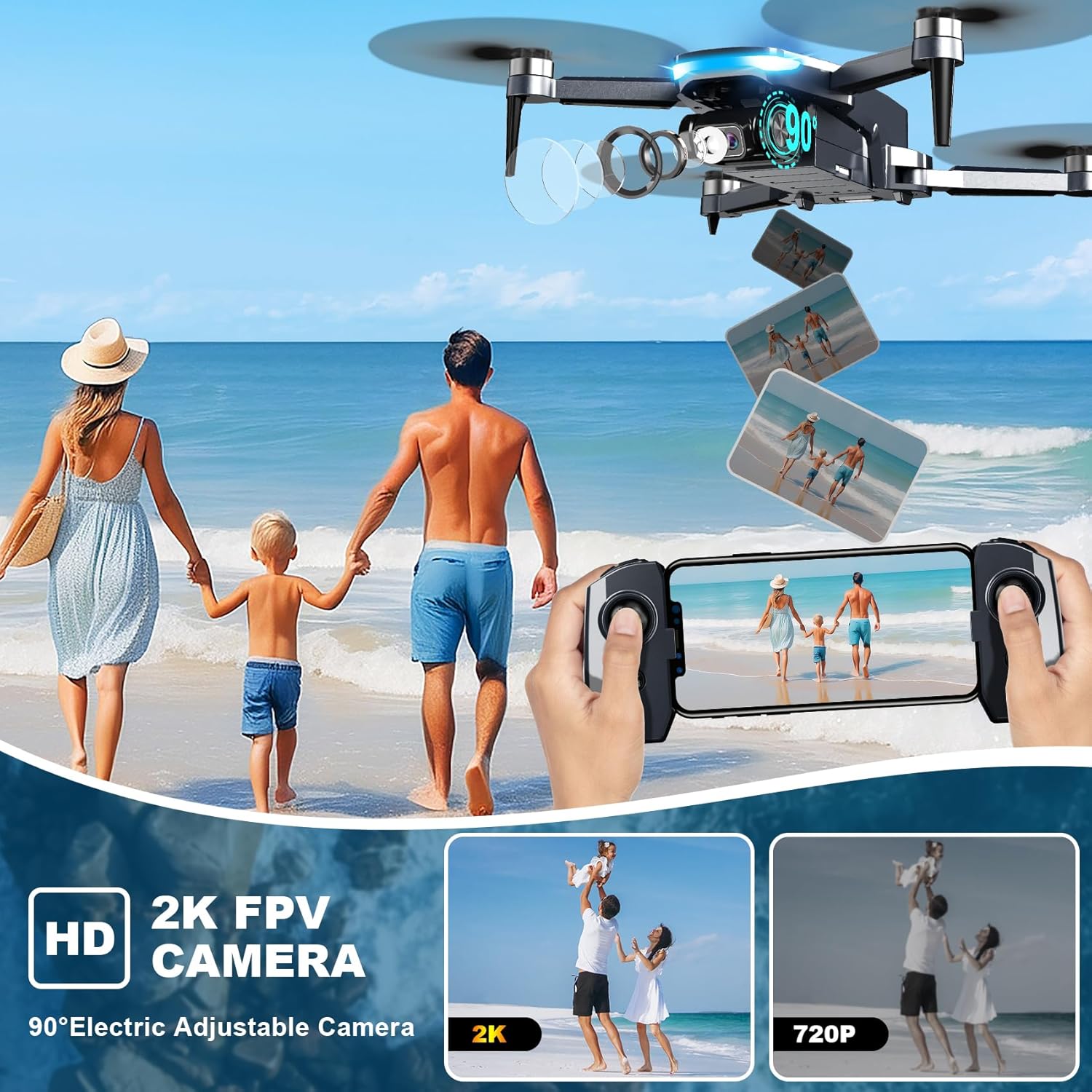
Image: The Scrubuz HK66 GPS Drone with its arms unfolded, ready for flight.
3.3 App Installation
Download the "HK66 DRONE FLY" app from your mobile device's app store. Scan the QR code provided in the quick start guide or search directly.
3.4 Pre-Flight Checks & Calibration
- Choose Flight Environment: Select an open area free from obstacles, people, and strong electromagnetic interference. Avoid flying in strong winds (above Level 5).
- Power On: Long-press the power button on the drone for 3 seconds. The drone lights will illuminate.
- Power On Remote: Short-press the power button on the remote control. It will automatically connect to the drone.
- Connect to Drone Wi-Fi: On your mobile device, go to Wi-Fi settings and connect to the network named "HK66DRONE_XXXXXX".
- Open App & Calibrate: Open the "HK66 DRONE FLY" app.
- Compass Calibration: In the app, select GO TO FLY -> Setting -> Calibrate. Follow the on-screen instructions to rotate the drone horizontally and vertically until calibration is complete. This helps the drone locate accurately.
- Gyro Calibration: Place the drone on a level surface with its head pointing forward. Move both the left and right joysticks of the remote controller to the 7 o'clock position simultaneously to initiate gyro calibration. This ensures stable flight.
- GPS Signal Acquisition: Wait for the drone to acquire sufficient GPS signals (indicated in the app) for stable flight and intelligent features.
4. Operating Instructions
4.1 Take-off and Landing
- One-Tap Take-off/Landing: After successful calibration and GPS signal acquisition, press the one-tap take-off button in the app or on the remote control. The drone will automatically ascend to a safe height or descend for landing.
- Manual Take-off: Unlock the motors by pushing both joysticks to the bottom-outer corners. Then, push the left joystick up to ascend.
- Manual Landing: Gently pull the left joystick down to descend. After landing, hold the left joystick down for 3 seconds to stop the motors.

Image: Visual representation of the one-tap take-off and landing functions.
4.2 Basic Flight Controls
| Joystick | Movement | Drone Action |
|---|---|---|
| Left Joystick | Up/Down | Ascend/Descend |
| Left Joystick | Left/Right | Rotate Left/Right |
| Right Joystick | Up/Down | Fly Forward/Backward |
| Right Joystick | Left/Right | Fly Left/Right |
4.3 Speed Modes
The drone features two speed modes: Low and High. Short-press the speed gear button on the remote control to switch between modes, adapting to your skill level and flight conditions.

Image: Depiction of the drone operating in both low and high-speed modes.
4.4 Camera Operation & Intelligent Features
- 2K HD Camera & 5G Transmission: The drone is equipped with a 2K HD camera and 5G Wi-Fi for real-time video transmission to your mobile device. The camera angle is 90° electrically adjustable with a 110° wide-angle lens.
- Gesture Control: Use specific hand gestures to trigger photo taking (V-sign) or video recording (palm) from a distance.
- Zoom In & Out: Utilize the app to digitally zoom in and out of your live feed or recorded footage.
- Filters & Music: The app offers various filters and music options to enhance your captured photos and videos.
- GPS Auto Return-to-Home (RTH): The drone will automatically return to its take-off point if the battery is low, signal is lost, or the RTH button is pressed. It will first ascend to a safe height (approx. 100 feet) before returning.
- Follow Me Mode: The drone uses GPS from your smartphone to follow you, capturing dynamic footage.
- Waypoint Fly: Plan a custom flight path on the app's map interface, and the drone will follow the designated route.
- Circle Fly (Point of Interest): The drone can automatically orbit a designated subject, keeping it centered in the camera view.
- Headless Mode: In Headless Mode, the drone's orientation is relative to the pilot, making it easier to control without worrying about the drone's front direction. Press the headless function button on the remote for about 4 seconds to activate/deactivate.

Image: Demonstrating gesture control for taking photos with the drone.

Image: The drone utilizing GPS Follow mode to track a moving subject.

Image: The drone executing a pre-planned route using Waypoint Fly.

Image: The drone performing a circular flight around a point of interest.
5. Maintenance
- Propeller Guards: Always use propeller guards, especially during initial flights or in confined spaces, to protect the propellers and users from accidental contact. Replace damaged guards immediately.
- Propeller Replacement: If propellers are damaged, replace them with the provided spare blades using the screwdriver. Ensure correct orientation (A and B blades).
- Brushless Motors: The drone features durable brushless motors with a lifespan of up to 20,000 hours. Keep them clean and free from debris.
- Battery Care: Store batteries in a cool, dry place. Do not overcharge or over-discharge. If not used for extended periods, charge them to about 50% capacity.
- Cleaning: Use a soft, dry cloth to clean the drone body and camera lens. Avoid using harsh chemicals.

Image: The drone equipped with propeller guards for enhanced safety.

Image: Illustration highlighting the durable brushless motor technology used in the drone.
6. Troubleshooting
| Problem | Possible Cause | Solution |
|---|---|---|
| Drone unstable/drifting | Improper gyro calibration | Perform gyro calibration on a level surface (move both joysticks to 7 o'clock position). |
| GPS features not working/Drone cannot locate | Compass calibration needed or weak GPS signal | Perform compass calibration in the app. Ensure flying in an open area with strong GPS signal. |
| Drone does not respond to remote | Not properly paired or low remote battery | Ensure remote and drone are powered on and paired. Recharge remote controller. |
| Poor video transmission/lag | Weak Wi-Fi signal or interference | Ensure strong Wi-Fi connection to the drone. Avoid areas with high electromagnetic interference. |
| Drone crashes frequently | Lack of experience, strong winds, or obstacles | Practice in open areas. Avoid flying in winds above Level 5. Always perform pre-flight checks. |
7. Specifications
- Brand: Scrubuz
- Model Name: HK66
- Video Capture Resolution: 2K
- Connectivity Technology: Wi-Fi
- Remote Control Technology: Wi-Fi
- Battery Cell Composition: Lithium Ion
- Product Dimensions: 8"L x 7.8"W x 2.7"H
- Item Weight: 1.52 pounds (under 249g, no FAA registration required in most regions)
- Special Features: 2K Camera, 5G Transmission, GPS Positioning Intelligent Flight (Auto RTH, Follow Me, Circle Fly, Waypoint Planning), Brushless Motor, Gesture Taking Photos/Recording, Long Flight Time.
8. Warranty & Support
For any product inquiries, technical support, or warranty claims, please contact Scrubuz customer service:
- Phone: (888)742-6588
- Email: support@scrubuz.com
- Operating Hours: 9:00 AM - 6:00 PM (PST, Business Day)
Please retain your proof of purchase for warranty purposes. This product is from a small business brand. Support small businesses.

Image: Scrubuz company logo.