1. Introduction
This manual provides essential information for setting up, operating, and maintaining your Samsung 75-Inch QN60F Neo QLED 4K Smart TV. This television features advanced display technology, including Quantum Mini LED and the NQ4 AI Processor, to deliver an enhanced viewing experience. It also integrates smart features and connectivity options for a comprehensive home entertainment system.
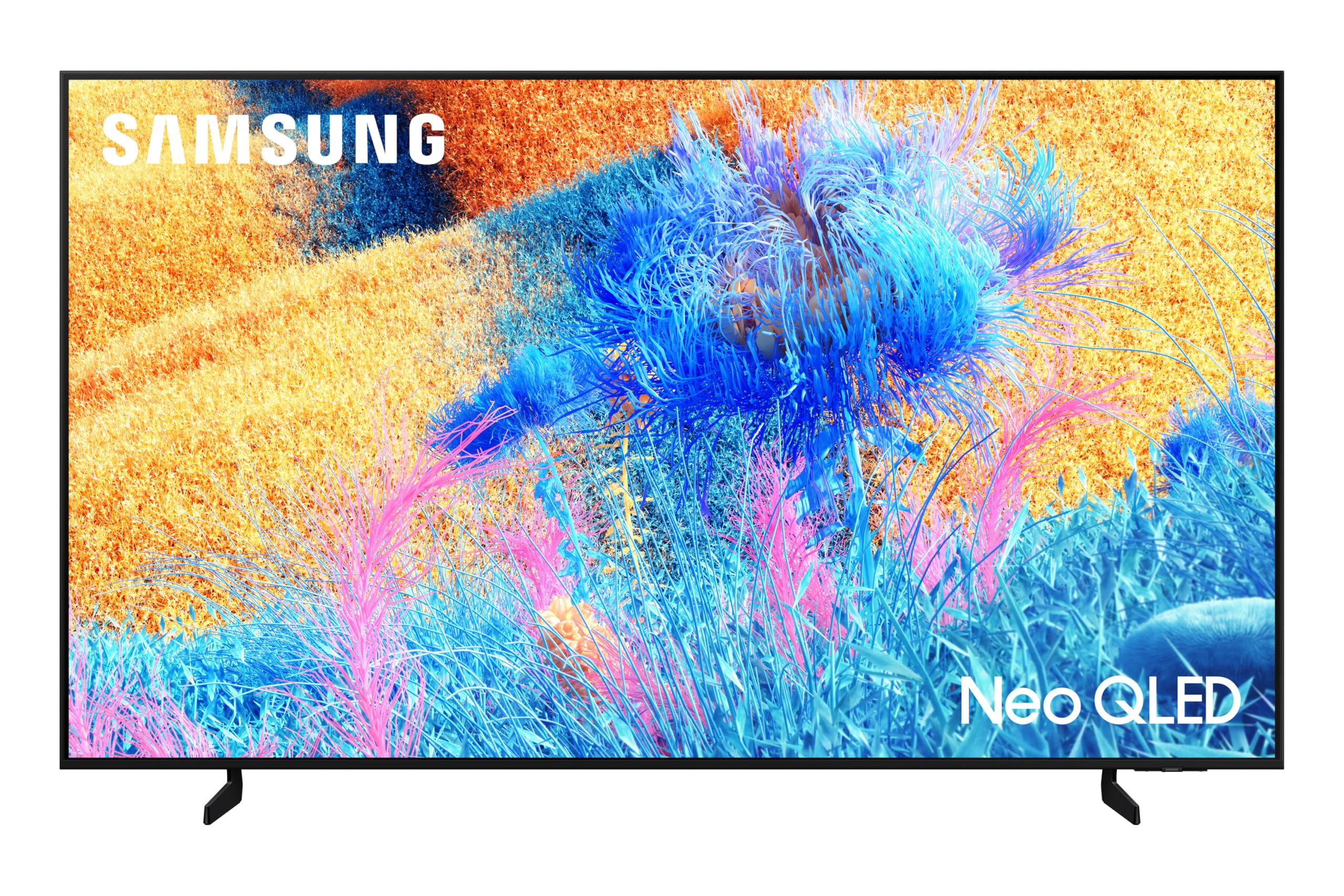
2. Setup
2.1 Unpacking and Component Check
Carefully remove the TV from its packaging. Ensure all components are present:
- Samsung 75-Inch QN60F Neo QLED 4K Smart TV
- Power Cable
- Solar Remote Control
- User Manual (this document)
2.2 Stand Installation or Wall Mounting
The TV can be placed on a stand or wall-mounted. For stand installation, attach the provided stand legs securely to the TV base using the included screws. For wall mounting, use a compatible wall mount kit (sold separately) and follow the instructions provided with the mount. The TV is designed for wall mounting.

2.3 Initial Power-On and Network Connection
Connect the power cable to the TV and a power outlet. Turn on the TV using the remote control. Follow the on-screen prompts to select your language, connect to your Wi-Fi network, and complete the initial setup process. A stable internet connection is required to access smart features and updates.
3. Operating the TV
3.1 Smart TV Features (Tizen OS)
Your Samsung QN60F Smart TV runs on the Tizen operating system, providing access to a wide range of streaming applications and services. Navigate the intuitive interface using the included Solar Remote control.

3.2 AI Mode and AI Vision Companion
Utilize the AI Mode for adaptive picture and sound settings, which intelligently optimize your viewing experience based on your surroundings and content. The Samsung Vision AI Companion offers visualized and comprehensive assistance, including answering questions about content, recommending styles, or finding local points of interest, with responses often including related video or image options.
3.3 Voice Assistants and SmartThings
The TV supports built-in voice assistants like Bixby and Alexa, allowing for hands-free control and navigation. With Samsung SmartThings integration, your TV can act as a central hub for managing compatible smart home devices.
3.4 Gaming Hub
Access the Gaming Hub for an optimized gaming experience. While the TV has a 60 Hz refresh rate, the NQ4 AI Processor enhances picture clarity for gaming content.
4. Picture and Sound Features
4.1 Quantum Mini LED and Color Booster Pro
Experience ultra-fine contrast with Quantum Mini LED technology, precisely controlled by Quantum Matrix Technology Slim. The Color Booster Pro feature uses AI to recognize and enhance color expression in each scene, resulting in more vivid and dynamic visuals.
4.2 NQ4 AI Processor and 4K Upscaling
The NQ4 AI Processor optimizes viewing and sound experiences for 4K content. It also performs 4K upscaling, enhancing lower-resolution content to near-4K quality, ensuring crisp and immersive visuals.
4.3 Q-Symphony Audio
The TV features Dolby Digital Plus audio and supports Samsung's Q-Symphony. When paired with compatible Samsung soundbars, Q-Symphony orchestrates TV and soundbar speakers simultaneously for a fuller and more immersive sound experience.
5. Specifications
| Feature | Specification |
|---|---|
| Brand | Samsung |
| Model Name | QN75QN60FAFXZA |
| Model Year | 2025 |
| Display Technology | 4K Neo QLED |
| Screen Size | 75 Inches |
| Resolution | 3840x2160 Pixels (4K) |
| Refresh Rate | 60 Hz |
| Processor | NQ4 AI Processor |
| Special Features | AI Mode, AI Vision Companion, Color Booster Pro, Quantum Mini LED, Q-Symphony |
| Hardware Interface | Bluetooth, HDMI, USB |
| Total USB Ports | 1 |
| Audio Input Compatible | Bluetooth, USB, Wireless, HDMI |
| Speaker Surround Sound Channel Configuration | 3.1 channel with soundbar (Q-Symphony) |
| Mounting Type | Wall Mount |
| Product Dimensions | 2.66 x 167.6 x 96.03 cm; 39.01 kg |
6. Troubleshooting
If you encounter any issues with your Samsung QN60F TV, please refer to the following general troubleshooting steps:
- No Power: Ensure the power cable is securely connected to both the TV and the power outlet. Check if the outlet is functional.
- No Picture/Sound: Verify that the correct input source is selected. Check all cable connections (HDMI, audio, etc.).
- Poor Picture Quality: Adjust picture settings (brightness, contrast, sharpness). Ensure your content source is of high quality. For streaming, check your internet connection speed.
- Remote Not Working: Check the batteries in the Solar Remote control. Ensure there are no obstructions between the remote and the TV.
- Internet Connectivity Issues: Restart your Wi-Fi router and the TV. Ensure the TV is within range of your Wi-Fi signal.
For more detailed troubleshooting, consult the full digital user manual available through the TV's Smart Hub or on the Samsung support website.
7. Maintenance
To ensure the longevity and optimal performance of your Samsung QN60F TV, follow these maintenance guidelines:
- Cleaning the Screen: Gently wipe the screen with a soft, dry microfiber cloth. For stubborn smudges, lightly dampen the cloth with distilled water or a specialized screen cleaner. Avoid harsh chemicals or abrasive materials.
- Cleaning the Frame: Use a soft, dry cloth to clean the TV frame.
- Ventilation: Ensure adequate ventilation around the TV to prevent overheating. Do not block the ventilation openings.
- Power Management: Unplug the TV during electrical storms or when it will be unused for extended periods.
- Software Updates: Regularly check for and install software updates to ensure your TV has the latest features and security enhancements.
8. Warranty and Support
Your Samsung 75-Inch QN60F Neo QLED 4K Smart TV is manufactured by Samsung. For warranty information, please refer to the documentation included with your purchase or visit the official Samsung support website. The product is eligible for return, refund, or replacement within 30 days of receipt when purchased from Amazon.ca.
For customer support, please contact Samsung directly or refer to the support options provided by your retailer.


