
Introduction
Thank you for choosing the Acer OHR632 Wireless Gaming Headset. This headset offers versatile connectivity options, high-fidelity audio, and a comfortable design for extended gaming sessions. Please read this manual carefully to ensure proper setup and optimal performance of your device.
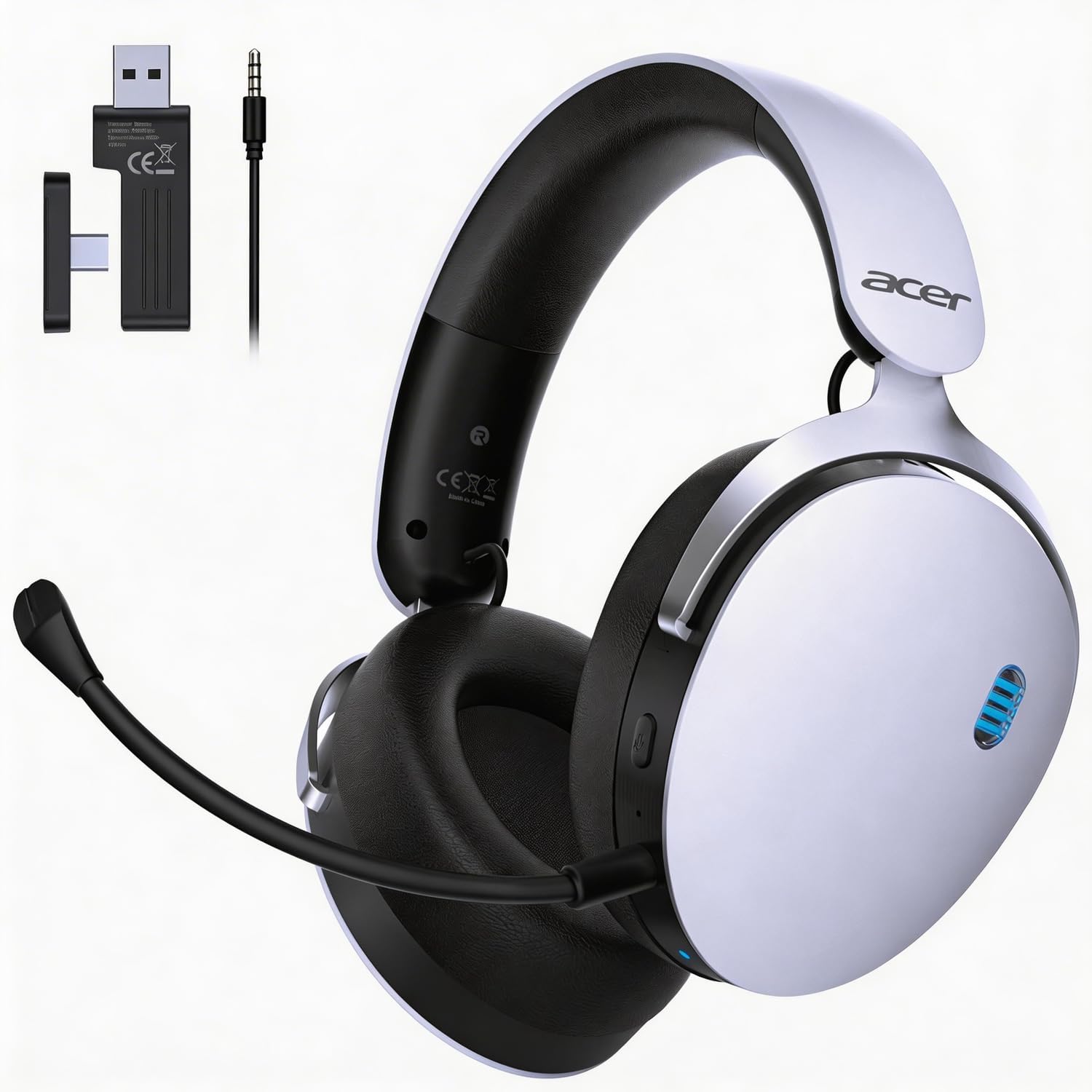
Image: The Acer OHR632 Wireless Gaming Headset in white, showcasing its sleek design.
What's Included
Verify that all items are present in the package:
- Wireless Gaming Headset
- User Manual
- Detachable Microphone
- USB-A to USB-C Charging Cable
- 3.5mm Audio Cable (4-prong)
- 2.4GHz Wireless USB Dongle (with USB-C adapter)

Image: A visual representation of all components included in the Acer OHR632 Wireless Gaming Headset package.
Setup
1. Attaching the Microphone
- Locate the microphone port on the left earcup of the headset.
- Align the microphone's 3.5mm jack with the port, ensuring the groove on the jack matches the port's shape.
- Gently push the microphone into the port until it clicks securely into place.
- Adjust the flexible microphone arm to your preferred speaking position.
To remove the microphone, gently pull it out from the port.

Image: The Acer OHR632 headset with the detachable microphone connected, ready for use.
2. Charging the Headset
- Connect the USB-C end of the charging cable to the headset's USB-C port.
- Connect the USB-A end of the charging cable to a powered USB port (e.g., computer, wall adapter).
- The LED indicator on the headset will show charging status. A full charge takes approximately 3 hours.

Image: An illustration demonstrating the charging process of the Acer OHR632 headset, highlighting its long battery life.
3. Connecting to Devices
The Acer OHR632 offers three connection methods:
3.1. 2.4GHz Wireless Connection (Recommended for Gaming)
- Insert the 2.4GHz USB dongle into an available USB-A port on your PS5, PS4, PC, or Switch dock. If your device only has USB-C, use the included USB-C adapter.
- Power on the headset. It should automatically pair with the dongle.
- Ensure the headset is selected as the audio output/input device in your system settings.
3.2. Bluetooth 5.3 Connection
- Power on the headset.
- Press and hold the Bluetooth pairing button (refer to headset controls section) until the LED indicator flashes, indicating pairing mode.
- On your Bluetooth-enabled device (e.g., smartphone, tablet, PC), search for "Acer OHR632" in the Bluetooth settings and select it to pair.
3.3. 3.5mm Wired Connection
- Connect one end of the 3.5mm audio cable to the headset's 3.5mm port.
- Connect the other end of the 3.5mm audio cable to the audio jack of your device (e.g., controller, PC, Switch handheld).
- The headset will operate in wired mode, bypassing wireless functions.

Image: A diagram illustrating the three connectivity options: 2.4GHz wireless, Bluetooth 5.3, and 3.5mm wired.
Operating Instructions
Power On/Off
- To power on: Press and hold the Power button for 2 seconds.
- To power off: Press and hold the Power button for 3 seconds.
Volume Control
- Volume Up: Rotate the volume wheel upwards.
- Volume Down: Rotate the volume wheel downwards.
Microphone Mute/Unmute
- Press the dedicated Mute button on the earcup to toggle microphone mute on or off.
Switching Connection Modes
- The headset automatically prioritizes connections. When the 3.5mm cable is plugged in, it will switch to wired mode.
- To switch between 2.4GHz wireless and Bluetooth, use the mode switch button (refer to headset diagram for exact location).
Features
- 3-in-1 Connectivity: Seamlessly switch between 2.4GHz wireless, Bluetooth 5.3, and 3.5mm wired connections for ultimate versatility across PS5, PS4, PC, Switch, and other compatible devices.
- Immersive Sound: Equipped with powerful 50mm drivers and ultra-low latency (≤20ms), delivering high-fidelity stereo sound for a truly immersive audio experience.
- Detachable Noise-Reduction Microphone: Ensures crystal-clear communication with its omni-directional noise-canceling design. The flexible arm allows for optimal positioning.
- All-Day Comfort: Lightweight design, adjustable headband, and memory foam ear cushions provide comfort for extended wear.
- Long Battery Life: Enjoy up to 40 hours of gameplay on a single charge, with quick charging capabilities.

Image: Detailed illustration of the headset's 3-in-1 connectivity modes.

Image: A user experiencing immersive sound with the Acer OHR632 headset.

Image: A user communicating clearly using the noise-canceling microphone of the Acer OHR632 headset.

Image: Close-up of the breathable, soft ear cushions for ultimate comfort.
Maintenance
- Cleaning: Use a soft, dry cloth to clean the headset. Do not use harsh chemicals or abrasive materials.
- Storage: Store the headset in a cool, dry place away from direct sunlight and extreme temperatures.
- Battery Care: To prolong battery life, avoid fully discharging the headset frequently. Charge it regularly, even if not in use for extended periods.
Troubleshooting
| Problem | Solution |
|---|---|
| No audio in wireless mode | Ensure the USB dongle is properly connected and the headset is powered on and paired. Check system audio settings to confirm the headset is selected as the output device. |
| Microphone not working | Verify the microphone is securely attached and not muted. Check system audio settings to ensure the headset microphone is selected as the input device. |
| Bluetooth pairing issues | Ensure the headset is in Bluetooth pairing mode (flashing LED). Turn off and on Bluetooth on your device and try pairing again. Keep devices close during pairing. |
| Short battery life | Ensure the headset is fully charged (approx. 3 hours). Reduce volume levels or disable unnecessary features if available to conserve battery. |
Specifications
- Brand: acer
- Model Name: OHR632
- Color: White
- Ear Placement: Over Ear
- Connectivity Technology: Wireless (2.4GHz, Bluetooth 5.3), Wired (3.5mm)
- Drivers: 50mm
- Battery Life: Up to 40 hours
- Charging Time: Approximately 3 hours
- Microphone: Detachable, Omni-directional, Noise-reduction
- Weight: 11.3 oz (320g)
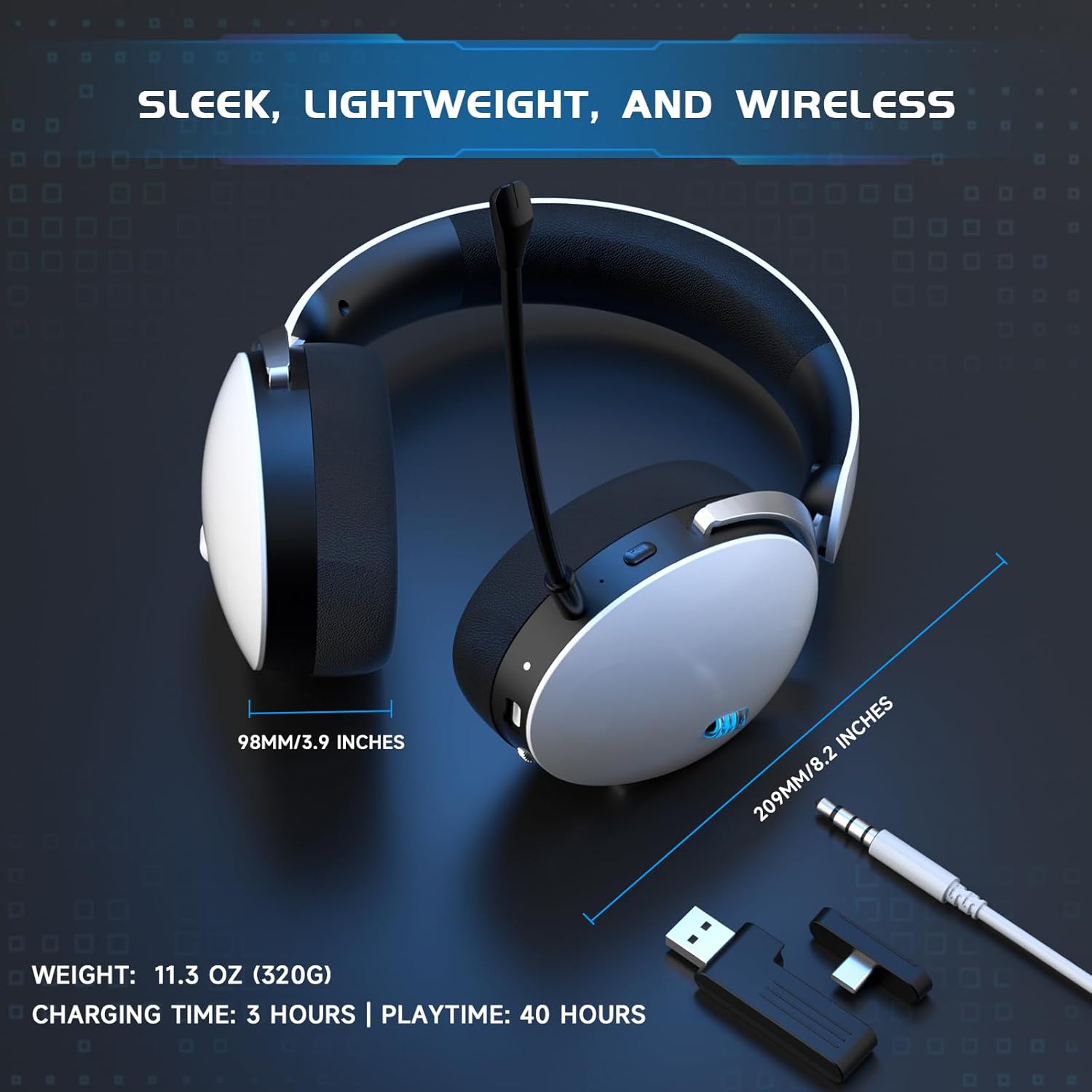
Image: Visual representation of the headset's dimensions, weight, charging time, and playtime.
Warranty and Support
This Acer OHR632 Wireless Gaming Headset comes with a 1 Year Manufacturer Warranty. For technical support, warranty claims, or further assistance, please contact Acer customer service or visit the official Acer support website. Keep your purchase receipt for warranty validation.
Product Overview Video
Watch this video for an unboxing, overview, and demonstration of the Acer OHR632 Wireless Gaming Headset's features and functionality.
Video: An unboxing and review of the Acer OHR632 Wireless Gaming Headset by a seller, demonstrating its features and performance.