
1. Introduction
The HEADFOX F20 Smart Helmet Bluetooth Headset is designed to provide clear communication and audio entertainment for motorcycle riders. This manual provides detailed instructions for installation, operation, maintenance, and troubleshooting to ensure optimal performance and user experience.
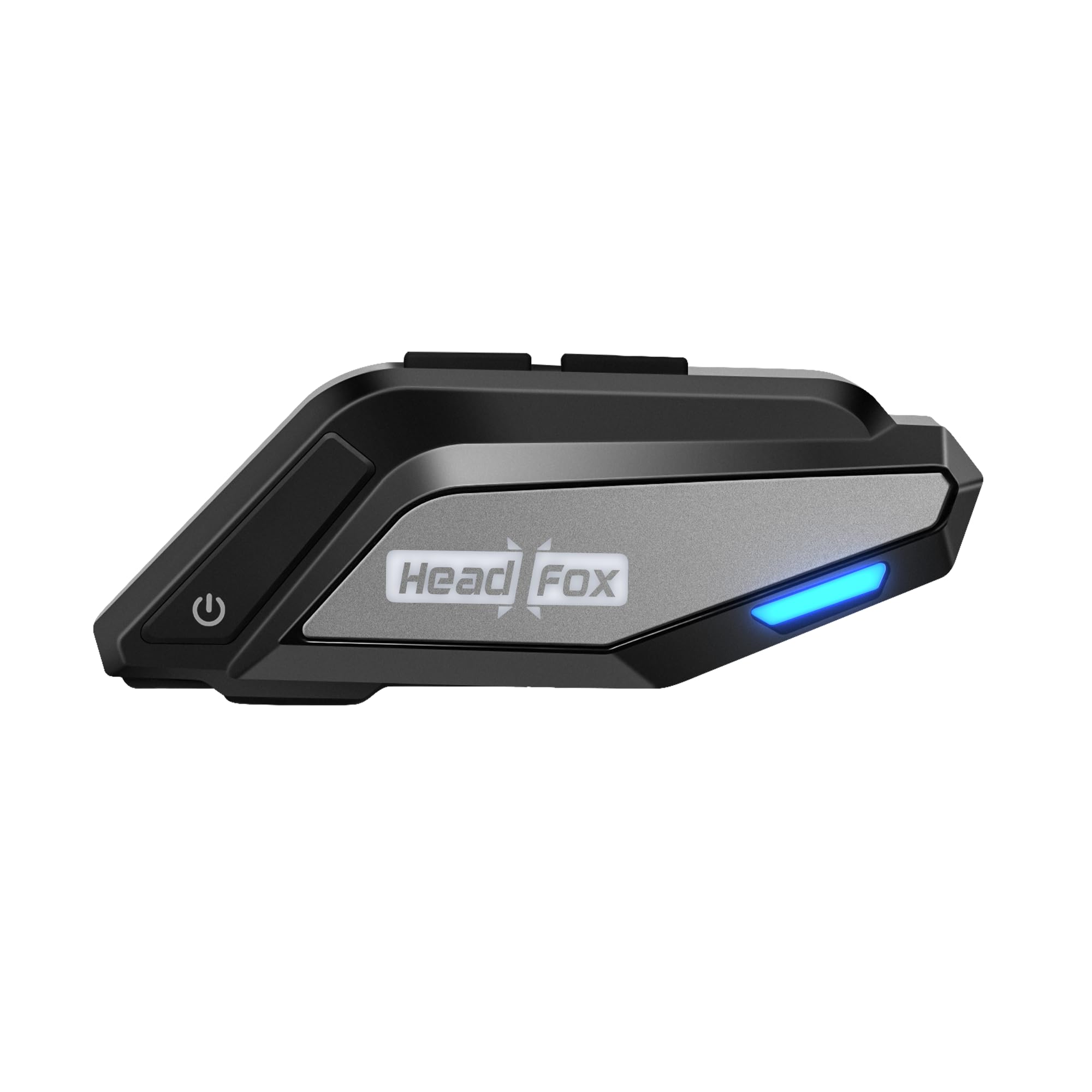
Image 1: The HEADFOX F20 Smart Helmet Bluetooth Headset, highlighting its sleek design and core connection capabilities.
Key Features:
- Bluetooth 5.3 Connectivity: Ensures quick pairing and stable wireless connection up to 10 meters with 40ms low latency.
- High-Fidelity Audio: Equipped with 40mm drivers for rich stereo sound.
- Environmental Noise Cancellation (ENC): Minimizes wind and road noise for clear voice calls.
- Long Battery Life: 1000mAh battery provides up to 35 hours of continuous use.
- IP65 Water Resistance: Protects against rain and dust.
- Dual Device Connectivity: Connects to two devices simultaneously.
- Voice Assistant Support: Compatible with Siri and other voice assistants.
- Universal Compatibility: Designed to fit most helmet types and compatible with Android and iOS devices.
- Customizable Panels: Allows for personalization of the headset's appearance.
2. Package Contents
Verify that all items listed below are included in your package:

Image 2: All components included in the HEADFOX F20 package, such as the main device, speakers, microphones, mounting accessories, and charging cable.
- HEADFOX F20 Bluetooth Headset Device
- Speakers (2 units)
- Hard Microphone
- Soft Microphone
- Double-Sided 3M Tape
- Device Base Lock (Clip-on mount)
- Extra Panels with Driver (for customization)
- Type-C Charging Cable
- User Manual
3. Setup
3.1. Installation on Helmet
- Choose Mounting Location: Select a flat surface on the side of your helmet where the headset can be securely attached without obstructing vision or ventilation.
- Attach Base Lock: Use either the clip-on mount or the adhesive pad to secure the device base lock to the helmet. Ensure it is firmly attached.
- Mount Headset: Slide the HEADFOX F20 headset onto the installed base lock until it clicks into place.
- Install Speakers: Place the speakers inside the helmet's ear pockets. Use the provided speaker adhesive if necessary to secure them. Ensure speakers are positioned directly over your ears for optimal sound.
- Install Microphone: Choose either the hard mic (for open-face helmets) or the soft mic (for full-face helmets). Position the microphone close to your mouth, ensuring it is not obstructed. Connect the microphone to the headset unit.
- Cable Management: Route all cables neatly under the helmet's padding to prevent discomfort and ensure they are not snagged.
3.2. Initial Charging
Before first use, fully charge the headset. Connect the Type-C charging cable to the headset's charging port and plug the other end into a USB power adapter (not included). The indicator light will show charging status and turn off when fully charged.
3.3. Bluetooth Pairing

Image 3: Illustrates the advanced Bluetooth 5.3 technology of the HEADFOX F20, offering quick pairing, low latency, and a stable 10-meter connection range.
- Power On: Press and hold the Power button for approximately 3 seconds until the indicator light flashes blue and red, indicating pairing mode.
- Activate Bluetooth: On your smartphone or other Bluetooth device, enable Bluetooth and search for available devices.
- Select "HEADFOX F20": From the list of devices, select "HEADFOX F20" to connect.
- Confirmation: Once paired, the indicator light on the headset will flash blue slowly, and you may hear an audible confirmation.
- Dual Device Pairing: To connect a second device, repeat the pairing process. The headset supports simultaneous connection to two devices.
4. Operating Instructions

Image 4: Details the HEADFOX F20's 35-hour battery life, 40mm high-fidelity audio drivers, and Environmental Noise Cancellation (ENC) for clear voice calls.
4.1. Power On/Off
- Power On: Press and hold the Power button for 3 seconds.
- Power Off: Press and hold the Power button for 5 seconds.
4.2. Music Playback
- Play/Pause: Press the Multi-function button once.
- Next Track: Press the Volume Up button.
- Previous Track: Press the Volume Down button.
- Volume Up: Press and hold the Volume Up button.
- Volume Down: Press and hold the Volume Down button.
4.3. Call Management
- Answer Call: Press the Multi-function button once.
- End Call: Press the Multi-function button once during a call.
- Reject Call: Press and hold the Multi-function button for 2 seconds.
- Redial Last Number: Double-press the Multi-function button.
4.4. Voice Assistant
- Activate Voice Assistant (Siri/Google Assistant): Triple-press the Multi-function button.
5. Maintenance
5.1. Charging
- Charge the device using the provided Type-C cable.
- Avoid using damaged chargers or cables.
- Do not charge in extreme temperatures.
5.2. Cleaning and Care
- Wipe the headset unit with a soft, damp cloth. Avoid harsh chemicals.
- Ensure the charging port cover is securely closed to maintain IP65 water resistance.
- Store the headset in a cool, dry place when not in use.
5.3. Customizable Panels

Image 5: Showcases the HEADFOX F20's IP65 water resistance, options for customizable panels, and the ability to connect to two devices simultaneously.
The HEADFOX F20 features customizable panels. To change them, gently pry off the existing panel using the provided tool or a similar non-abrasive object, and snap the new panel into place. Ensure the panels are securely attached to maintain the device's integrity.
6. Troubleshooting
If you encounter issues with your HEADFOX F20 headset, refer to the following table for common problems and solutions:
| Problem | Possible Cause | Solution |
|---|---|---|
| Device does not power on. | Low battery. | Charge the headset fully. |
| Cannot pair with smartphone. | Bluetooth not enabled on phone; headset not in pairing mode; too far from device. | Ensure phone's Bluetooth is on. Put headset in pairing mode (flashing blue/red). Keep devices within 1 meter during pairing. |
| No sound or low volume. | Volume too low on headset or phone; speakers improperly positioned; headset not connected. | Increase volume on both headset and phone. Adjust speaker position. Re-pair the headset. |
| Microphone not working. | Microphone not properly connected; mic obstructed. | Check microphone connection. Ensure mic is positioned correctly and not blocked. |
| Intermittent connection. | Out of range; interference; low battery. | Stay within 10 meters of the connected device. Avoid strong electromagnetic interference. Charge the headset. |
7. Specifications
| Feature | Detail |
|---|---|
| Model Name | F20 (HF-827 Helmet Bluetooth Headset-A) |
| Connectivity Technology | Wireless, Bluetooth 5.3 |
| Wireless Range | Up to 10 meters |
| Noise Control | Active Noise Cancellation (ENC) |
| Battery Capacity | 1000mAh Lithium Ion |
| Battery Life | Up to 35 hours (continuous use) |
| Water Resistance Level | IP65 Rated |
| Material | Acrylonitrile Butadiene Styrene (ABS) |
| Item Weight | 400 Grams |
| Product Dimensions (LxWxH) | 13 x 10 x 2 cm |
| Speaker Drivers | 40mm |
| Control Method | Touch / Button Control |
| Compatibility | Android & iOS smartphones, Universal Helmet Fit |
8. Warranty and Support

Image 6: Provides HEADFOX customer support contact details and information regarding the 1-year product warranty.
8.1. Product Warranty
The HEADFOX F20 Smart Helmet Bluetooth Headset comes with a 1-Year Warranty from the date of purchase. This warranty covers manufacturing defects. Please retain your proof of purchase for warranty claims. The warranty does not cover damage caused by misuse, accidents, unauthorized modifications, or normal wear and tear.
8.2. Customer Support
For any questions, queries, or technical assistance, please contact HEADFOX customer support:
- Email: support@headfox.in
- Call: +91-92612 00986
- Chat: +91-79769 80876
- Operating Hours: 9 AM - 6 PM (local time)
- Website: www.headfox.in


