
Introduction
This manual provides detailed instructions for the setup, operation, and maintenance of your Sooguard Keyboard Case for the Samsung Galaxy Tab S11 Ultra 14.6 Inch. This keyboard case is designed to enhance your tablet's functionality, offering a comfortable typing experience, precise trackpad control, and versatile viewing angles.
1. Setup
1.1 Compatibility
The Sooguard Keyboard Case is designed for specific Samsung Galaxy Tab Ultra models. Please verify your tablet's model number to ensure compatibility.

Image 1.1: Compatibility information for the Sooguard Keyboard Case. This case is compatible with Samsung Galaxy Tab S11 Ultra (2025, SM-X930 / X936B), Galaxy Tab S10 Ultra (2024, SM-X920 / X926B), Galaxy Tab S9 Ultra (2023, SM-X910 / X916B), and Galaxy Tab S8 Ultra (2022, SM-X900 / X906). To check your tablet's model, navigate to "Settings > About Tablet > Model Name".
1.2 Attaching Your Tablet
- Ensure your tablet is clean and free of debris.
- Align the back of your Samsung Galaxy Tab S11 Ultra with the magnetic panel on the keyboard case.
- The strong magnets will securely attach the tablet to the case, creating a floating cantilever design.
1.3 Initial Charging
Before first use, fully charge the keyboard case. Connect the provided USB-C cable to the charging port on the keyboard and to a power source. The charging indicator light will show the charging status.

Image 1.2: The keyboard charging port is located on the side. A full charge takes approximately 2.5 hours, providing up to 200 hours of working time and 90 days of standby time.
1.4 Bluetooth Pairing
- Turn on the keyboard by pressing the power button (usually located on the side or top edge of the keyboard). The Bluetooth indicator light will flash.
- On your Samsung Galaxy Tab S11 Ultra, go to Settings > Connections > Bluetooth.
- Ensure Bluetooth is enabled. Your tablet will search for available devices.
- Select the keyboard (e.g., "Sooguard Keyboard") from the list of available devices.
- Follow any on-screen prompts to complete the pairing process. The Bluetooth indicator light on the keyboard will turn solid when successfully connected.
2. Operating Instructions
2.1 Floating Cantilever Stand
The magnetic floating cantilever design allows for easy adjustment of your tablet's viewing angle. Gently adjust the tablet's position to find your preferred ergonomic setup for typing or viewing content. The stand supports up to a 130-degree viewing angle.

Image 2.1: The floating cantilever design allows for a 130-degree adjustable viewing angle, promoting a raised screen view for improved posture compared to a normal, lower screen view.
2.2 Multi-Touch Trackpad
The integrated multi-touch trackpad provides precise cursor control and supports various gestures for efficient navigation.
- Trackpad On/Off: Press FN + Spacebar simultaneously to toggle the trackpad on or off.
- Basic Gestures:
- Single Finger Tap: Left-click.
- Two Finger Tap: Right-click.
- Two Finger Pinch: Zoom in/out.
- Two Finger Scroll: Scroll up/down.
- Three Finger Swipe: Switch between applications.

Image 2.2: The large multi-touch trackpad supports various gestures including multi-touch, zoom in/out, scroll up/down, and switching applications. The trackpad can be turned on/off by pressing FN + Spacebar.
2.3 Backlit Keyboard
The keyboard features adjustable backlighting with multiple colors and brightness levels for comfortable typing in various lighting conditions.
- Adjust Brightness: Press the Backlight Brightness Key (often represented by a sun icon) to cycle through 3 levels of brightness or turn off the backlight.
- Change Color: Press the Backlight Color Key (often represented by a color palette icon or RGB) to cycle through 7 different backlight colors.
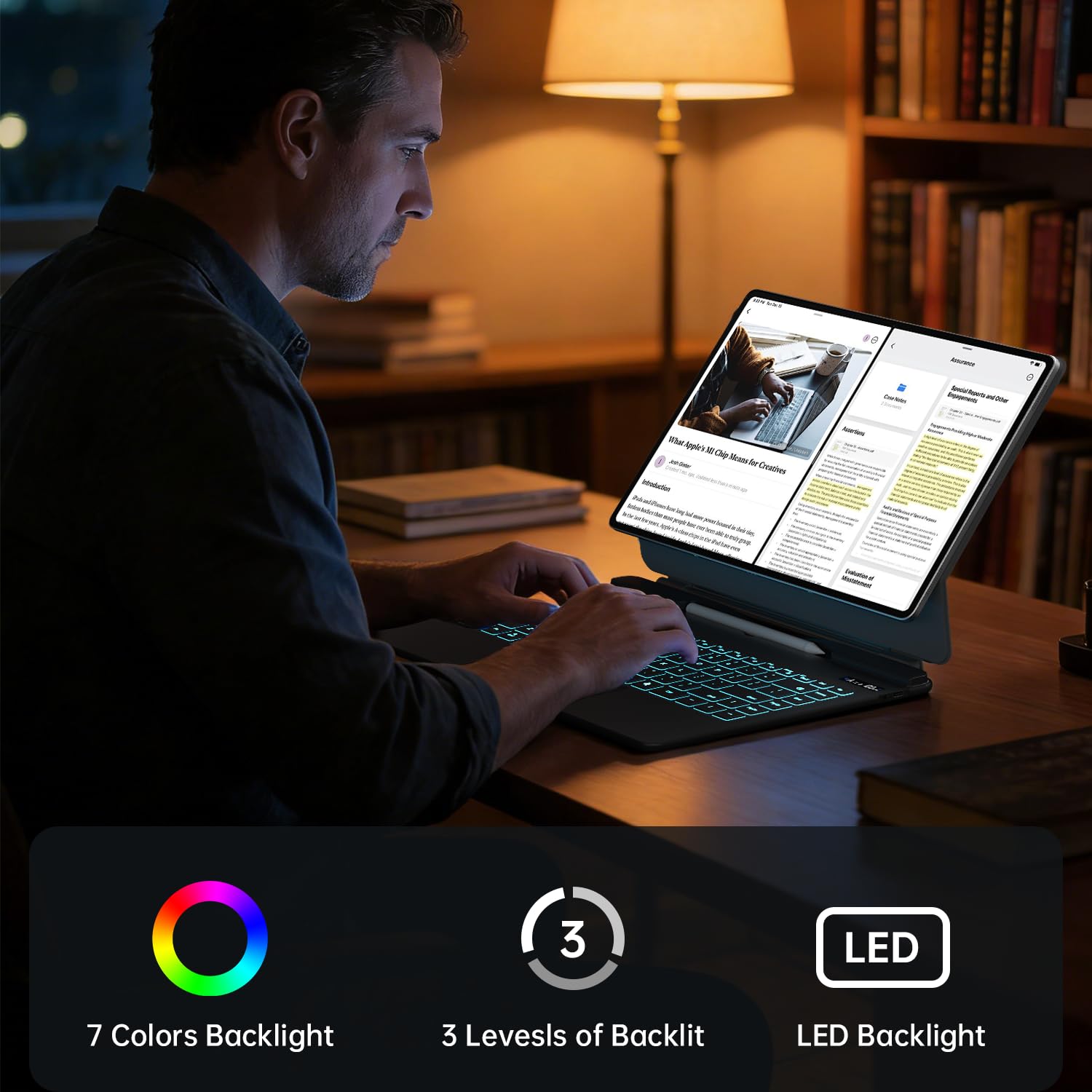
Image 2.3: The keyboard offers 7 distinct backlight colors and 3 adjustable brightness levels, providing customizable illumination for typing.
2.4 Dex Mode Support
The keyboard case fully supports Samsung Dex Mode, allowing you to transform your tablet into a desktop-like environment for enhanced productivity. Activate Dex Mode from your tablet's quick settings panel.
2.5 AI Key Functionality
The dedicated AI Key provides quick access to intelligent features or voice assistant functionality on your Samsung Galaxy Tab S11 Ultra. Press this key to activate the assigned AI function.
2.6 Keyboard Key Features
The keyboard is designed for comfortable and efficient typing with the following features:
- 1.0mm Key Travel: Provides a responsive and tactile typing experience.
- Skin-friendly Coating: Ensures a comfortable touch during extended use.
- Scissor Switch Mechanism: Offers stable and precise key presses.
- Silent Keys: Reduces typing noise for a quieter work environment.
3. Maintenance
3.1 Cleaning Instructions
- Disconnect the keyboard from your tablet and power source before cleaning.
- Use a soft, lint-free cloth slightly dampened with water or a mild, non-abrasive cleaner to wipe the surfaces of the keyboard and case.
- Avoid getting moisture into any openings or ports.
- Do not use harsh chemicals, solvents, or abrasive materials, as these can damage the finish.
3.2 Battery Care
- To prolong battery life, avoid fully discharging the keyboard frequently.
- Charge the keyboard when the battery indicator is low.
- Store the keyboard in a cool, dry place if not used for an extended period.
4. Troubleshooting
- Keyboard not connecting via Bluetooth:
- Ensure the keyboard is powered on and fully charged.
- Check that Bluetooth is enabled on your tablet.
- Forget the device in your tablet's Bluetooth settings and attempt to re-pair.
- Restart both your tablet and the keyboard.
- Trackpad not responding:
- Ensure the trackpad is enabled by pressing FN + Spacebar.
- Clean the trackpad surface to remove any dirt or obstructions.
- If the issue persists, try re-pairing the keyboard.
- Backlight not working or changing:
- Ensure the keyboard has sufficient battery charge.
- Press the Backlight Brightness Key or Backlight Color Key to cycle through options.
- Keys not responding:
- Ensure the keyboard is properly connected via Bluetooth.
- Check for any physical obstructions under the keys.
- Restart the keyboard and tablet.
5. Specifications
| Feature | Detail |
|---|---|
| Brand | Sooguard |
| Model Number | Galaxy Tab S11 Ultra Keyboard Case |
| Compatible Devices | Samsung Galaxy Tab S11 Ultra 14.6 inch (and compatible S8/S9/S10 Ultra models) |
| Connectivity Technology | Bluetooth |
| Keyboard Description | Backlit Keyboard With 7-color Illumination And Multi-touch Trackpad |
| Recommended Uses | Typing |
| Product Features | Backlit, Floating Cantilever Magnetic Stand, Dex Mode Support, AI Key |
| Number of Keys | 78 |
| Keyboard Backlighting | RGB, 7-color, 3-level adjustable brightness |
| Language | English |
| Power Source | Battery Powered (1 battery) |
| Charging Time | Approx. 2.5 hours |
| Working Time | Approx. 200 hours |
| Standby Time | Approx. 90 days |
| Switch Type | Membrane (Scissor Switch Mechanism) |
| Keyboard Layout | QWERTY |
| Water Resistance Level | Not Water Resistant |
| Colour | Charcoal Black |
| Material | Plastic |
| Item Weight | 998 g |
| Item Dimensions (L x W x H) | 33L x 24.9W x 1.5H Centimeters |
| Box Contents | Keyboard Cover |
6. Warranty Information
Sooguard products are manufactured with high-quality standards. This product comes with a standard manufacturer's warranty against defects in materials and workmanship. Please refer to the product packaging or the official Sooguard website for specific warranty terms and conditions, including duration and coverage details.
7. Customer Support
For technical assistance, troubleshooting, or any questions regarding your Sooguard Keyboard Case, please contact our customer support team. You can find contact information on the official Sooguard website or through your purchase platform.
Please have your product model number (Galaxy Tab S11 Ultra Keyboard Case) and purchase details ready when contacting support.