
1. Introduction
This manual provides detailed instructions for the installation, operation, and maintenance of your moseiny Android 15 Car Radio, designed specifically for Ford Escape models from 2013 to 2019. Please read this manual thoroughly before installation and use to ensure proper functionality and safety.
2. Setup & Installation
2.1 Package Contents
Verify that all components are present in the package:
- 1 x Car MP5 Player (Main Unit)
- 1 x Power Cable
- 1 x GPS Antenna
- 1 x AHD Backup Camera
- 1 x RCA Input and Output Cable Set
- 1 x External Microphone
- 2 x USB Cables
- 1 x Instruction Manual
- 1 x USB Adapter
- 1 x Canbus Box (if applicable for your vehicle model)
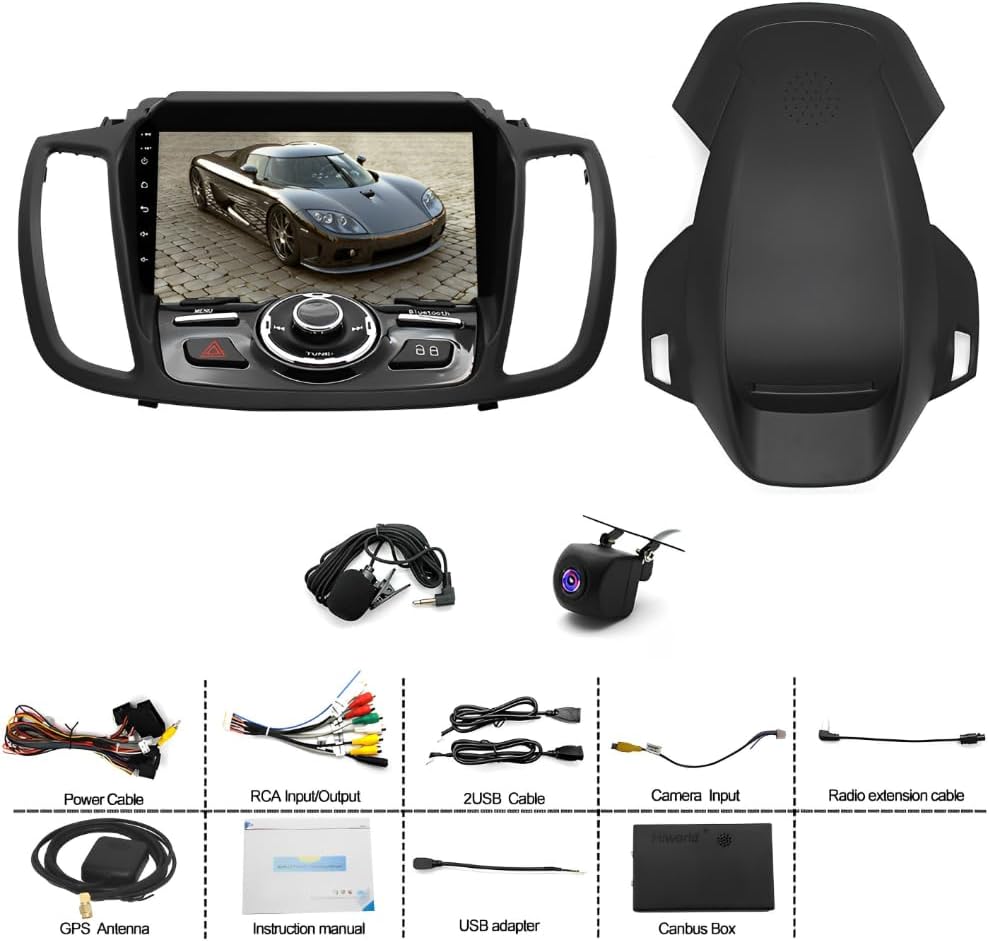
Image: Overview of all components included in the moseiny car radio package.
2.2 Compatibility and Pre-Installation Check
This car radio is designed for Ford Escape models manufactured between 2013 and 2019. Before proceeding with installation, ensure your vehicle's dashboard configuration matches the compatible models shown. Professional installation is recommended.

Image: Comparison of the Ford Escape dashboard before and after installing the moseiny car radio.
2.3 Installation for Screenless/Low-Configuration Models
For Ford Escape models without a factory screen or with low-configuration, minor cutting of the dashboard area may be required for proper fitment. Refer to the images below for reference on potential cutting areas. Exercise caution and consider professional assistance.

Image: Reference guide for dashboard cutting areas in screenless/low-configuration models.
2.4 Installation for Screen-Equipped High-Trim Models
For Ford Escape models equipped with a factory screen, installation may require the removal of the original CD unit. This unit is no longer needed after installing the new head unit. The removal of the CD unit will not affect other vehicle functions.
- Unscrew the bolts at the four arrow-marked positions.
- Remove the entire original CD unit.
- Tighten the screws securely after installing the new head unit.

Image: Steps for removing the original CD unit in high-trim models.
2.5 Wiring and Connections
Utilize the provided Plug & Play harness for simplified wiring. Connect the power cable, GPS antenna, AHD backup camera, RCA input/output, external microphone, and USB cables to their respective ports on the main unit and vehicle harness. Ensure all connections are secure.
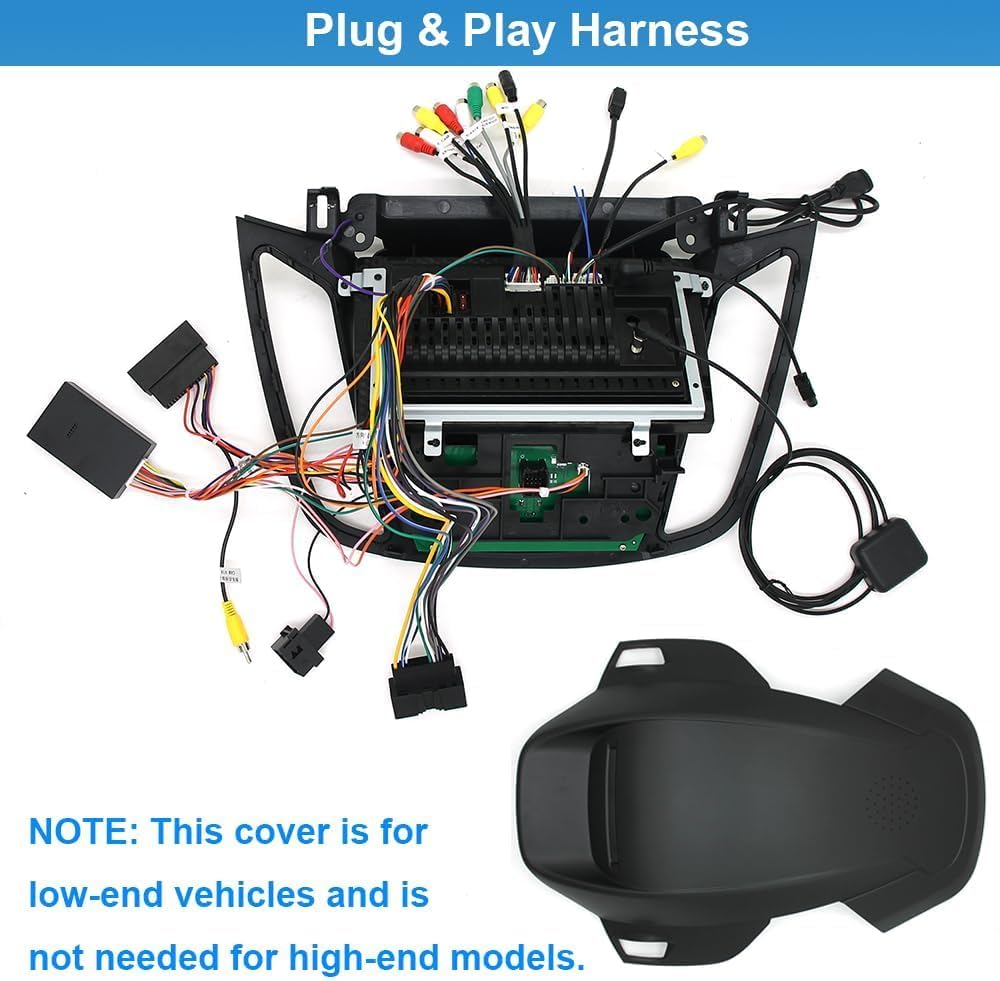
Image: Plug & Play harness and connections. Note: The additional cover is for low-end vehicles and may not be needed for high-end models.
3. Operating Instructions
3.1 Initial Power On and System Setup
After installation, turn on your vehicle's ignition. The car stereo system will quickly start up. Follow the on-screen prompts for initial setup, including language selection, time zone, and Wi-Fi connection.

Image: Main interface of the car radio with various applications.

Image: Close-up of the car radio's controls and display.
3.2 Wireless Carplay & Android Auto
Connect your iPhone or Android smartphone wirelessly to access Carplay or Android Auto. This allows for seamless integration of navigation, music, calls, and messaging directly on the car radio's display.
- Ensure Bluetooth and Wi-Fi are enabled on your smartphone.
- On the car radio, navigate to the Carplay/Android Auto application.
- Follow the on-screen instructions to pair your device.

Image: Android interface displaying various applications.
3.3 Built-in Wi-Fi & GPS Navigation
Connect the unit to a Wi-Fi hotspot (e.g., from your smartphone) to access online maps and other internet-dependent features. The built-in GPS module supports both online and offline navigation. You can download offline maps directly from the Play Store.
3.4 Bluetooth Functionality
The integrated Bluetooth allows for hands-free calling and audio streaming. Pair your phone to make and receive calls, and play music directly through the car's speakers. The built-in microphone ensures clear communication.
- Go to the Bluetooth settings on the car radio.
- Enable Bluetooth on your smartphone and search for the car radio device.
- Select the device and confirm the pairing code.
- Grant phone authorization and contact information syncing for full functionality.
3.5 FM/RDS Radio
Access FM radio stations with RDS (Radio Data System) support for station information. Tune in to your favorite stations for news, traffic updates, and music.
3.6 Rear View Camera
When the vehicle is in reverse gear, the display automatically switches to the rearview camera feed, providing a clear view for safer parking and reversing maneuvers.
3.7 Steering Wheel Control (SWC)
The unit supports steering wheel controls, allowing you to manage audio, calls, and other functions without taking your hands off the wheel. Configuration may be required in the system settings.
4. Maintenance
To ensure the longevity and optimal performance of your car radio, follow these maintenance guidelines:
- Cleaning the Screen: Use a soft, lint-free cloth slightly dampened with water or a screen cleaner specifically designed for electronics. Avoid harsh chemicals or abrasive materials.
- Software Updates: Periodically check for system software updates through the unit's settings menu to ensure you have the latest features and security patches.
- Cable Connections: Ensure all cables remain securely connected. Loose connections can lead to intermittent issues.
- Environmental Conditions: Avoid exposing the unit to extreme temperatures, direct sunlight for prolonged periods, or excessive moisture.
5. Troubleshooting
If you encounter issues with your moseiny car radio, refer to the following common problems and solutions:
| Problem | Possible Cause | Solution |
|---|---|---|
| Unit does not power on. | Loose power connection, blown fuse, vehicle battery issue. | Check power cable connections. Inspect vehicle fuses. Ensure vehicle battery is charged. |
| No sound. | Volume too low, mute activated, incorrect audio source, loose speaker wires. | Increase volume. Check mute status. Select correct audio source. Verify speaker wire connections. |
| GPS signal lost or inaccurate. | GPS antenna obstructed or improperly installed, outdated map data. | Ensure GPS antenna has a clear view of the sky. Check antenna connection. Update map software. |
| Bluetooth pairing issues. | Bluetooth not enabled, device not discoverable, interference. | Ensure Bluetooth is enabled on both devices. Make sure the car radio is in pairing mode. Try restarting both devices. |
| Rearview camera not displaying. | Loose camera connection, incorrect wiring, camera malfunction. | Check camera cable connections. Verify reverse trigger wire is correctly connected. |
| Touch screen unresponsive. | System freeze, temporary software glitch. | Restart the unit (turn off vehicle ignition and restart). If issue persists, perform a factory reset (refer to system settings). |
If the problem persists after attempting these solutions, please contact customer support for further assistance.
6. Specifications
| Feature | Detail |
|---|---|
| Brand | moseiny |
| Model | Android 15 Car Radio for Ford Escape 2013-2019 |
| Screen Size | 9 inches |
| Display Type | IPS Touch Screen, LCD |
| Operating System | Android 14 |
| Connectivity Technology | Bluetooth, USB, Wi-Fi |
| Special Features | Wireless Carplay, Android Auto, GPS Navigation (Online/Offline), FM/RDS Radio, Rear View Camera Support, Steering Wheel Control (SWC), Mirror Link, Touchscreen |
| Audio Output Mode | Stereo |
| Compatible Devices | Smartphone |
| Included Components | Car MP5 Player, Power Cable, GPS Antenna, AHD Backup Camera, RCA Input/Output, External Microphone, 2x USB Cable, Instruction Manual, USB Adapter, Canbus Box |
7. Warranty & Support
For warranty information and technical support, please refer to the contact details provided with your purchase documentation or visit the official moseiny website. Keep your purchase receipt as proof of purchase for warranty claims.
Contact Information: Please refer to the seller's contact information on the platform where the product was purchased or the included warranty card.