
1. Introduction
Thank you for purchasing the Generic 2.1 Sound Bar Speaker MV9933. This manual provides essential information for the safe and efficient operation of your new sound bar. Please read this manual thoroughly before use and retain it for future reference.
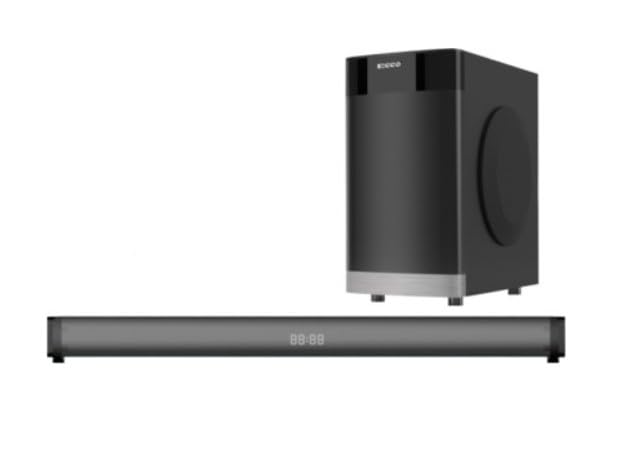
Image 1.1: Front view of the Generic 2.1 Sound Bar Speaker MV9933. This image displays the sleek, modern design of the sound bar, typically featuring a speaker grille and control panel.
2. Safety Information
To ensure safe operation and prevent damage, observe the following precautions:
- Do not expose the sound bar to rain, moisture, or extreme temperatures.
- Do not open the casing. Refer all servicing to qualified personnel.
- Ensure proper ventilation around the unit.
- Use only the power adapter supplied with the device.
- Keep the sound bar away from heat sources and direct sunlight.
- Avoid placing heavy objects on the sound bar.
3. Package Contents
Verify that all items are present in the package:
- Generic 2.1 Sound Bar Speaker MV9933
- Power Adapter
- Remote Control (with batteries)
- Audio Cable (e.g., AUX cable)
- User Manual
Note: Specific cable types may vary. Check your packaging for exact contents.
4. Setup
4.1 Unpacking
Carefully remove all components from the packaging. Retain the packaging for future transport or storage.
4.2 Placement
Place the sound bar on a stable, flat surface, preferably directly in front of your television or display. Ensure there is adequate space around the unit for proper ventilation.
4.3 Connecting Power
- Connect the power adapter to the DC IN port on the back of the sound bar.
- Plug the other end of the power adapter into a wall outlet.
- The sound bar will enter standby mode, indicated by an LED light.
4.4 Connecting Audio Sources
The sound bar supports multiple input options. Choose the connection method best suited for your device.
4.4.1 Bluetooth Connection
- Press the "MODE" button on the sound bar or remote control until "BT" (Bluetooth) mode is selected.
- The sound bar will enter pairing mode, indicated by a flashing LED.
- On your mobile device or computer, enable Bluetooth and search for "MV9933" or "Generic Sound Bar".
- Select the sound bar from the list of available devices to pair. A solid LED indicates a successful connection.
4.4.2 AUX (3.5mm) Connection
- Connect one end of the 3.5mm audio cable to the AUX OUT port of your audio source (e.g., TV, smartphone).
- Connect the other end of the 3.5mm audio cable to the AUX IN port on the back of the sound bar.
- Press the "MODE" button on the sound bar or remote control until "AUX" mode is selected.
4.4.3 Optical Connection (if available)
- Connect an optical audio cable (not always included) from the OPTICAL OUT port of your TV or audio source to the OPTICAL IN port on the sound bar.
- Press the "MODE" button on the sound bar or remote control until "OPT" (Optical) mode is selected.
- Ensure your TV's audio output settings are configured for "Optical" or "PCM" format.
4.4.4 USB Playback (if available)
- Insert a USB flash drive containing compatible audio files into the USB port on the sound bar.
- Press the "MODE" button on the sound bar or remote control until "USB" mode is selected.
- The sound bar will automatically begin playing audio files from the USB drive.
5. Operating Instructions
5.1 Power On/Off
Press the POWER button on the sound bar or remote control to turn the unit on or off.
5.2 Mode Selection
Press the MODE button on the sound bar or remote control to cycle through available input sources: Bluetooth, AUX, Optical, USB.
5.3 Volume Control
Use the VOL+ and VOL- buttons on the sound bar or remote control to adjust the volume level.
5.4 Playback Controls (Bluetooth/USB)
- Play/Pause: Press the PLAY/PAUSE button.
- Next Track: Press the NEXT button.
- Previous Track: Press the PREV button.
5.5 LED Indicator
The LED indicator on the sound bar provides information about the current status:
- Solid Blue: Bluetooth connected.
- Flashing Blue: Bluetooth pairing mode.
- Solid Green: AUX mode.
- Solid White: Optical mode.
- Solid Purple: USB mode.
- Red: Standby mode.
6. Maintenance
6.1 Cleaning
Wipe the exterior of the sound bar with a soft, dry cloth. Do not use liquid cleaners or abrasive materials, as they may damage the finish.
6.2 Storage
If storing the sound bar for an extended period, disconnect it from power and store it in a cool, dry place, preferably in its original packaging.
7. Troubleshooting
| Problem | Possible Cause | Solution |
|---|---|---|
| No power | Power cable not connected; Power outlet not active. | Ensure power cable is securely connected. Test the outlet with another device. |
| No sound | Incorrect input mode; Volume too low; Audio cable not connected properly. | Select the correct input mode. Increase volume. Check audio cable connections. Ensure TV audio output is set correctly (e.g., PCM for Optical). |
| Bluetooth not pairing | Sound bar not in pairing mode; Device too far; Interference. | Ensure sound bar is in Bluetooth pairing mode (flashing LED). Move device closer. Avoid sources of interference. |
| Remote control not working | Batteries depleted; Obstruction between remote and sound bar. | Replace remote control batteries. Ensure clear line of sight to the sound bar's IR receiver. |
8. Specifications
| Feature | Detail |
|---|---|
| Model Name | MV9933 (EC0258) |
| Brand | Generic |
| Speaker Type | 2.1 Channel Sound Bar, Multimedia |
| Color | Black |
| Product Dimensions (D x W x H) | 75D x 10W x 8H centimetres |
| Input Options | Bluetooth, AUX (3.5mm), Optical, USB |
| Included Components | Sound Bar Speaker, Power Adapter, Remote Control, Audio Cable |
9. Warranty and Support
This product comes with a standard manufacturer's warranty. For detailed warranty terms and conditions, please refer to the warranty card included in your package or contact your retailer.
For technical support or service inquiries, please contact the retailer where you purchased the product or refer to the contact information provided on the product packaging.