
Introduction
This manual provides detailed instructions for the setup, operation, maintenance, and troubleshooting of your Ptaram 7-inch GPS Navigator. Please read this manual thoroughly to ensure proper use and to maximize the device's functionality.
1. Setup
1.1 Unboxing and Components
Carefully unpack all items from the box. Verify that all components are present:
- 1 x 7" Touch Screen GPS Navigation device
- 1 x Car Charger
- 1 x MINI USB cable
- 1 x User Manual (this document)
- 1 x Car Bracket
- 1 x Back Bracket
- 1 x Sunshade

Figure 1: Included components of the Ptaram GPS Navigator.
1.2 Mounting the Device
The GPS navigator can be mounted on your dashboard or windshield using the provided car bracket and suction cup.
- Attach the back bracket to the rear of the GPS device.
- Connect the car bracket to the back bracket.
- Clean the desired mounting surface (windshield or dashboard) thoroughly.
- Press the suction cup firmly against the surface and engage the lever to secure it.
- Adjust the viewing angle for optimal visibility without obstructing your view of the road.
- (Optional) Attach the sunshade to the device to reduce glare.

Figure 2: Sunshade attachment to the GPS device.

Figure 3: Device overview with mounting point and power button.
1.3 Initial Power On and Charging
Before first use, ensure the device is fully charged. Connect the car charger to your vehicle's cigarette lighter socket and the MINI USB cable to the GPS device's USB port.
- The device features a 3000mAh polymer battery.
- Use the provided 5V 2.5A car charger for optimal charging.
- Press and hold the ON/OFF button (refer to Figure 3) to power on the device.
2. Operating Instructions
2.1 Basic Navigation
The 7-inch touch screen allows for intuitive navigation input.
- Destination Input: Search by Postcode, Address, Coordinates, Favorite locations, or Points of Interest (POI).
- Route Options: Select from four route preferences: Fast, Green (eco-friendly), Short, or Easy.
- Time Settings: Configure the device to use GPS time or map time.

Figure 4: GPS Navigator displaying a route.
2.2 Vehicle Modes
The GPS navigator supports 7 vehicle modes to optimize routing based on your vehicle type:
- Car
- Truck
- Bus
- Taxi
- Bicycle
- Emergency Vehicle
- Pedestrian
For truck drivers, input vehicle-specific data such as length, width, height, and weight to ensure intelligent routing that avoids restricted roads and bridges.

Figure 5: Multiple vehicle modes supported by the GPS.
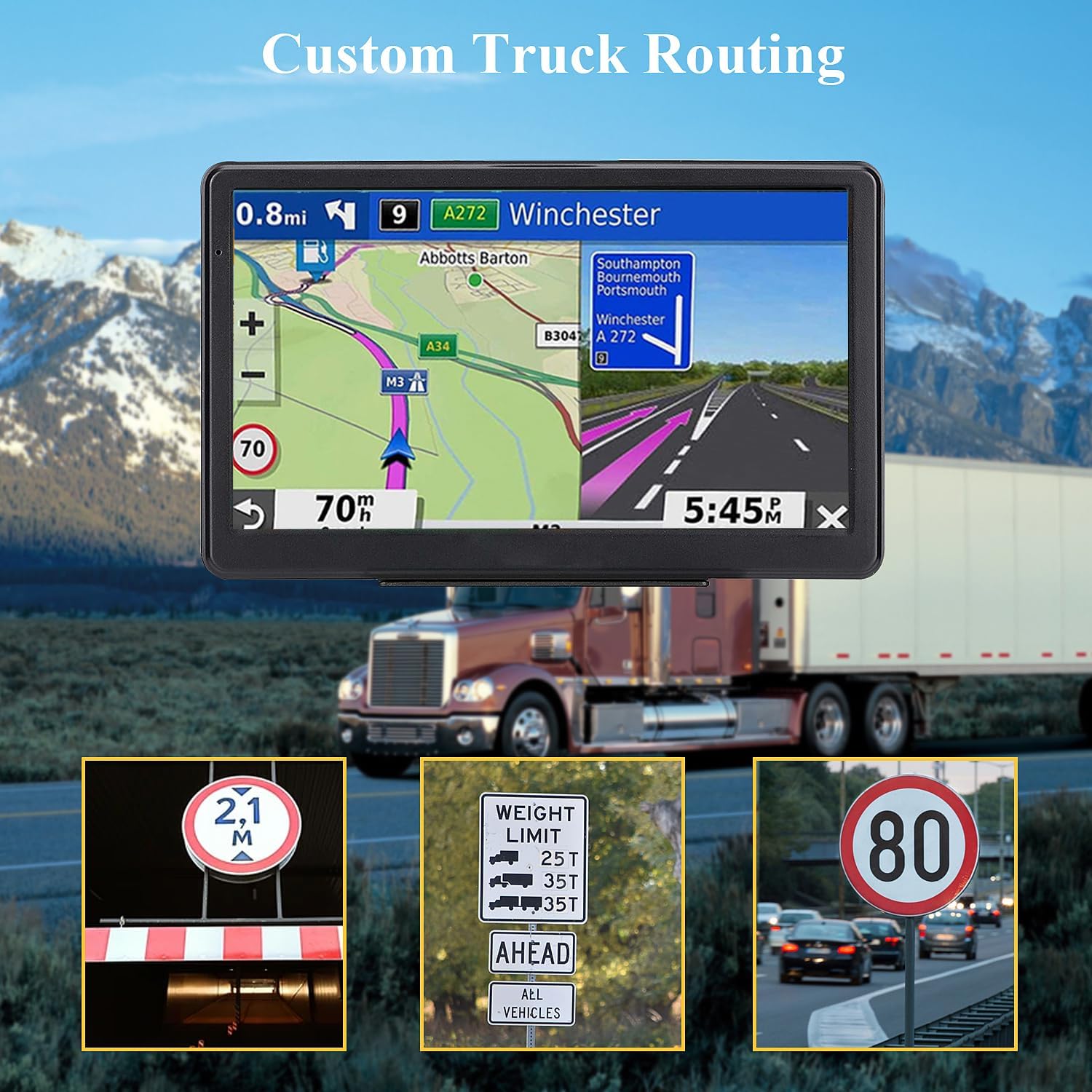
Figure 6: Custom truck routing with specific warnings.
2.3 Voice Guidance and Driving Alerts
The device provides real-time voice guidance in over 40 languages (including English, French, and Spanish) and various driving alerts:
- Turn-by-turn directions with street names broadcast.
- Intelligent current speed camera alerts.
- Sound warnings for hazards.
- Active Lane Assistant to guide you into the correct lane.
- Display of remaining distance and estimated arrival time.
- Red light warnings.
Figure 7: GPS Navigator displaying route information and alerts.
2.4 Map Updates
The GPS navigator includes free lifetime map updates for North America (US, Canada, Mexico) with the latest 2026 maps pre-installed.
- Maps for other countries (e.g., Europe, South America) are downloadable but not pre-installed. Contact customer support for assistance with these maps.
- Map updates can be performed via a computer or TF card.

Figure 8: Process for updating maps.
3. Maintenance
3.1 Cleaning the Device
- Use a soft, lint-free cloth to clean the screen and exterior of the device.
- Do not use abrasive cleaners or solvents, as these can damage the screen or casing.
- Ensure the device is powered off and disconnected from any power source before cleaning.
3.2 Battery Care
- To prolong battery life, avoid exposing the device to extreme temperatures.
- Charge the device regularly, especially if it will be stored for an extended period.
- Use only the provided car charger or a compatible 5V 2.5A charger.
3.3 Map Updates
Regularly check for and install map updates to ensure you have the most current road information and points of interest. Refer to section 2.4 for details on map updates.
4. Troubleshooting
4.1 Device Not Powering On
- Ensure the device is fully charged. Connect it to the car charger and wait a few minutes before attempting to power it on again.
- Verify that the car charger is properly connected to both the device and the vehicle's power outlet.
- If the device has a reset button (often a small pinhole), use a thin object (like a paperclip) to press it gently.
4.2 GPS Signal Loss
- Ensure the device has a clear view of the sky. Obstructions like tall buildings, tunnels, or dense foliage can interfere with GPS reception.
- Move the device to a different location on your dashboard or windshield if possible.
- Restart the device.
4.3 Map Not Updating or Incorrect Routes
- Verify that you have the latest map updates installed. Refer to section 2.4.
- Check your destination input for any errors.
- Ensure the correct vehicle mode is selected for your journey.
- If issues persist, perform a factory reset (consult the device's settings menu for this option, as it will erase personal data).
5. Specifications
| Feature | Detail |
|---|---|
| Brand | Ptaram |
| Model Number | B0GF265F2Q |
| Screen Size | 7 Inches |
| Display Type | Touch Screen |
| Connectivity Technology | USB |
| Map Type | Worldwide (North America pre-installed) |
| Memory Storage Capacity | 16 GB (Built-in), Max 32GB Extended Memory |
| RAM | 256 MB |
| CPU | Wince Mediatek2531 |
| Battery | 3000mAh Polymer Battery |
| Car Charger Output | 5V 2.5A |
| Mounting Type | Dashboard Mount, Windshield Mount |
| Supported Satellite Navigation System | GPS |
| Human-Interface Input | Touchscreen |
| Control Method | Touch |
| UPC | 762283201375 |
6. Warranty and Support
6.1 Warranty Information
The product comes with a 1-year warranty. Please retain your proof of purchase for warranty claims.
6.2 Customer Support
For assistance with map updates for regions outside North America, technical support, or any other inquiries, please contact Ptaram customer support through Amazon.