
1. Introduction
Thank you for choosing the YZW MT100 Motorcycle Camera. This device is designed to enhance your travel safety by providing high-definition video recording capabilities for motorcycles, bicycles, and electric vehicles. Please read this manual carefully before using the product to ensure proper installation, operation, and maintenance.

This image displays the YZW MT100 camera mounted on a motorcycle handlebar, highlighting its main features including built-in Wi-Fi, loop recording, automatic startup recording, a pre-installed 64GB SD card, IP67 waterproofing, and compatibility with various vehicle types.
2. Package Contents
Verify that all items listed below are included in your package:
- YZW MT100 Camera
- Curved Bracket
- Rearview Mirror Bracket
- Touch Rod Bracket
- Binding Straps (x10)
- Electrical Tape
- USB Power Cord
- Voltage Reducing Line
- 64GB High-Speed Memory Card (pre-installed)

This image shows all items included in the product package: the YZW MT100 camera, a curved bracket, rearview mirror bracket, touch rod bracket, 10 binding straps, electrical tape, a USB power cord, and a voltage reducing line.
3. Installation
3.1 Mounting the Camera
The YZW MT100 camera comes with three types of brackets to accommodate various mounting needs on motorcycles, bicycles, and electric vehicles. Choose the bracket most suitable for your vehicle and desired camera position.
- ABS Crossbar Bracket: Suitable for installation on handlebars or crossbars (22mm-28mm diameter).
- Stainless Steel Rearview Mirror Base Bracket: Designed for mounting on rearview mirror bases with a 10mm standard hole.
- Curved Adhesive Bracket: For strong adhesive mounting on flat or curved surfaces, such as a motorcycle windshield.

This image provides a closer look at the three bracket types: an ABS crossbar bracket for handlebars (22mm-28mm), a stainless steel rearview mirror base bracket (10mm standard hole), and a curved adhesive bracket for flat surfaces like windshields.
3.2 Power Connection
The camera offers two primary methods for power connection:
- Method 1: Connect the Step-Down Line (Hardwired)
This method provides a stable power supply directly from your vehicle's electrical system. Before installation, use the USB power cable included in the package to test the camera's functionality with a 5V power supply. After confirming it works, proceed with the hardwired installation.
- Set a multimeter to the DC voltage position.
- Connect the black test lead to the negative pole of the battery and the red test lead to the test line.
- When the ACC position is OFF, there should be no output on the multimeter. When the ACC position is ON, the multimeter should display 12V voltage, indicating the ACC power line is found.
- If the ACC line is not found, repeatedly test lines until the ACC power line is identified.
- Method 2: Connect the USB Power Cable
The USB power cable can be directly plugged into a motorcycle USB power supply. Ensure the USB interface meets the device requirements (5V/1A-2A). If the device does not power on, check the USB interface voltage.

This diagram details two methods for connecting power to the camera: Method 1 involves connecting a step-down line to the vehicle's ACC power, and Method 2 uses a USB power cable.
4. Basic Operation
4.1 Automatic Recording
The YZW MT100 camera is designed for automatic operation. Once connected to power and the vehicle starts, the camera will automatically begin recording. It will also automatically save and power off when the vehicle is turned off.
4.2 Loop Recording
The camera supports loop recording. When the memory card is full, the oldest unlocked video files will be automatically overwritten by new recordings. This ensures continuous recording without manual intervention.
4.3 Emergency Recording (G-Sensor)
Equipped with a gravity sensor, the camera automatically detects sudden impacts or collisions. In such events, the current video segment will be locked and protected from being overwritten by loop recording. This ensures critical incident footage is preserved.

This graphic illustrates the camera's gravity sensor feature, which automatically locks video footage upon collision, and its ability to instantly save recordings during momentary power outages to prevent data loss.
5. Advanced Features
5.1 Wi-Fi Connectivity and App Usage
The YZW MT100 features built-in Wi-Fi, allowing you to connect your smartphone to the camera's hotspot. Through the dedicated KYCAM2 app (available for iOS 9.0+ and Android 6.0+), you can view live footage, download recorded videos, and adjust camera settings.
- Download the KYCAM2 app from your smartphone's app store.
- Turn on the camera.
- On your smartphone, go to Wi-Fi settings and connect to the camera's Wi-Fi hotspot (SSID and password usually found on the camera or in a quick start guide).
- Open the KYCAM2 app to access camera functions.
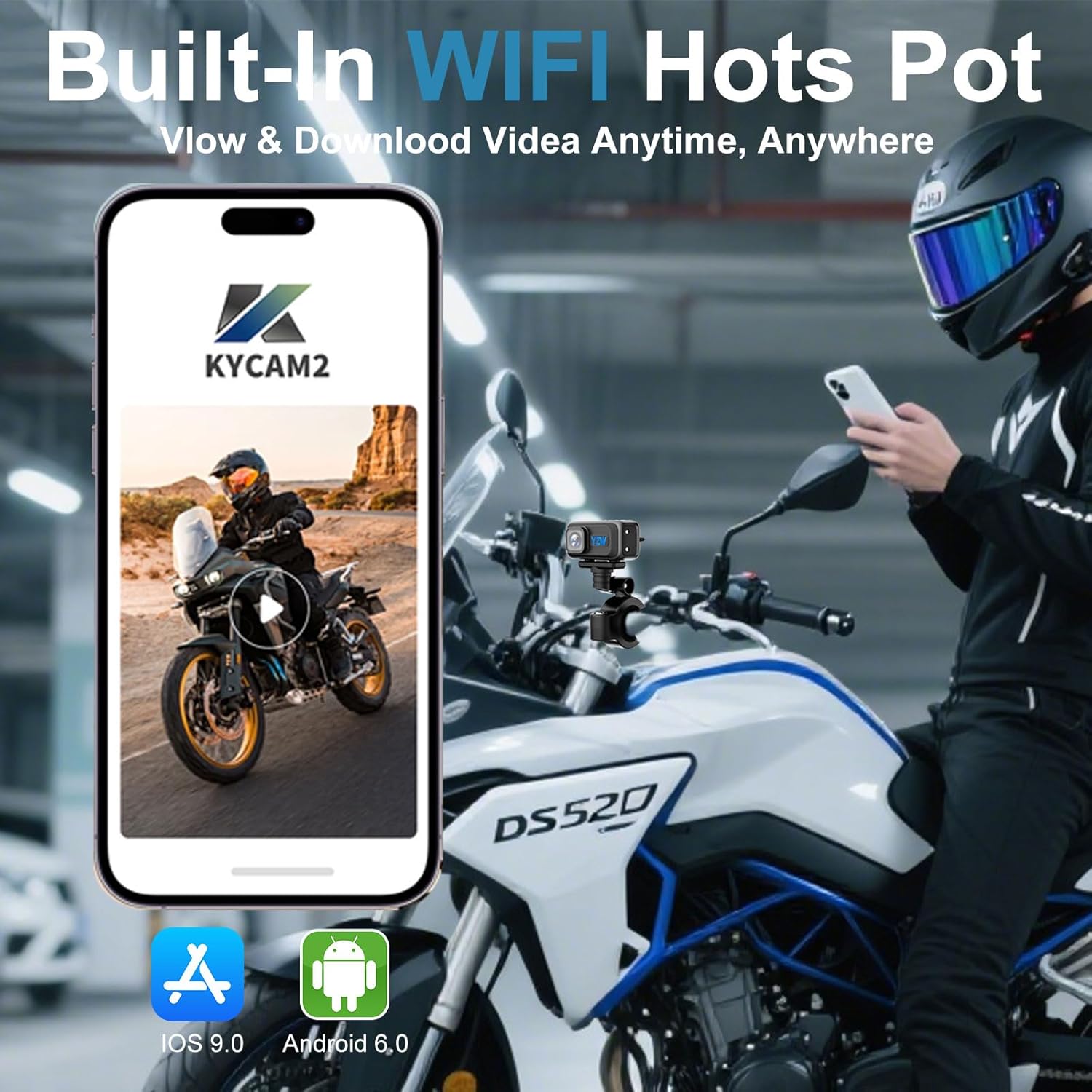
The image shows the camera's built-in Wi-Fi hotspot feature, allowing users to view and download videos via the KYCAM2 mobile application on iOS or Android devices.
6. Memory Card Management
The camera comes with a pre-installed 64GB high-speed memory card, capable of storing approximately 34 hours of video. The camera supports a maximum memory card capacity of 128GB. Ensure the memory card is properly inserted before use.

This image highlights the camera's memory capabilities, indicating that it comes with a 64GB memory card and supports expansion up to 128GB.
7. Maintenance
- Cleaning: Use a soft, dry cloth to clean the camera lens and body. Avoid abrasive cleaners or solvents.
- Waterproofing: The camera is IP67 waterproof and dustproof, designed to withstand various weather conditions. Ensure all covers and ports are securely closed to maintain waterproofing.
- Temperature: The battery-free design eliminates concerns about extreme temperatures (as low as -13°F and as high as 131°F), preventing battery bulging and flammability.
- Storage: Store the camera in a cool, dry place when not in use.

This image explains the camera's innovative battery-free design, which eliminates concerns about temperature extremes and prevents issues like battery bulging or flammability.
8. Troubleshooting
- Camera not powering on:
- Ensure the power connection is secure and correct (refer to Section 3.2).
- Verify the power source provides the correct voltage (5V/1A-2A for USB).
- Wi-Fi connection issues:
- Ensure the camera is powered on and Wi-Fi is active.
- Confirm you are connecting to the correct Wi-Fi hotspot name.
- Try restarting both the camera and your smartphone's Wi-Fi.
- Video quality issues:
- Ensure the lens is clean and free from dirt or smudges.
- Check app settings to confirm the desired resolution (2K, 1296P, 1080P) is selected.
- Memory card errors:
- Ensure the memory card is inserted correctly.
- Format the memory card using the camera's settings via the app.
- If issues persist, try a different compatible memory card (up to 128GB).
9. Technical Specifications
| Feature | Specification |
|---|---|
| Model Name | WJ-MT100 |
| Video Capture Resolution | 2K (20FPS), 1296P (25FPS), 1080P (30FPS) |
| Wide Angle | 140° (120° for rearview) |
| Waterproof Rating | IP67 |
| Connectivity Technology | Wi-Fi |
| Flash Memory Type | Micro SD (64GB included, supports up to 128GB) |
| Video Capture Format | TS |
| Supported Audio Format | MP4 |
| Photo Sensor Technology | CMOS |
| Maximum Focal Length | 21 Millimeters |
| Item Weight | 14.9 ounces |
| Package Dimensions | 7.44 x 6.06 x 2.64 inches |

This visual demonstrates the difference between 1080P Full HD and 2K Ultra-Clear shooting, emphasizing the higher resolution capability of the YZW MT100 camera.
10. Safety Information
- Do not attempt to disassemble or modify the camera. This may void the warranty and cause damage.
- Ensure the camera is securely mounted to prevent it from falling during operation.
- Keep the camera away from strong magnetic fields, which can interfere with its operation.
- Operate the camera within the specified temperature range.
11. Customer Support
For technical support, warranty information, or any questions regarding your YZW MT100 Motorcycle Camera, please contact YZW customer service through the retailer's platform or the official YZW website.