
1. Introduction and Overview
The MINISFORUM DEG1 is an external GPU dock station designed to enhance the graphics performance of compatible mini PCs and SFF desktops. It features an Oculink 4i (PCIe 4.0 x4) uplink for high-bandwidth connectivity to the host system and a PCIe x16 (PCIe 4.0 x4) downlink for installing a graphics card. The dock supports standard ATX and SFX power supplies, offering flexibility for various GPU power requirements. Its open-air design facilitates efficient cooling for the installed graphics card.
Key features include:
- High-Speed Oculink Interface: Utilizes Oculink 4i (PCIe 4.0 x4) for an uplink bandwidth of up to 64GT/s, minimizing performance loss.
- Wide GPU Compatibility: Supports a broad range of graphics cards, including high-end models like the NVIDIA RTX 4090 and AMD RX 7900 XTX, without limiting card length.
- Flexible Power Supply Support: Compatible with both ATX and SFX standard power supplies.
- Integrated Power Button: Features a "ForcePowerOn" power button with an LED indicator.
- Follow-Start Function: Designed to start automatically with compatible MINISFORUM Mini PCs when using original cables.

2. Setup Instructions
Follow these steps to set up your MINISFORUM DEG1 External GPU Dock Station:
- Unpack Components: Carefully remove the DEG1 dock, Oculink cable, GPU brace, and screws from the packaging.
- Install Power Supply:
- For ATX power supplies, use the provided tool to secure it using screw positions 1 and 3.
- For SFX power supplies, use the provided tool to secure it using screw positions 2 and 4.
- Install Graphics Card: Insert your graphics card vertically into the PCIe x16 slot on the DEG1 dock. Ensure it is fully seated.
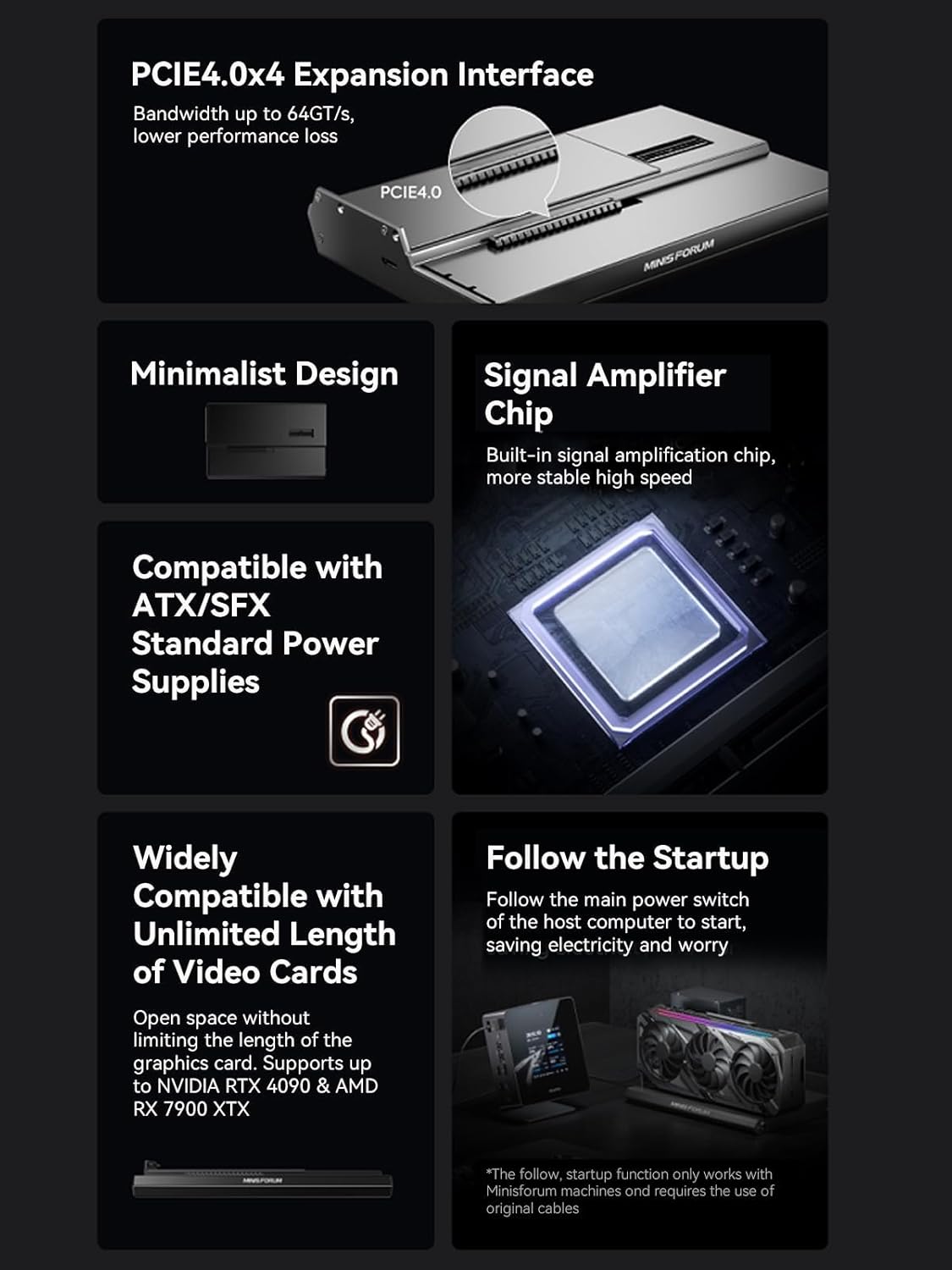
Figure 2: Graphics card installed in the DEG1 dock. - Secure Graphics Card: Use the provided GPU brace and screws to secure the graphics card to the dock, preventing sag and ensuring stability.
- Connect Power Cables:
- Connect the 24-pin power cable from your PSU to the 24-pin power connector on the DEG1 dock.
- Connect the 8-pin (or 6+2 pin) PCIe power cables from your PSU to the graphics card.
- Connect Oculink Cable: Plug one end of the Oculink cable into the Oculink port on the DEG1 dock and the other end into the Oculink port on your compatible mini PC or SFF desktop.
Important Note: The Oculink interface does not support hot-plugging. Ensure both the mini PC and the DEG1 dock are powered off before connecting or disconnecting the Oculink cable. Forced unplugging can cause damage to the ports. The Oculink connector has a fixed locking interface; you must press the switch to unlock and unplug it.

Figure 3: Close-up of the Oculink port on the DEG1 dock. - Connect Display: Connect your monitor directly to the display outputs on the installed graphics card.
3. Operating Instructions
Once the DEG1 dock is fully set up and connected to your mini PC, follow these steps for operation:
- Power On: Ensure the power switch on your power supply unit (PSU) is in the 'On' position.
- Start the System:
- If using a compatible MINISFORUM Mini PC with original cables, the DEG1 dock will automatically power on when you start the mini PC (Follow-Start function).
- Alternatively, press the "ForcePowerOn" button on the DEG1 dock to power it on.
- Driver Installation: Your operating system should detect the new graphics card. Install the latest drivers for your specific GPU model from the manufacturer's website (NVIDIA or AMD) for optimal performance.
- Shutdown: Always shut down your mini PC and then power off the DEG1 dock (if not using the Follow-Start function) before disconnecting any cables.

4. Maintenance
To ensure the longevity and optimal performance of your DEG1 External GPU Dock Station, consider the following maintenance tips:
- Dust Management: Due to its open-air design, the DEG1 dock and the installed graphics card are exposed to dust. Regularly clean the GPU fans and heatsinks using compressed air to prevent dust buildup, which can hinder cooling performance.
- Cable Management: Ensure all power and Oculink cables are neatly routed and secured to prevent accidental disconnections or damage.
- Physical Inspection: Periodically check for any loose screws, connections, or signs of wear on the components.
- Environmental Conditions: Operate the dock in a well-ventilated area to maximize airflow and maintain optimal operating temperatures.
5. Troubleshooting
If you encounter issues with your MINISFORUM DEG1 dock, refer to the following troubleshooting guide:
| Problem | Possible Cause | Solution |
|---|---|---|
| Graphics card not detected. |
|
|
| System does not boot or crashes. |
|
|
| Oculink cable difficult to remove. | Fixed locking mechanism engaged. | Press the release switch on the Oculink connector before attempting to unplug the cable. Do not force it. |
| Follow-Start function not working. |
|
|
6. Specifications
| Feature | Detail |
|---|---|
| Brand | MINISFORUM |
| Model | DEG1 (Oculink) |
| Color | Black |
| Uplink Interface | Oculink 4i (PCIe 4.0 x4) |
| Downlink Interface | PCIe x16 (PCIe 4.0 x4) |
| Compatible Devices | AMD RX 7900 XTX, RTX 4090 (and other compatible GPUs) |
| Power Supply Support | ATX/SFX Standard Power Supplies |
| Product Dimensions (L x W x H) | 10.64"L x 6.87"W x 1.6"H |
| Item Weight | 1.15 Kilograms |
| Manufacturer | Micro Computer (HK) Tech Limited |
7. Warranty and Support
The MINISFORUM DEG1 External GPU Dock Station comes with a 2-year warranty. For warranty claims, technical support, or further assistance, please contact MINISFORUM customer service or visit their official website.
You can also visit the MINISFORUM Store on Amazon for product information and support resources.
Return Policy: This product is eligible for a 30-day refund/replacement return policy.