
Introduction
This manual provides essential information for the setup, operation, and maintenance of your TERENCE 25-Key MIDI Controller Keyboard. Designed for portability, versatility, and professional-grade performance, this MIDI piano offers responsive keys, intuitive controls, and easy connectivity to fuel your creativity.
Key Features
- Responsive Sim-Keys: 25 fast-reacting keys designed to mimic the sensitivity of acoustic keys for natural playability.
- Expressive RGB Pads: 8 velocity-sensitive RGB pads, ideal for beat making and live performances.
- OLED Display: Provides clear visual feedback for easy operation and setting adjustments.
- Portable Design: Compact, lightweight, and powered by a long-lasting 500mAh battery for on-the-go music creation.
- Broad Compatibility: Supports wired and Bluetooth connections with multiple Digital Audio Workstations (DAWs) and devices.
- Enhanced Control: Features a 360° endless knob and 8 assignable knobs for precise adjustments and creative freedom.
- Improved Playability: Includes semitone transposition and a 3.5mm sustain pedal interface for greater expressive control.
Setup
Follow these steps to set up your TERENCE MIDI Controller Keyboard:
- Unboxing: Carefully remove the MIDI controller from its packaging. Ensure all components, including the USB cable, are present.
- Power On: Press and hold the power button located on the device until the OLED display illuminates.
- Wired Connection: Connect the MIDI controller to your computer, tablet, or smartphone using the provided USB-C cable. The device is plug-and-play and should be recognized automatically by most operating systems and DAWs.
- Bluetooth Connection: For wireless operation, activate Bluetooth on your device (computer, tablet, smartphone). On the MIDI controller, enter Bluetooth pairing mode (refer to the OLED display for instructions, typically by holding a specific button). Select 'TERENCE MIDI' from your device's Bluetooth settings to pair.
- DAW Configuration: Open your preferred Digital Audio Workstation (DAW) software (e.g., FL Studio, Ableton Live, Logic Pro). Navigate to the MIDI settings or preferences within your DAW and ensure the TERENCE MIDI Controller is selected as an input device.
- Sustain Pedal (Optional): If using a sustain pedal, connect it to the 3.5mm sustain pedal interface on the rear of the controller.

Figure 1: Rear view of the MIDI keyboard, highlighting the USB-C port for charging and connection, the 6.35mm MIDI Out interface, the 3.5mm Sustain Pedal interface, and the OLED Display.

Figure 2: The MIDI keyboard demonstrating compatibility with multiple DAWs (FL Studio, Logic Pro) and devices (laptop, tablet, smartphone) via wired and Bluetooth connections.
Operating Instructions
Familiarize yourself with the various controls and functions of your MIDI controller:
- 25 Sim-Keys: These velocity-sensitive keys respond to how hard you press them, allowing for dynamic expression. Use them to play melodies, chords, and other musical parts.
- 8 RGB Pads: The pads are velocity-sensitive and can be used to trigger drums, samples, or other sounds. Their RGB lighting provides visual feedback.
- OLED Display: This display shows current settings, parameters, and feedback from your interactions with the controller. Use it to navigate menus and confirm selections.
- 360° Endless Knob & 8 Assignable Knobs: The endless knob and the eight assignable knobs can be mapped to various parameters within your DAW or software instruments, allowing for real-time control over sound characteristics like filter cutoff, resonance, or effects.
- Arpeggiator & Pitch Controller: Utilize the arpeggiator to create rhythmic patterns from held notes. The pitch controller allows for real-time pitch bending and modulation effects.
- Semitone Transposition: Adjust the pitch of the keyboard up or down in semitone increments to easily change keys without altering your playing technique.
- Sustain Pedal: A connected sustain pedal will allow notes to ring out after the keys are released, similar to an acoustic piano.

Figure 3: A user interacting with the 25 velocity-sensitive Sim-Keys and 8 RGB pads of the TERENCE MIDI keyboard.
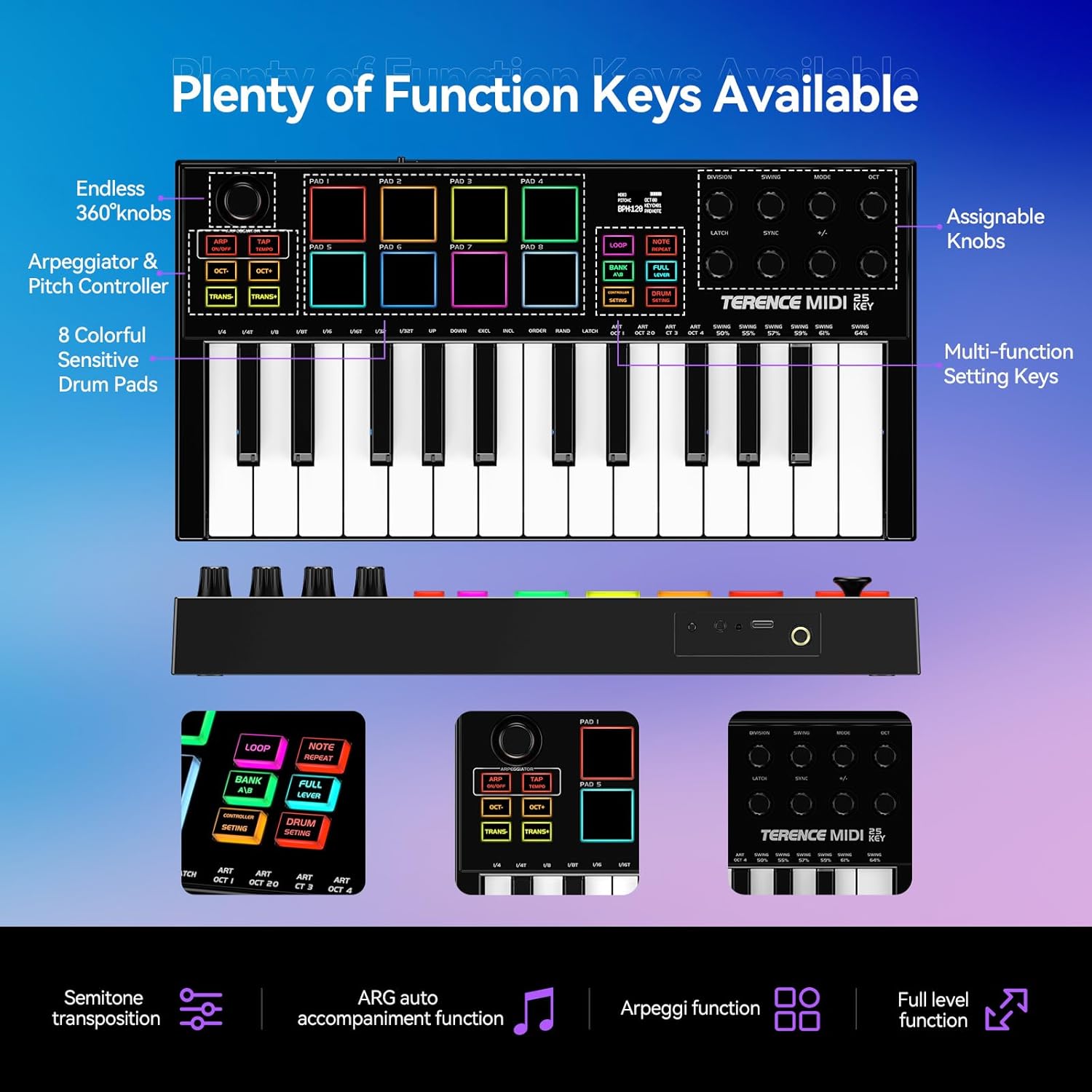
Figure 4: Detailed view of the MIDI keyboard's function keys, 360° endless knob, 8 assignable knobs, and OLED display, illustrating its comprehensive control layout.
Maintenance
To ensure the longevity and optimal performance of your TERENCE MIDI Controller Keyboard, follow these maintenance guidelines:
- Cleaning: Use a soft, dry cloth to wipe down the surface of the controller. For stubborn dirt, a slightly damp cloth with mild soap can be used, followed by a dry cloth. Avoid abrasive cleaners or solvents.
- Storage: Store the controller in a cool, dry place away from direct sunlight, extreme temperatures, and high humidity. When not in use, consider covering it to protect against dust.
- Battery Care: The built-in 500mAh battery should be charged regularly, even if the device is not in constant use, to maintain battery health. Avoid fully discharging the battery for extended periods.
- Handling: Handle the controller with care. Avoid dropping it or subjecting it to strong impacts, as this can damage internal components.
Troubleshooting
If you encounter issues with your MIDI controller, refer to the following common problems and solutions:
| Problem | Possible Cause | Solution |
|---|---|---|
| Device does not power on. | Low or depleted battery; power button not pressed correctly. | Charge the device using the USB-C cable. Ensure the power button is pressed and held until the OLED display activates. |
| No sound output from DAW. | Incorrect DAW settings; volume levels too low; instrument not selected. | Check your DAW's MIDI input settings to ensure the controller is recognized. Verify track volume and ensure a software instrument is loaded and active. |
| Keys or pads are unresponsive. | Connection issue; incorrect MIDI channel; software glitch. | Reconnect the USB or Bluetooth connection. Check MIDI channel settings in your DAW. Restart the DAW and/or the MIDI controller. |
| Bluetooth connection is unstable. | Interference; device too far from host. | Ensure the controller is within range of your host device. Minimize interference from other wireless devices. Try re-pairing the Bluetooth connection. |
Specifications
- Model Name: MIDI keyboard-25
- Number of Keys: 25 (Responsive Sim-Keys)
- Pads: 8 Velocity-Sensitive RGB Pads
- Knobs: 1 x 360° Endless Knob, 8 x Assignable Knobs
- Display: OLED Display
- Connectivity: USB-C (for charging and data), Bluetooth, 6.35mm MIDI Out, 3.5mm Sustain Pedal Interface
- Battery: 500mAh Lithium Ion (included)
- Dimensions: 33.5 x 17 x 3 cm (approximately 13.2 x 6.7 x 1.2 inches)
- Item Weight: 2.48 pounds
- Compatible Devices: Laptop, PC, Smartphone, Tablet
- Supported Software: FL Studio (and other major DAWs)
- Hardware Platform: PC/Mac
Warranty & Support
TERENCE products are designed for reliability and performance. For warranty information, technical support, or service inquiries, please refer to the official TERENCE website or contact your retailer. Keep your purchase receipt as proof of purchase for warranty claims.