
1. Introduction
Thank you for choosing the NAVRUF 7-Inch Car GPS Navigator. This device is designed to provide reliable and efficient navigation with features such as voice turn-by-turn guidance, lane assistance, speed and red light warnings, and free lifetime map updates. This manual will guide you through the installation, operation, and maintenance of your new GPS navigator.
2. What's in the Box
Please check the package contents to ensure all items are present:
- 1 x 7" Touch Screen GPS Navigation
- 1 x Car Charger
- 1 x MINI USB cable
- 1 x User Manual
- 1 x Car Bracket (Mount)
- 1 x Sunshade Mount

Figure 2.1: Package Contents. This image displays the 7-inch GPS device, car charger, mini USB cable, suction cup mount, sunshade, and the user manual, illustrating all items included in the product package.
3. Product Overview
The NAVRUF GPS Navigator features a bright, responsive 7-inch HD touchscreen and is equipped with various ports and controls for optimal functionality.
3.1 Device Components

Figure 3.1: Device Components. This diagram highlights key components of the GPS unit: the NO/OFF button, headset socket, TF card slot, USB Type-C port, and the touchscreen pen. It also shows the suction cup mount attachment point and direction adjustment.
- NO/OFF Button: Powers the device on or off.
- Headset Socket: For connecting headphones or external audio.
- TF Card Slot: For expandable storage, typically used for maps.
- USB Type-C Port: For charging and data transfer.
- Touchscreen Pen: For precise interaction with the touchscreen.
- Sucker (Suction Cup): Part of the mounting system.
- Direction Adjustment: Allows tilting and rotating the device on its mount.
3.2 Key Features
- 7-Inch HD Touchscreen: Bright and responsive display for clear navigation.
- Voice Turn-by-Turn Guidance: Clear audio instructions for navigation.
- Lane Assistance: Guides you to the correct lane for upcoming turns or exits.
- Speed and Red Light Warnings: Provides alerts for safety cameras and speed limits.
- Customized Navigation Routes: Ability to customize routes based on vehicle dimensions to avoid restrictions.
- Lifetime Free Map Updates: Ensures your maps are always current.
- FM Transmitter: Transfers GPS sound to your car's speakers.
4. Setup
4.1 Mounting the Device
The GPS navigator comes with a suction cup mount and a sunshade mount for flexible installation.
- Attach the GPS device to the car bracket.
- Choose a suitable location on your windshield or dashboard that does not obstruct your view of the road.
- Secure the suction cup mount firmly to the chosen surface. Ensure the surface is clean and dry for optimal adhesion.
- Adjust the viewing angle of the GPS device using the direction adjustment mechanism on the mount.
- Optionally, attach the sunshade mount to reduce glare on the screen.
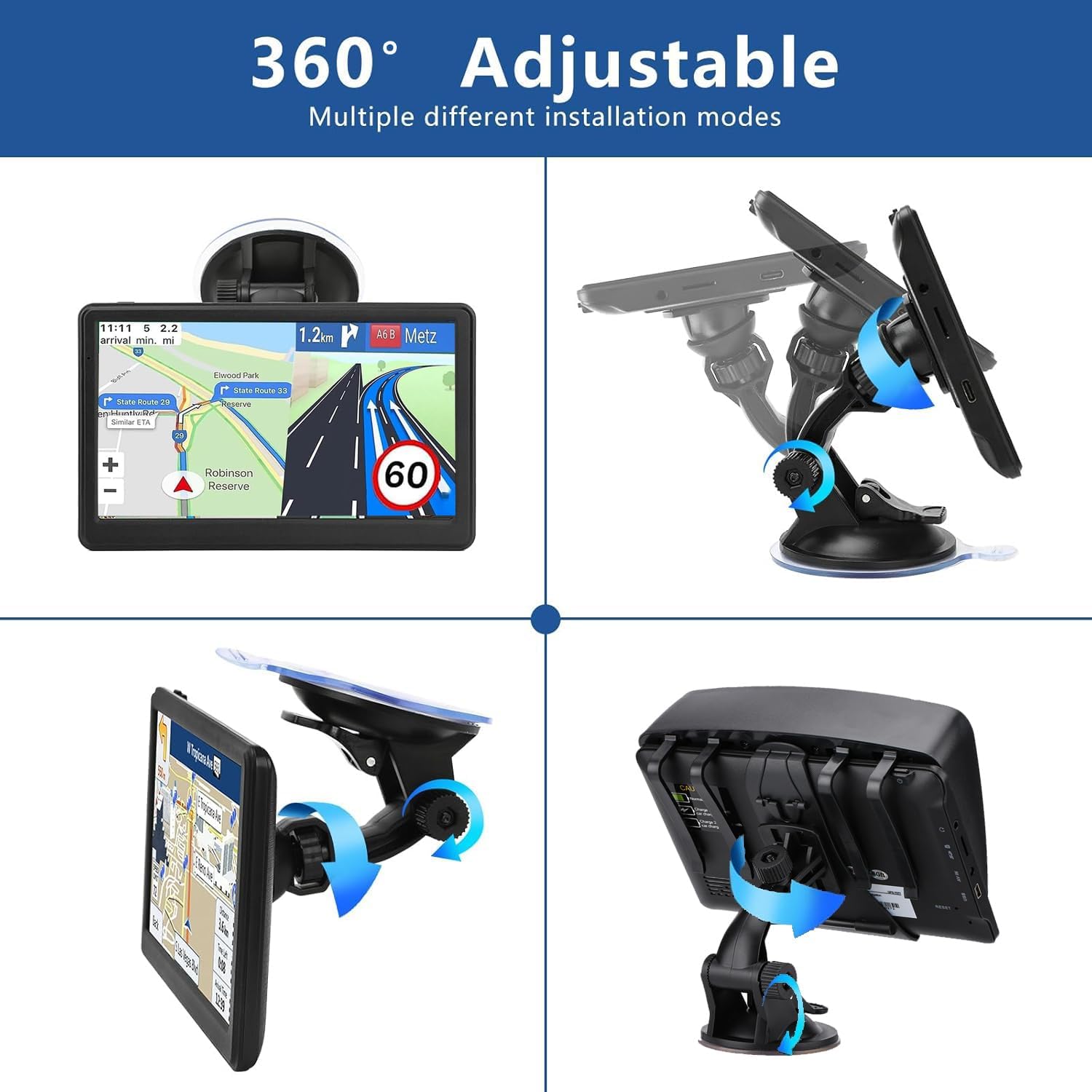
Figure 4.1: Adjustable Mounting Options. This image illustrates the 360° adjustable nature of the mount, showing different installation modes for optimal viewing in a vehicle.
4.2 Powering On and Charging
- Connect the car charger to the USB Type-C port on the GPS device.
- Plug the other end of the car charger into your vehicle's 12V power outlet (cigarette lighter socket).
- The device will automatically power on when connected to power in most cases. If not, press and hold the NO/OFF button.
- Ensure the device is fully charged before long trips to utilize the 6-hour battery life.
5. Operating Instructions
5.1 Basic Navigation
Upon powering on, the device will typically display the main menu or the last active navigation screen.
- Entering a Destination: From the main menu, select "Navigation" or "Find Destination." You can search by Postcode, Address, Coordinates, Favorite locations, or Points of Interest (POI).
- Route Planning: After entering your destination, the device will calculate the route. You can choose from 4 route options: Fast, Green, Short, or Easy.
- Voice Guidance: The device provides real-time voice guidance in multiple national languages. Follow the spoken instructions for turn-by-turn directions.
- Lane Assistance: The screen will display visual cues to help you get into the correct lane for upcoming turns or exits.
- Safety Alerts: The GPS provides intelligent current speed camera alerts, sound warnings, and alerts for school zones. It also displays current speed, remaining distance, and estimated arrival time.
5.2 Customized Navigation Routes
The device allows for customized routes based on vehicle dimensions to help bypass weight, height, and width restrictions, which is particularly useful for larger vehicles like trucks or RVs.

Figure 5.1: Customized Navigation Routes. This image illustrates how the GPS can customize routes based on vehicle dimensions to bypass weight, height, and width restrictions, showing various vehicle types and road signs indicating restrictions.
5.3 FM Transmitter Function
The GPS unit includes an FM transmitter to send navigation voice and music directly to your car's speakers.
- Access the FM Transmitter settings on your GPS device.
- Select an unused FM frequency on your GPS.
- Tune your car's FM radio to the same frequency.
- The GPS audio will now play through your car's speakers.

Figure 5.2: FM Transmitter Function. This diagram shows the process of opening the FM function on the GPS, receiving FM on the car radio, and completing the setup to transmit navigation voice and music to the car's speakers.
6. Map Coverage and Updates
Your NAVRUF GPS Navigator comes pre-loaded with detailed 2025 maps of North America, including the United States, Canada, and Mexico. These maps include points of interest, restaurants, and gas stations.
The device offers free lifetime map updates. To update your maps or download maps for other regions (e.g., Europe), please contact customer support for instructions and access to the latest map files.
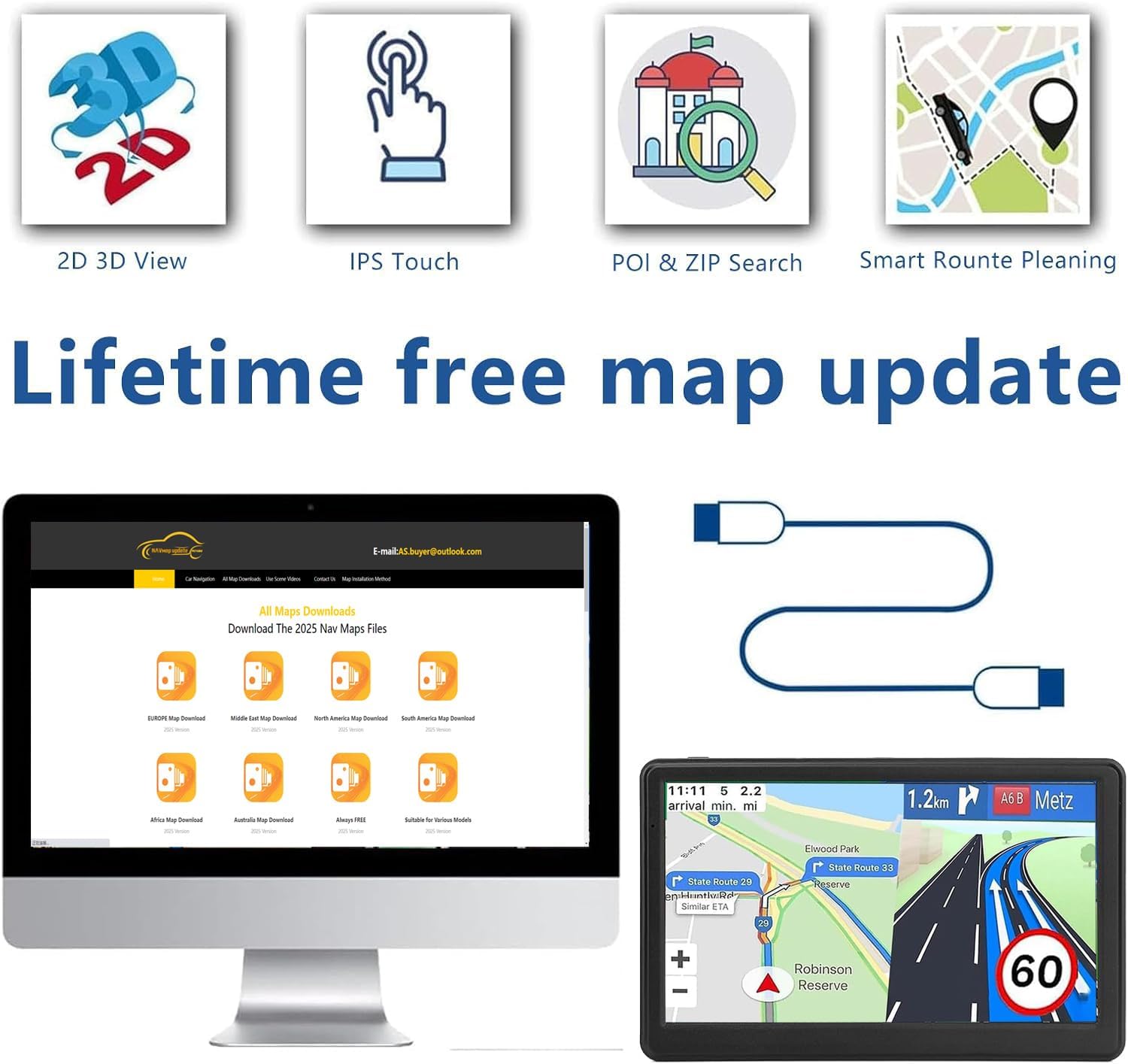
Figure 6.1: Lifetime Free Map Update. This image displays a computer screen showing a map download portal, indicating the availability of 2025 Nav Maps for various regions including North America, Europe, Africa, and Australia, highlighting the lifetime free map update feature.
7. Maintenance
- Cleaning: Use a soft, dry cloth to clean the screen and device exterior. Avoid abrasive cleaners or solvents.
- Temperature: Do not expose the device to extreme temperatures (hot or cold) for extended periods.
- Storage: When not in use, store the device in a cool, dry place away from direct sunlight.
- Battery Care: To prolong battery life, avoid fully discharging the battery frequently. Charge the device regularly.
8. Troubleshooting
| Problem | Possible Cause | Solution |
|---|---|---|
| Device does not power on. | Low battery; charger not connected or faulty. | Connect to car charger or USB cable and allow to charge. Ensure charger is working. Press and hold the NO/OFF button for 5-10 seconds. |
| No GPS signal. | Obstructed view of sky; device not acquiring satellites. | Move to an open area with a clear view of the sky. Wait a few minutes for the device to acquire satellites. |
| No audio from device. | Volume too low; FM transmitter not configured correctly; headset connected. | Increase device volume. Check FM transmitter settings and car radio frequency. Disconnect any headsets. |
| Screen is unresponsive. | Software glitch; device frozen. | Perform a soft reset by pressing the reset button (if available, often a small pinhole) or holding the power button until the device restarts. |
| Maps are outdated. | Map data needs updating. | Refer to Section 6 "Map Coverage and Updates" for instructions on how to update maps. |
9. Specifications
| Feature | Detail |
|---|---|
| Model Name | 7077-26 |
| Display Size | 7 Inches |
| Screen Type | Touchscreen |
| Connectivity Technology | USB |
| Map Type | North America (United States, Canada, Mexico) |
| Battery Life | 6 Hours |
| Item Weight | 1.57 pounds |
| Product Dimensions | 8 x 3 x 10 inches |
| Mounting Type | Dashboard Mount, Windshield Mount |
| Vehicle Service Type | Car |
10. Warranty Information
The NAVRUF 7-Inch Car GPS Navigator comes with a 2-year warranty from the date of purchase. This warranty covers manufacturing defects and malfunctions under normal use. Please retain your proof of purchase for warranty claims. For detailed warranty terms and conditions, please contact NAVRUF customer support.
11. Customer Support
If you encounter any issues or have questions regarding your NAVRUF GPS Navigator that are not covered in this manual, please contact NAVRUF customer support. For map updates or technical assistance, refer to the contact information provided with your product or visit the official NAVRUF website.
For map updates, you can also contact the provided email address: seller@outlook.com.