
1. Introduction
The Generic CM300 is a versatile 9-function digital multimeter designed for accurate electrical measurements in various environments. It features a 6000-count backlit LCD for clear readings, Non-Contact Voltage (NCV) detection for safety, and a CAT III 600V safety rating. This manual provides instructions for safe and effective use of your CM300 multimeter.
2. Safety Information
WARNING: Always adhere to safety precautions when using electrical testing equipment. Failure to do so may result in injury or damage to the meter.
- The CM300 is rated for CAT III 600V. Do not exceed these voltage limits.
- Always inspect test leads for damage before use. Replace if insulation is compromised.
- Ensure the function switch is in the correct position for the measurement being performed.
- Do not attempt to measure voltage or current on circuits exceeding the meter's maximum ratings.
- Use caution when working with live circuits. Avoid contact with bare wires or terminals.
- Keep fingers behind the finger guards on the test probes.
- Replace batteries promptly when the low battery indicator appears to ensure accurate readings.
3. Product Overview
The CM300 Digital Multimeter includes the main unit and two 42-inch test probes (one red, one black).

Figure 3.1: CM300 Multimeter Rotary Dial and Display
This image shows a detailed view of the CM300 multimeter's central rotary dial, which is used to select different measurement functions. The backlit LCD display is visible above the dial, and various input jacks are located at the bottom of the device.
3.1 Components
- LCD Display: 6000-count backlit display for clear readings.
- Function Rotary Switch: Selects measurement modes.
- Input Jacks: For connecting test probes (COM, VΩmA, 10A).
- Test Probes: Red (positive) and Black (common/negative).
- NCV Sensor: Located at the top of the meter for non-contact voltage detection.
- Buttons: HOLD/SELECT, REL, BACKLIGHT.
4. Setup
4.1 Battery Installation
- Ensure the multimeter is turned OFF.
- Locate the battery compartment on the back of the meter.
- Use a screwdriver to open the battery compartment cover.
- Insert two AAA batteries, observing correct polarity (+/-).
- Replace the battery compartment cover and secure it with the screw.
4.2 Connecting Test Probes
- Insert the black test lead into the "COM" (Common) jack.
- For most measurements (voltage, resistance, continuity, capacitance, diode, battery test), insert the red test lead into the "VΩmA" jack.
- For current measurements (up to 10A), insert the red test lead into the "10A" jack.
5. Operating Instructions
Before each measurement, ensure the test leads are correctly connected and the function switch is set to the appropriate range.
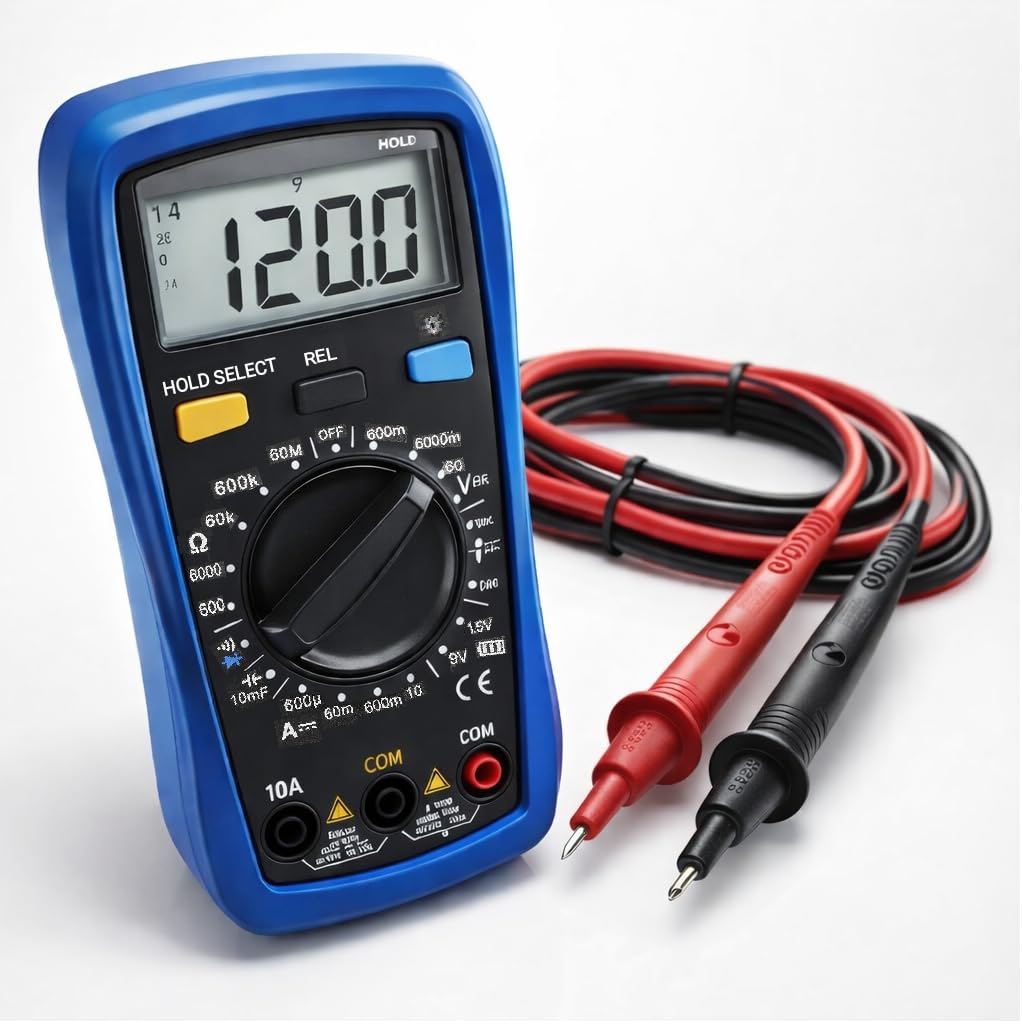
Figure 5.1: Measuring AC Voltage with CM300
This image illustrates the CM300 multimeter in use, displaying a voltage reading. A person is holding the blue multimeter while the red and black test probes are inserted into a standard wall outlet, demonstrating an AC voltage measurement.
5.1 Power On/Off
Rotate the function switch from "OFF" to any desired measurement function to power on the meter. Rotate it back to "OFF" to power off.
5.2 AC/DC Voltage Measurement (V~ / V--)
- Set the function switch to the "V~" (AC Voltage) or "V--" (DC Voltage) position.
- Connect the test probes in parallel to the circuit or component to be measured.
- Read the voltage value on the LCD display.
5.3 DC Current Measurement (A--)
- WARNING: Ensure the red test lead is in the "10A" jack for current measurements up to 10A, or "VΩmA" for lower current ranges.
- Set the function switch to the "A--" position.
- Open the circuit where current is to be measured and connect the meter in series.
- Read the current value on the LCD display.
5.4 Resistance Measurement (Ω)
- Set the function switch to the "Ω" position.
- Ensure the circuit is de-energized before measuring resistance.
- Connect the test probes across the component to be measured.
- Read the resistance value on the LCD display.
5.5 Diode Test (->|-)
- Set the function switch to the "->|-" (Diode) position.
- Connect the red probe to the anode and the black probe to the cathode of the diode.
- A forward voltage drop will be displayed. Reverse the probes; an open circuit (OL) should be displayed for a good diode.
5.6 Capacitance Measurement (10mF)
- Set the function switch to the "10mF" (Capacitance) position.
- WARNING: Discharge capacitors before testing to prevent electric shock or damage to the meter.
- Connect the test probes across the capacitor terminals.
- Read the capacitance value on the LCD display.
5.7 Audible Continuity ()))
- Set the function switch to the ")))" (Continuity) position.
- Ensure the circuit is de-energized.
- Connect the test probes across the circuit or component.
- If resistance is below approximately 50Ω, the buzzer will sound, indicating continuity.
5.8 Battery Test (1.5V / 9V)
- Set the function switch to the "1.5V" or "9V" battery test position.
- Connect the red probe to the positive terminal and the black probe to the negative terminal of the battery.
- The display will show the battery voltage.
5.9 Non-Contact Voltage (NCV)
- Set the function switch to the "NCV" position.
- Move the top of the meter near a live conductor.
- The meter will beep and the NCV indicator will light up when AC voltage is detected.
5.10 Data Hold (HOLD)
Press the "HOLD" button to freeze the current reading on the display. Press it again to release and resume live readings.
5.11 Relative Mode (REL)
Press the "REL" button to store the current reading as a reference value. Subsequent measurements will be displayed as the difference from this reference. Press again to exit relative mode.
5.12 Backlight
Press the "BACKLIGHT" button to turn on the display backlight for better visibility in dim conditions. Press again to turn it off.
6. Maintenance
6.1 Cleaning
Wipe the meter with a damp cloth and mild detergent. Do not use abrasives or solvents. Ensure the meter is dry before use.
6.2 Battery Replacement
Refer to Section 4.1 for battery installation instructions. Replace batteries when the low battery indicator appears on the display.
6.3 Fuse Replacement
If the current measurement function stops working, the fuse may need replacement. This procedure should only be performed by qualified personnel. Contact support for assistance.
7. Troubleshooting
| Problem | Possible Cause | Solution |
|---|---|---|
| Meter does not power on. | Dead or incorrectly installed batteries. | Check battery polarity; replace batteries. |
| "OL" (Overload) displayed. | Input value exceeds selected range or meter's maximum. | Select a higher range or ensure input is within meter's limits. |
| Inaccurate readings. | Low battery, incorrect function selected, or damaged test leads. | Replace batteries, verify function switch, inspect and replace test leads if damaged. |
| No continuity beep. | Circuit resistance too high, or open circuit. | Check the circuit for breaks; ensure resistance is below 50Ω. |
8. Specifications
| Feature | Specification |
|---|---|
| Model | CM300 |
| Display | 6000-Count Backlit LCD |
| AC/DC Voltage Range | 1mV – 600V |
| DC Current Range | Up to 10A |
| Resistance Range | Up to 60MΩ |
| Capacitance Range | Up to 10,000 µF |
| Safety Rating | CAT III 600V, ETL Certified |
| Power Source | 2 x AAA Batteries |
| Included Components | CM300 Digital Multimeter, two 42 in. test probes |
| Dimensions | 8 x 4 x 2.5 inches |
| Weight | 4 Pounds |
| Special Features | NCV, Data Hold, Relative Mode, Backlight, Audible Continuity, Diode Test, Battery Test |
9. Warranty and Support
The Generic CM300 Digital Multimeter comes with a 30-day return policy. For technical support or warranty inquiries, please contact your retailer or the manufacturer.