
1. Introduction
This manual provides detailed instructions for the setup, operation, maintenance, and troubleshooting of your Leadjoy Blade Plus Wireless Gaming Controller. Please read this manual thoroughly before using the product to ensure optimal performance and longevity.
2. Product Overview
The Leadjoy Blade Plus is a versatile wireless gaming controller designed for a wide range of platforms, including Nintendo Switch, Android phones, iPhones, tablets, and PCs. It offers both Bluetooth wireless and wired connectivity for stable gameplay.

Image: Leadjoy Blade Plus Controller with a smartphone, illustrating its compatibility with Switch, iOS, Android, and PC.
Key Features:
- Universal Compatibility: Seamlessly connects with Nintendo Switch (1 & 2), Android phones, iPhones, tablets, and PCs via Bluetooth or wired connection.
- Pro-Gaming Precision: Features advanced Hall Effect joysticks and triggers for enhanced accuracy and durability. Includes two customizable back buttons for quick actions.
- Ergonomic Comfort: Designed with an extended grip, anti-slip texture, and thicker handles to reduce fatigue during long gaming sessions.
- Portable Design: Lightweight, compact, and foldable, equipped with a robust 600mAh battery for extended wireless play on the go.
- Customization via App: Utilize the exclusive LEADJOY app to adjust settings, access cloud gaming, and explore a curated game library.

Image: The ergonomic design of the controller, highlighting the comfortable grip and anti-slip texture.
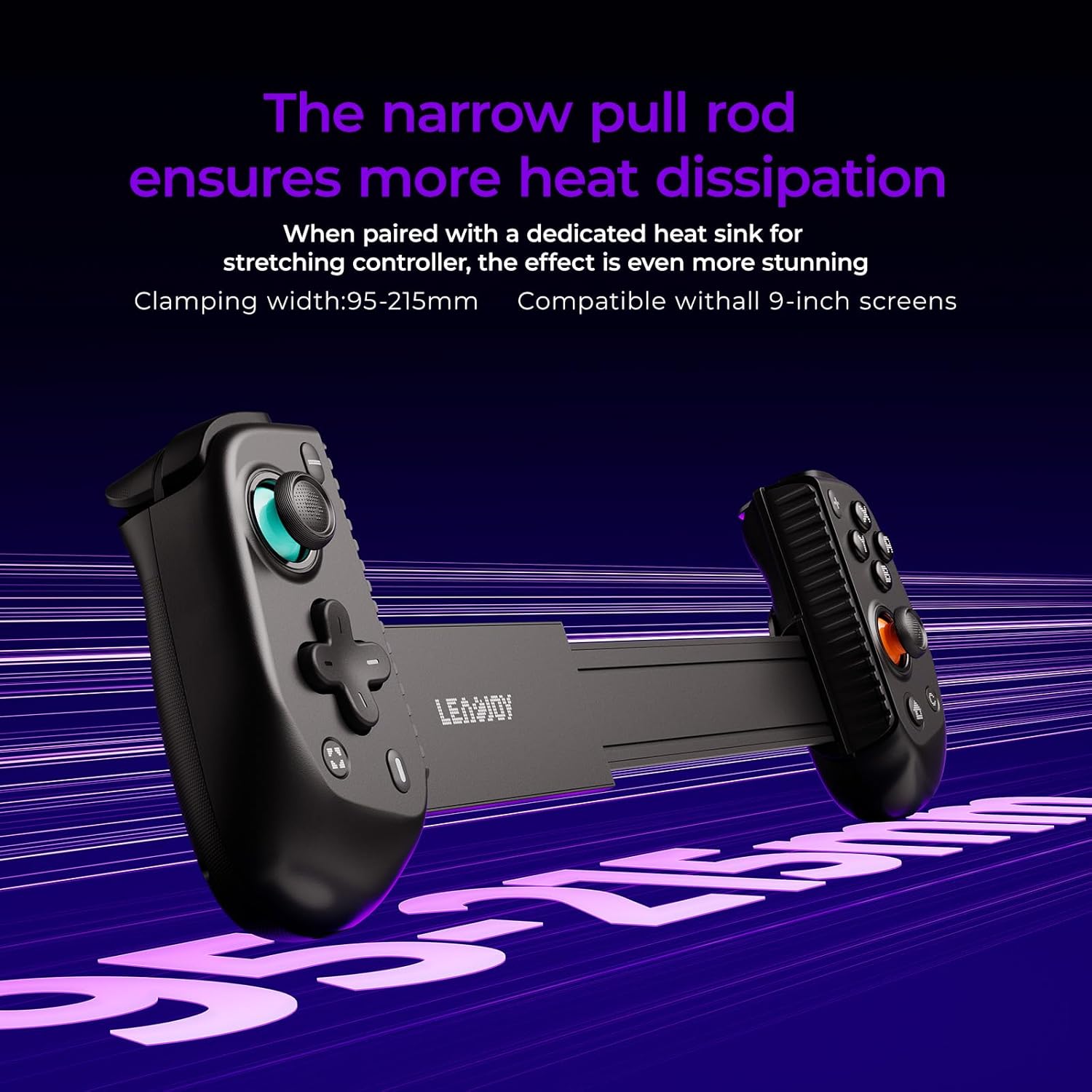
Image: The controller's narrow pull rod design, which aids in heat dissipation and accommodates devices up to 9-inch screens.
3. Setup Instructions
3.1 Initial Charging
Before first use, fully charge the controller using the provided USB-C cable. Connect the cable to the controller's charging port and a compatible USB power source.
3.2 Device Installation
Extend the controller's telescopic arm to fit your smartphone or tablet. Ensure the device is securely clamped within the controller's grips.
3.3 Bluetooth Pairing
The Leadjoy Blade Plus supports multiple pairing modes for different devices:
- For Nintendo Switch (1 & 2): Press and hold the B button and the Home button simultaneously until the indicator lights begin to flash, indicating pairing mode. Then, navigate to the 'Controllers' menu on your Switch and select 'Change Grip/Order' to connect.
- For Android Devices: Press and hold the A button and the Home button simultaneously until the indicator lights begin to flash. On your Android device, go to Bluetooth settings and select 'Leadjoy Blade Plus' from the available devices to pair.
- For iOS Devices: Press and hold the Y button and the Home button simultaneously until the indicator lights begin to flash. On your iOS device, go to Bluetooth settings and select 'Leadjoy Blade Plus' from the available devices to pair.
- For PC: Connect the controller to your PC using a USB-C cable for wired mode, or follow the Android pairing instructions for Bluetooth connection if your PC has Bluetooth capability.
3.4 App Installation
For advanced customization and features, download the official LEADJOY app from your device's app store (Google Play Store for Android, Apple App Store for iOS). The app allows for button remapping, joystick calibration, and dead zone adjustments.
4. Operating Instructions
4.1 Basic Controls
The controller features standard gaming buttons, joysticks, and triggers. Familiarize yourself with the layout:
- Left Joystick: Movement and navigation.
- D-Pad: Directional input.
- Right Joystick: Camera control and aiming.
- ABXY Buttons: Action buttons.
- Shoulder Buttons (L1/R1) & Triggers (L2/R2): Additional actions and analog input.
- Home Button: Power on/off, system menu access.
- Select/Start Buttons: Game-specific functions.
4.2 Hall Effect Joysticks and Triggers
The controller utilizes Hall Effect technology for its joysticks and triggers, providing magnetic induction for precise and drift-free input. This ensures long-term durability and consistent performance.

Image: Comparison of Hall Effect Joystick (left) and Ordinary Joystick (right), showing the magnetic induction principle for enhanced precision and durability.

Image: Illustration of the Hall Effect trigger, demonstrating its sensitive and precise response for both linear and quick trigger modes.
4.3 Customizable Back Buttons
The two back buttons (M1, M2) can be programmed using the LEADJOY app to perform specific actions, macros, or remapped to other controller inputs. Refer to the app's instructions for detailed customization steps.
4.4 App Customization (Dead Zone & Centering)
The LEADJOY app allows for fine-tuning of joystick performance:
- Centering Correction: Manually adjust the joystick center to correct any deviation, improving accuracy by up to 50%.
- Flexible Dead Zone Setting: Adjust both central and outer dead zones to optimize control sensitivity according to your preference and game requirements.

Image: App interface for centering correction, allowing manual adjustment of joystick center for improved accuracy.
Image: App interface for flexible dead zone settings, enabling users to customize central and outer dead zones for precise control.
5. Maintenance
- Cleaning: Use a soft, dry cloth to clean the controller. Avoid using harsh chemicals or abrasive materials.
- Storage: Store the controller in a cool, dry place away from direct sunlight and extreme temperatures.
- Battery Care: To prolong battery life, avoid fully discharging the controller frequently. Charge it regularly, even if not in use for extended periods.
- Avoid Drops: Protect the controller from drops and impacts, which can damage internal components.
6. Troubleshooting
6.1 Controller Not Connecting/Pairing
- Ensure the controller is sufficiently charged.
- Verify that the correct pairing mode (B+Home for Switch, A+Home for Android, Y+Home for iOS) is activated.
- Turn off and on your device's Bluetooth, then try pairing again.
- Forget the device from your Bluetooth settings and attempt to re-pair.
- If using a PC, try a wired connection to rule out Bluetooth issues.
6.2 Buttons or Joysticks Not Responding Correctly
- Calibrate joysticks and triggers using the LEADJOY app.
- Check for any physical obstructions or debris around the buttons or joysticks.
- Ensure the controller's firmware is up to date via the LEADJOY app.
- If issues persist, a factory reset (if available through the app or a button combination) might resolve the problem.
6.3 LEADJOY App Issues (Stuck, Incorrect Battery)
- Ensure your smartphone's operating system is up to date.
- Clear the app's cache and data, then restart the app.
- Uninstall and reinstall the LEADJOY app.
- Ensure the controller is properly connected to your device before opening the app.
7. Specifications
| Brand Name | leadjoy |
| Model Name | Blade Plus |
| Compatible Devices | Android, iPhone, Tablet, PC, Nintendo Switch, Nintendo Switch 2 |
| Controller Type | Gamepad |
| Connectivity Technology | Bluetooth, Wired (USB-C) |
| Additional Features | Wireless, Hall Effect Joysticks, Hall Effect Triggers, Customizable Back Buttons |
| Button Quantity | 12 |
| Item Weight | 0.23 kg (approximately 8.1 oz) |
| Item Dimensions (L x W x H) | 7.87 x 4.33 x 1.97 inches (7.83"D x 1.85"W x 4.1"H) |
| Battery Capacity | 600mAh |
| Color | Black |
8. Warranty and Support
8.1 Warranty Information
The Leadjoy Blade Plus Wireless Gaming Controller comes with a 12-month Replacement Service. This warranty covers manufacturing defects and product malfunctions under normal use.
8.2 Customer Support
If you encounter any issues with your product or require assistance, please contact Leadjoy customer support. You can send a message via Amazon, and our support team will respond within 24 hours to provide a solution.
For more information and updates, visit the official Leadjoy store: Leadjoy Store on Amazon
