
Introduction
The VIOS Smart TV LED 32-inch, Model VI-32T232, is designed to provide a comprehensive entertainment experience. This television features a high-quality LED display with Full HD resolution (1920x1080 pixels), ensuring clear and detailed visuals. Powered by the Android operating system, it offers seamless access to a wide array of popular applications and streaming services. With integrated WiFi, connecting to your home network is straightforward and cable-free. Multiple HDMI and USB ports provide versatile options for connecting external devices such as gaming consoles, media players, and storage devices. Its sleek black design integrates effortlessly into any living space, offering both functionality and a modern aesthetic.

Image: Front view of the VIOS Smart TV, Model VI-32T232, displaying a dynamic blue wave image. This illustrates the display quality and design.
1. Setup
1.1 Unpacking and Initial Inspection
Carefully remove the television from its packaging. Inspect the TV and all accessories for any signs of damage. Keep the packaging materials for future transport or if service is required.
1.2 Attaching the Stand
Place the TV screen-down on a soft, flat surface to prevent scratches. Align the TV stands with the designated slots on the bottom of the television. Secure them using the provided screws. Ensure the stands are firmly attached before placing the TV upright.
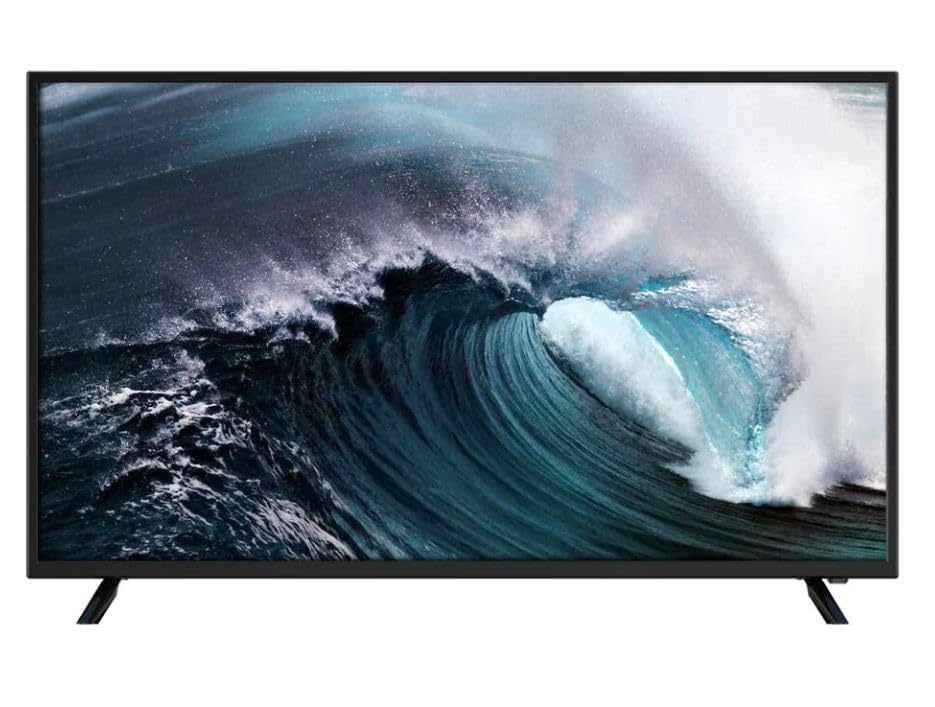
Image: Front view of the VIOS Smart TV, Model VI-32T232, with its two stands securely attached, displaying a vibrant red background. This shows the TV ready for placement.
1.3 Connecting Power
Connect the power cord to the TV's power input, then plug the other end into a standard electrical outlet. The TV will enter standby mode.
1.4 Connecting External Devices
The VIOS Smart TV is equipped with multiple ports for various devices:
- HDMI Ports: Connect Blu-ray players, gaming consoles, cable/satellite boxes, or other HDMI-enabled devices.
- USB Ports: Connect USB flash drives for media playback or external hard drives.
- Antenna/Cable Input: Connect an antenna for over-the-air broadcasts or a cable connection.

Image: Rear view of the VIOS Smart TV, Model VI-32T232, highlighting the arrangement of input ports (HDMI, USB, Antenna) and VESA mounting holes for wall installation. This provides a clear view of connectivity options.
1.5 Initial Setup Wizard
Upon first power-on, the TV will guide you through an initial setup process:
- Language Selection: Choose your preferred language.
- Network Connection: Connect to your Wi-Fi network by selecting your network name and entering the password.
- Google Account Sign-in: Sign in with your Google account to access the full features of Android TV, including app downloads from the Google Play Store.
- Channel Scan: If using an antenna, the TV will scan for available channels.
- Time Zone and Date: Set the correct time zone and date.
2. Operating Instructions
2.1 Remote Control Overview
The remote control allows you to navigate the TV's features. Key functions typically include:
- Power Button: Turns the TV on or off (standby mode).
- Input/Source: Switches between connected devices (HDMI 1, HDMI 2, TV, etc.).
- Navigation Buttons (Up/Down/Left/Right) and OK: For menu navigation and selection.
- Back/Exit: Returns to the previous screen or exits a menu.
- Home: Accesses the Android TV home screen.
- Volume Up/Down: Adjusts the audio level.
- Mute: Silences the TV audio.
- Channel Up/Down: Changes TV channels (if applicable).
- App Shortcut Buttons: Direct access to popular streaming services (e.g., Netflix, YouTube).
2.2 Navigating Android TV
The Android TV home screen provides quick access to your favorite apps, live TV, and recommended content. Use the navigation buttons on your remote to browse through sections like "Apps," "Inputs," and "Settings."
2.3 Accessing Apps and Streaming Services
From the home screen, select the "Apps" section to view all installed applications. You can download new apps from the Google Play Store. Ensure your TV is connected to the internet for streaming services to function.
2.4 Adjusting Picture and Sound Settings
Access the "Settings" menu from the home screen. Here you can customize:
- Picture: Brightness, contrast, color, sharpness, picture mode (Standard, Vivid, Movie, etc.).
- Sound: Volume, sound mode (Standard, Music, Movie, etc.), equalizer, balance.
- Network & Internet: Manage Wi-Fi connections.
- Device Preferences: Date & time, language, keyboard, storage, reset options.
3. Maintenance
3.1 Cleaning the TV
- Screen: Gently wipe the screen with a soft, lint-free cloth. For stubborn marks, slightly dampen the cloth with water or a specialized screen cleaner. Do not spray liquid directly onto the screen.
- Body: Use a soft, dry cloth to wipe the TV's frame and back.
- Warning: Always unplug the TV before cleaning. Avoid using abrasive cleaners, waxes, or solvents.
3.2 Software Updates
Periodically check for software updates to ensure optimal performance and access to the latest features. Go to Settings > Device Preferences > About > System update. Follow the on-screen prompts to download and install any available updates. Ensure a stable internet connection during updates.
3.3 Safety Precautions
- Do not block ventilation openings on the TV.
- Keep the TV away from direct sunlight, heat sources, and excessive dust.
- Avoid placing liquids near the TV.
- Do not attempt to open the TV casing; refer all servicing to qualified personnel.
4. Troubleshooting
Before contacting support, try these common solutions:
| Problem | Possible Solution |
|---|---|
| No Power | Ensure the power cord is securely plugged into both the TV and the electrical outlet. Check if the outlet is working by plugging in another device. |
| No Picture / Black Screen | Verify the TV is on and not in standby mode. Check the input source (e.g., HDMI 1, TV) is correctly selected. Ensure all cables are securely connected. |
| No Sound | Check the volume level and ensure the TV is not muted. Verify external audio devices (if connected) are properly configured and powered on. |
| Remote Control Not Working | Replace the batteries. Ensure there are no obstructions between the remote and the TV's IR sensor. |
| Wi-Fi Connection Issues | Restart your router and modem. Go to Settings > Network & Internet and try reconnecting to your network. Ensure the Wi-Fi password is correct. |
| Apps Not Loading / Slow Performance | Restart the TV. Clear the cache of the problematic app (Settings > Apps > See all apps > [App Name] > Clear cache). Ensure sufficient storage space. |
If these solutions do not resolve the issue, please refer to the warranty and support section for further assistance.
5. Specifications
Below are the key technical specifications for the VIOS Smart TV LED 32-inch, Model VI-32T232:
- Brand: VIOS
- Model: VI-32T232
- Screen Size: 32 inches
- Display Type: LED
- Resolution: Full HD (1920 x 1080 pixels)
- Operating System: Android TV
- Connectivity: Integrated Wi-Fi, Multiple HDMI ports, Multiple USB ports
- Color: Black
- GTIN/UPC: 724065749055
6. Warranty and Support
6.1 Manufacturer's Warranty
This VIOS Smart TV is covered by a manufacturer's warranty. Please refer to the warranty card included in your product packaging for specific terms, conditions, and duration. Keep your purchase receipt as proof of purchase for warranty claims.
6.2 Customer Support
For technical assistance, service requests, or further inquiries, please contact your retailer or the official VIOS customer support channel. Contact details can typically be found on the manufacturer's website or in your product documentation.

