Introduction
This manual provides detailed instructions for the setup, operation, maintenance, and troubleshooting of your aosu T2 Ultra 4K Wireless Outdoor Security Camera System. Please read this manual thoroughly before using the product to ensure proper functionality and safety.
What's Included
The aosu T2 Ultra 4K Wireless Outdoor Security Camera System (2-Cam Kit) includes the following components:
- 2x aosu T2 Ultra 4K PTZ Solar Cameras
- 1x aosuBase (Home Cortex Hub)
- 2x Solar Panels
- Mounting Brackets and Hardware (screws, anchors)
- 2x USB-C to USB-A Cables
- 2x USB-C Extension Cables with rubber gaskets
- 1x Ethernet Cable
- 1x Power Adapter for aosuBase
- Quick Start Guide
- Positioning Sticker
- Security Sticker

An overview of the components included in the aosu T2 Ultra 4K Security Camera 2-Cam Kit, featuring two cameras, two solar panels, the aosuBase, various cables, mounting hardware, and documentation.
Setup
1. Charging the Cameras
Before initial use, fully charge each camera using the provided USB-C cable and a compatible power adapter. A full charge ensures optimal performance.
2. aosu App Installation
Download the "aosu" app from your device's app store (Google Play Store for Android or Apple App Store for iOS). Create an account or log in if you already have one.
3. aosuBase Setup
Connect the aosuBase to your router using the provided Ethernet cable. Plug the power adapter into the aosuBase and a power outlet. The status indicator light will show when it's ready.

The aosuBase, a central hub for the security system, featuring an Ethernet port for router connection and a power input. It supports local storage for recordings.
4. Camera Pairing
Follow the in-app instructions to pair each camera with the aosuBase. This typically involves scanning a QR code on the camera or the aosuBase.
An official video demonstrating the setup process of the aosu T2 Ultra 4K Security Camera System, including connecting the aosuBase and pairing cameras.
5. Hard Drive Installation (Optional)
The aosuBase supports up to 1TB of local storage. To install an HDD or SSD (2.5" SATA, not included), remove the magnetic front cover of the aosuBase to access the hard drive slot. Insert the drive and replace the cover.
The aosuBase with its magnetic front cover removed, revealing the hard drive slot for optional local storage expansion up to 1TB.
6. Mounting the Cameras
Choose a suitable outdoor location for each camera, ensuring the solar panel receives adequate sunlight. Use the provided mounting brackets and screws to securely attach the cameras. The detachable solar panel allows for flexible placement to optimize sun exposure.

An aosu T2 Ultra camera mounted on an exterior wall, with its solar panel positioned above to capture sunlight for continuous power.
The aosu T2 Ultra camera demonstrating its detachable solar panel, which can be mounted separately from the camera to ensure optimal sun exposure.
Operating Instructions
1. Live View
Open the aosu app and select a camera to view its live feed. You can switch between standard and ultra-definition video quality.
A smartphone screen showing a live 4K video feed from an aosu T2 Ultra camera, demonstrating the clarity and real-time monitoring capability.
2. Pan-Tilt-Zoom (PTZ) Control
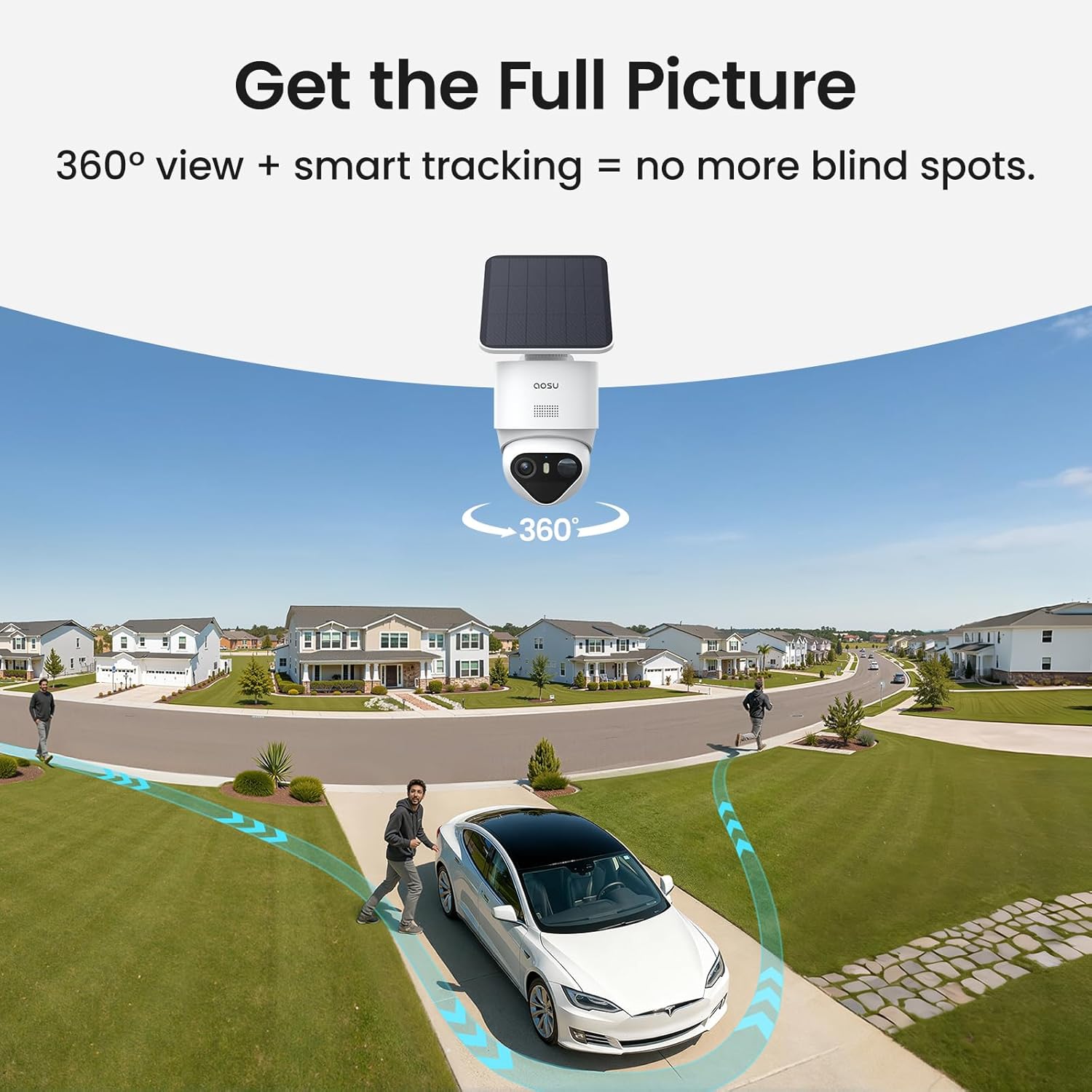
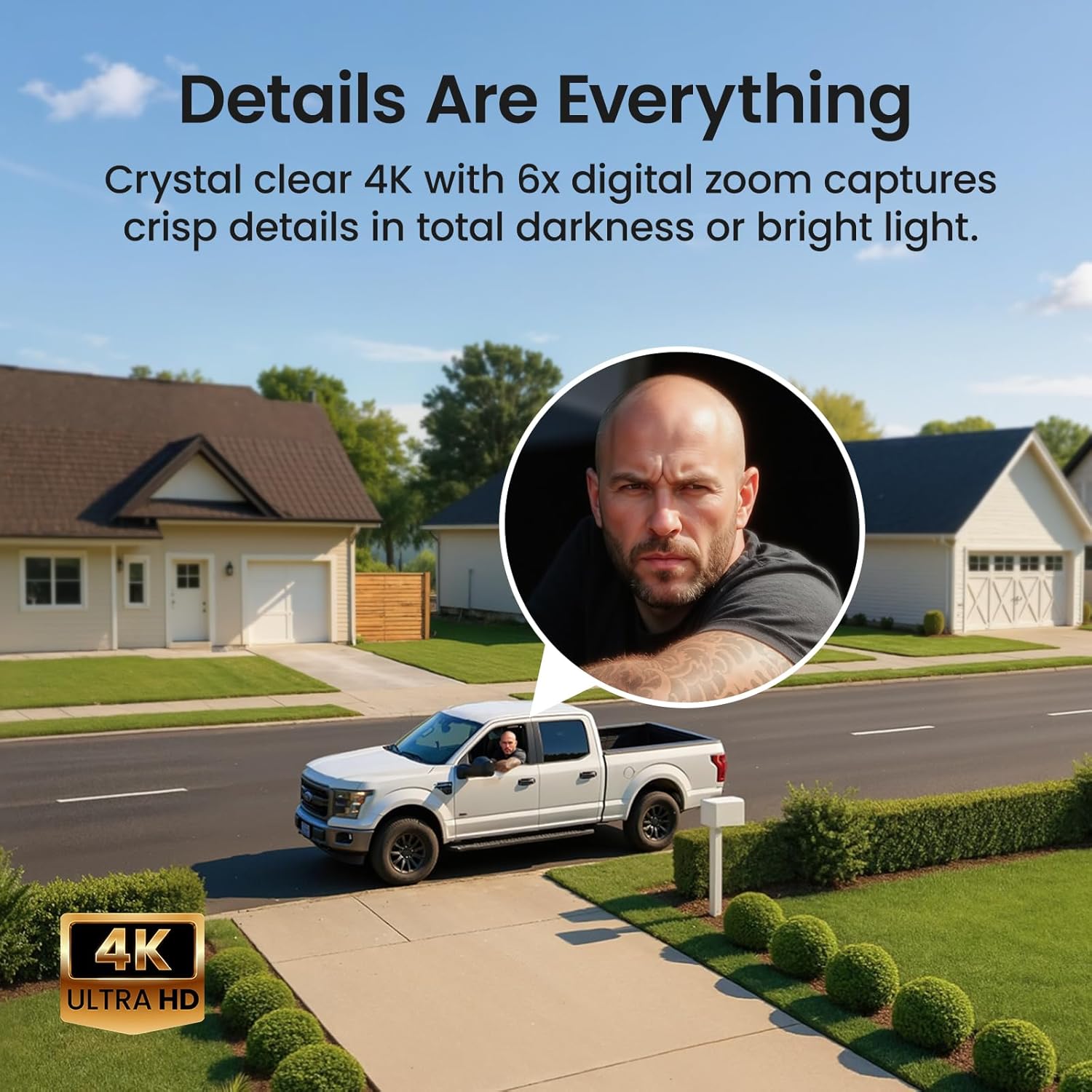
Use the on-screen controls in the app to remotely pan (355°), tilt (90°), and digitally zoom (6x) the camera to adjust the viewing angle.
An aosu T2 Ultra camera capturing a wide 360-degree view, illustrating its pan-tilt capabilities and smart tracking to eliminate blind spots.
3. Night Vision Modes
The camera features 4K TrueColor Night Vision and Covert Full-Color Mode for clear, vibrant footage even in low light conditions without the need for floodlights.

A visual comparison demonstrating the superior clarity and color reproduction of aosu's TrueColor Night Vision compared to standard infrared night vision.
4. Two-Way Talk and Voice Alerts
Use the microphone button in the app to speak to individuals near the camera. You can also play pre-recorded voice alerts.
5. Smart Detection and Notifications
Enable AI-powered detection for persons, vehicles, and pets. Customize notification settings to receive alerts for specific events. The system uses radar, PIR, and AI analysis for precise alerts and reduced false alarms.

An illustration of the aosu T2 Ultra camera's advanced triple detection system, combining radar, PIR, and AI to accurately identify movement and minimize false alarms.
6. Cross-Camera Tracking
When multiple cameras are installed, the system can track individuals as they move between camera views, stitching recordings together for a complete event timeline.
An official video showcasing the features of the aosu T2 Ultra 4K Solar Security Cameras, including its 4K resolution and smart functionalities.
7. Local Storage and Playback
Recordings are stored locally on the aosuBase (up to 1TB expandable storage). Access and review recorded events through the app.
Maintenance
1. Cleaning
Regularly clean the camera lens and solar panel with a soft, damp cloth to ensure optimal image quality and charging efficiency. Avoid abrasive cleaners.
2. Battery Management
The solar panel provides continuous power. Ensure the panel is positioned to receive maximum sunlight. If the camera's battery level drops significantly, manually charge it using the USB-C cable.
3. Firmware Updates
Periodically check the aosu app for available firmware updates to ensure your system has the latest features and security enhancements. Follow in-app instructions for updates.
Troubleshooting
1. Camera Not Connecting
- Ensure the camera is powered on and fully charged.
- Verify the aosuBase is connected to the internet and powered on.
- Check Wi-Fi signal strength at the camera's location.
- Try re-pairing the camera through the aosu app.
2. Poor Video Quality
- Check your internet connection speed.
- Clean the camera lens.
- Ensure the camera is within optimal Wi-Fi range of the aosuBase.
- Adjust video quality settings in the app (e.g., switch to UHD).
3. False Alarms
- Adjust detection sensitivity settings in the app.
- Configure detection zones to exclude high-traffic areas or objects that might trigger false alerts.
- Ensure AI detection features (person, vehicle, pet) are correctly configured.
4. Solar Panel Not Charging
- Ensure the solar panel is clean and free from obstructions.
- Reposition the solar panel to receive direct sunlight for several hours daily.
- Check the connection cable between the solar panel and the camera.
Specifications
| Feature | Detail |
|---|---|
| Model | aosu T2 Ultra |
| Video Resolution | 4K (8 MP Effective Still Resolution) |
| Night Vision | TrueColor Night Vision, Infrared Night Vision |
| Field of View (FOV) | 360° Pan-Tilt (355° Pan, 90° Tilt) |
| Zoom | 6x Optical Zoom |
| Power Source | Solar Powered (with rechargeable Lithium Ion battery) |
| Connectivity | Wireless (Bluetooth, Wi-Fi) |
| Storage | aosuBase with Built-in 32GB, Expandable up to 1TB (HDD/SSD 2.5" SATA) |
| Detection | Radar, PIR, AI Detection (Person, Vehicle, Pet) |
| Weather Resistance | IP65 |
| Dimensions | 10 x 9 x 6 inches |
| Weight | 5.81 pounds |
| Compatible Devices | Smartphone (Android, iOS), Amazon Alexa, Google Assistant |
| Manufacturer | AOSU |
| GTIN | 699838753112 |
| ASIN | B0GD7J1YPT |
Warranty Information
For detailed warranty information, please refer to the official aosu website or contact customer support. Protection plans are available for purchase separately.
Customer Support
If you encounter any issues or have questions regarding your aosu T2 Ultra 4K Security Camera System, please visit the official aosu support website or contact their customer service team.
- Visit the aosu Store on Amazon
- Online Support via the aosu App.


