
1. Introduction
Thank you for choosing the Hikity Android 15 Car Stereo. This manual provides detailed instructions for the installation, operation, and maintenance of your new car stereo system. Please read this manual thoroughly before use to ensure proper functionality and to maximize your user experience. This unit is specifically designed for Hyundai i20 models manufactured between 2008 and 2012.
2. Safety Information
- Always operate the device responsibly and in accordance with local traffic laws. Distracted driving can lead to accidents.
- Do not attempt to install or service the unit yourself if you are not qualified. Improper installation can cause damage to the vehicle's electrical system or the unit itself.
- Ensure all wiring connections are secure and properly insulated to prevent short circuits.
- Keep the unit away from water and excessive moisture.
- Avoid exposing the unit to extreme temperatures.
3. Package Contents
Verify that all items listed below are included in your package:

Image: Components included in the Hikity car stereo package, such as power cable, installation tool, RCA cable, rear camera input cable, accessories, USB cable, GPS antenna, microphone, and AHD rear camera.
- Car Stereo Unit
- Power Cable
- Installation Tool
- RCA Cable
- Rear Camera Input Cable
- Accessories (various mounting brackets/screws)
- USB Cable (Dual USB)
- GPS Antenna
- Microphone
- AHD Rear Camera
4. Product Overview
The Hikity Android 15 Car Stereo features a 9-inch In-Cell touchscreen display and is powered by a quad-core processor with 4GB RAM and 64GB ROM, ensuring smooth operation and multitasking capabilities. It supports 1080P video decoding for clear media playback.

Image: Internal components showing the Cortex-A35 CPU, Mali G31 GPU, 4GB RAM, and 64GB ROM, highlighting the system's processing power.
The In-Cell touchscreen technology provides a thinner, lighter display with over 95% transparency and a faster touch response. The 1280x720 resolution offers a clear and bright visual experience.

Image: Visual representation of the In-Cell touchscreen, emphasizing its clarity, sensitivity, and light transmittance for outdoor visibility.
5. Installation
This car stereo is designed for direct fitment in Hyundai i20 models from 2008 to 2012. Before proceeding with installation, ensure your vehicle's dashboard configuration matches the compatible design. Professional installation is recommended.

Image: A visual guide demonstrating the correct fitment of the Hikity car stereo into a Hyundai i20 dashboard (A:Fit) and an incompatible dashboard (B:Not Fit), highlighting the importance of checking dashboard configuration.
Installation Steps (General Guide):
- Disconnect the vehicle's battery to prevent electrical shorts.
- Carefully remove the existing car stereo and dashboard trim.
- Connect the provided wiring harness to the vehicle's wiring. Ensure all connections are secure.
- Connect the GPS antenna, USB cables, microphone, and rear camera input cable as needed.
- Mount the new Hikity car stereo into the dashboard opening.
- Reinstall the dashboard trim.
- Reconnect the vehicle's battery and test the unit.
6. Setup
Initial Power-On:
After installation, turn on your vehicle's ignition. The car stereo should power on automatically. Follow the on-screen prompts for initial setup.
Basic Settings:
- Language: Navigate to Settings > System > Languages & input to select your preferred language.
- Date & Time: Set the correct date and time, or enable automatic synchronization via GPS/network.
- Wi-Fi Connection: Go to Settings > Network & internet > Wi-Fi to connect to a Wi-Fi hotspot for internet access and updates.
7. Operating Instructions
7.1 Wireless CarPlay & Android Auto
The unit supports wireless CarPlay for iOS devices and wireless Android Auto for Android devices. This allows for seamless integration of your smartphone's navigation, music, and communication features.

Image: Displays of Wireless CarPlay and Android Auto interfaces, showing common applications like Maps, Spotify, and WhatsApp, indicating wireless connectivity via Bluetooth.
Connection Steps:
- Ensure Bluetooth is enabled on your smartphone and the car stereo.
- On the car stereo, go to the CarPlay/Android Auto application.
- Search for your car stereo's Bluetooth name on your phone and pair.
- Confirm the pairing code on both devices.
- Once connected, CarPlay or Android Auto will launch automatically.
7.2 GPS Navigation & WiFi
The system includes integrated GPS for navigation, supporting both online and offline maps. Real-time traffic information is available when connected to the internet.

Image: The car stereo screen displaying a YouTube video, indicating 5G WiFi connectivity, alongside examples of online and offline GPS navigation maps.
Using Navigation:
- Tap the 'Navigation' icon on the home screen.
- Enter your destination. The system will provide voice-guided directions.
- For online maps and real-time traffic, ensure the unit is connected to a Wi-Fi hotspot (e.g., from your smartphone).
7.3 Multimedia Playback
Play audio and video files from USB drives or streaming services when connected to the internet.
7.4 Split Screen & Picture-in-Picture
The unit supports split-screen functionality, allowing two applications to run simultaneously, and Picture-in-Picture mode for continuous video playback while using other functions.
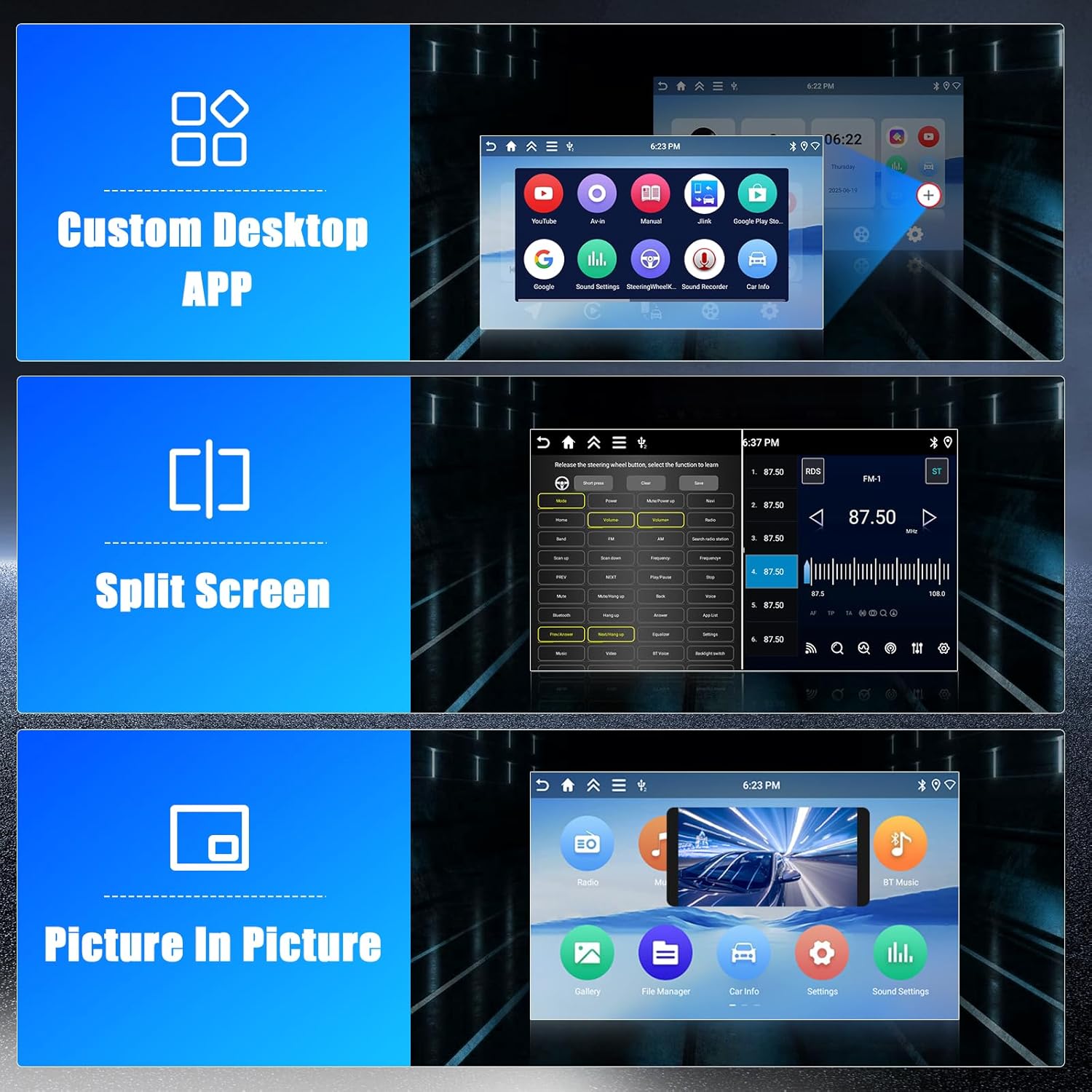
Image: Examples of the Custom Desktop APP interface, a split-screen view showing two applications side-by-side, and a Picture-in-Picture display with a video overlay.
Using Split Screen:
- Open the first application.
- Press and hold the recent apps button or swipe up from the bottom (depending on Android version) to enter split-screen mode.
- Select the second application to display.
7.5 Bluetooth
Connect your smartphone via Bluetooth for hands-free calling and audio streaming.
Pairing a Bluetooth Device:
- Enable Bluetooth on your phone and the car stereo.
- On the car stereo, go to the Bluetooth settings.
- Search for available devices and select your phone.
- Confirm the pairing code.
7.6 Rear Camera
The included AHD rear camera provides a clear view when reversing. The display automatically switches to the camera feed when the vehicle is put into reverse gear.
8. Maintenance
- Cleaning: Use a soft, dry cloth to clean the screen and unit. Avoid abrasive cleaners or solvents.
- Software Updates: Periodically check for software updates via the system settings when connected to Wi-Fi to ensure optimal performance and access to new features.
- Cable Connections: Ensure all cables remain securely connected.
9. Troubleshooting
Common Issues and Solutions:
- No Power: Check the vehicle's fuse box and the unit's power connections. Ensure the ignition is on.
- No Sound: Verify speaker connections. Check volume levels and mute settings. Ensure the correct audio source is selected.
- GPS Signal Loss: Ensure the GPS antenna is properly installed and has a clear view of the sky. Move the vehicle to an open area.
- Bluetooth/CarPlay/Android Auto Connection Issues: Ensure Bluetooth is enabled on both devices. Try unpairing and re-pairing the device. Restart both the phone and the car stereo.
- Touchscreen Unresponsive: Try restarting the unit. If the issue persists, a factory reset might be necessary (note: this will erase all user data).
- Unit Freezes: Press the reset button (if available, usually a small pinhole) or disconnect the power for a few minutes.
If you encounter issues not covered here, please refer to the warranty and support section for further assistance.
10. Specifications
| Feature | Specification |
|---|---|
| Model Number | Hikity-A7904A4291H6MI2EU26 |
| Operating System | Android 15 |
| RAM | 4 GB |
| ROM | 64 GB |
| Screen Size | 9 inches |
| Screen Type | In-Cell Touchscreen |
| Screen Resolution | 1280x720 |
| Processor | Quad-Core (Cortex-A35 CPU, Mali G31 GPU) |
| Connectivity | Wireless CarPlay, Wireless Android Auto, Bluetooth, GPS, WiFi (5G), Dual USB |
| Audio Output Mode | Stereo |
| Power Output | 45 Watts |
| Item Weight | 1.98 Kilograms |
| Compatible Devices | Smartphone |
| Connector Type | RCA |
11. Warranty and Support
Warranty Information:
This Hikity car stereo comes with a 2-year warranty from the date of purchase. Please retain your proof of purchase for warranty claims.
Customer Support:
For technical assistance, troubleshooting beyond this manual, or warranty inquiries, please contact Hikity customer support through the retailer where the product was purchased or visit the official Hikity website for contact information.


