
1. Introduction
Thank you for choosing the XGIMI HORIZON 20 Pro 4K RGB Triple Laser Home Projector. This manual provides essential information for setting up, operating, and maintaining your projector to ensure optimal performance and longevity. The HORIZON 20 Pro delivers stunning 4K visuals with its X-Master RGB triple laser engine, 4100 ISO lumens brightness, and a 20,000:1 contrast ratio. It integrates Google TV with licensed Netflix, offers flexible installation options like optical zoom and lens shift, and supports advanced gaming features.
2. Setup and Installation
The XGIMI HORIZON 20 Pro is designed for easy setup with a quick-install interface and modular design. Its lossless optics, including flexible lens shift and optical zoom, provide greater freedom in placement without compromising image clarity.
2.1 Unpacking and Initial Placement
- Carefully remove all components from the packaging.
- Place the projector on a stable, flat surface or mount it according to your preferred setup.
- Consider the projection distance and screen size for optimal viewing.

Figure 2.1: The XGIMI HORIZON 20 Pro projector mounted on an optional XGIMI Floor Stand (Elephant Grey). The projector is sold separately from the stand and is compatible only with XGIMI Horizon 20 series projectors.
2.2 Flexible Installation and Lens Shift
The projector features dynamic lens shift capabilities, allowing you to adjust the image vertically and horizontally without moving the projector itself. This ensures a perfectly aligned image even when the projector is not centered with the screen.
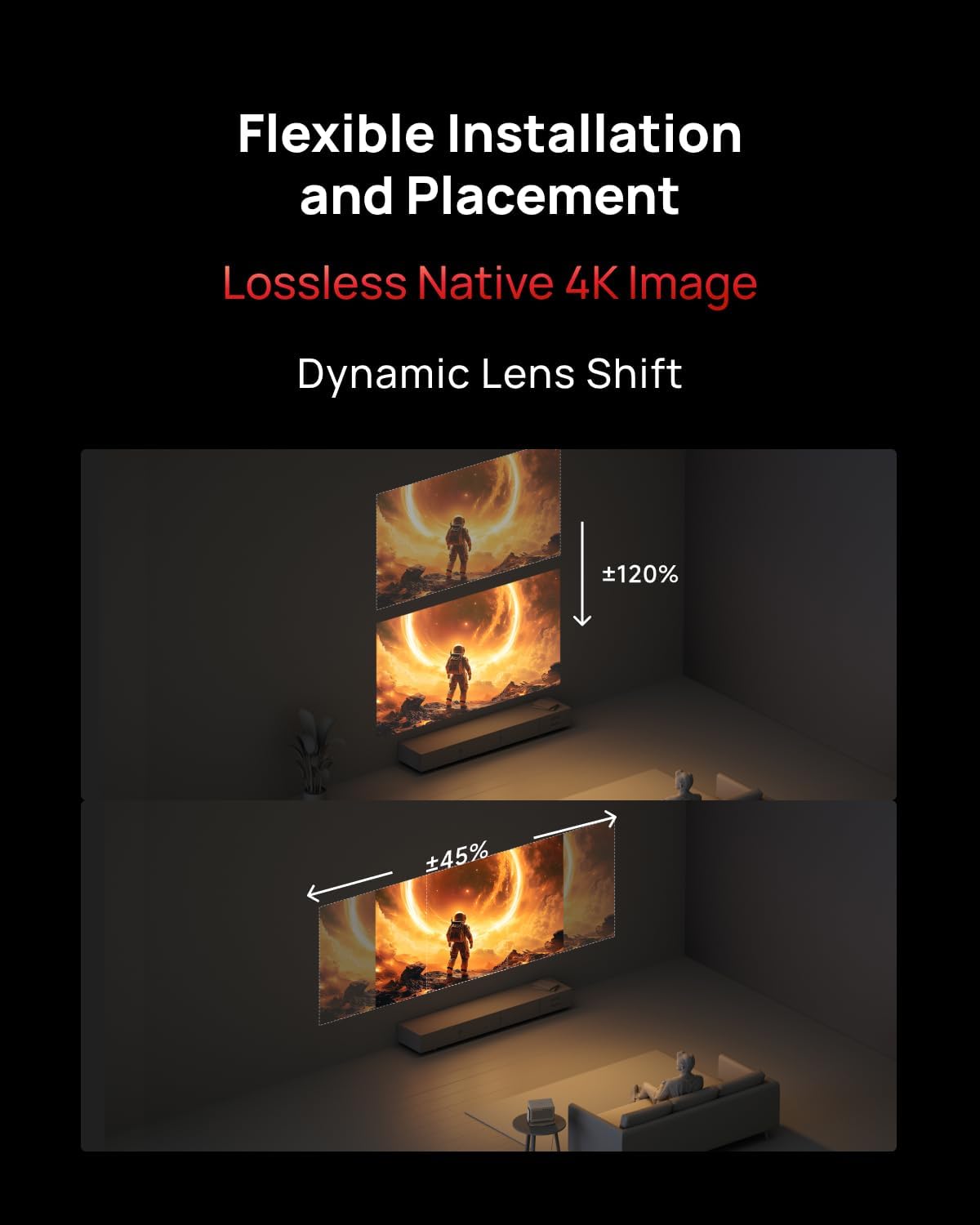
Figure 2.2: Illustration of flexible installation and placement using dynamic lens shift, demonstrating vertical (up to ±120%) and horizontal (up to ±45%) image adjustment without distortion.

Figure 2.3: The XGIMI HORIZON 20 Pro projector seamlessly integrated into a modern living space, highlighting its aesthetic design.
3. Operating Instructions
The HORIZON 20 Pro operates on Google TV, providing access to a wide range of streaming services and applications, including licensed Netflix. Its flagship MT9679 chipset and 4GB RAM ensure smooth navigation and fast app launches.
3.1 Powering On and Initial Setup
- Connect the power adapter to the projector and a power outlet.
- Press the power button on the projector or remote control.
- Follow the on-screen instructions to complete the initial Google TV setup, including network connection and Google account login.
3.2 Accessing Content
The projector offers a centralized hub for all your entertainment needs, supporting various content formats and platforms.

Figure 3.1: The projector supports a wide array of content technologies, including IMAX Enhanced, Dolby Vision, Filmmaker Mode, HDR10+, and audio by Harman/Kardon, consolidating all content in one place.

Figure 3.2: The Google TV interface provides access to popular streaming services like YouTube, Hulu, Netflix, Prime Video, Disney+, and more, offering cinema quality at home without compromise.
3.3 Gaming Features
For an immersive gaming experience, the HORIZON 20 Pro offers a 1ms response time, 240Hz fluidity, Variable Refresh Rate (VRR), and Auto Low Latency Mode (ALLM).
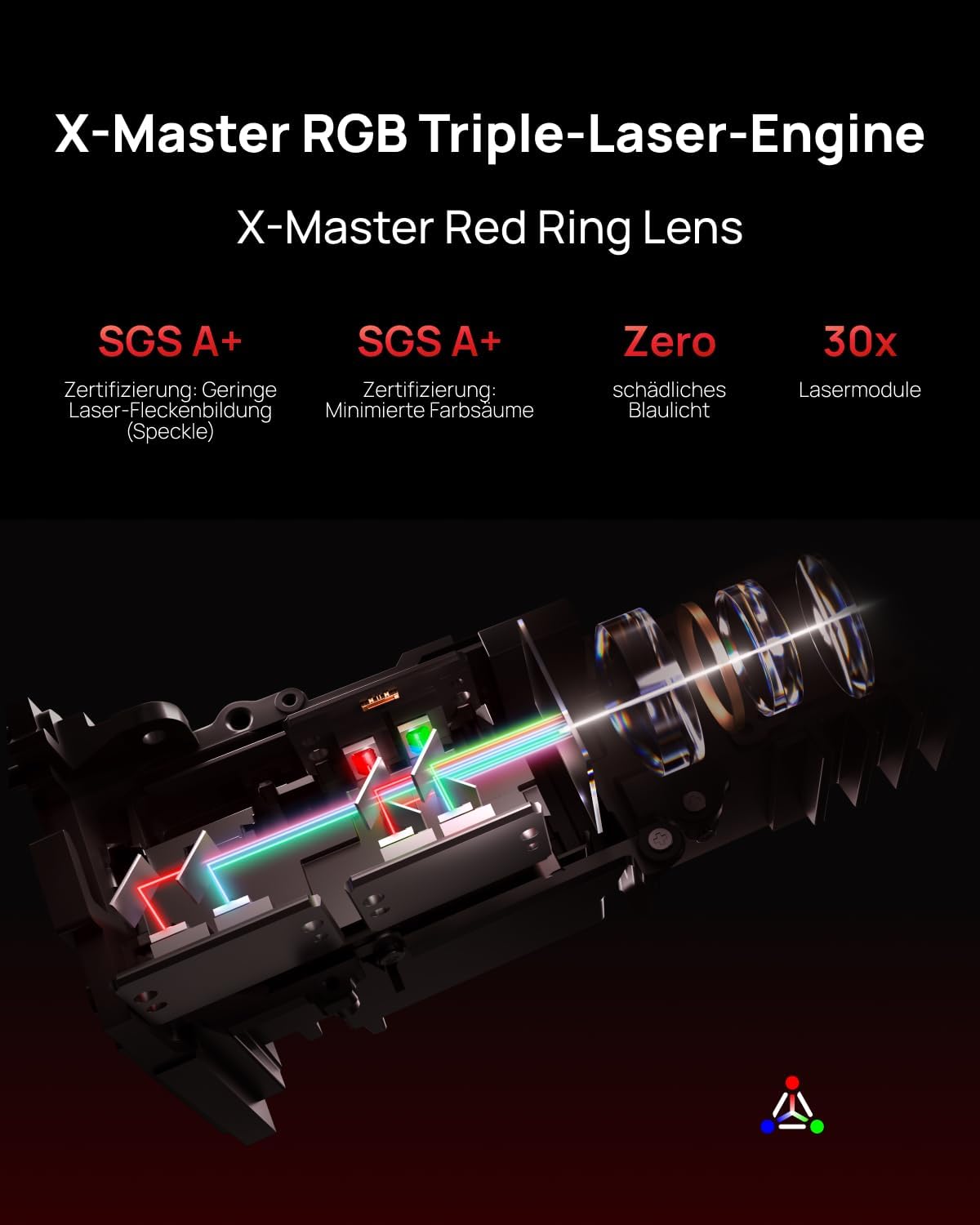
Figure 3.3: Experience next-gen gaming with 1ms input lag, VRR, and ALLM, powered by the MT9679+128GB chipset, as shown with a scene from Assassin's Creed Shadows.
4. Key Features
4.1 RGB Triple Laser Engine
The X-Master RGB triple laser engine delivers brilliant, color-rich, and lifelike visuals with 4100 ISO lumens of brightness and an ultra-deep 20,000:1 contrast ratio, ensuring vibrant and deep scenes day or night.
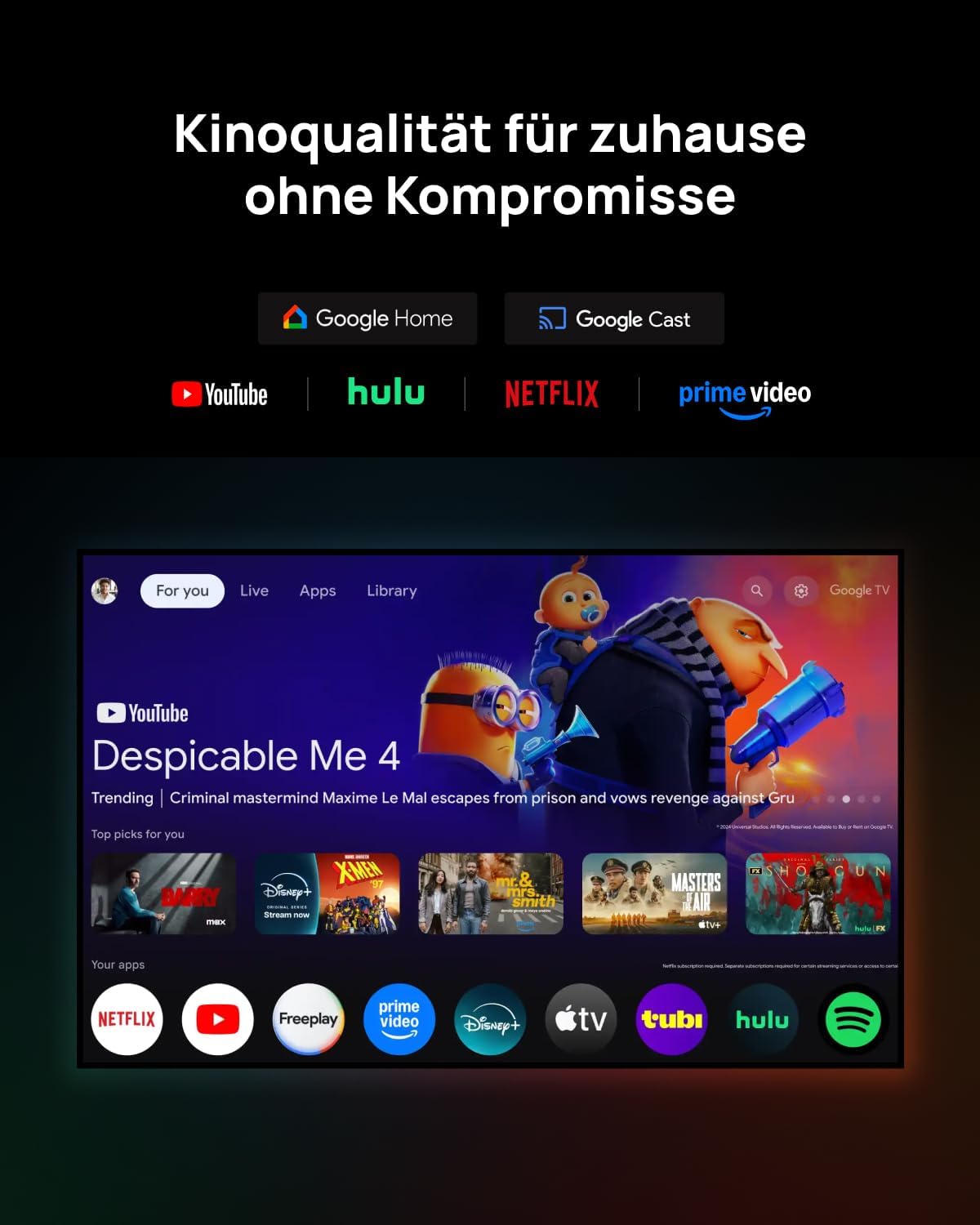
Figure 4.1: Internal view of the X-Master RGB Triple-Laser-Engine with X-Master Red Ring Lens, highlighting its advanced laser technology for superior image quality, including SGS A+ certification for low laser speckle and minimized color fringing, zero harmful blue light, and 30x laser modules.
4.2 Flagship Processing Power
Equipped with the MT9679 chipset and 4GB RAM, the HORIZON 20 Pro ensures faster application launches, smoother navigation through the interface, and ample storage for all your favorite content and apps.
5. Maintenance
Regular maintenance helps preserve the performance and lifespan of your XGIMI HORIZON 20 Pro projector.
- Lens Cleaning: Gently wipe the projector lens with a soft, lint-free cloth specifically designed for optical surfaces. Avoid abrasive materials or harsh chemicals.
- Dust Removal: Use a can of compressed air to remove dust from the projector's vents and exterior. Ensure the projector is turned off and unplugged before cleaning.
- Storage: When not in use for extended periods, store the projector in a cool, dry place, away from direct sunlight and extreme temperatures.
6. Troubleshooting
If you encounter issues with your projector, refer to the following common troubleshooting steps:
- No Power: Ensure the power cable is securely connected to both the projector and a working power outlet. Try a different outlet.
- No Image: Check that the projector is powered on. Verify the input source is correctly selected. Ensure all video cables are securely connected.
- Blurry Image: Adjust the focus using the projector's focus controls. Ensure the lens is clean. Check if the projector is within the recommended projection distance.
- No Sound: Verify the volume level on both the projector and the connected audio device. Check audio cable connections. Ensure the correct audio output is selected in the projector settings.
- Remote Control Not Working: Replace the batteries in the remote control. Ensure there are no obstructions between the remote and the projector's IR receiver.
For more complex issues, please contact XGIMI customer support.
7. Specifications
| Feature | Description |
|---|---|
| Brand | XGIMI |
| Model | HORIZON 20 Pro |
| Resolution | 4K (Native) |
| Brightness | 4100 ISO Lumens |
| Contrast Ratio | 20,000:1 |
| Light Source | RGB Triple Laser (X-Master Engine) |
| Operating System | Google TV with Licensed Netflix |
| Processor | MT9679 Chipset |
| RAM | 4GB |
| Gaming Features | 1ms Response, 240Hz Fluidity, VRR, ALLM |
| Optical Features | Optical Zoom, Lens Shift |
| Audio | Harman/Kardon (Sound by) |
| Special Features | IMAX Enhanced, Quick-Install Interface |
| ASIN | B0GCZSBGSS |
8. Warranty and Support
The XGIMI HORIZON 20 Pro projector comes with a manufacturer's warranty. Please refer to the warranty card included in your product packaging or visit the official XGIMI website for detailed warranty terms and conditions.
For technical support, product inquiries, or service requests, please contact XGIMI customer support through their official website or the contact information provided in your product documentation.


