Introduction
This manual provides essential instructions for the proper setup, operation, and maintenance of your generic WSB7048R Touchscreen. Please read this manual thoroughly before using the device to ensure safe and efficient operation. Keep this manual for future reference.
Safety Information
Always observe the following safety precautions to prevent injury or damage to the device:
- Ensure the device is powered off before connecting or disconnecting any cables.
- Do not expose the touchscreen to extreme temperatures, humidity, or direct sunlight.
- Avoid using abrasive cleaners or solvents on the screen surface. Use a soft, dry cloth for cleaning.
- Do not attempt to open or repair the device yourself. Refer all servicing to qualified personnel.
- Keep the device away from strong magnetic fields.
Package Contents
Verify that all items are present in the package:
- WSB7048R Touchscreen Unit
- Power Adapter
- USB Cable
- Quick Start Guide
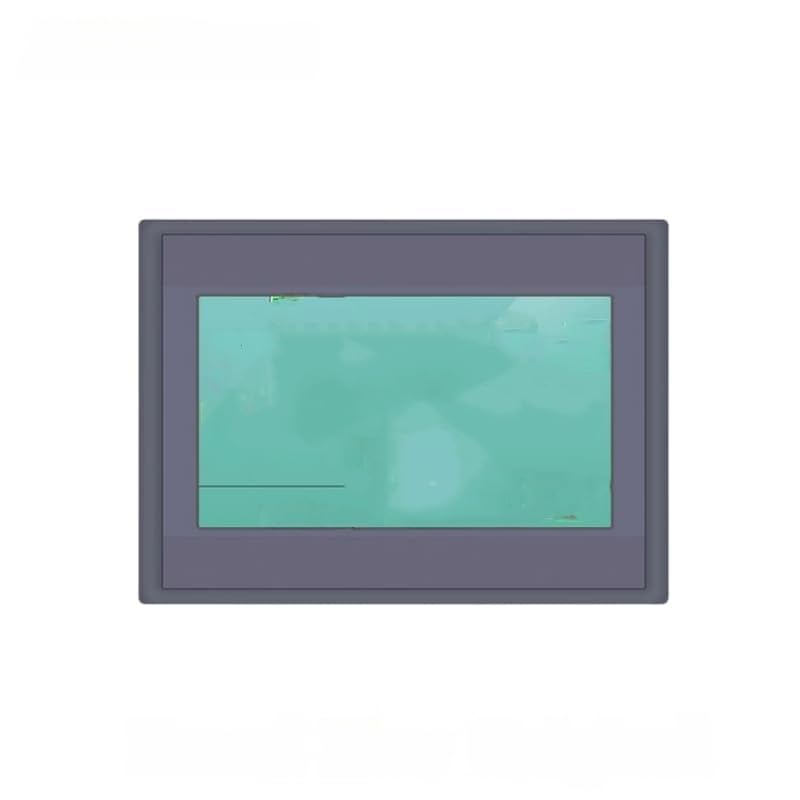
Image 1: WSB7048R Touchscreen and included accessories. This image displays the main touchscreen unit along with its power adapter and USB cable.
Setup
- Unpacking: Carefully remove the touchscreen from its packaging. Inspect for any signs of damage.
- Placement: Place the touchscreen on a stable, flat surface, ensuring adequate ventilation around the device.
- Connect Power: Connect the power adapter to the DC input port on the touchscreen, then plug the adapter into a suitable power outlet.
- Connect to Host Device (Optional): If connecting to a computer or other host device, use the provided USB cable to connect the touchscreen's USB port to the host device's USB port.
- Power On: Press the power button located on the side or back of the unit. The screen should illuminate.
Operating Instructions
Basic Touchscreen Functions
- Tap: Lightly touch the screen with your finger to select an item or activate a function.
- Drag: Touch an item and slide your finger across the screen to move it.
- Pinch/Spread: Use two fingers to zoom in or out on content (if supported by the application).
Connecting to a System
Once connected via USB, the touchscreen should be automatically recognized by most operating systems. If not, ensure the necessary drivers are installed on your host device. Drivers are typically available from the manufacturer's website or included on a separate disc (not included with this product).
Maintenance
Cleaning the Screen
To clean the touchscreen, power off the device and disconnect it from the power source. Use a soft, lint-free cloth slightly dampened with water or a specialized screen cleaner. Do not spray cleaner directly onto the screen. Avoid using harsh chemicals, alcohol, or ammonia-based cleaners as they can damage the screen surface.
General Care
- Keep the device free from dust and debris.
- Store the device in a cool, dry place when not in use.
- Protect the screen from sharp objects to prevent scratches.
Troubleshooting
| Problem | Possible Cause | Solution |
|---|---|---|
| Screen does not power on. | No power supply; faulty power adapter. | Ensure power adapter is securely connected and outlet is functional. Try a different power outlet. |
| Touch input is unresponsive. | Loose USB connection; driver issue; screen calibration needed. | Check USB cable connection. Reinstall or update drivers on host device. Perform screen calibration if available through host OS settings. |
| Display is distorted or flickering. | Faulty cable; incompatible resolution; hardware issue. | Ensure display cable (if any, not specified but common for touchscreens) is secure. Adjust display resolution on host device. If problem persists, contact support. |
Specifications
| Feature | Detail |
|---|---|
| Model | WSB7048R |
| Brand | generic |
| ASIN | B0GCZLGKHW |
| Date First Available | December 29, 2025 |
| Input Voltage | (Not specified, typical for touchscreens) |
| Connectivity | USB (for touch functionality) |
Note: Specifications are subject to change without notice.
Warranty Information
This generic WSB7048R Touchscreen comes with a standard limited warranty. Please refer to the warranty card included with your product for specific terms and conditions, including warranty period and coverage details. Keep your purchase receipt as proof of purchase for warranty claims.
The warranty typically covers defects in materials and workmanship under normal use. It does not cover damage caused by misuse, accident, unauthorized modification, or improper installation.
Customer Support
For technical assistance, troubleshooting, or warranty inquiries, please contact our customer support team. Have your product model number (WSB7048R) and purchase information ready when contacting support.
Website: www.example.com/support (Placeholder link, replace with actual support URL if available)
Email: support@example.com (Placeholder email, replace with actual support email if available)