
1. Introduction
Thank you for choosing the CAMECHO Android 15 Car Stereo. This manual provides detailed instructions for the installation, operation, and maintenance of your new car multimedia system. This unit is designed for specific vehicle models, ensuring a seamless integration and enhanced driving experience.
Compatible Vehicle Models:
- Renault Trafic 2 (2010-2014)
- Opel Vivaro A (2010-2014)
- Nissan Primastar (2010-2014)

Image 1.1: Modern car interior with the CAMECHO car stereo.
2. Key Features
Your CAMECHO Android 15 Car Stereo is equipped with advanced features to enhance your in-car entertainment and navigation:
- Operating System: Android 15 for quick response and smooth operation.
- Memory: 4GB RAM + 128GB ROM for ample storage and performance.
- Display: 9-inch Incell HD touchscreen with 1280*720 resolution, offering a lighter, thinner design and reduced reflection.
- Connectivity: Wireless/Wired Carplay and Android Auto for seamless smartphone integration.
- Navigation: Built-in GPS with support for offline maps and real-time navigation via WiFi.
- Audio: FM/RDS radio with 32-band EQ adjustment for superior sound quality.
- Communication: Bluetooth for hands-free calling and music streaming.
- Multitasking: Split-screen function to run two applications simultaneously.
- Control: Steering wheel control support for convenient operation.
- Rear View: Includes a reversing camera for enhanced safety.
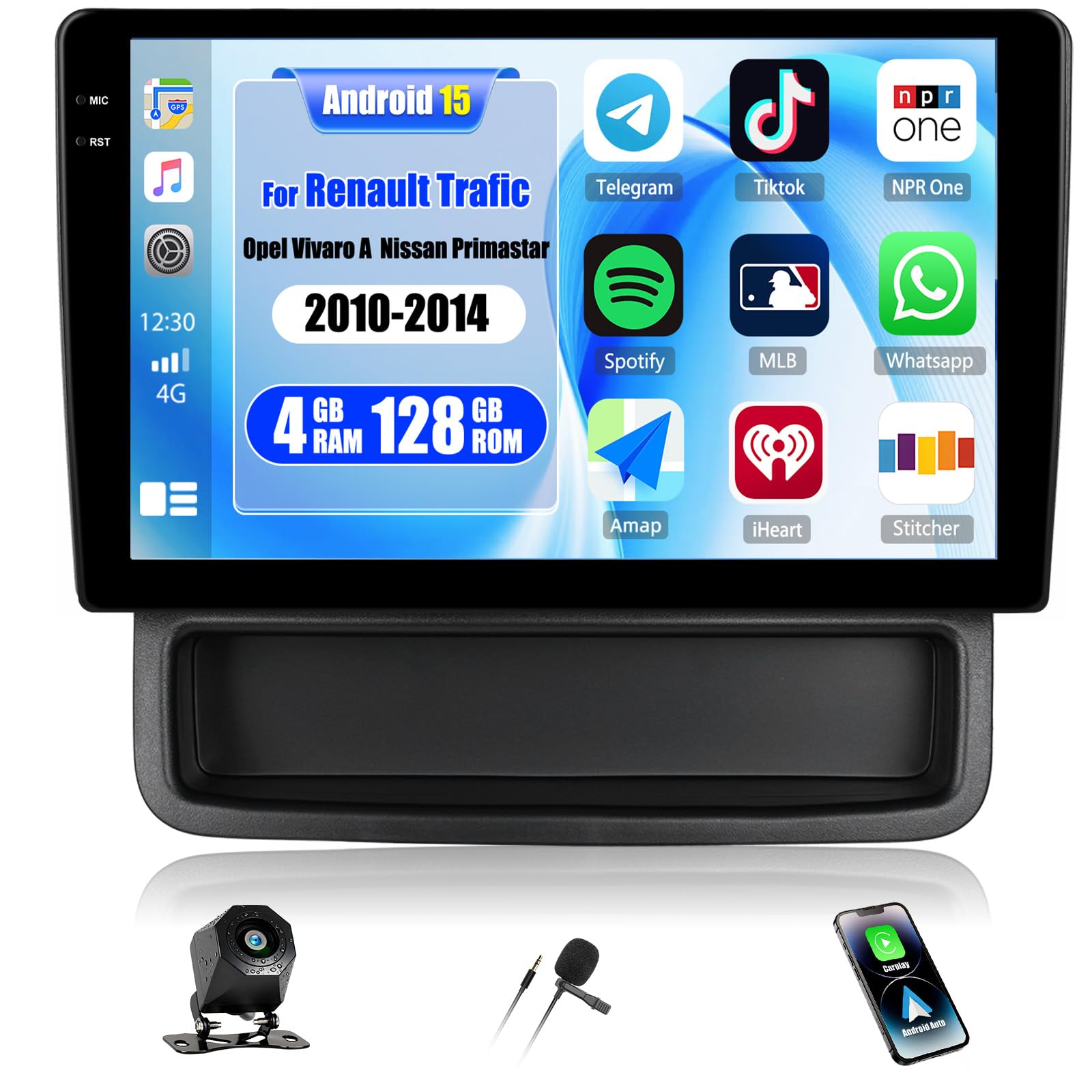
Image 2.1: Overview of key features including Android 15, memory, and Incell screen technology.

Image 2.2: Display showing various applications and system specifications.
3. Package Contents
Upon opening the package, please verify that all the following items are included:
- 1 x Car Player (with installed frame)
- 1 x Power Cable
- 1 x GPS Antenna
- 1 x RCA Cable
- 2 x USB Cables
- 1 x User Manual
- 1 x Reversing Camera (with cable)
- 1 x External Microphone
- 1 x Canbus (if applicable for your vehicle model)
- 1 x Installation Tool
- 1 x Radio Antenna
- 1 x Antenna Adapter

Image 3.1: Packing list and rear connections diagram.
4. Compatibility and Important Notes
This car stereo is specifically designed for Renault Trafic 2, Opel Vivaro A, and Nissan Primastar models from 2010-2014. Please ensure your vehicle's dashboard and wiring harness match the requirements for proper installation.
Important Note:
Our products do not support certain center consoles and CD backplates. Please review the images below to confirm compatibility with your vehicle's existing setup. If you have any questions regarding compatibility, please contact customer service before installation.

Image 4.1: Examples of incompatible center consoles and CD backplates.

Image 4.2: Before and after installation in a compatible vehicle.
5. Setup and Installation
Professional installation is highly recommended for this product. Incorrect installation can lead to damage to the unit or your vehicle. Refer to the wiring diagram and your vehicle's service manual for specific instructions.
5.1 Pre-Installation Checks
- Disconnect the vehicle's battery to prevent electrical shorts.
- Carefully remove the existing car stereo and dashboard trim.
- Verify that the included wiring harness matches your vehicle's connectors.
5.2 Wiring Connections
Connect the cables as follows:
- Power Cable: Connect the main power harness to the vehicle's power supply. Ensure correct positive, negative, and accessory connections.
- RCA Input/Output: Connect external amplifiers, subwoofers, or other audio/video devices using the RCA cables.
- Reversing Camera Input: Connect the included reversing camera cable to the designated input. Ensure the trigger wire is connected to the vehicle's reverse light signal.
- USB Cables: Connect the dual USB interfaces for external storage, smartphone charging, or wired Carplay/Android Auto.
- GPS Antenna: Mount the GPS antenna in a location with a clear view of the sky, typically on the dashboard or under the windshield.
- Radio Antenna: Connect the vehicle's radio antenna. Use the provided adapter if necessary.
- External Microphone: Connect the external microphone for improved call quality.
- Canbus: If your vehicle requires CANbus integration for steering wheel controls or other vehicle data, connect the provided CANbus module.

Image 5.1: Accessories and connections for installation.
5.3 Mounting the Unit
Securely mount the car stereo unit into the dashboard opening using the provided brackets and screws. Reinstall the dashboard trim, ensuring all clips are properly engaged.
5.4 Post-Installation
Reconnect the vehicle's battery. Turn on the ignition and test all functions of the car stereo.
6. Operating Instructions
6.1 Basic Operation
- Power On/Off: Press and hold the power button (usually located on the front panel) to turn the unit on or off. A short press typically mutes/unmutes the audio.
- Volume Control: Adjust the volume using the physical buttons or the on-screen controls.
- Home Screen: Tap the Home icon to return to the main Android interface.
6.2 Wireless Carplay & Android Auto
Connect your smartphone wirelessly or via USB for seamless integration:
- Ensure Bluetooth and Wi-Fi are enabled on your smartphone.
- On the car stereo, open the Carplay or Android Auto application.
- Follow the on-screen prompts to pair your phone. For wireless connection, select your phone from the available devices. For wired, connect your phone via USB.
- Once connected, you can access navigation, music, calls, and other compatible apps directly from the car stereo screen.

Image 6.1: Wireless Carplay, Android Auto, and Mirror Link interfaces.
6.3 GPS Navigation & WiFi
The unit supports both online and offline navigation:
- Offline Maps: The unit comes with built-in offline maps. To download map data for your region, connect to a Wi-Fi network.
- Online Navigation: Connect the unit to a Wi-Fi hotspot (e.g., from your smartphone) to access real-time traffic information and online mapping services.
- Wi-Fi Connectivity: Go to Settings > Network & Internet > Wi-Fi to connect to available networks.

Image 6.2: GPS Navigation and WiFi features in action.
6.4 Bluetooth Functions
Pair your phone to the car stereo for hands-free communication and audio streaming:
- On the car stereo, open the Bluetooth application.
- Enable Bluetooth on your smartphone and search for available devices.
- Select the car stereo's Bluetooth name (e.g., "CAMECHO BT") from your phone's list and pair.
- Once connected, you can make/receive calls, access your phonebook, and stream music.
6.5 FM/RDS Radio & EQ Adjustment
- FM/RDS Radio: Open the Radio application. You can manually tune to stations or use the auto-scan function to find and save available stations. RDS (Radio Data System) provides station information.
- EQ Adjustment: Access the Equalizer settings from the audio menu. Adjust the sound frequencies to your preference or choose from preset sound modes (e.g., Pop, Rock, Jazz).

Image 6.3: Bluetooth, FM/RDS Radio, and EQ Adjustment interfaces.
6.6 Split Screen Function
To use two applications simultaneously:
- Open the first application you wish to use.
- Press and hold the recent apps button (usually a square icon) or swipe up from the bottom of the screen (depending on Android version).
- Drag the first app to one side of the screen.
- Select the second application from the recent apps list or app drawer to fill the other half of the screen.
6.7 Steering Wheel Control
If your vehicle supports steering wheel controls and the CANbus module is correctly installed, you can configure the buttons:
- Go to Settings > Steering Wheel Control.
- Follow the on-screen instructions to map your vehicle's steering wheel buttons to the corresponding functions on the car stereo.
7. Maintenance
- Screen Cleaning: Use a soft, lint-free cloth to gently wipe the touchscreen. For stubborn smudges, slightly dampen the cloth with water or a screen-safe cleaner. Avoid harsh chemicals.
- Software Updates: Periodically check for software updates via the system settings (if available). Updates can improve performance and add new features.
- General Care: Avoid exposing the unit to extreme temperatures, direct sunlight for prolonged periods, or excessive moisture.
8. Troubleshooting
If you encounter any issues, please refer to the following common problems and solutions:
| Problem | Possible Cause | Solution |
|---|---|---|
| Unit does not power on | Incorrect power wiring, blown fuse, vehicle battery issues. | Check power cable connections. Inspect vehicle fuses. Ensure battery is charged. |
| No sound | Volume muted, incorrect speaker wiring, amplifier issues. | Check volume and mute settings. Verify speaker connections. Test with different audio sources. |
| GPS signal loss or inaccuracy | GPS antenna obstructed, faulty antenna, poor satellite coverage. | Ensure GPS antenna has a clear view of the sky. Check antenna connection. Try updating map data. |
| Bluetooth connection issues | Phone not discoverable, incorrect pairing, interference. | Ensure Bluetooth is enabled on both devices. Delete previous pairings and re-pair. Restart both devices. |
| Touchscreen unresponsive | System freeze, dirt on screen, hardware issue. | Restart the unit. Clean the screen. If issue persists, contact support. |
For issues not listed here or if the problem persists, please contact CAMECHO customer support.
9. Specifications
Detailed technical specifications for your CAMECHO Android 15 Car Stereo:
| Feature | Specification |
|---|---|
| System | Android 15 |
| Screen Material | Incell |
| Chipset | RK3326S |
| MCU | G0001ALT |
| Sound Processor | TM2313 |
| Operating Speed | 1.5GHZ |
| Screen Size | 9 inches |
| Memory (RAM+ROM) | 4GB (RAM) + 128GB (ROM) |
| Screen Resolution | 1280*720 |
| Bluetooth | Support |
| Radio Chip | UMW2652 |
| Output Power | 4*45W |
| Working Voltage | 9V-16V |
| Working Temperature | -20 ℃ to 70 ℃ |
| Steering Wheel Control | Support |
| Power Amplifier Chip | YD7388 |
| Radio Band | FM/RDS |
| Reversing Input | AHD/CVBS |
| External Microphone | Support |
| Split Screen | Support |
| Mirror Link | Support |
| Maps | Built-in offline maps (requires Internet to download data) |
| WIFI | Support |
| USB Interface | Dual USB |
| Audio Format Support | APE/FLAC/WAV/MP3/WMA etc. |
| Video Format Support | MKV/RMVB/AVI/MP4/MDV etc. |
| Image Format Support | PNG/JPEG/JPG/GIF/WBMP/BNP etc. |
| Language Support | Multi-language (Chinese/English/French/Italian/Korean/Japanese/Arabic/Spanish/Portuguese/Russian/Turkish/Vietnamese/Hebrew/Polish/German) |
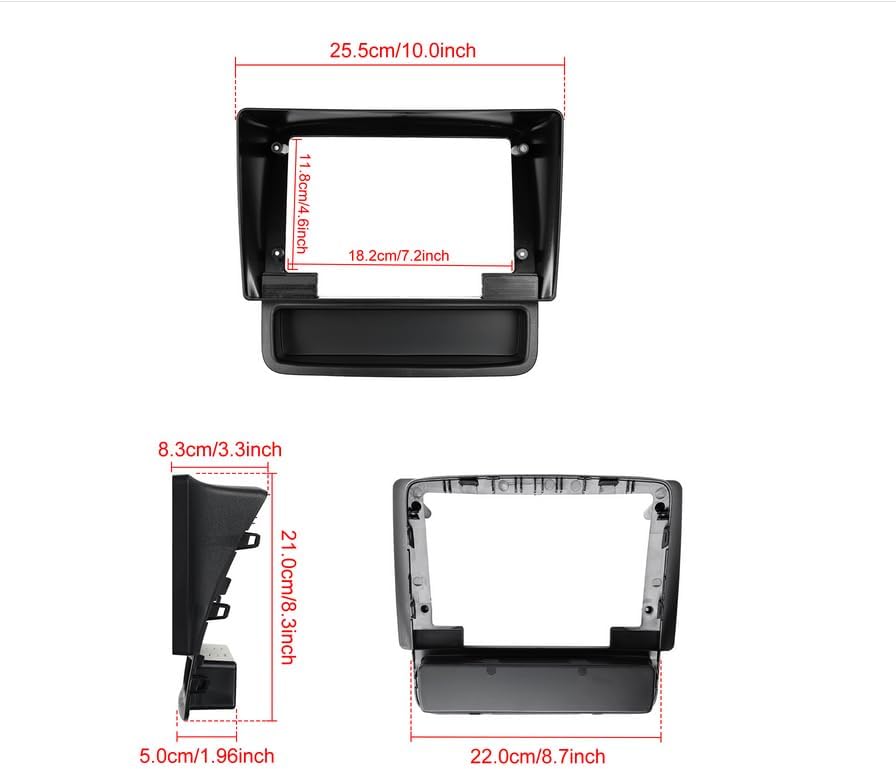
Image 9.1: Product dimensions.
10. Warranty
CAMECHO products are covered by a manufacturer's warranty against defects in materials and workmanship. The specific terms and duration of the warranty may vary. Please retain your proof of purchase for warranty claims. For detailed warranty information, refer to the documentation included with your product or contact customer service.
11. Support
If you require further assistance, have questions about installation, operation, or troubleshooting, please do not hesitate to contact CAMECHO customer service. Our support team is available to help you.
Please refer to the contact information provided on your product packaging or the official CAMECHO website for the most up-to-date support channels.


