
1. Introduction
This manual provides detailed instructions for the installation, operation, and maintenance of the ZK-SMC05 Stepper Motor Pulse Controller. Please read this manual thoroughly before using the device to ensure proper functionality and safety.
Key Features:
- 1.8-inch HD Color Screen: Provides clear display of operational parameters.
- Silicone Key Design: Durable and responsive buttons for reliable operation.
- Operating Frequency: Supports 1Hz to 200,000Hz motor pulse frequency.
- Multiple Communication Options: Supports Modbus Serial, Bluetooth, and RS485 for versatile integration.
- 20 Motion Modes: Offers a variety of pre-programmed motion profiles for diverse applications.
- Remote Firmware Upgrade: Allows for convenient updates to enhance functionality.
- Multi-Device Control: Features dual-end control and rich interfaces for expandability.
- Multi-Language Interface: Supports both Chinese and English display options.
2. Safety Information
Observe the following safety precautions to prevent injury and damage to the device:
- Ensure the power supply voltage matches the specified operating voltage (12-24V DC).
- Do not operate the device in environments exceeding the specified temperature range (-5°C to 60°C) or in condensing conditions.
- All wiring should be performed by qualified personnel.
- Disconnect power before making any wiring changes or performing maintenance.
- Avoid exposing the device to moisture, dust, or corrosive substances.
3. Product Description and Specifications
The ZK-SMC05 is a versatile stepper motor pulse controller designed for precise motor control in various industrial and scientific applications. It features a user-friendly interface with a color screen and tactile buttons, along with advanced communication capabilities.
Technical Specifications:
- Model: ZK-SMC05
- Operating Voltage: 12-24V DC
- Output Signals: 4 outputs, 0V output voltage
- Input Signals: 4 limit switch inputs, 3 expansion button interfaces
- Operating Environment: -5°C to 60°C (non-condensing)
- Motor Pulse Frequency: 1Hz-200,000Hz
- Display: 1.8-inch color screen
- Communication: Modbus Serial, Bluetooth, RS485
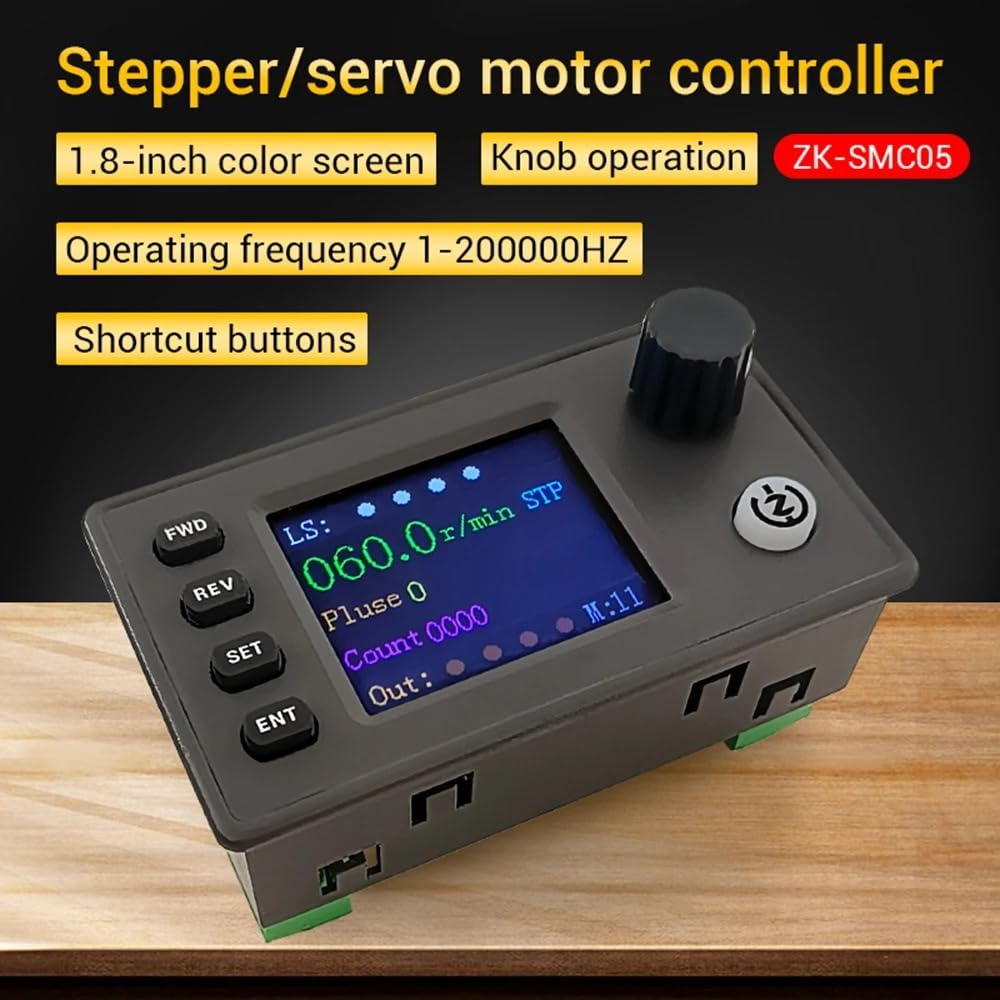
Figure 3.1: ZK-SMC05 Stepper Motor Pulse Controller showing its 1.8-inch color screen, knob operation, operating frequency range, and shortcut buttons.

Figure 3.2: The ZK-SMC05 controller's display, emphasizing support for 20 motion modes, expansion buttons, limit switches, output control, and display in both Chinese and English.
4. Setup and Installation
4.1. Wiring Diagram
Refer to the following diagrams for proper connection of power, inputs, and outputs.

Figure 4.1: Expansion interface wiring diagram. This diagram illustrates how to connect NPN normally open proximity switches (brown wire to 24V, blue wire to 0V, black wire to limit interface X1/X2/X3/X4) and shows Y1-Y4 as output drive signals for indicator lights, solenoid valves, etc.

Figure 4.2: Function introduction and extension interface. This image labels the various components and connection points on the controller, including power supply (DC12-24V), limit switch inputs, expansion button inputs, output terminals, stepper/servo motor drive connections, and communication interfaces with pluggable terminals.
4.2. Connection Instructions
- Power Supply: Connect a 12-24V DC power source to the designated terminals. Observe polarity.
- Motor Drive: Connect the stepper or servo motor drive to the appropriate output terminals. Refer to your motor drive's manual for specific wiring.
- Limit Switches: For NPN normally open proximity switches, connect the brown wire to 24V, the blue wire to 0V, and the black wire to the limit interface inputs (X1/X2/X3/X4).
- Expansion Buttons: Connect external buttons to the expansion button interfaces as needed.
- Outputs (Y1-Y4): These terminals provide output drive signals for external devices such as indicator lights or solenoid valves.
- Communication Interface: Use the Modbus Serial, Bluetooth, or RS485 interface for PC or app communication.
5. Operation
5.1. Basic Controls
The ZK-SMC05 features a 1.8-inch color screen, a rotary knob, and several buttons for intuitive control:
- FWD (Forward): Initiates forward rotation.
- REV (Reverse): Initiates reverse rotation.
- SET: Enters settings menu or confirms a selection.
- ENT (Enter): Confirms input or selection.
- Knob: Used for navigation, adjusting values, and starting/stopping motion (press).
5.2. Display Indicators
The screen displays various parameters and indicators:
- LS: Limit input indication.
- Pulse: Current pulse count.
- Count: Total count.
- Out: Output switch indication.
- Communication Indication: Shows status of communication (e.g., Bluetooth, RS485).
- Motion Mode: Displays the currently selected motion mode.
5.3. Motion Modes
The controller supports 20 distinct motion modes. These modes can be selected and configured via the SET button and knob. Refer to the on-screen menu for detailed descriptions and parameter adjustments for each mode.

Figure 5.1: The ZK-SMC05 display highlighting its 20 motion modes and the ability for remote firmware upgrades, covering various usage scenarios.
5.4. PC and App Communication
The ZK-SMC05 can be controlled and configured using a PC application or an Android mobile application via Modbus Serial, Bluetooth, or RS485. This allows for advanced parameter setting, real-time monitoring, and remote control.

Figure 5.2: The ZK-SMC05 controller demonstrating compatibility with PC and Android applications for control, firmware upgrades, and wireless Bluetooth operation. The image shows both a desktop application interface and a mobile app interface.
5.5. Firmware Upgrade
The controller supports remote firmware upgrades, allowing users to update the device with the latest features and improvements. Instructions for firmware upgrades are typically provided with the upgrade package or through the official support channels.
6. Maintenance
- Cleaning: Use a soft, dry cloth to clean the device. Do not use abrasive cleaners or solvents.
- Environment: Ensure the operating environment remains within specified temperature and humidity limits.
- Connections: Periodically check all wiring connections for tightness and signs of wear.
7. Troubleshooting
- No Power: Check power supply connections and voltage. Ensure the power adapter is functioning correctly.
- Motor Not Moving: Verify motor drive connections, motor parameters, and selected motion mode. Check for limit switch activation.
- Communication Issues: Ensure correct communication protocol (Modbus, Bluetooth, RS485) is selected and configured. Check cable connections or Bluetooth pairing.
- Display Errors: If the display shows unusual characters or is unresponsive, try power cycling the device.
For persistent issues, refer to the official product support resources or contact customer service.
8. Warranty and Support
This product comes with a standard manufacturer's warranty. Please retain your proof of purchase for warranty claims. For technical support, troubleshooting assistance, or warranty inquiries, please contact the vendor or manufacturer directly through their official support channels.


