
1. Introduction
This manual provides detailed instructions for the installation, operation, and maintenance of your wowuseful 10.25-inch Digital Instrument Cluster. This product is specifically designed as an aftermarket digital dashboard replacement for BMW 1 Series F20 and F52 models. It integrates advanced features to enhance your driving experience while retaining original vehicle functionalities.
2. Safety Information
- Professional Installation Recommended: Installation of this digital instrument cluster requires technical expertise and familiarity with automotive electrical systems. It is highly recommended that installation be performed by a qualified professional to prevent damage to the product or your vehicle.
- Disconnect Battery: Always disconnect the vehicle's battery before beginning any installation or maintenance to avoid electrical shorts and potential injury.
- Handle with Care: The display screen is a sensitive component. Avoid applying excessive force or sharp objects to the screen.
- Environmental Conditions: Do not expose the unit to extreme temperatures, direct sunlight for prolonged periods, or excessive moisture.
3. Package Contents
Please verify that all items are present in the package:
- Digital Gauge Cluster-F20/F52
- Cluster Frame
- User Manual
- Update Cable (USB Port)
- Assembly Tools

Image: Package contents showing the digital cluster, frame, user manual, USB update cable, and various assembly tools.
4. Setup and Installation
The wowuseful Digital Instrument Cluster is designed for non-destructive installation, integrating seamlessly with your vehicle's existing systems. However, due to the complexity of automotive electronics, professional installation is strongly recommended.
4.1. Pre-Installation Check
- Ensure your vehicle is a BMW 1 Series F20 or F52 model.
- Gather all tools and components listed in the package contents.
- Disconnect the vehicle's negative battery terminal.
4.2. Installation Steps (General Overview)
- Carefully remove the original instrument cluster from your BMW. Refer to your vehicle's service manual for specific removal procedures.
- Connect the wiring harness from the new digital cluster to the vehicle's existing connectors. Ensure all connections are secure.
- Mount the new digital instrument cluster into the dashboard opening. Ensure it is properly seated and secured with the provided frame and fasteners.
- Reconnect the vehicle's battery.
- Turn on the ignition and verify the digital cluster powers on and displays information correctly.

Image: Visual comparison of the dashboard before and after installing the digital instrument cluster, highlighting the updated look.

Image: The LCD Digital Cluster Dashboard emphasizing its features: original car information display, non-destructive installation, and HD LCD screen.
5. Operating Instructions
5.1. Power On and Initial Startup
The digital instrument cluster powers on automatically with the vehicle's ignition. It features a fast response time, typically starting within 3 seconds from ignition.
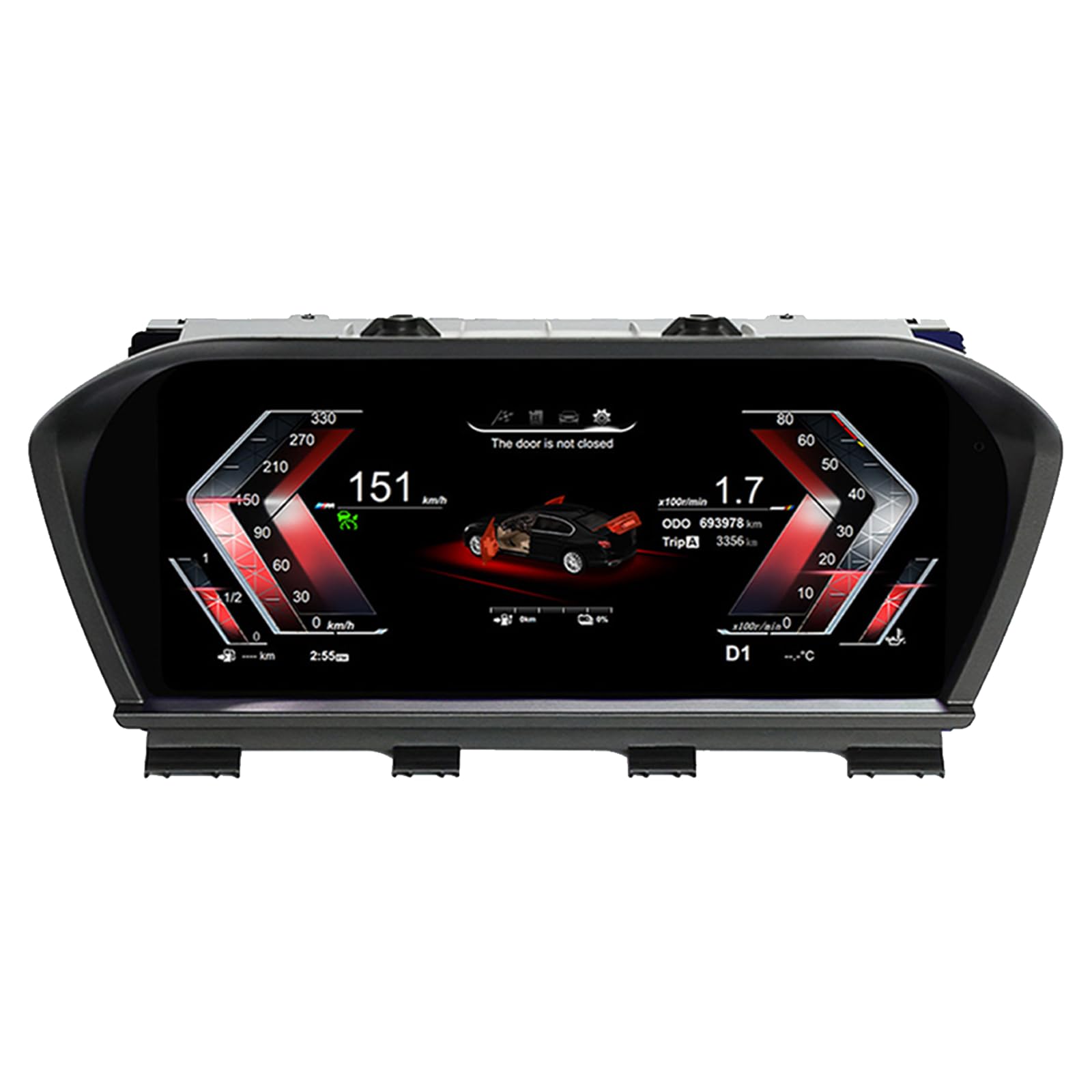
Image: The digital dash displaying a quick startup sequence, indicating a boot time of approximately 2 seconds.
5.2. Navigation and Controls
The cluster retains all original steering wheel control features, allowing you to easily switch between functions, adjust volume, and navigate menus without distraction.

Image: Steering wheel controls, indicating their use for navigating the digital cluster's functions.
5.3. Display Modes and UI Styles
The 10.25-inch HD display offers a resolution of 1920x720 and supports various UI styles to match your preference or driving conditions. Available styles include Classic, Sporty, Offroad, Technology, Comfort, and Lite modes.
- Classic: A traditional gauge layout.
- Sport: Emphasizes performance metrics.
- Technology: Modern, data-rich display.
- Comfort: Optimized for relaxed driving.
- Track Mode: Focuses on essential driving data for track use.
- Lite Mode: Simplified display for minimal distraction.

Image: Various UI themes and color options available on the digital cluster, such as Classics, Track, Comfortable, and Sport.

Image: Four distinct UI modes: Track Mode, Technology Mode, Comfort Mode, and Lite Mode, offering diverse visual experiences.
5.4. Original Car Data Display
The cluster supports the display of various original car data, including:
- Tire pressure and angle display
- Oil temperature
- Water temperature
- Oil display
- Fuel consumption
- Body balance
- Door opening/closing reminders

Image: The digital cluster showing real-time original car data, including door status, fuel consumption, tire information, and system settings.
5.5. Language Settings
The system supports multiple languages, including English, German, Spanish, Japanese, Russian, Chinese Simplified, Chinese Traditional, Arabic, Turkish, Korean, French, and Italian. You can change the system language through the settings menu.

Image: Flags illustrating the eleven languages supported by the digital instrument cluster.
5.6. CarPlay Feature
The digital instrument cluster supports CarPlay functionality, allowing seamless integration with your iPhone for navigation, music, calls, and more. Access CarPlay through the main menu.
Video: A demonstration of the CarPlay feature on the digital instrument cluster, showing navigation, music playback, and app integration.
5.7. General Operation Overview
This video provides a comprehensive overview of the digital instrument cluster's features and general operation.
Video: An official product video demonstrating the various functions and display capabilities of the wowuseful Digital Instrument Cluster.
6. Maintenance
6.1. Cleaning the Display
To clean the display screen, use a soft, lint-free cloth. For stubborn smudges, lightly dampen the cloth with water or a screen-safe cleaning solution. Avoid abrasive materials or harsh chemicals, as these can damage the screen coating.
6.2. Software Updates
The digital instrument cluster may receive periodic software updates to improve performance, add features, or fix bugs. Updates can typically be performed via the USB port using the provided update cable. Refer to the manufacturer's website or support channels for the latest software and update instructions.
7. Troubleshooting
| Problem | Possible Cause | Solution |
|---|---|---|
| Display does not power on. | Loose power connection, blown fuse, incorrect installation. | Check all wiring connections. Inspect vehicle fuses. Re-verify installation steps or consult a professional. |
| Incorrect data displayed (e.g., speed, fuel). | Software glitch, incorrect vehicle model setting. | Restart the vehicle. Check system settings for correct vehicle model configuration. Perform a software update if available. |
| Steering wheel controls not working. | Wiring issue, software conflict. | Ensure all harness connections are secure. Check for any software updates. |
| CarPlay not connecting. | Bluetooth/Wi-Fi issue, phone compatibility. | Ensure your iPhone's Bluetooth and Wi-Fi are enabled. Restart both the cluster and your phone. Check for system updates. |
8. Specifications
- Display Size: 10.25 inches
- Screen Resolution: 1920x720
- Operating System: LINUX system
- CPU: 4-core, 1.5 GHz main frequency
- RAM: 1GB
- ROM: 4GB
- Material: Acrylonitrile Butadiene Styrene (ABS)
- Item Weight: Approximately 3.96 pounds (1.8 kg)
- Package Dimensions: 16.14 x 9.04 x 8.66 inches (41 x 23 x 22 cm)
- Supported Languages: English, German, Spanish, Japanese, Russian, Chinese Simplified, Chinese Traditional, Arabic, Turkish, Korean, French, Italian
- Compatibility: BMW 1 Series F20/F52
9. Warranty and Support
9.1. Warranty Information
This product comes with a standard manufacturer's warranty. Please refer to your purchase documentation or contact the seller for specific warranty terms and conditions. Keep your proof of purchase for warranty claims.
9.2. Customer Support
For technical assistance, troubleshooting, or any questions regarding your wowuseful Digital Instrument Cluster, please contact our customer support team. Contact details can typically be found on the product packaging or the seller's website.