1. Introduction
This manual provides detailed instructions for the installation, operation, and maintenance of your new Generic Android Car Stereo. This unit is designed specifically for Peugeot 2008 models manufactured between 2013 and 2020, featuring a 10-inch IPS touchscreen, Android OS, and support for wireless CarPlay and Android Auto.
Key features include:
- Integrated Wireless CarPlay and Android Auto for seamless smartphone connectivity.
- 10-inch IPS HD Touchscreen with 1280*720 resolution for a clear visual experience.
- Android OS with 2GB RAM and 32GB ROM for efficient performance.
- Steering Wheel Control (SWC) compatibility for safe operation.
- Built-in GPS navigation and WiFi connectivity.
- FM/RDS Radio and Bluetooth 5.0 for audio streaming and hands-free calls.
- Support for AHD backup camera and various audio/video formats.
2. What's in the Box
Please verify that all components are present before beginning installation:
- 10 inch touch screen unit
- Plug and play power harness
- RCA Harness
- Reverse Harness
- GPS Antenna
3. Setup and Installation
Installation of the car stereo requires basic automotive electrical knowledge. If you are unsure, professional installation is recommended. This unit is designed for a plug-and-play installation for Peugeot 2008 (2013-2020) models.
3.1 Pre-Installation Steps
- Disconnect Battery: Before starting, disconnect the negative terminal of your vehicle's battery to prevent electrical shorts.
- Remove Old Unit: Carefully remove the existing car stereo and trim panels from your dashboard. Refer to your vehicle's service manual for specific instructions.
3.2 Connecting the Unit
- Power Harness: Connect the provided plug-and-play power harness to the vehicle's wiring harness. Ensure all connections are secure.
- RCA and Reverse Harness: Connect the RCA harness for audio/video output and the reverse harness for the backup camera (if applicable).
- GPS Antenna: Mount the GPS antenna in a location with a clear view of the sky, typically on the dashboard or under the windshield, ensuring it is securely attached.
- Other Connections: Connect any additional accessories such as USB cables, external microphones, or subwoofer outputs as needed.
3.3 Mounting the Unit
- Carefully slide the new Android Car Stereo into the dashboard opening.
- Secure the unit using the appropriate mounting brackets and screws.
- Reinstall all trim panels and ensure they are properly seated.
3.4 Post-Installation
- Reconnect the vehicle's battery.
- Turn on the ignition and power on the car stereo.
- Perform initial setup and test all functions (radio, audio, GPS, Bluetooth, CarPlay/Android Auto, SWC, reverse camera).
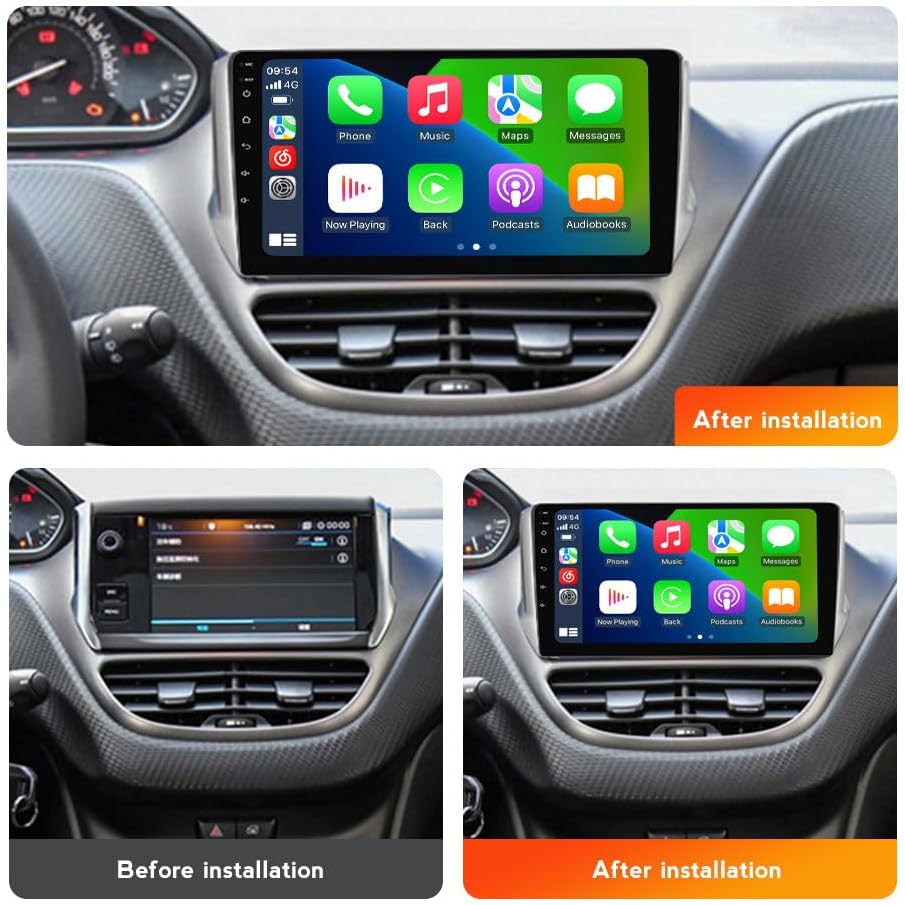
Image: Comparison of the dashboard before and after the installation of the Android Car Stereo, showing the integrated 10-inch display.
4. Operating Instructions
4.1 Power On/Off and Basic Navigation
Press the power button (usually located on the front panel) to turn the unit on or off. The touchscreen interface allows for intuitive navigation through menus and applications. Swipe, tap, and pinch gestures are supported.
4.2 Wireless CarPlay & Android Auto
This unit supports both wireless and wired CarPlay and Android Auto. Once connected, you can access navigation, make calls, send messages, and enjoy music directly from your smartphone interface on the car stereo display.
- For Wireless Connection: Ensure Bluetooth and Wi-Fi are enabled on your smartphone. On the car stereo, open the CarPlay/Android Auto application. Follow the on-screen prompts to pair your phone via Bluetooth first, then confirm the Wi-Fi connection.
- For Wired Connection: Connect your smartphone to the car stereo's USB port using a certified USB cable. The system should automatically detect and launch CarPlay or Android Auto.
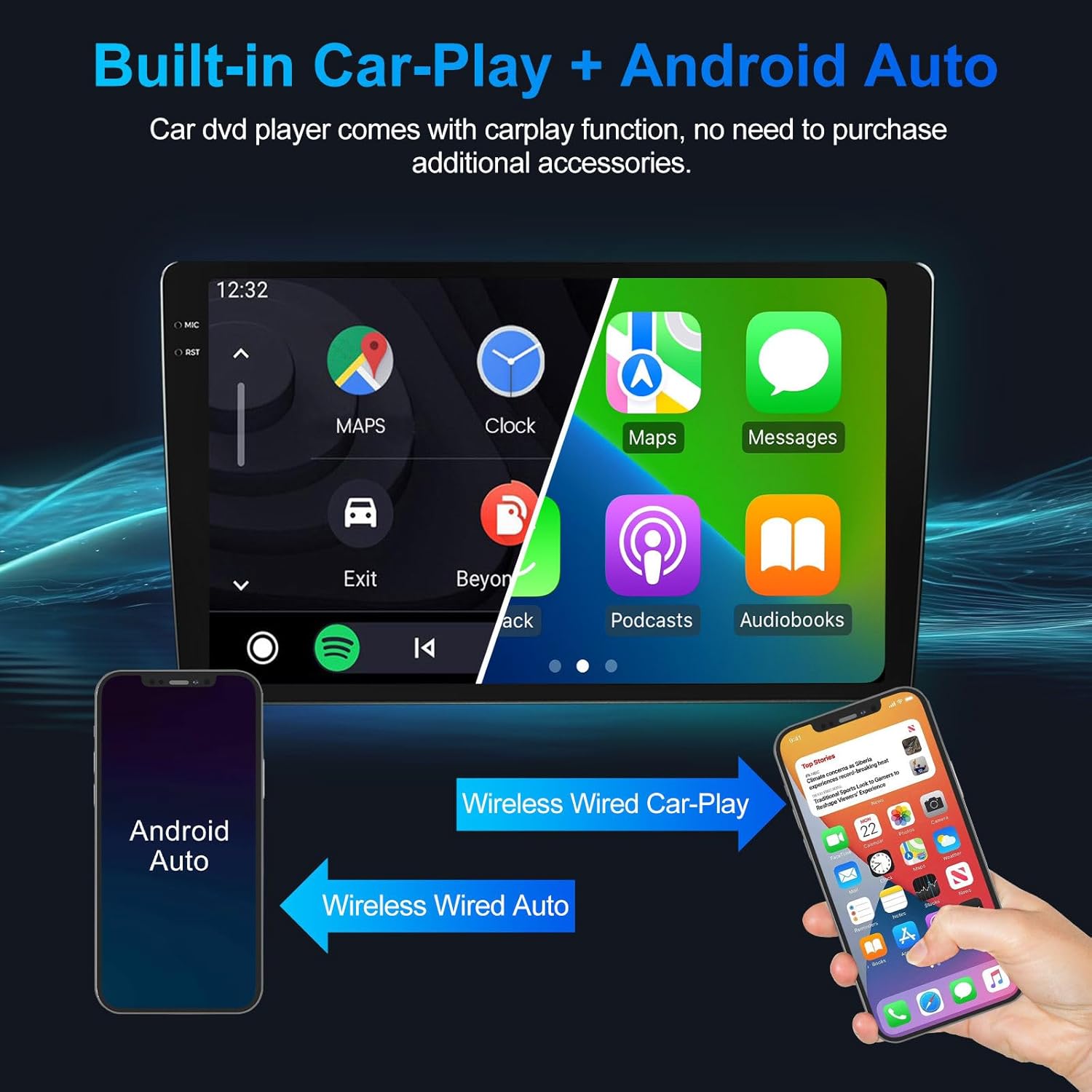
Image: The car stereo display showing the integrated CarPlay and Android Auto interfaces, with options for navigation, music, and communication.
4.3 Bluetooth & FM Radio
The unit features Bluetooth 5.0 for hands-free calling and audio streaming, and an FM/RDS radio tuner.
- Bluetooth Pairing: Go to the Bluetooth settings on the car stereo. Enable Bluetooth on your phone and search for the car stereo's device name. Select it to pair. Once paired, you can make/receive calls and stream audio.
- FM Radio: Open the Radio application. Use the on-screen controls to scan for stations, save presets, or manually tune to a frequency. RDS (Radio Data System) provides station information where available.

Image: The car stereo display showing the FM radio interface with frequency display and options for station selection, alongside an icon indicating Bluetooth connectivity.
4.4 GPS Navigation & WiFi
The built-in GPS module and WiFi connectivity allow for real-time navigation and access to online services.
- GPS Navigation: Open the Navigation application. The unit supports various map applications. Ensure the GPS antenna is properly installed for accurate positioning.
- WiFi Connection: Go to Settings > Network & Internet > Wi-Fi. Connect to an available Wi-Fi network (e.g., your phone's hotspot) to access online maps, download apps, or browse the internet.

Image: The car stereo display showing a GPS navigation map with real-time traffic conditions and icons for various supported navigation applications like Waze, Navitel, iGO, Sygic, Yandex, and Google Maps.
4.5 Steering Wheel Control (SWC)
After correct wiring during installation, you can use your vehicle's steering wheel controls to manage the car stereo, such as adjusting volume, changing tracks, and answering calls. This enhances driving safety by keeping your hands on the wheel.

Image: The car stereo display showing a music playback screen, with an inset image highlighting the steering wheel controls used to operate the unit.
4.6 Rear View Camera Support
The unit supports AHD backup cameras. When the vehicle is shifted into reverse, the display will automatically switch to the camera feed, providing a clear view of the area behind your vehicle and displaying parking lines for assistance.
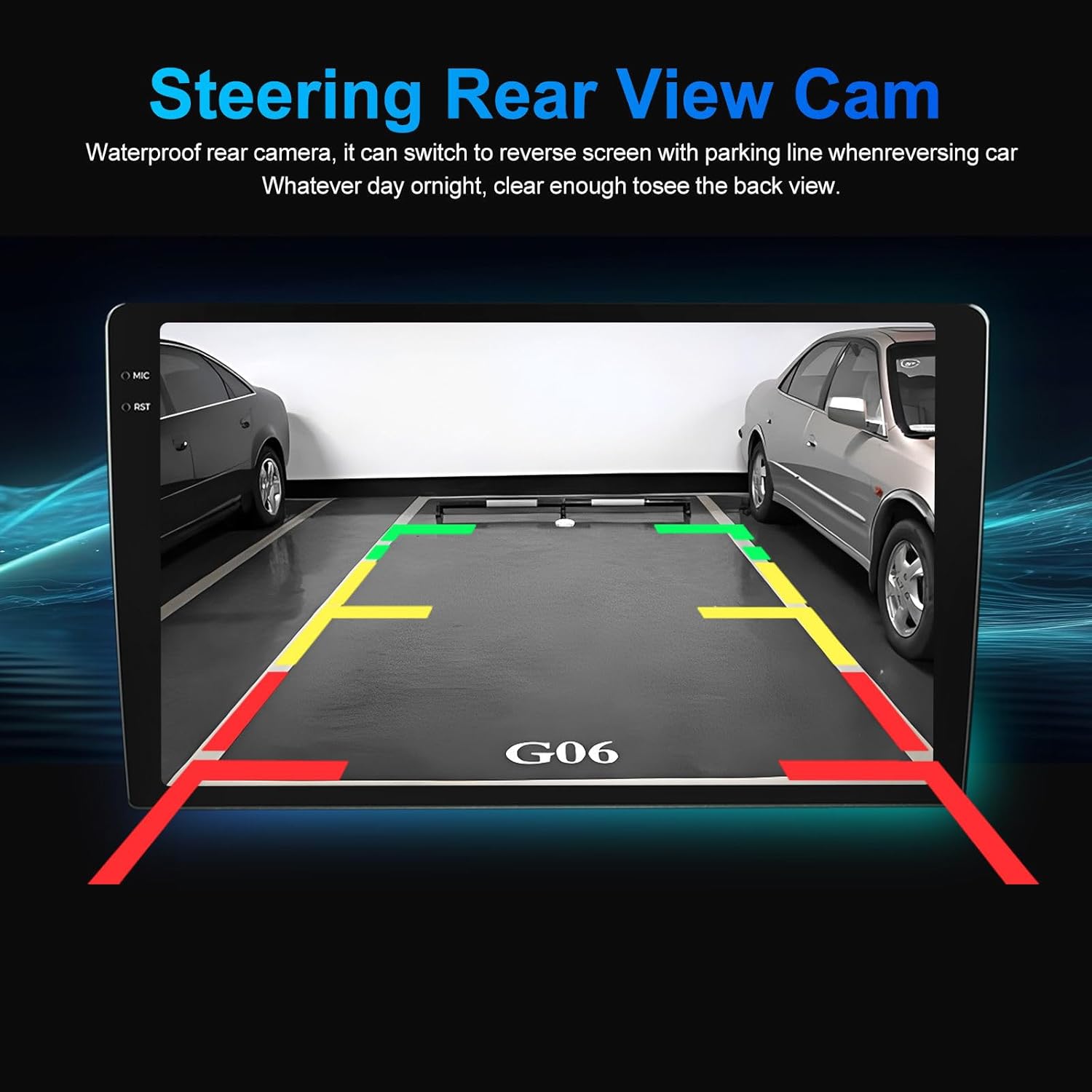
Image: The car stereo display showing the view from a rear camera, complete with dynamic parking guidelines to assist with reversing.
5. Maintenance
- Cleaning the Screen: Use a soft, lint-free cloth specifically designed for electronics screens. Do not use abrasive cleaners or solvents.
- Software Updates: Periodically check for software updates through the system settings or the manufacturer's website to ensure optimal performance and access to new features.
- General Care: Avoid exposing the unit to extreme temperatures, direct sunlight for prolonged periods, or excessive moisture.
6. Troubleshooting
| Problem | Possible Cause | Solution |
|---|---|---|
| No Power | Loose power connection, blown fuse, vehicle battery issue. | Check power harness connections. Inspect vehicle fuses. Ensure battery is charged. |
| No Sound | Volume too low, mute activated, speaker wiring issue, incorrect audio source. | Increase volume. Check mute setting. Verify speaker connections. Select correct audio source. |
| GPS Signal Lost/Inaccurate | GPS antenna obstructed or improperly installed, poor satellite reception. | Ensure GPS antenna has a clear view of the sky. Check antenna connection. Move to an open area. |
| CarPlay/Android Auto Not Connecting | Bluetooth/Wi-Fi off, incorrect pairing, faulty USB cable, phone software issue. | Ensure phone's Bluetooth/Wi-Fi is on. Re-pair device. Try a different USB cable. Restart phone and stereo. |
| Steering Wheel Controls Not Working | Incorrect wiring, SWC settings not configured. | Verify SWC wiring. Access stereo settings to configure SWC mapping. |
7. Specifications
| Feature | Detail |
|---|---|
| Brand | Generic |
| Model Name | PE03M150CP |
| Operating System | Android |
| Screen Size | 10 Inches |
| Display Type | LCD, IPS HD Touchscreen |
| Resolution | 1280*720 |
| Processor | 4-Core |
| RAM | 2GB |
| Internal Storage (ROM) | 32GB |
| Connectivity | Bluetooth 5.0, Wi-Fi, USB, Ethernet |
| Navigation | Built-in GPS, Worldwide Map Type |
| Car Integration | Wireless CarPlay, Wireless Android Auto, Steering Wheel Control (SWC) |
| Audio Output Mode | Stereo |
| Supported Audio Formats | APE, FLAC, WAV, MP3, WMA, etc. |
| Supported Video Formats | MKV, RMVB, AVI, MP4, MDV, etc. |
| Included Components | 10 inch touch screen, GPS Antenna, RCA Harness, Reverse Harness, plug and play power harness |
| Compatible Vehicle Type | Car, RV, SUV, Truck (specifically Peugeot 2008 2013-2020) |
8. Warranty and Support
8.1 Warranty Information
This product comes with a 1-Year Warranty from the manufacturer, Shuanglongfei. Please retain your proof of purchase for warranty claims.
8.2 Customer Support
For technical assistance, troubleshooting, or warranty inquiries, please contact the seller, SLF E-commerce, through the platform where the purchase was made. Provide your order number and a detailed description of the issue for prompt support.


