
Introduction
This manual provides detailed instructions for setting up, operating, and maintaining your ADDCOLOR X88 PRO 13 Android TV Box. Please read this manual thoroughly before using the device to ensure proper functionality and to maximize your viewing experience.
Package Contents
Verify that all items are present in the package:
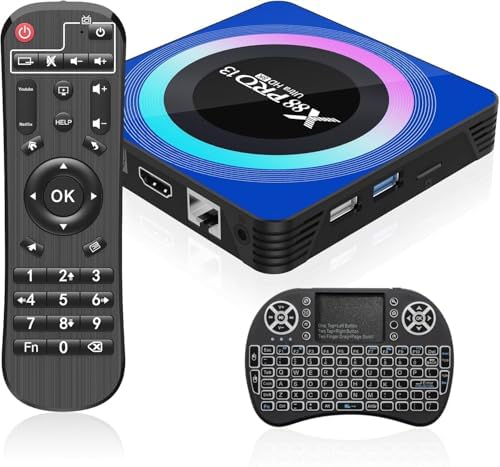
- X88 PRO Android Box
- Mini Wireless Keyboard
- Power Charger (US Power adapter)
- HD Cable (HDMI cable)
- User Manual (this document)
- Remote Control (Bluetooth Voice Remote Control)
Setup Guide
1. Connecting the TV Box
- Connect to TV: Use the provided HD Cable (HDMI) to connect the TV Box's HDMI port to an available HDMI input on your television.
- Connect Power: Plug the Power Charger into the DC 5V/2A port on the TV Box, then plug the adapter into a wall outlet. The power indicator LED on the box should illuminate.
- Optional Ethernet Connection: For a wired network connection, connect an Ethernet cable from your router to the LAN port on the TV Box.
- Insert Storage (Optional): If using external storage, insert an SD/SDHC/MMC card into the card reader slot or connect a USB drive to one of the USB 2.0 ports.

2. Initial Boot-up and Basic Settings
- Power On: Turn on your television and select the correct HDMI input source corresponding to where the TV Box is connected.
- Language Selection: Follow the on-screen prompts to select your preferred language.
- Network Configuration:
- If using Ethernet, the connection should be established automatically.
- For Wi-Fi, select your network from the list, enter the password, and connect. The device supports 2.4G and 5G dual-band Wi-Fi 6.
- Connect Mini Wireless Keyboard: Insert the USB dongle for the mini wireless keyboard into one of the USB 2.0 ports on the TV Box. The keyboard should automatically pair.

Operating Instructions
1. Navigating the Android 13.0 OS
The X88 PRO 13 runs on Android 13.0, offering a user-friendly interface. Use the provided remote control or the mini wireless keyboard to navigate through menus and applications.
- Home Screen: Access your installed applications, settings, and media shortcuts.
- Settings: Adjust display, sound, network, and device preferences.
- App Drawer: View all installed applications.
2. Installing and Managing Applications
You can download and install applications from the pre-installed app store or other trusted sources. The 32GB ROM provides ample space for various apps.
- To Install: Open the app store, search for your desired application, and select "Install."
- To Uninstall: Go to Settings > Apps, select the app, and choose "Uninstall."
3. Media Playback and Display
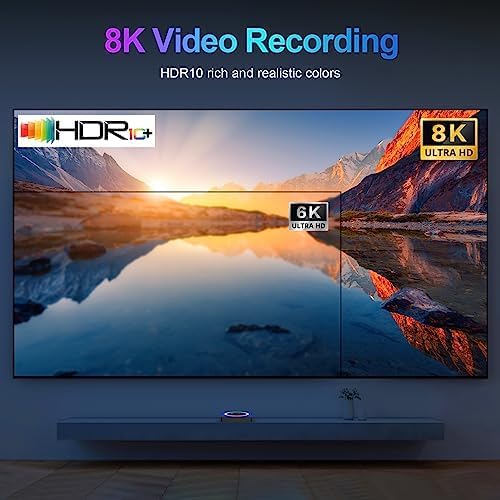
The TV Box supports high-resolution video playback up to 8K Ultra HD with H.265 decoding and HDR10. Ensure your television supports these resolutions for the best experience.
- Supported Formats: Avi/Rm/Rmvb/Ts/Vob/Mkv/Mov/ISO/wmv/asf/flv/dat/mpg/mpeg for video; MP3/WMA/AAC/WAV/OGG/AC3/DDP/TrueHD/DTS/DTS/HD/FLAC/APE for audio.
- External Media: Play media files from connected USB drives or SD cards using a compatible media player app.

4. Multi-screen Interaction
The device supports multi-screen interaction, allowing you to share content from your mobile device or tablet directly to your TV screen via Bluetooth 5.0 or compatible casting protocols.
Maintenance
- Cleaning: Use a soft, dry cloth to clean the exterior of the TV Box. Do not use liquid cleaners or aerosols.
- Ventilation: Ensure the TV Box is placed in a well-ventilated area to prevent overheating. Do not block ventilation openings.
- Software Updates: Periodically check for system updates in the settings menu to ensure optimal performance and security.
- Storage Management: Regularly clear cache and unnecessary files to maintain system speed.
Troubleshooting
| Problem | Possible Cause | Solution |
|---|---|---|
| No power | Power adapter not connected or faulty. | Ensure the power adapter is securely connected to the TV Box and a working power outlet. Check the power indicator LED. |
| No signal on TV | Incorrect HDMI input selected or loose HDMI cable. | Verify your TV is set to the correct HDMI input. Check that the HDMI cable is securely connected to both the TV Box and the TV. |
| Wi-Fi connection issues | Incorrect password, out of range, or router issue. | Re-enter the Wi-Fi password. Move the TV Box closer to the router. Restart your router and the TV Box. |
| Remote control not responding | Low batteries or pairing issue. | Replace batteries in the remote. Ensure the remote is paired via Bluetooth if it's a Bluetooth remote. |
| System slow or freezing | Too many apps running, low storage, or software glitch. | Close unnecessary applications. Clear app caches. Restart the TV Box. Consider a factory reset if issues persist (backup data first). |
Specifications
Detailed technical specifications for the ADDCOLOR X88 PRO 13 Android TV Box:
| Feature | Detail |
|---|---|
| Operating System | Android 13.0 |
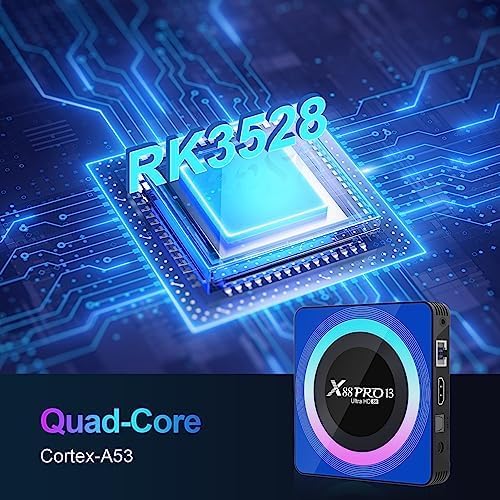
| CPU | RK3528 Quad-Core 64bit Cortex-A53 |
| GPU | Mali 450 MP2 |
| RAM | 4GB DDR |
| ROM (Flash Storage) | 32GB EMMC |
| Wi-Fi | 2.4G + 5G Dual-Band WIFI 6 |
| Bluetooth | BT5.0 |
| 3D Graphics | Hardware 3D graphics acceleration |
| HDMI Output | HDMI 2.0 up to 6K Output with HDR, CEC and HDCP 2.2, 6K@30fps max resolution output |
| USB Host | 2 x High speed USB 2.0 (supports U DISK and USB HDD) |
| Ethernet | Standard 10/100M, Gigabit RJ-45 |
| Card Reader | SD/SDHC/MMC cards |
| Power Supply | DC 5V/2A |
| Video Decoding | 6K H.265 Hardware Video Decode and 6K Output |
| Max Output Resolution | 8K pixels (via scaling from 6K output) |
| Dimensions (L x W x H) | 4"L x 4"W x 0.7"H (approx. 107mm x 107mm x 21mm) |
| Weight | 326 Grams |
| Color | Black |

Warranty Information
The ADDCOLOR X88 PRO 13 Android TV Box comes with a 1-year warranty from the date of purchase. This warranty covers manufacturing defects and malfunctions under normal use. It does not cover damage caused by misuse, accidents, unauthorized modifications, or external factors.
For warranty claims or service, please retain your proof of purchase and contact the seller or manufacturer's customer support.
Customer Support
If you encounter any issues or have questions not covered in this manual, please refer to the following:
- Online Resources: Visit the official ADDCOLOR website for FAQs and additional support materials.
- Seller Support: Contact the seller (YANYU TECH) through the platform where you purchased the product for assistance.
- Email Support: Refer to the product packaging or official website for direct email support contact information.