
Introduction
Thank you for choosing the CORBOBO Aula F3099 Wireless Keyboard and SM802 Wireless Mouse Combo. This manual provides detailed instructions for setting up, operating, and maintaining your new peripheral devices. Please read this manual thoroughly before use to ensure optimal performance and longevity of your product.
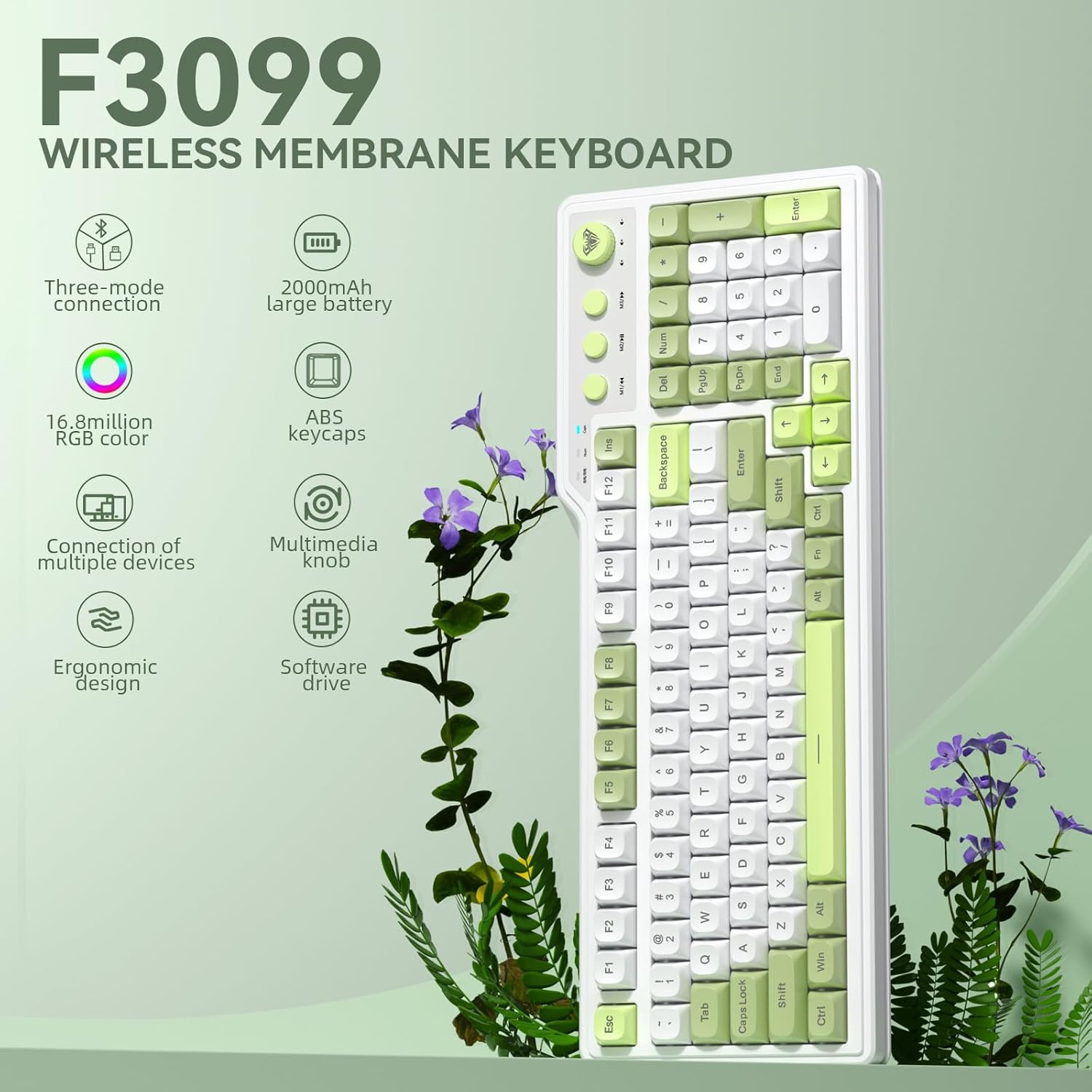
Image: Overview of the Aula F3099 Wireless Keyboard and SM802 Wireless Mouse Combo.
Setup Instructions
1. Keyboard Connection (Aula F3099)
The Aula F3099 keyboard supports three connection modes: 2.4G wireless, Bluetooth, and wired USB-C.
- 2.4G Wireless Mode: Press Fn + ~ to activate 2.4G wireless mode. Insert the USB receiver into an available USB port on your computer. The keyboard will automatically connect.
- Bluetooth Mode: Press Fn + 1, Fn + 2, or Fn + 3 to switch between three Bluetooth channels. The keyboard can store up to three Bluetooth devices. On your device (PC, laptop, mobile), search for "F3099" in the Bluetooth settings and pair.
- Wired Mode: Press Fn + 4 to switch to wired mode. Connect the keyboard to your computer using the provided USB-C cable.

Image: Illustration of the Aula F3099 keyboard's tri-mode connection capabilities.
2. Mouse Connection (SM802)
The SM802 mouse also supports tri-mode connectivity: 2.4GHz wireless, Bluetooth, and wired USB.
- 2.4GHz Wireless Mode: Locate the mode switch on the bottom of the mouse and set it to 2.4G. Insert the USB receiver (often stored in the mouse's bottom compartment) into your computer's USB port.
- Bluetooth Mode: Set the mode switch on the bottom of the mouse to BT. On your device, search for "SM802" in the Bluetooth settings and pair.
- Wired Mode: Connect the mouse to your computer using a USB cable. The mouse will function in wired mode and charge simultaneously.
3. Charging
Both the Aula F3099 keyboard and SM802 mouse are rechargeable. Connect them via USB-C cable to a power source (e.g., computer USB port, USB wall adapter) to charge. An indicator light will typically show charging status.
Operating Instructions
1. Aula F3099 Keyboard Operation
- Multimedia Knob: The knob has dual modes. Long-press the knob for 3 seconds to switch between Gaming Mode and Office Mode.
- Gaming Mode: Rotate the knob to adjust RGB backlight brightness. Press the knob to cycle through different backlight effects.
- Office Mode: Rotate the knob to adjust computer volume. Press the knob to mute/unmute audio.
- Multimedia Hot Keys (M1/M2/M3): These keys function differently based on the knob's mode.
- Gaming Mode: In wired mode, M1/M2/M3 can be customized for macros. To record a macro: Press Fn + INS, then press M1/M2/M3, enter your desired key output, and press Fn + INS again to save.
- Office Mode: M1 (Previous Song), M2 (Play/Pause), M3 (Next Song).
- RGB Backlight Adjustment:
- Fn + End: Adjust constant light mode.
- Fn + PgUp: Adjust to the next light effect.
- Fn + PgDn: Adjust to the last light effect.
- Fn + !: Increase backlight brightness.
- Fn + -: Decrease backlight brightness.
- Fn + =: Increase light speed.
- Fn + _: Decrease light speed.
- Programmable Driver: The keyboard supports macro customization via a driver. The driver only operates in wired mode on Windows systems. Note that this membrane silicone keyboard does not support hot-swap functionality.

Image: Detailed view of the Aula F3099 keyboard's dual-mode multimedia knob functions.
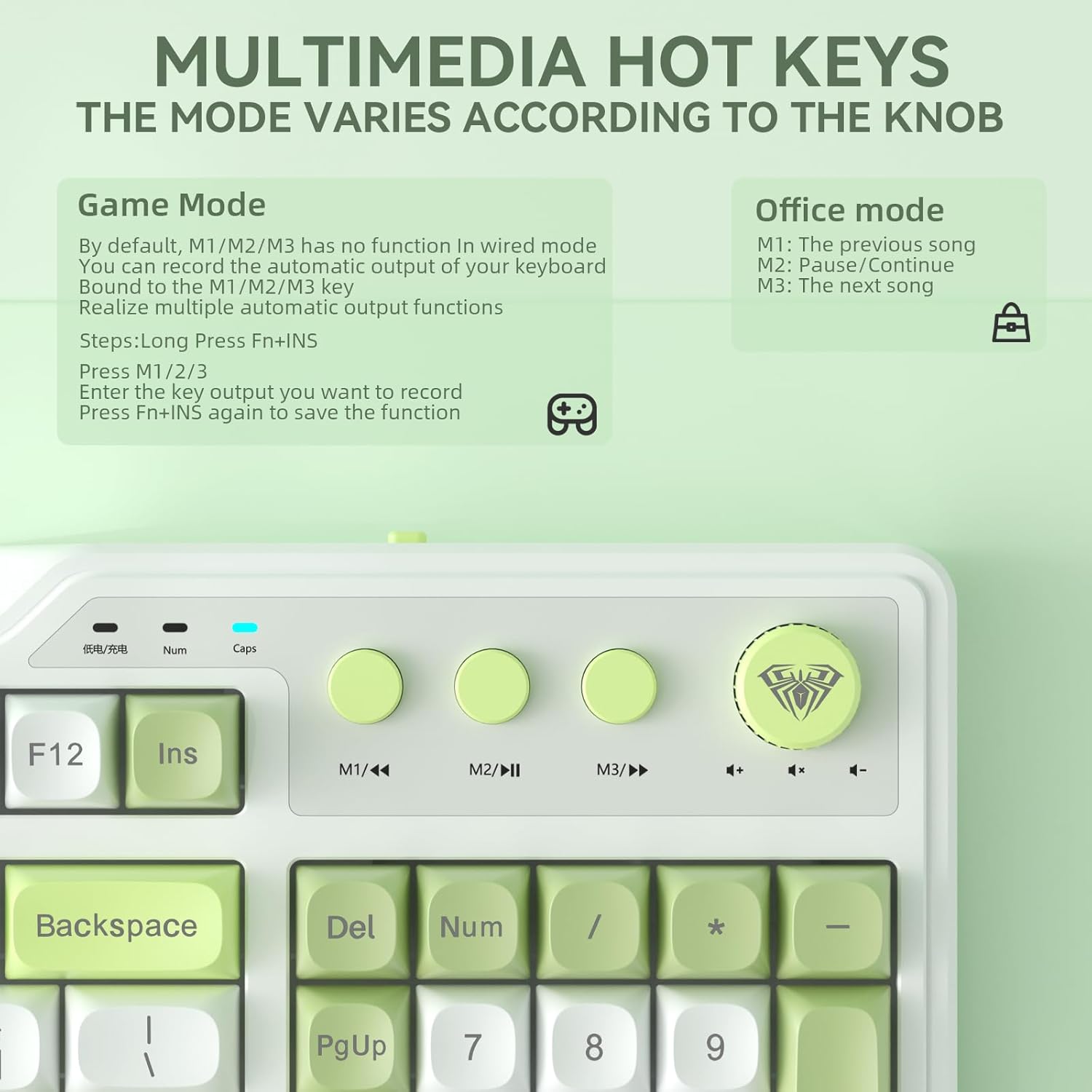
Image: Explanation of multimedia hot key functions in both game and office modes.
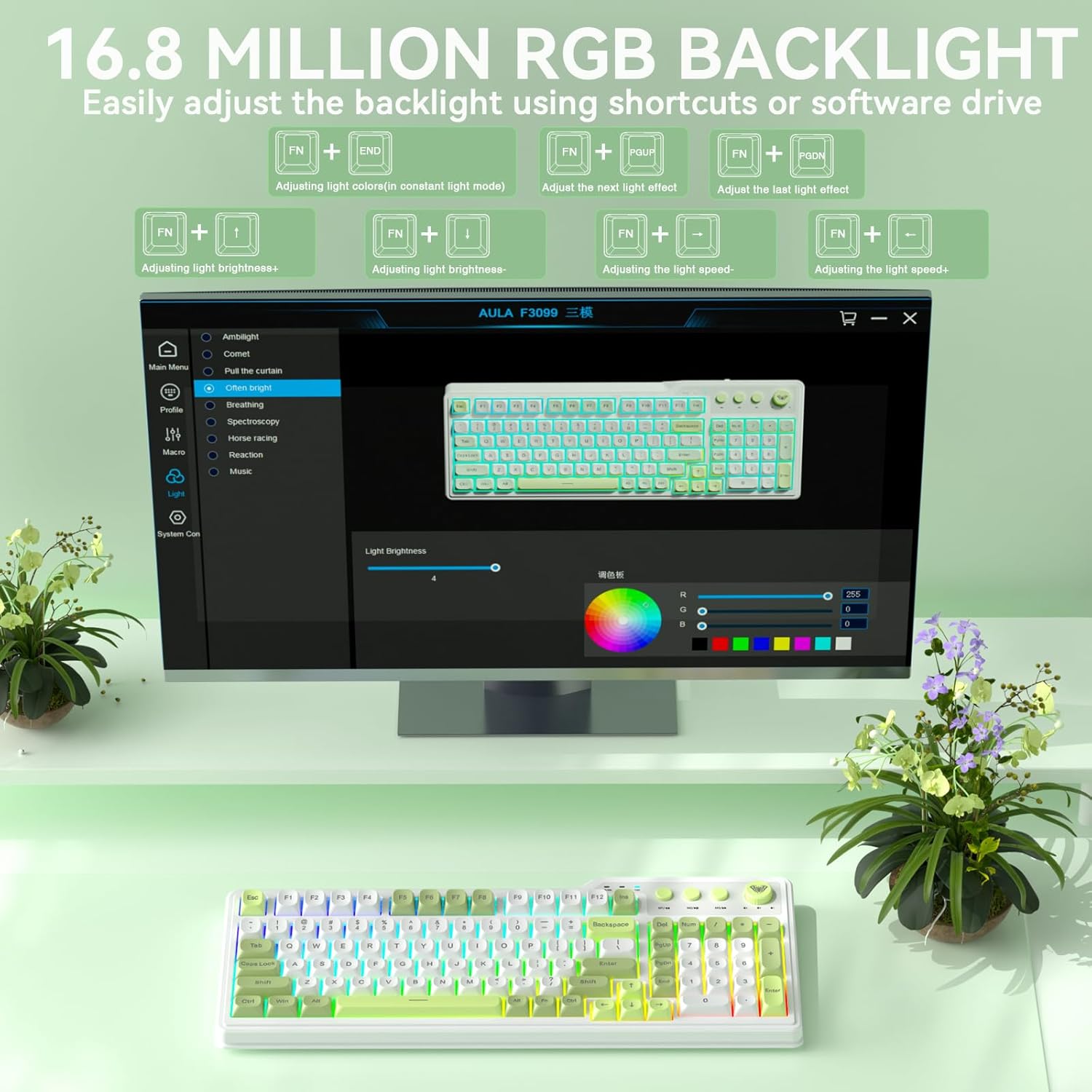
Image: Visual guide for adjusting the 16.8 million RGB backlight effects and brightness.
2. SM802 Mouse Operation

Image: Overview of the SOLAKAKA SM802 Wireless Gaming Mouse, highlighting its features.
- DPI Adjustment: The mouse comes with 6 preset DPI levels (1200/1600/2400/3200/6400/12800). Use the DPI switching button (located near the scroll wheel) to cycle through these levels. DPI can be adjusted up to 24,000 via the driver software.
- Programmable Buttons: The SM802 features 6 programmable buttons. These include Left, Right, Middle Click, Roller Forward, Roller Backward, Forward, and Backward buttons. Macro functions and remapping can be configured using the dedicated driver software.
- RGB Effects: The mouse features multiple RGB lighting effects. These can be switched via a dedicated RGB switching button (non-programmable) or through the driver software. Available effects include turning off lighting, Wave (colorful RGB waves), and Circular Breathing (single-color breathing light).
- Interchangeable Shells: The mouse includes two interchangeable shell kits: a breathable version and a classic version. These can be swapped to change the mouse's appearance and feel. The breathable shell reduces weight to 68 grams and enhances airflow for comfort.

Image: Diagram illustrating the 6 programmable buttons on the SM802 mouse.

Image: Examples of RGB lighting effects available on the SM802 mouse.
Maintenance
- Cleaning: Use a soft, dry cloth to clean the surfaces of the keyboard and mouse. For stubborn dirt, a slightly damp cloth with mild soap can be used, ensuring no liquid enters the device. Avoid harsh chemicals or abrasive materials.
- Battery Care: To prolong battery life, avoid fully discharging the devices frequently. Charge them when the battery indicator is low. If storing for an extended period, charge them to about 50% and store in a cool, dry place.
- Storage: Store the keyboard and mouse in a clean, dry environment away from extreme temperatures, direct sunlight, and excessive dust.
Troubleshooting
- Device Not Connecting:
- Ensure the device is powered on and fully charged.
- Verify the correct connection mode (2.4G, BT, Wired) is selected on the device.
- For 2.4G, ensure the USB receiver is securely plugged in.
- For Bluetooth, ensure Bluetooth is enabled on your computer/device and re-attempt pairing.
- Try connecting via wired mode to rule out wireless issues.
- Backlight Not Working/Adjusting (Keyboard):
- Check if the keyboard is in Gaming Mode if you are trying to adjust effects via the knob.
- Ensure you are using the correct Fn key combinations for backlight adjustments.
- The backlight may be turned off or set to minimum brightness.
- Mouse Tracking Issues:
- Ensure the mouse sensor is clean and free of debris.
- Use the mouse on a suitable surface (e.g., mouse pad).
- Adjust DPI settings to a comfortable level.
- Recharge the mouse if the battery is low.
- Driver Software Issues:
- Ensure the keyboard/mouse is connected in wired mode when installing or using the driver.
- The driver is compatible with Windows systems only.
- Download the latest driver from the official CORBOBO website if available.
Specifications
Aula F3099 Wireless Keyboard
- Connectivity: Tri-Mode (2.4G Wireless, Bluetooth 5.0, USB-C Wired)
- Battery Capacity: 2000mAh
- Keycaps: ABS material
- Backlight: 16.8 Million RGB
- Features: Multimedia knob (dual-mode), Number pad, Programmable driver (Windows, wired mode), Ergonomic design
- Compatibility: PCs, Laptops, Mobile devices (Bluetooth)
SOLAKAKA SM802 Wireless Gaming Mouse
- Connectivity: Tri-Mode (2.4GHz Wireless, Bluetooth, Wired USB)
- Sensor: Premium PAW3311 Optical Tracking System
- DPI: 1200/1600/2400/3200/6400/12800 (preset), up to 24,000 DPI (via driver)
- Tracking Speed: 300 IPS
- Acceleration: 35g
- Polling Rate: Up to 1000Hz
- Weight: 68g (with breathable shell)
- Buttons: 6 Programmable Buttons
- Features: RGB Backlight, Rechargeable, Interchangeable Shells (breathable/classic)
- Compatibility: Laptop/PC/Mac