
1. Introduction
Thank you for choosing the Callsky-Tab 10 Inch Android 15 Tablet. This manual provides essential information to help you set up, operate, and maintain your new device. Please read it carefully to ensure optimal performance and longevity of your tablet.
What's in the Box
Upon unpacking, please ensure all items listed below are present:
- Callsky-Tab 10 Inch Android 15 Tablet
- Prefilmed Screen Protector (pre-applied)
- Charging Adapter
- Charging Cable
- User Manual

2. Setup
2.1 Initial Charging
Before first use, it is recommended to fully charge your tablet. Connect the provided charging cable to the tablet's USB port and the charging adapter to a power outlet. The battery indicator on the screen will show charging status.
2.2 Powering On/Off
- To Power On: Press and hold the power button located on the side of the tablet until the Callsky-Tab logo appears.
- To Power Off: Press and hold the power button until a power-off menu appears. Select 'Power Off' to shut down the device.
- To Restart: From the power-off menu, select 'Restart'.
2.3 Initial Setup Wizard
Upon first power-on, the tablet will guide you through an initial setup process. Follow the on-screen prompts to:
- Select your preferred language.
- Connect to a Wi-Fi network.
- Sign in with your Google Account or create a new one. This is necessary to download apps from the Google Play Store.
- Set up screen lock and other security features.
2.4 Screen Protector
Your Callsky-Tab tablet comes with a pre-applied anti-glare screen protector. This film helps reduce reflections and protect the screen from scratches. No additional application is required.
3. Operating Instructions
3.1 Basic Navigation
The tablet uses a touchscreen interface. Common gestures include:
- Tap: To select an item or open an app.
- Swipe: To scroll through pages or lists.
- Pinch: To zoom in or out on images and web pages.
- Long Press: To access contextual menus or move icons.
3.2 Connecting to Wi-Fi
Your tablet supports 2.4G and 5G dual-band Wi-Fi 6 for fast and stable internet connectivity.
- Go to Settings > Network & internet > Wi-Fi.
- Toggle Wi-Fi On.
- Select your desired network from the list.
- Enter the password if prompted and tap Connect.
3.3 Connecting Bluetooth Devices
The tablet features upgraded Bluetooth 5.4 for connecting wireless accessories like headphones or keyboards.
- Go to Settings > Connected devices > Connection preferences > Bluetooth.
- Toggle Bluetooth On.
- Ensure your Bluetooth device is in pairing mode.
- Select the device from the list of available devices and follow any on-screen pairing instructions.
3.4 Managing Storage
Your tablet comes with 128GB of internal storage. You can expand this by up to 2TB using a TF (MicroSD) card (not included).
- To Insert a TF Card: Locate the card slot on the side of the tablet. Carefully insert the TF card until it clicks into place.
- To Access Storage: Use the 'Files' app to view and manage files on both internal storage and the TF card.
3.5 Using the Cameras
The tablet is equipped with a 5MP front camera and an 8MP rear camera.
- Open the Camera app.
- Tap the camera icon to switch between front and rear cameras.
- Tap the shutter button to take photos or start/stop video recording.

3.6 Parental Controls
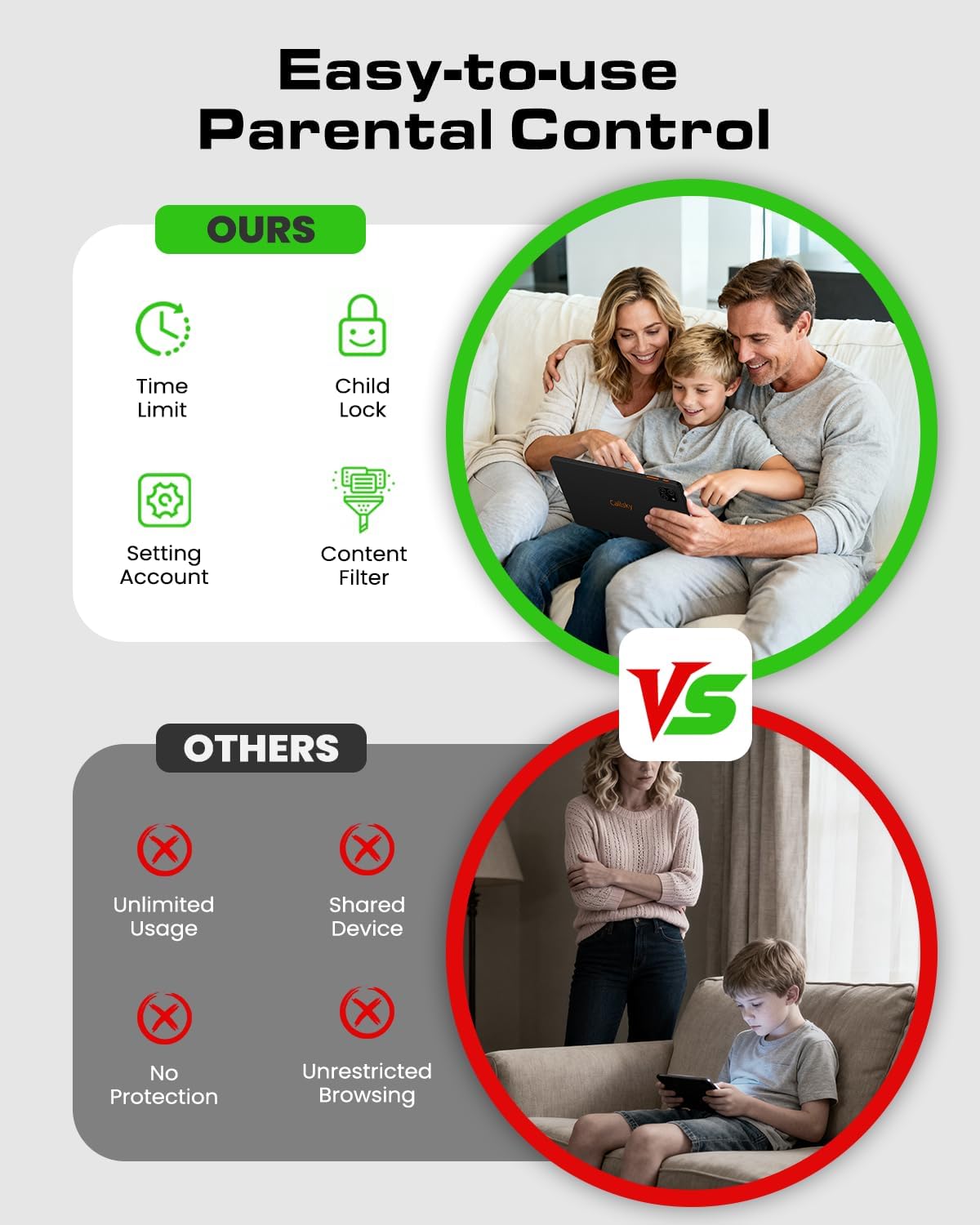
The tablet includes built-in parental control features to help manage screen time, restrict app access, and filter content, making it suitable for family use.
- Go to Settings > Digital Wellbeing & parental controls.
- Set up a profile for your child and configure desired restrictions such as time limits, app blocking, and content filtering.

3.7 Display Settings
The 10.1-inch IPS HD display (1280x800 resolution) provides clear visuals. The pre-applied anti-glare film enhances viewing comfort, especially in bright conditions. It also supports Widevine L1 for high-definition streaming.
- Brightness: Adjust screen brightness in Settings > Display.
- Font Size: Customize text size for better readability.

3.8 Audio Settings
The tablet features dual speakers for enhanced audio. A 3.5mm headphone jack is also available for private listening.
- Volume Control: Use the physical volume buttons on the side of the tablet or adjust in Settings > Sound & vibration.
- Headphones: Plug 3.5mm headphones into the dedicated jack.
3.9 Battery Management
The 6000mAh battery provides up to 6 hours of average use, such as reading or streaming.
- Check Battery Level: View the battery icon in the status bar or go to Settings > Battery for detailed usage.
- Optimize Battery Life: Reduce screen brightness, close unused apps, and disable Wi-Fi/Bluetooth when not in use.


4. Maintenance
4.1 Cleaning the Device
To clean your tablet, use a soft, lint-free cloth. For stubborn smudges, slightly dampen the cloth with water or a screen-safe cleaning solution. Avoid harsh chemicals or abrasive materials.
4.2 Software Updates
Keeping your tablet's software updated is important for security and performance. However, please note: This tablet model does not support automatic updates to the latest Android system. System updates, if available, must be performed manually or may require specific firmware. Consult Callsky-Tab support for information on available updates and procedures.
- To check for available updates (if applicable): Go to Settings > System > System update.
4.3 Storage Optimization
Regularly manage your tablet's storage to maintain optimal performance.
- Clear Cache: In Settings > Storage, you can clear cached data for apps.
- Uninstall Unused Apps: Remove applications you no longer use to free up space.
- Transfer Files: Move large files (photos, videos) to a TF card or cloud storage.
5. Troubleshooting
If you encounter issues with your tablet, refer to the solutions below before contacting support.
5.1 Common Issues and Solutions
- Tablet Not Turning On:
Ensure the tablet is charged. Connect it to the charger for at least 30 minutes, then try pressing and holding the power button again. - Wi-Fi Connection Issues:
Check if your router is working correctly. Restart your router and the tablet. Forget the network in Wi-Fi settings and reconnect. Ensure you are entering the correct password. - Slow Performance:
Close unnecessary background applications. Restart the tablet. Clear cached data for apps in Settings > Storage. Consider uninstalling rarely used apps. - Low Volume:
Check the volume settings using the physical buttons and in Settings > Sound & vibration. Ensure no headphones are partially plugged in. Try connecting external headphones or speakers to verify if the issue is with the tablet's internal speakers. - Screen Unresponsive:
Perform a forced restart by pressing and holding the power button for about 10-15 seconds until the device restarts.
5.2 Factory Reset
Warning: A factory reset will erase all data on your tablet, including apps, photos, and settings. Back up important data before proceeding.
- Go to Settings > System > Reset options.
- Select Erase all data (factory reset).
- Confirm your decision and enter your PIN/password if prompted.
- The tablet will restart and begin the reset process.
6. Specifications
Below are the key technical specifications for the Callsky-Tab 10 Inch Android 15 Tablet (Model Cpad 10):
| Feature | Specification |
|---|---|
| Brand | Callsky-Tab |
| Model Name | Cpad 10 |
| Operating System | Android 15 |
| Processor | Allwinner A523 Octa-Core (1.8 GHz) |
| RAM Memory | 12GB (4GB + 8GB virtual) |
| Internal Storage | 128 GB |
| Expandable Storage | Up to 2 TB (via TF/MicroSD card) |
| Screen Size | 10.1 Inches |
| Display Resolution | 1280 x 800 Pixels (IPS HD) |
| Display Features | Anti-glare film, Widevine L1, 300 Nit Brightness, 60Hz Refresh Rate |
| Rear Camera | 8 MP |
| Front Camera | 5 MP |
| Battery Capacity | 6000 mAh (Lithium Ion) |
| Average Battery Life | 6 Hours |
| Wireless Connectivity | Wi-Fi 6 (2.4G + 5G Dual-Band), Bluetooth 5.4 |
| Ports | USB-C (1), 3.5 mm Headphone Jack |
| Dimensions (L x W x Thickness) | 9.5"L x 6.29"W x 0.35"Th |
| Weight | 14.99 ounces |
| Other Features | Dual Speakers, Stylus Support, USB OTG |


7. Warranty & Support
7.1 Manufacturer's Warranty
Your Callsky-Tab 10 Inch Android 15 Tablet is covered by a 1-Year Manufacturer's Warranty from the date of purchase. This warranty covers defects in materials and workmanship under normal use. Please retain your proof of purchase for warranty claims.
7.2 Customer Support
Should you require assistance, have questions, or encounter any issues not covered in this manual, the Callsky-Tab support team is available to help. Please refer to the contact information provided with your product packaging or visit the official Callsky-Tab website for support options.
When contacting support, please have your tablet's model name (Cpad 10) and ASIN (B0GCJ2VHWB) ready.